
Path Finder for macOS
Description
You plug in a drive, and the default Finder window is no help for sorting a mess of RAW files into two places at once. That is where Path Finder steps in.
Runs natively on Apple Silicon and Intel from Ventura onward
Path Finder 26.1.9 needs macOS 13 Ventura or newer. It runs natively on both Intel and Apple Silicon Macs, so no emulation lag on an M1, M2, or M3 machine.
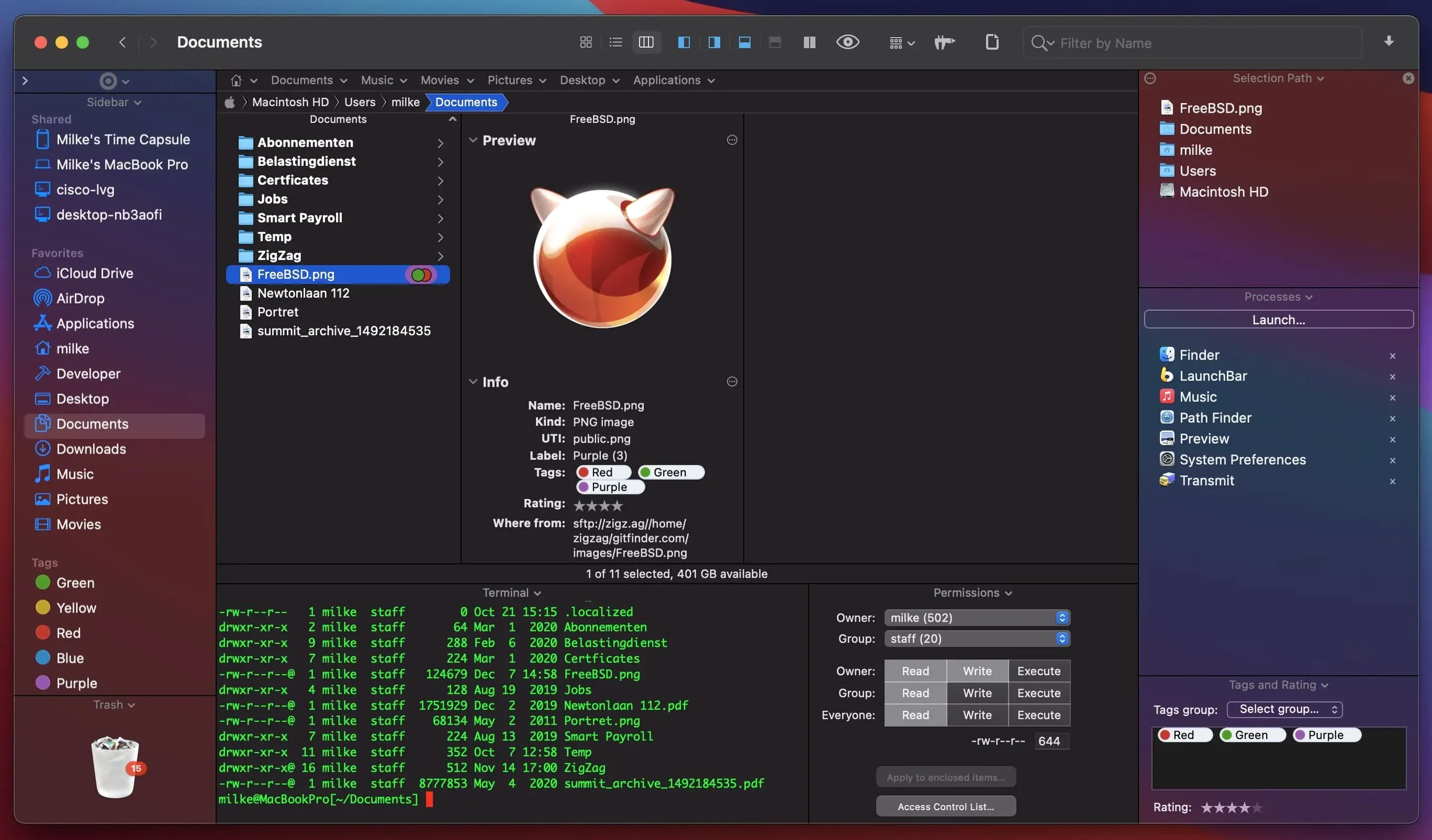
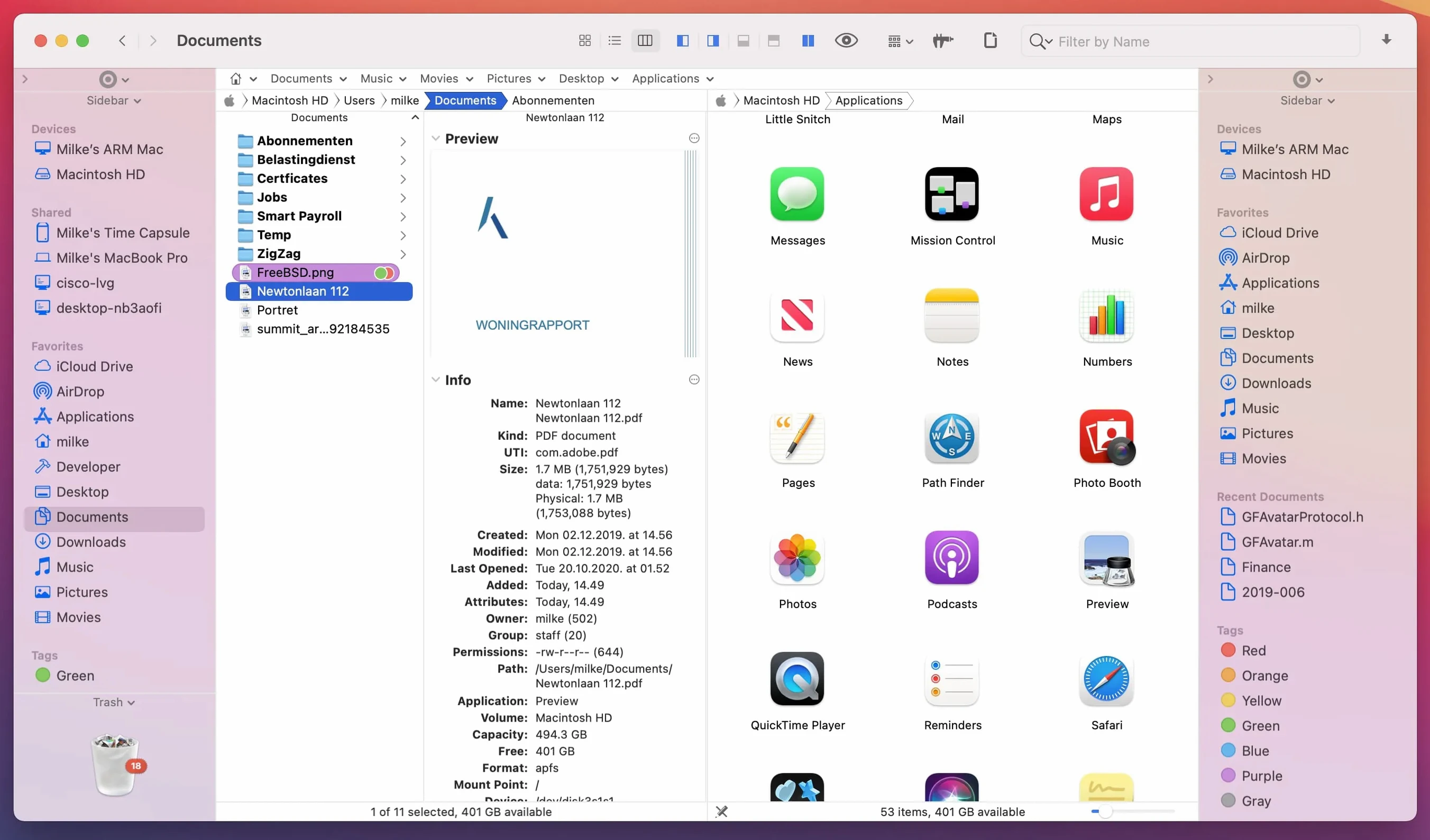
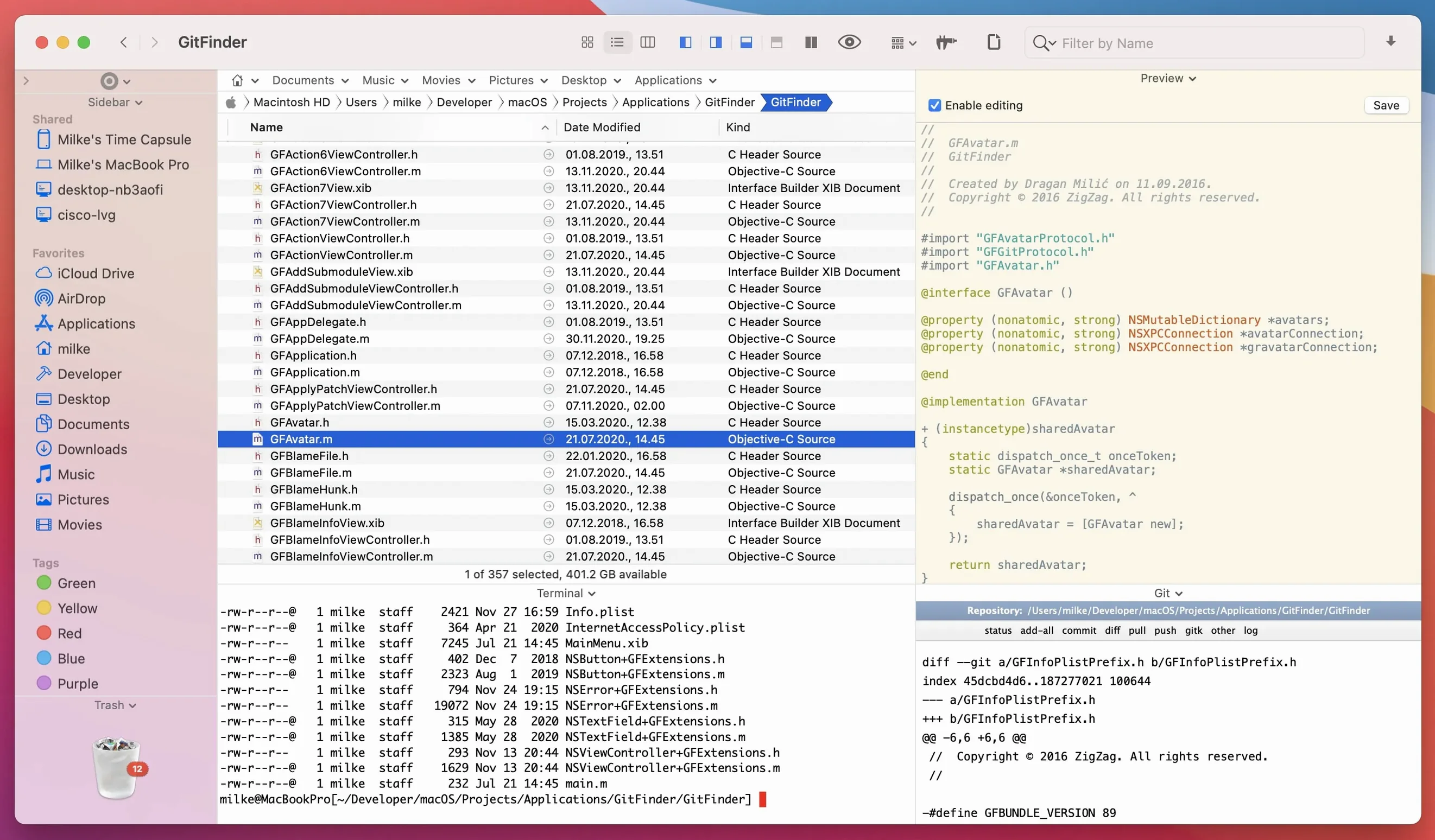
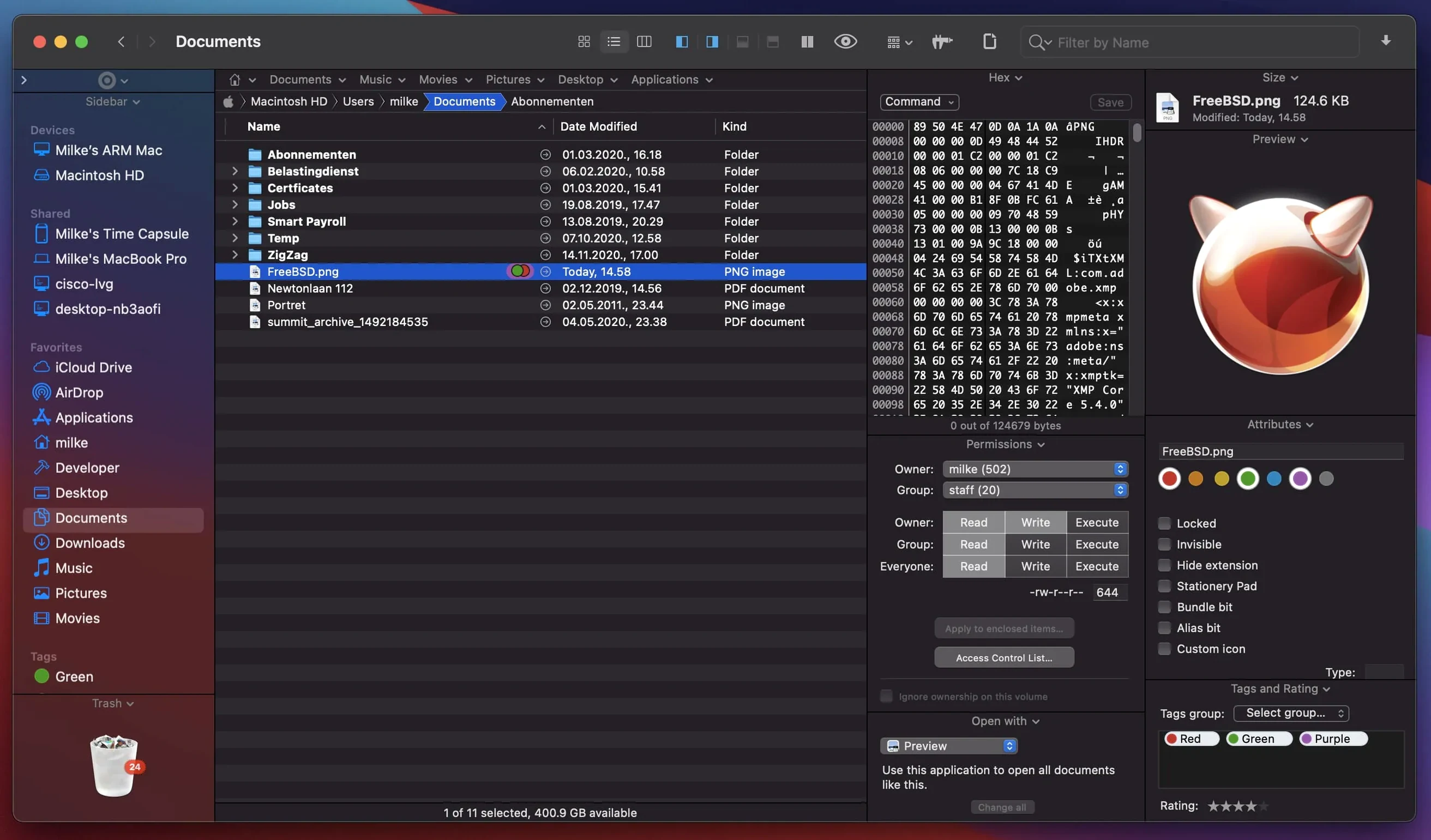
Dual-pane view with built-in modules beyond file moving
Think of it as a Finder replacement with a dual-pane view and tabs. That layout alone makes moving files between folders less tedious. But the application packs in a few unexpected tools as well.
Built-in modules — what they mean in practice:
- Dual pane and tabs — Work in two folders at once without opening a second window.
- FTP client — Connect to a server and drag files straight from a remote pane to a local one.
- File search — Find items by keyword, extension, or type without a Spotlight index delay.
- App uninstaller — Delete an application and hunt down its leftover preference files.
- Process manager — See what is running and kill a stuck task from the same window.
- Archive tool — Compress or extract files without launching a separate utility.
- Text and image editors — Make quick edits to a readme or a screenshot without opening another app.
Restore the split pane when it drops to single-folder view
A few things trip people up early on. Nothing that needs a support ticket — just a moment to adjust.
Dual-pane view vanishes. You press a key by mistake and suddenly you are back to a single folder. Press Cmd+U to bring the second pane back. If that does not stick, check View > Show Dual Browser in the menu bar.
FTP connections time out too fast. The built-in client defaults to a short keep-alive window. Go to Path Finder > Settings > Features > FTP and bump the timeout value up to 30 seconds. Passive mode is on by default, which fixes most home-router connection refusals.
Right-click menu feels overcrowded. Path Finder adds a lot of items to the context menu. Open Settings > Features > Contextual Menu and uncheck the entries you never use. The app stays fast, and the menu stops scrolling off the bottom of a laptop screen.
Keyboard browsing feels sluggish. If you arrow-key through a folder with hundreds of large preview icons, the built-in preview module is redrawing each file. Switch to List View (Cmd+1) for snappier keyboard navigation in dense folders.
ForkLift polishes sync and remote editing, Commander One goes dual-pane free
Three alternatives come up whenever someone goes looking for a path finder mac replacement: ForkLift, Commander One, and the stock Finder. Each sits in a different corner.
ForkLift feels lighter. Its sync and remote-edit features are more polished than Path Finder's FTP module, and the interface is quieter out of the box. But ForkLift does not touch system hotkeys, cannot uninstall applications, and lacks a process manager. If you only need a capable transfer client with dual panes, it fits. If you want one app to replace several utilities, Path Finder covers more ground.
Commander One appeals to anyone who grew up with orthodox file managers — function-key shortcuts, a command line at the bottom, and a faint whiff of Midnight Commander. It handles cloud storage and ZIP archives well. Where Path Finder pulls ahead is in the sheer breadth of built-in modules: text editing, image tweaking, disc image conversion. Commander One's add-ons are separate, and some need a Pro version to unlock.
Finder is already on your Mac and costs nothing. It handles tags and iCloud integration more cleanly than any third-party app can. But Finder still lacks dual-pane browsing, tabs that remember folder pairs, and any sort of FTP client. Path Finder replaces it rather than sitting alongside it, which is a bigger change than some people want. Worth it if you spend enough hours in file windows that a dual-pane layout saves you real time each day.
Interface languages cover the usual spread: English, German, Spanish, French, Italian, Dutch, Polish, Portuguese, Russian, Japanese, both forms of Chinese, Korean, and several Nordic languages.
What’s new
- Fixes double-click behavior when clicking an icon in List View.
- Fixes a batch rename limitation that affected 31 renamed files.
- Fixes multiple-item selection in List View.
- Fixes label/tag color badges and iCloud status/download icons in Icons, List, and Columns views.
- Fixes drag-and-drop selection drawing in Icons View.
- Fixes drag-and-drop cancellation slide-back animation in all view types.
- Fixes menu item icons on macOS 27 Golden Gate.
- Fixes minor UI and compatibility issues on macOS 27 Golden Gate.
Requirements
- macOS 13 Ventura or newer
- Intel or Apple Silicon Mac
FAQ
Can Path Finder replace the standard macOS Finder completely?
Yes, it is presented as a full replacement and includes a module to change system hotkeys so keyboard shortcuts launch Path Finder instead of the standard Finder.
Comments 0
Sign in or create an account to leave a comment.
No comments yet…
If you’ve installed it, say how it went. Mention your Mac and macOS version — it helps the next person more than you’d think.