Paste for macOS
Description
Designers, writers and anyone who copies the same bits of a document six times a day use Paste to stop losing earlier fragments. It sits in the background and remembers what you put on the clipboard.
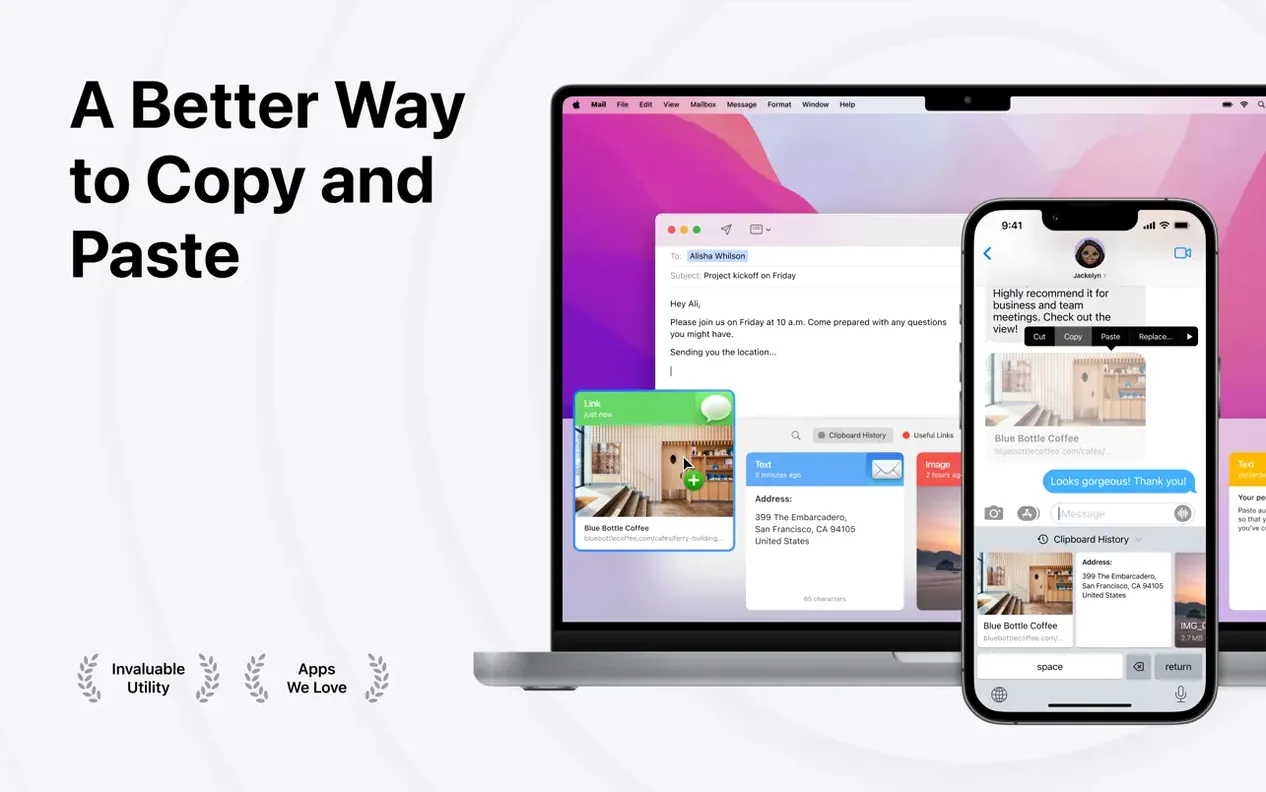
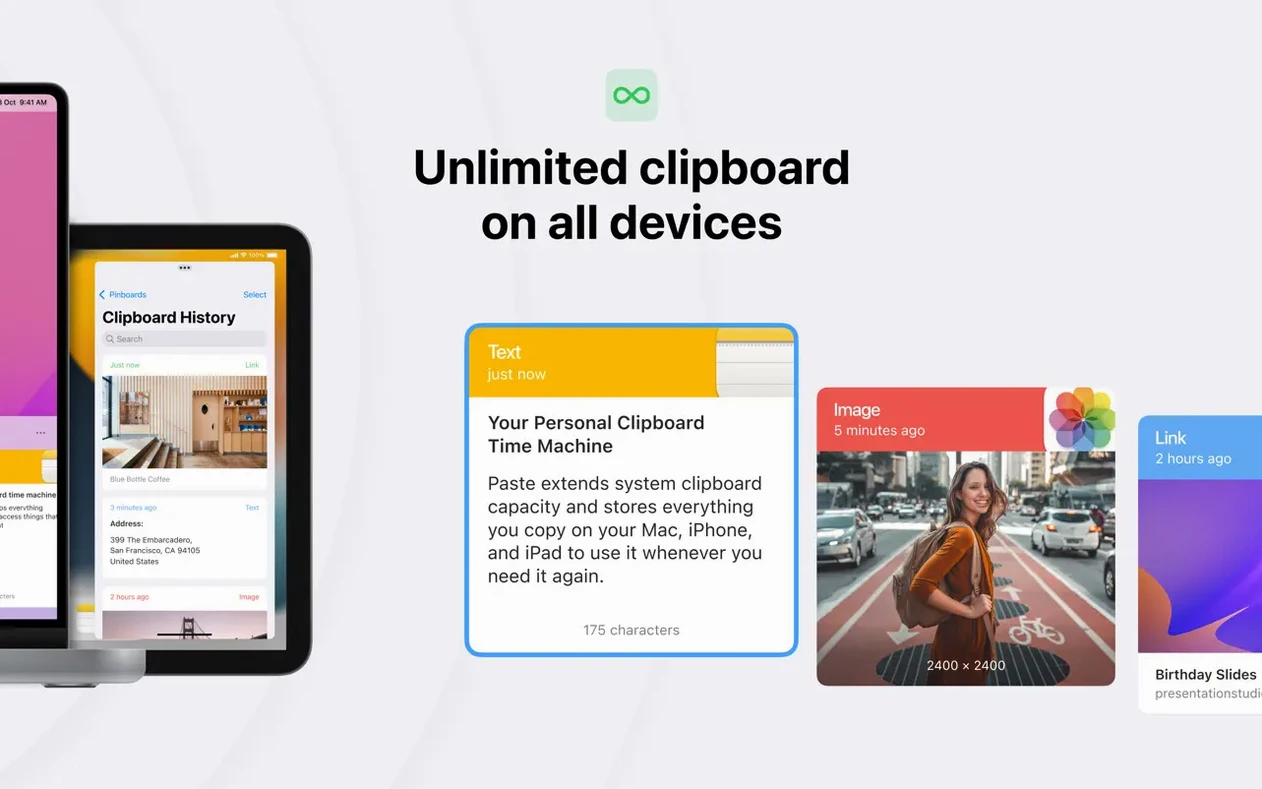
Clipboard history — a timeline of everything you copy: text, screenshots, links, images. You scroll through it with a keyboard shortcut and paste anything you grabbed earlier, not just the last thing.
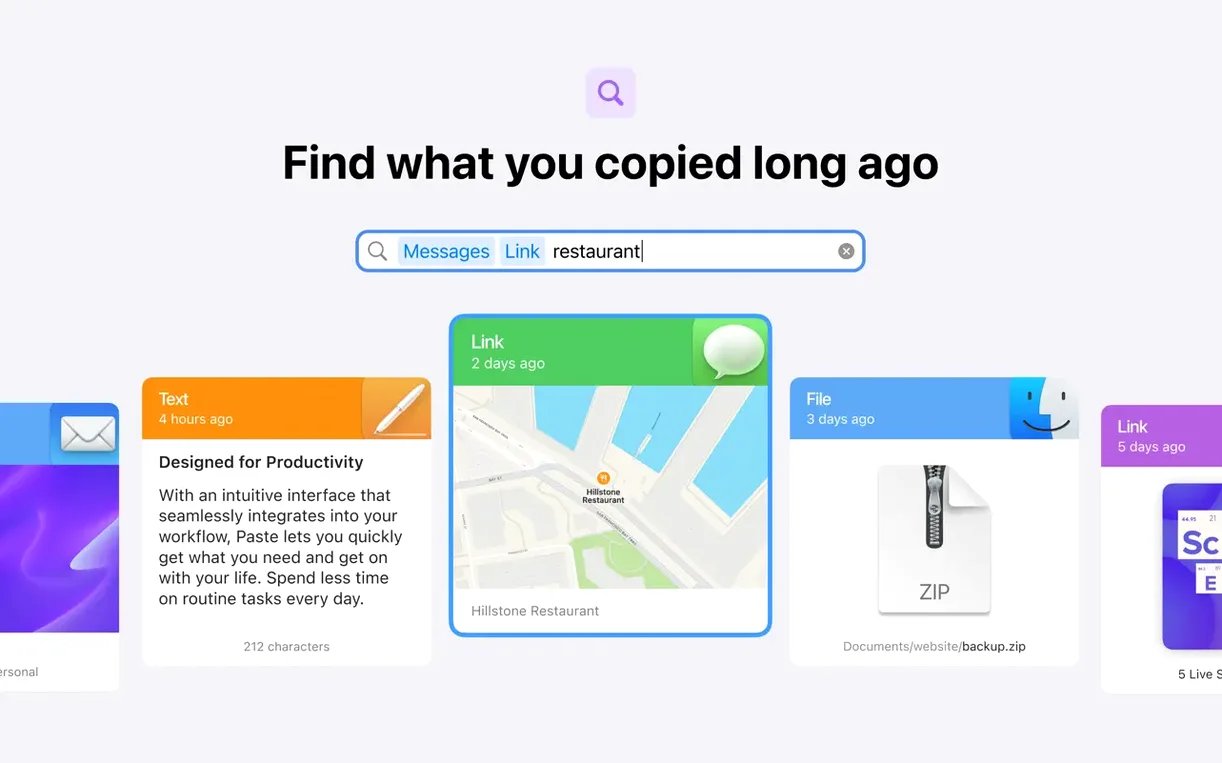
Searchable archive — type a word and Paste digs out the snippet you copied three hours ago. No more copying the same address twice because you lost it.
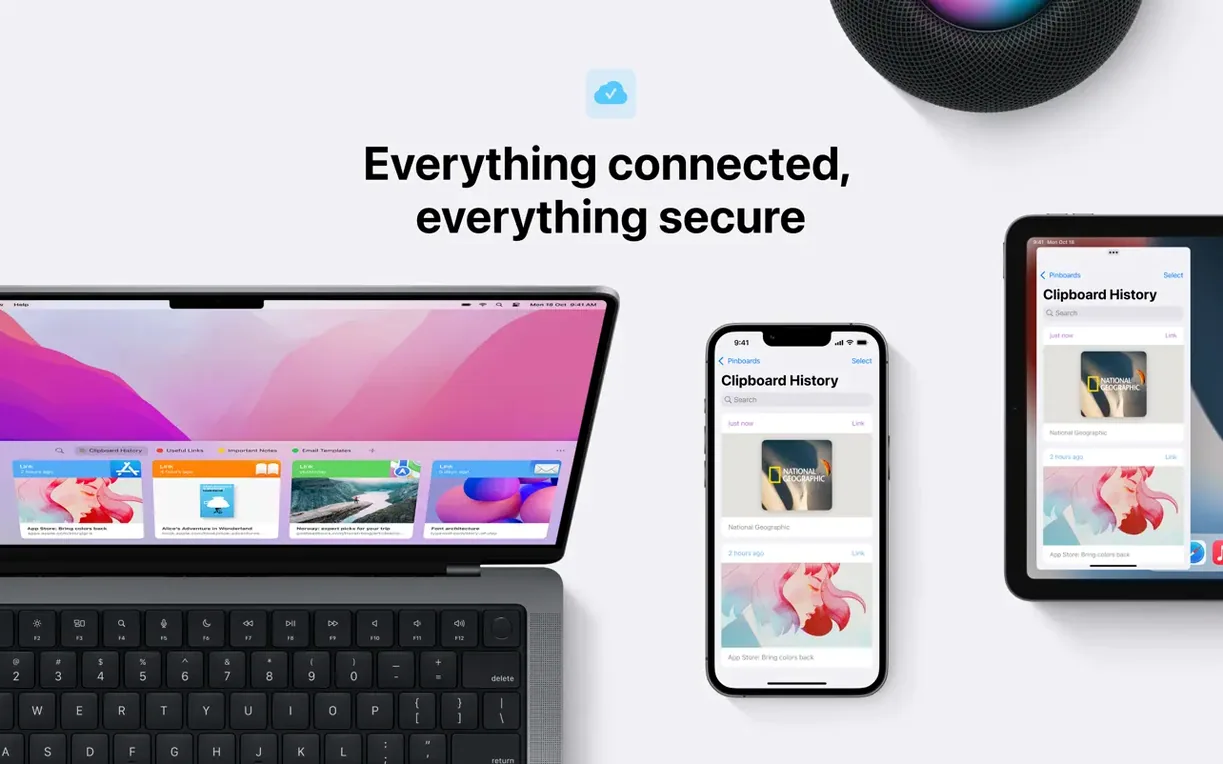
Across your Apple kit — the history syncs over iCloud to an iPhone or iPad. It also works with Universal Clipboard, and you can AirDrop fragments to someone else's Mac without pasting them into a message first.
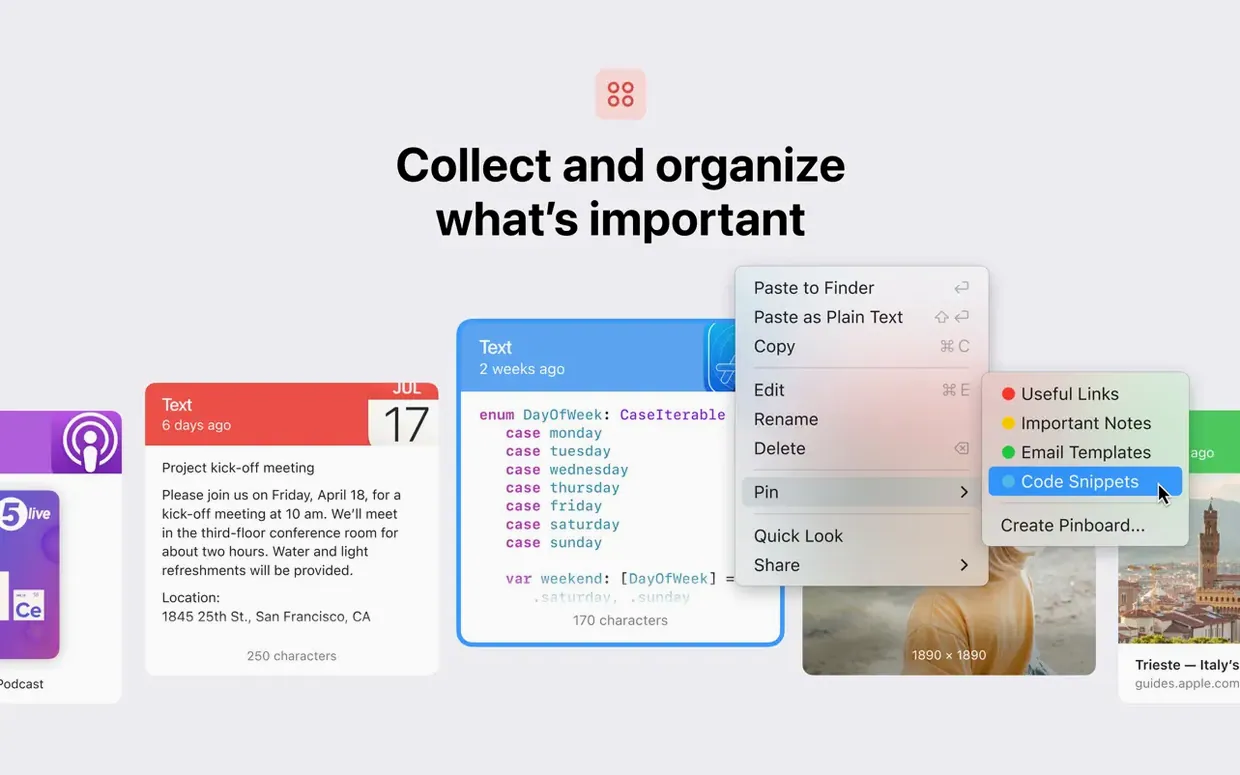
Custom keyboard shortcuts let you pin frequently used items so they stay at the top of the stack. The app saves everything automatically; you don't tap a save button.
Floating panel instead of a menu-bar dropdown
Version 6 rearranged the interface so the clipboard sits in a floating panel instead of a menu-bar dropdown. That sounds minor until you have thirty items queued and you need to see more than six at a glance. The panel resizes, scrolls smoothly with a trackpad, and stays open while you click between apps — so you can grab three snippets in a row without the window vanishing each time.
The search field became useful again. Earlier builds filtered as you typed but struggled with screenshots that contained text; the current build indexes image text reliably. Paste a slide deck image, wait a few seconds, then search for a phrase on slide four — it usually finds it.
Pinboards grew up. You can now keep several named lists — one for boilerplate email replies, another for code snippets, a third for hex colour strings — and switch between them from the sidebar. The lists sync over iCloud, so a pinned fragment added on a Mac appears on an iPad within a minute or two. That matters if you proofread on a tablet and assemble assets on a desktop.
Plain-text pasting got a dedicated keyboard override. Hold the modifier you set in preferences while pasting, and formatting strips out. No need to paste into a text editor first. For anyone who regularly copies from web pages into Slack or a CMS, that one shortcut saves a dozen keystrokes a day.
Pause clipboard recording with a shortcut
Does it log everything, or can I stop it temporarily? Paste watches the clipboard by default, but you can pause it from the menu bar icon or set a keyboard shortcut to toggle recording. When paused, items you copy don't appear in the history. This is handy during a password manager session or when you copy something you'd rather not store. You can also exclude specific apps entirely — add 1Password or your banking app to the exclusion list and Paste ignores anything copied there.
What happens when I restart the Mac? The history survives reboots. It's written to a local database inside the app's container. The only items that vanish automatically are ones you delete manually or those pushed out when the history cap is reached. The cap is configurable — set it to 100, 500, or as many as your disk can stomach.
Can I paste something on a Mac and pick it up on an iPhone without iCloud? Yes, if both devices are on the same network. Use AirDrop from the sharing menu inside Paste. Tap the share button next to any clipboard entry and pick a nearby device. The recipient gets the raw content — a URL, a paragraph, a PNG — without an intermediate app or message thread.
Does it read text from images I copy? It does text recognition on screenshots automatically, but only after the image sits in the history for a moment. If you need the text immediately, open the item details and the recognised text appears in a preview pane. The recognition runs on-device, so there's no network lag and no privacy concern.
Drag snippets straight into Finder folders
Most people trigger Paste with the default shortcut and never explore the edges. A few things that make daily use smoother:
- Drag-and-drop from the panel. Grab a snippet and drop it straight into a Finder folder as a .txt file, or into a Mail compose window as a quoted block. Faster than paste-then-move.
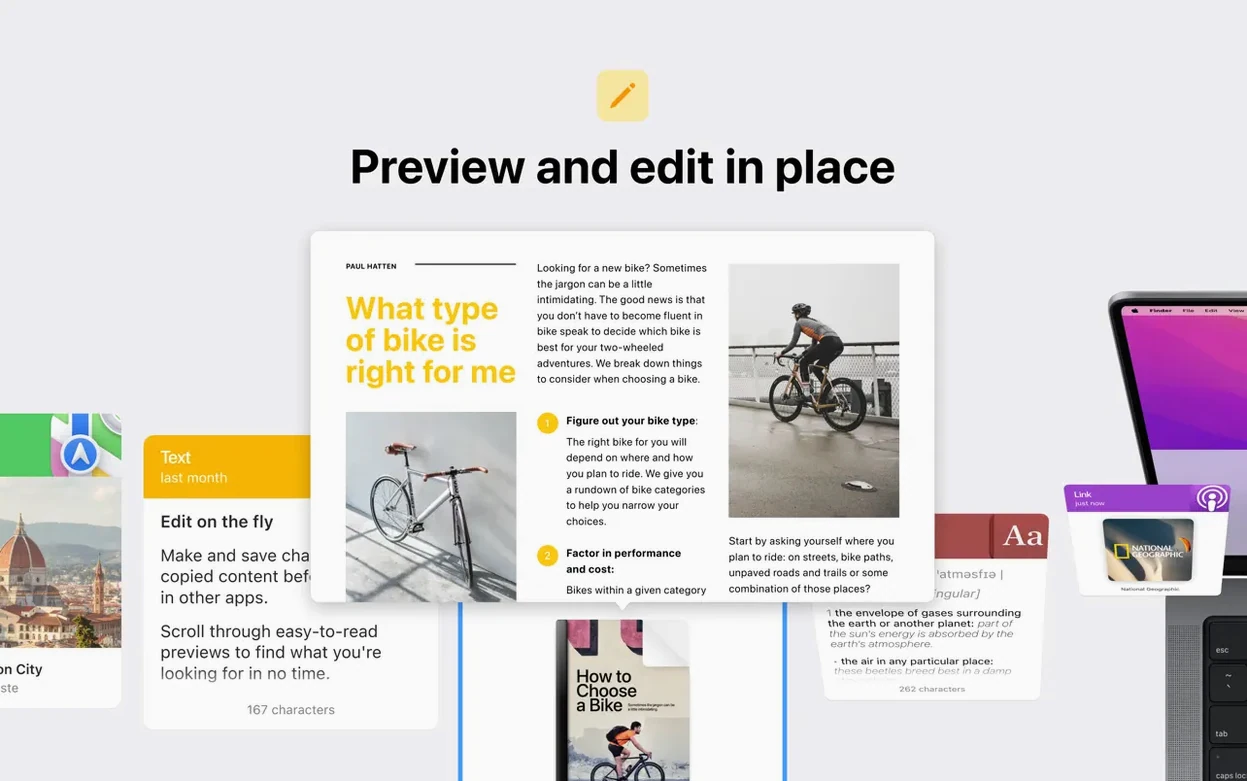
- Quick preview with spacebar. Select any item and tap the spacebar for a Quick Look preview. Images blow up to full size; text shows the first few paragraphs in a readable popover. You confirm you have the right snippet before pasting.
- Paste Stack. Select multiple items in the history — hold Shift and click — then paste them in one go. They appear in the order you selected. Useful for filling a form that asks for name, email, and address in sequence.
- Copy a snippet back to the clipboard. Double-click an entry in the history panel. It moves to the front of the clipboard queue without pasting anything. You then use the normal Cmd-V wherever you like.
- Strip formatting permanently from an entry. Right-click a snippet and choose "Convert to Plain Text." The original styled version disappears from the history. Helpful when you copied a styled heading but need it as clean body text for the rest of the afternoon.
If you grab the paste mac download from a trusted source and keep the app running for a few days, those little shortcuts become muscle memory quickly. The panel, the spacebar preview, and the plain-text override are the three things that turn a clipboard history from a nice idea into something you lean on.
Requirements
- macOS 13 or later
- Apple Silicon and Intel 64-bit
FAQ
Does Paste work with Universal Clipboard?
Yes. Paste works alongside Universal Clipboard, so items you copy on one Apple device can appear in the history on another.
Can I share clipboard items with other people?
Yes. You can send copied fragments to someone else via AirDrop or share the clipboard history directly.
What gets saved in the clipboard history?
Paste automatically saves text, images, screenshots and links as you copy them.
Comments 0
Sign in or create an account to leave a comment.
No comments yet…
If you’ve installed it, say how it went. Mention your Mac and macOS version — it helps the next person more than you’d think.