Paragon NTFS for macOS
Description
IT staff who look after mixed Mac and Windows environments tend to reach for Paragon NTFS, because they've seen what happens when a cheaper driver corrupts a volume. It's the utility you install once and then forget about while it handles every NTFS drive you plug in.
- Check the driver core. Open System Preferences and find the Paragon pane. The version 15 core handles Windows 10 system compression natively, so compressed files on a Boot Camp partition open without a fight.
- Mount a disk and stress it. Copy a folder with a few thousand small files onto an NTFS volume, then copy it back. The new driver core in v15 was built for this sort of sustained transfer and it shows — no Finder lockups while the write queue clears.
- Run a permissions repair on the NTFS volume. The utility's built-in check fixes basic ACL mismatches that stop a file being read on the Windows side. It's not a full chkdsk replacement, but it catches the common problems.
- Switch the interface language if needed. The app ships in fifteen languages, so a non-English-speaking colleague can check settings without leaning over your shoulder.
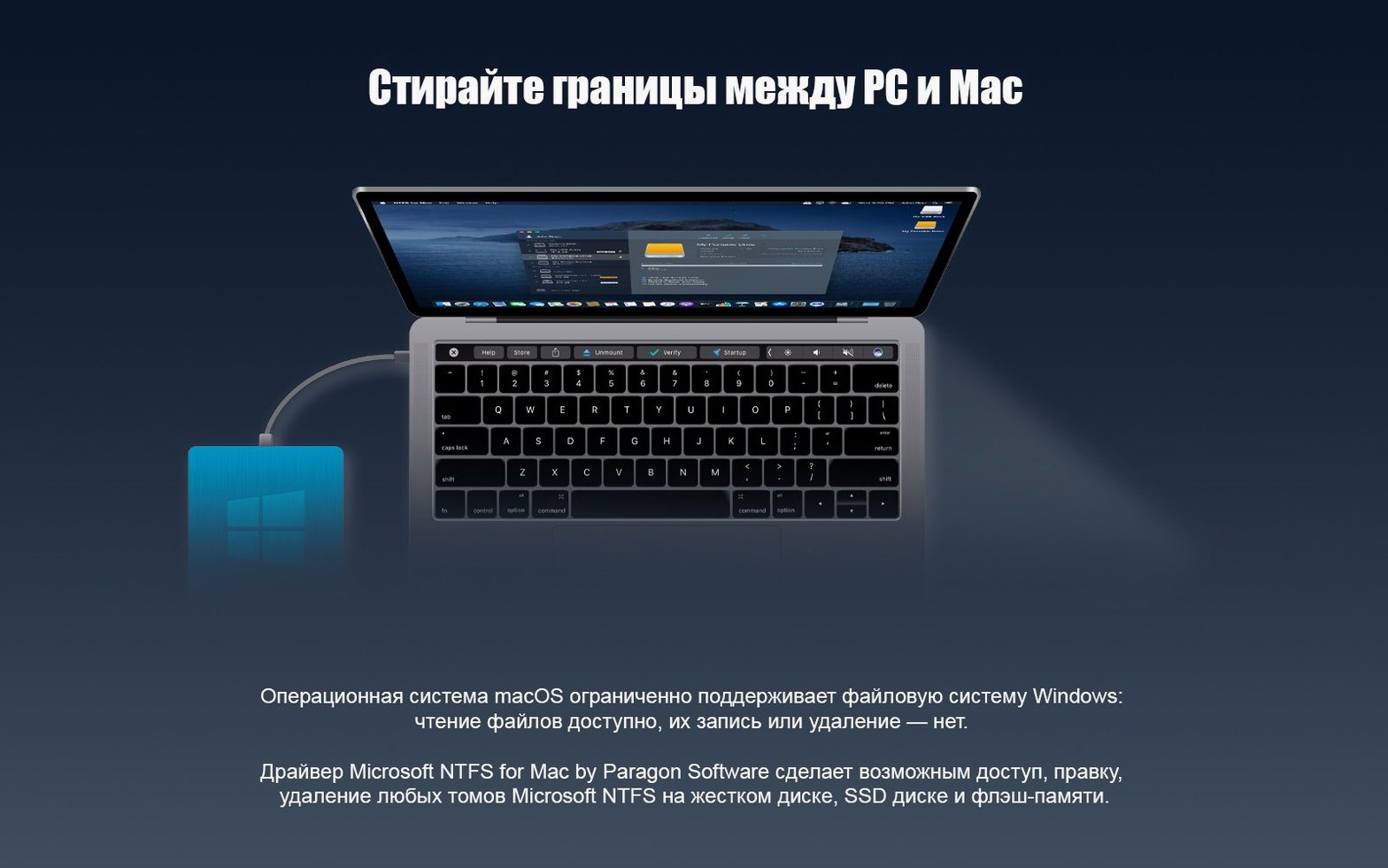
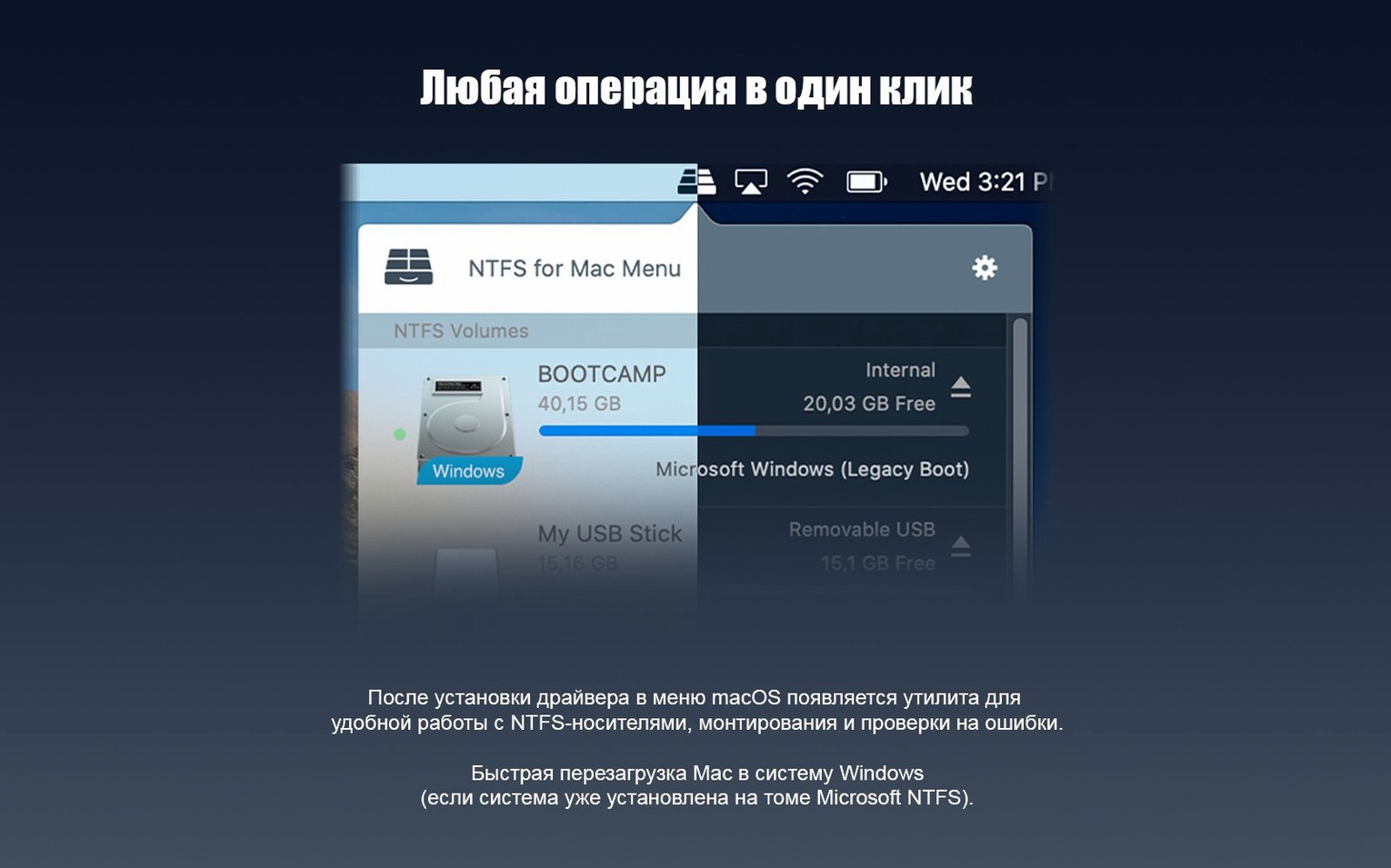
After the installer finishes, NTFS volumes just appear in Finder with full read and write — no manual mount commands or special steps. The utility runs on Apple Silicon and Intel Macs from macOS Sierra onwards.
Updating a Steam game on an NTFS partition from macOS
Imagine a Boot Camp user who keeps a Steam library on an NTFS partition. macOS can't write to it natively, so updating a game that receives a patch through the Mac client is normally a dead end. With the driver loaded, the process is straightforward.
Plug in the drive or boot into macOS with the Boot Camp volume already mounted. Open Finder and navigate to the Steam folder inside Program Files. Create a new folder called GamePatches on the NTFS volume — if Finder lets you do that without a warning, the driver is working. Copy the downloaded patch files across. The transfer speed for a few gigabytes of game assets won't be instant, but the v15 core keeps the progress bar moving without the beachball that plagued older NTFS solutions. Once the copy finishes, eject the volume cleanly and reboot into Windows. The patch files sit exactly where you left them.
This same sequence works for media libraries stored on external NTFS drives. A photographer who archives RAW files from a Windows desktop can plug the archive disk into a MacBook, cull shots in Lightroom, and write the updated catalogue back to the same volume. No intermediate exFAT drive, no cloud sync step.
Shuttling one external SSD between Mac and Windows
People who live with one foot in each OS get the obvious win. That covers Boot Camp users, anyone who runs Windows in a virtual machine with raw disk access, and studios where a single external SSD shuttles between a Mac edit suite and a Windows render box.
IT support staff are the quieter audience. They're the ones who inherit a ticket saying 'the Mac won't save to the shared drive.' Paragon NTFS removes the read-only bottleneck without asking users to reformat disks, which matters when the disk in question is a 4 TB archive that took a day and a half to fill. Help desk veterans appreciate a driver that doesn't add a system tray icon, a launch daemon that phones home, or a kernel extension that panics after a point update. It sits in System Preferences and stays out of the way.
Students and academics who move between lab machines and personal laptops also notice the difference. A university IT department might standardise on NTFS for cross-compatibility, and a student running a Paragon NTFS Mac crack can keep things smooth by disabling OS sleep while large transfers finish. The paid driver is dull and dependable, which is the point.
Test on a spare NTFS drive before touching critical data
After the restart, connect the NTFS drive you use least often first — not the one with the only copy of your dissertation. Copy a small file onto it, eject it, reconnect it, and open the file again. That confirms the driver handles dismount and remount without leaving the volume in a dirty state.
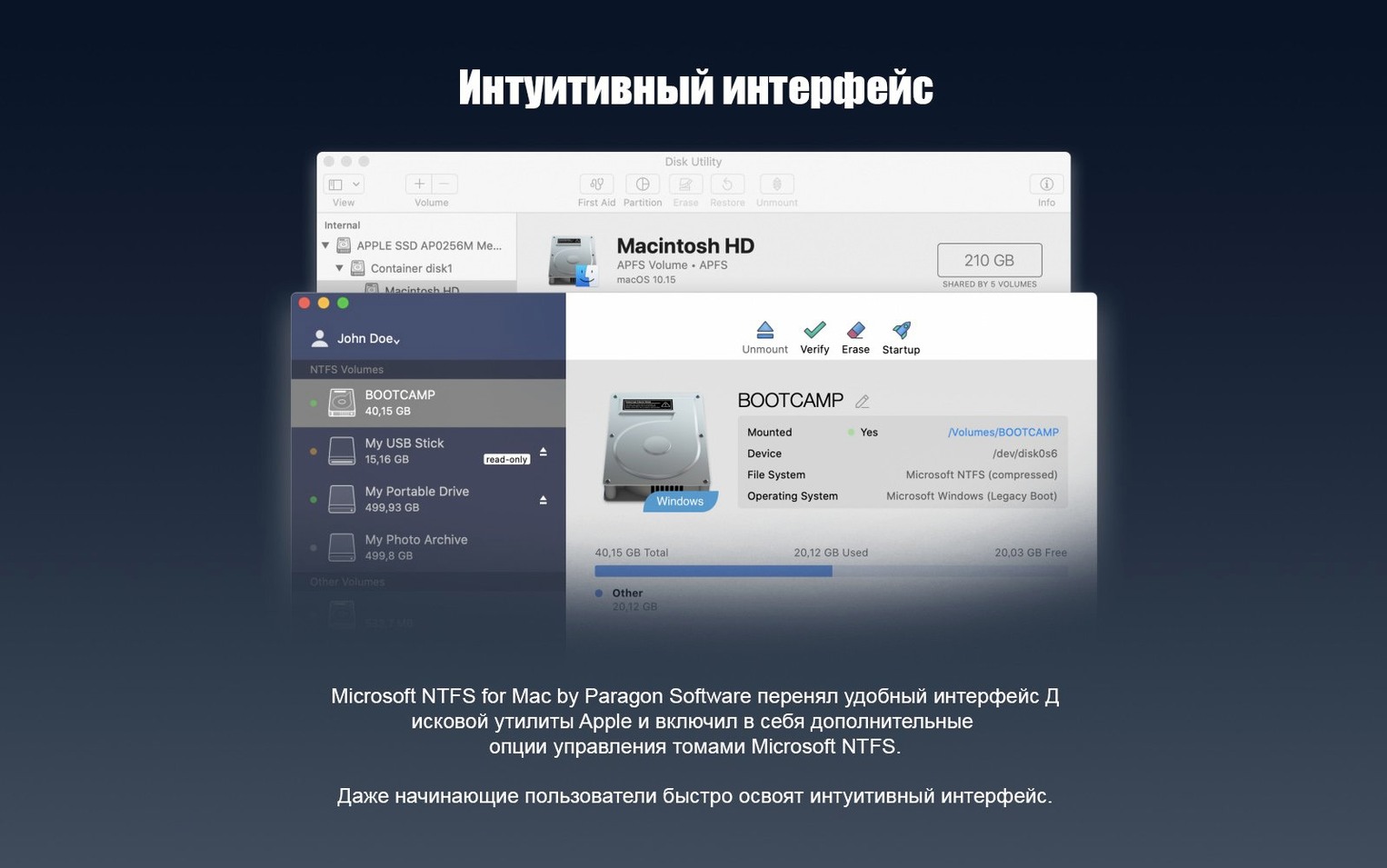
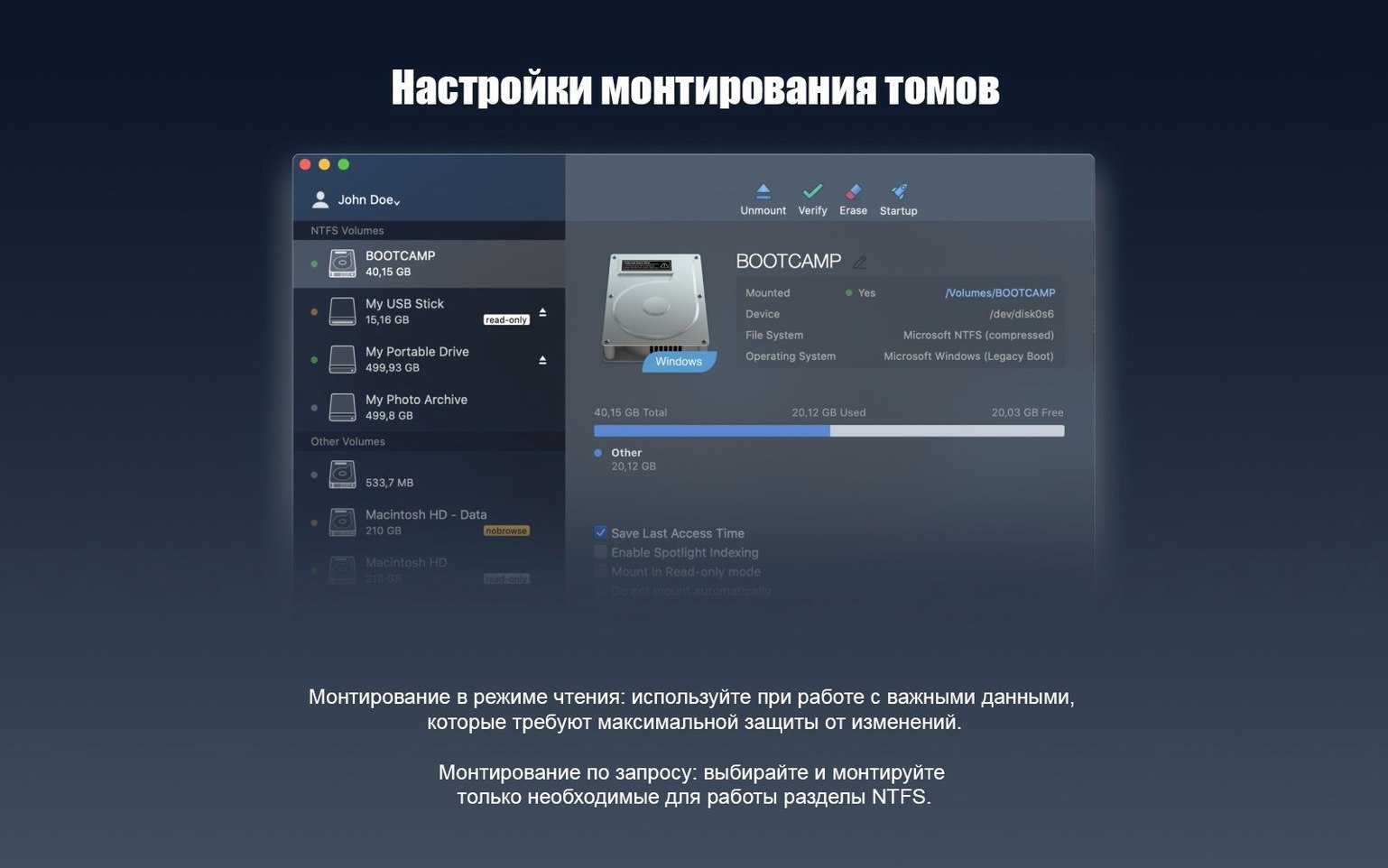
Check the Paragon preference pane once. Look at the 'Activate' status and note the driver version. If you ever need to troubleshoot, knowing whether the core loaded correctly saves time. While the pane is open, disable the 'Enable extended attributes' option unless you specifically need Windows-style alternate data streams on the Mac side. Leaving it off avoids confusing metadata that some backup utilities trip over.
If you use Time Machine, remember that the driver does not make NTFS volumes eligible as backup destinations. That's a macOS limitation, not a driver fault. Don't waste an afternoon trying to point Time Machine at a formatted NTFS disk — it won't work, and the error message won't explain why.
For anyone coming from a paragon ntfs for mac 15 download page and wondering about stability: let the Mac sleep normally with the drive connected. The v15 driver re-mounts volumes reliably after wake, which was a weak spot in earlier versions. If a volume doesn't appear after sleep, a quick unplug and reconnect sorts it — no Terminal commands needed.
What’s new
Adds a reworked driver core that handles NTFS volumes faster and more reliably. Adds support for Windows 10 system compression.
Requirements
- macOS 10.12 or newer
- Apple Silicon or Intel Mac
FAQ
Does Paragon NTFS need any special steps after installation to work?
No. Once installed, NTFS drives appear in Finder automatically — you can edit, copy and create files straight away.
Comments 0
Sign in or create an account to leave a comment.
No comments yet…
If you’ve installed it, say how it went. Mention your Mac and macOS version — it helps the next person more than you’d think.