One Switch for macOS
Description
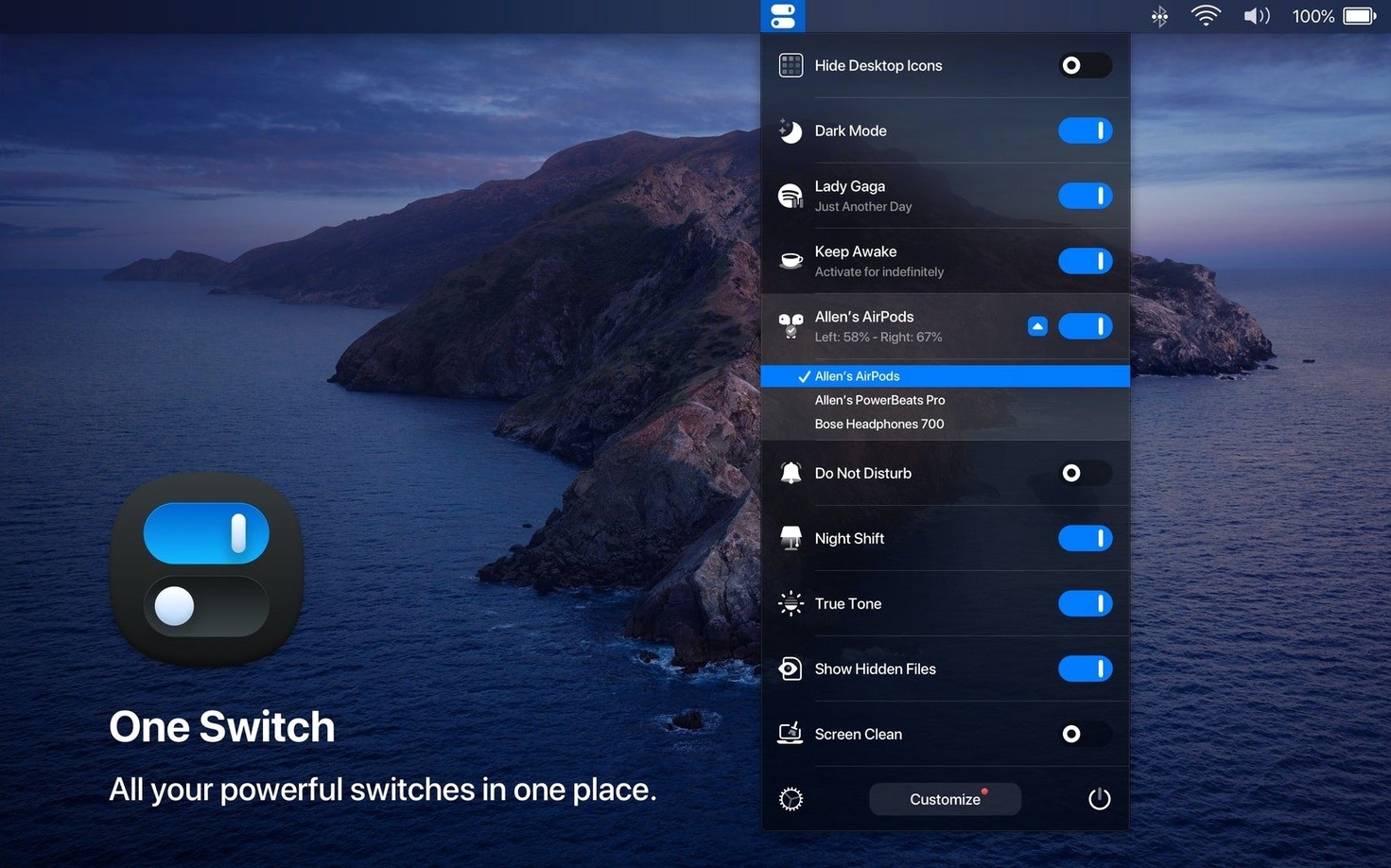
Dark Mode on a schedule, without opening a single preference pane. That's the kind of thing One Switch does well. It's a slim menu bar utility from Fireball that bundles common Mac toggles so you don't have to hunt through System Settings several times a day.
| What's included | What you'll need |
|---|---|
| 7 active switches at once | macOS 10.15 or later |
| Dark Mode, Sleep, Hide Desktop Icons, AirPods, and more | Apple Silicon or Intel 64-bit Mac |
| English interface | A few seconds to set it up |
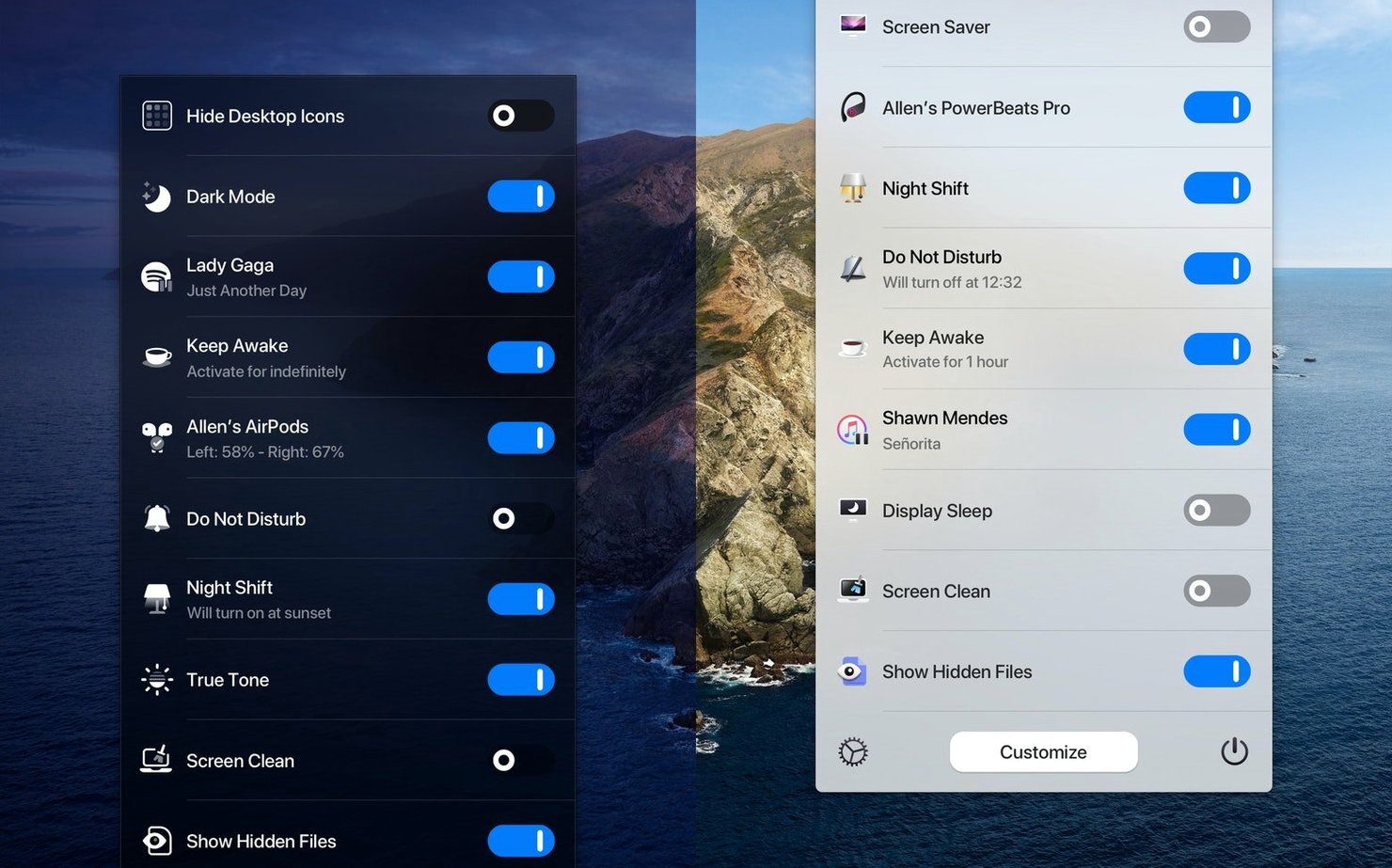
You pick which switches appear in the menu — disable the ones you never use, keep the half-dozen you actually reach for. It can put the Mac to sleep on a timer, hide every desktop icon with one click, or flip between Light and Dark appearance on a schedule you set. The app runs from the menu bar, stays out of the way, and doesn't try to be a general-purpose utility belt.
Fixes when a switch stays grey or won't toggle
One Switch is light on its feet, but a few things can trip you up. Most are easy to fix once you know where to look.
Switch won't toggle. If a switch appears greyed out or does nothing when clicked, the system probably hasn't granted the permissions it needs. Open System Settings > Privacy & Security > Accessibility and make sure One Switch is ticked. While you're there, check the Notifications section if Do Not Disturb isn't responding. The app needs explicit approval for each category it controls.
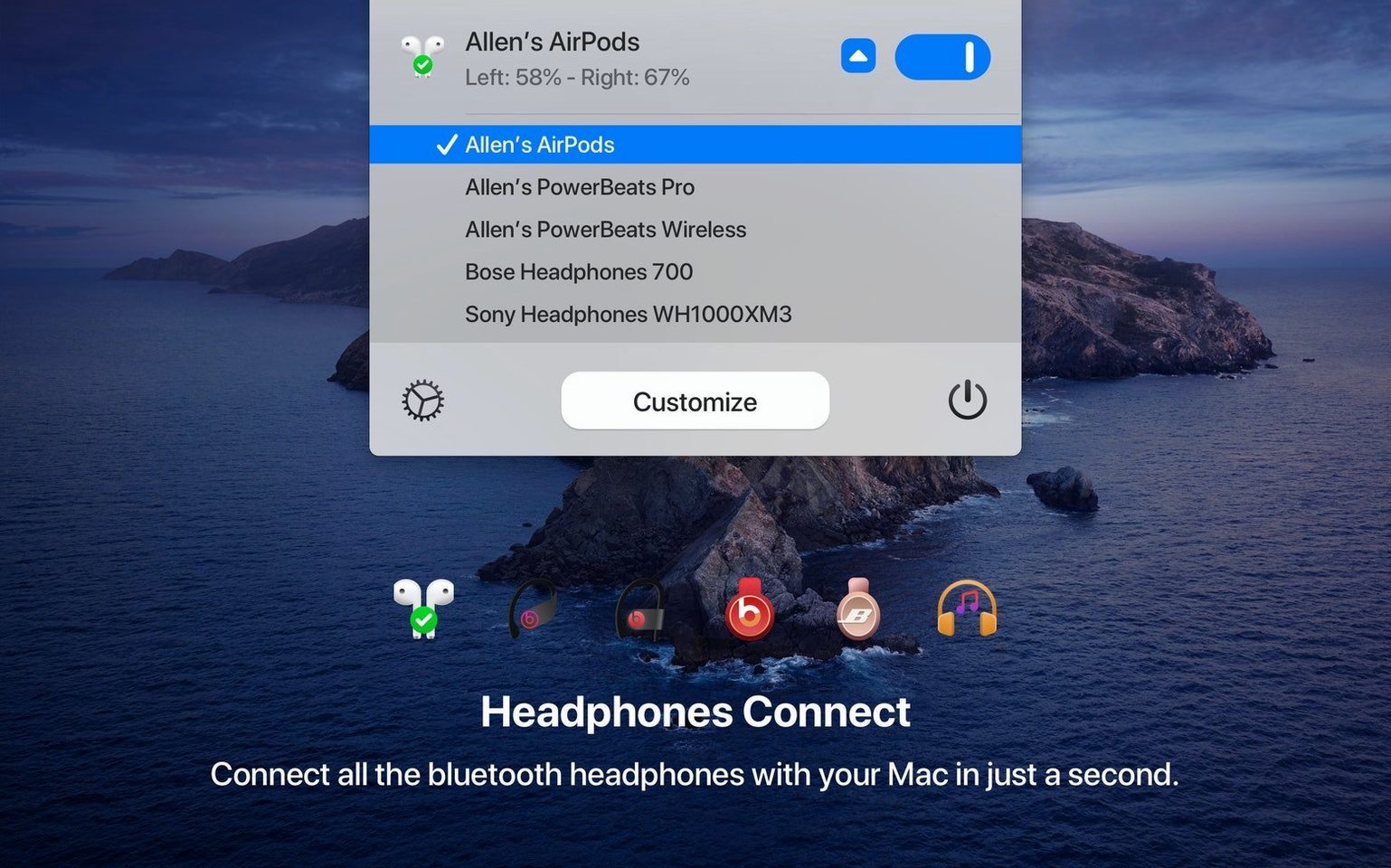
AirPods switch doesn't find your earbuds. This one relies on Bluetooth being awake and the AirPods being near the Mac. If the switch spins and gives up, pop the AirPods back in their case for a few seconds, then open the lid near the Mac. Sometimes toggling Bluetooth off and on from the menu bar kicks it back into gear. The switch connects to the last paired device, so if you've used them with an iPhone recently, you may need to select the Mac as the audio output manually first.
Dark Mode schedule ignores your changes. The automatic Light/Dark toggle uses its own timetable, separate from the built-in macOS Night Shift or appearance settings. If it's not switching when you expect, open One Switch's preferences and double-check the times you set. The app overrides the system appearance setting, so leave macOS on "Auto" only if you want conflicts.
Desktop icon switch hides everything — including files you were working with. It doesn't delete anything, but it can startle you the first time. All it does is toggle a Finder preference; your files are still in ~/Desktop. Flip the switch back and they reappear. If you use Stacks, they return with the same groupings.
Menu bar footprint with only seven toggles visible
Does it bog down the menu bar? No more than the clock does. One Switch sits as a single icon; all the toggles live in its dropdown. You pick which seven show, so the menu stays as short or as long as you want. If you're already running Bartender or Hidden Bar, it plays nicely alongside them.
Can I use it alongside macOS Shortcuts? Yes, and some people combine the two. One Switch handles the quick manual toggles you want a click away. Shortcuts can fire off sequences that include things One Switch doesn't cover. They don't step on each other's toes.
Does the sleep timer override system sleep settings? It does. If you set One Switch to put the Mac to sleep at 11pm, that overrides whatever Energy Saver settings are in place. Just remember the timer only works while the app is running — quit it, and the schedule goes with it.
Workflow: a clean desktop for screen sharing
Picture this: you're about to jump on a video call and share your screen. Your desktop is a mess of screenshots, random folders, and a PDF you meant to file three weeks ago. Here's how One Switch handles it in seconds, without moving a single file.
- Before the call. Click the One Switch icon and flip on Hide Desktop Icons. Every file and folder vanishes from view. Your wallpaper is all anyone will see.
- Switch to Dark Mode if you haven't already. Presentations and shared screens look cleaner with a dark background, and it's kinder on everyone's eyes. One Switch's toggle is instant — no System Settings digging required.
- Enable Do Not Disturb. Nothing kills a demo faster than a notification banner announcing your lunch plans. The switch silences banners and alerts for as long as you leave it on.
- After the call. Click the same three switches to restore icons, flip back to Light Mode if you prefer it, and let notifications through again. Everything is exactly as you left it.
The whole sequence takes four clicks and about five seconds. Once you've done it twice, it becomes muscle memory. And because One Switch remembers which switches you use most, you can keep those three at the top of the dropdown and hide the rest.
This is where a one switch mac utility earns its keep — not by doing one big thing, but by making tiny, frequent adjustments feel like nothing at all. If you've been hunting for a one switch download that actually sticks to menus and toggles instead of turning into a dock-based dashboard, this is the right shape of app. People who grab the one switch mac free download often mention that it replaces two or three single-purpose menu bar utilities they'd been nursing along for years. The one switch mac app philosophy is simple: if you need a switch audio converter mac or a full media toolkit, this isn't it. But if you want to flip system states without thinking, it slots in neatly.
What’s new
- Adds German, Italian, Japanese, Korean, Portuguese, Russian, and Spanish localisation.
Requirements
- macOS 10.15 (Catalina) or later
- Apple Silicon or Intel 64-bit processor
FAQ
Can I set my Mac to sleep and wake automatically with One Switch?
Yes. One Switch includes a switch for setting automatic sleep and wake times, so you can schedule it without opening Energy Saver settings.
Does it let me turn off switches I don't need?
It does. You can configure the menu bar to show only the switches you use regularly and disable the rest.
Comments 0
Sign in or create an account to leave a comment.
No comments yet…
If you’ve installed it, say how it went. Mention your Mac and macOS version — it helps the next person more than you’d think.