MuMu Player Pro for macOS
Description
It runs on Apple Silicon Macs with macOS 11 (Big Sur) or later. The interface comes in English and Simplified Chinese.
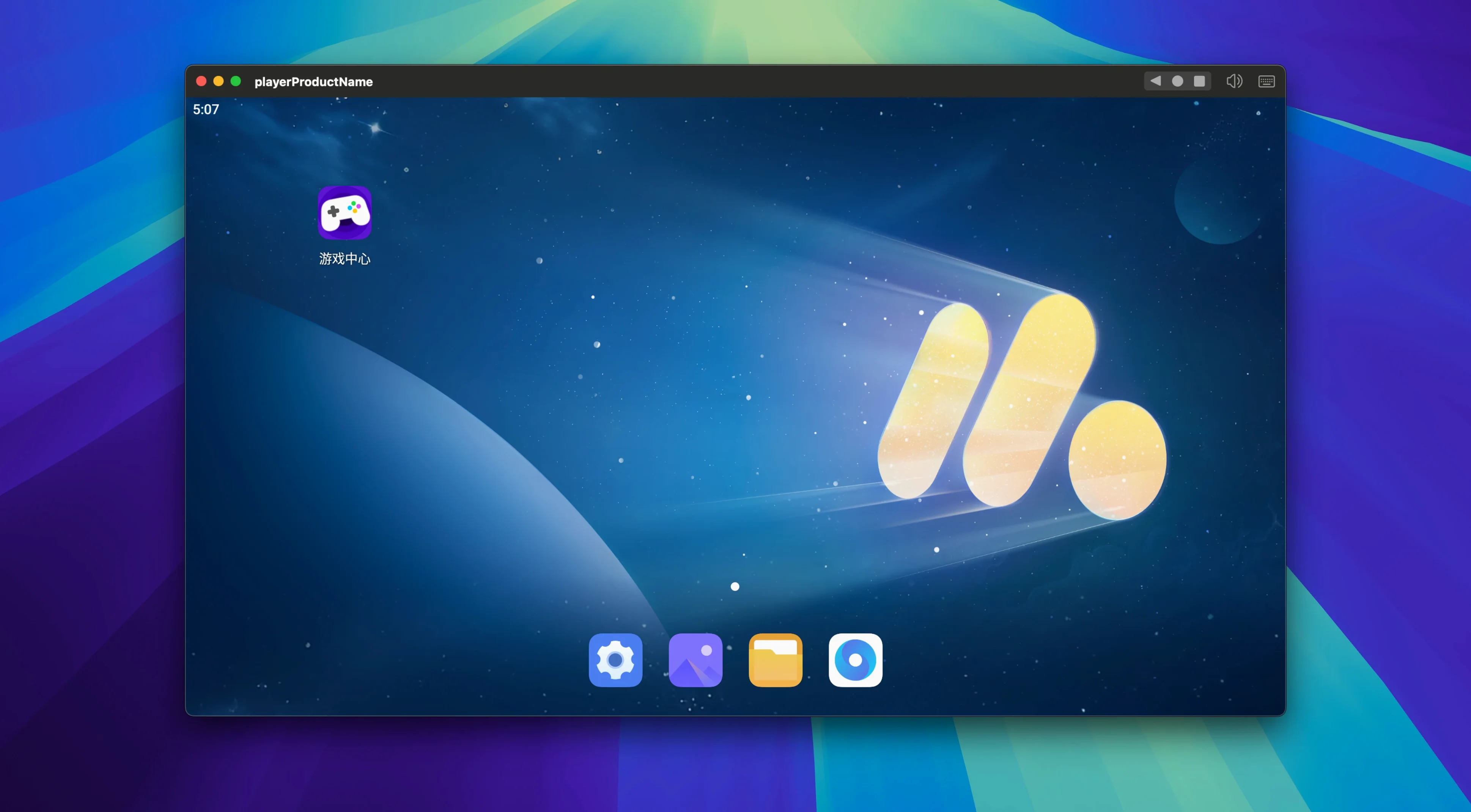
Android emulator — runs mobile apps and games in a window on your Mac desktop.
ARM-native build — written for M-series chips, so it doesn't need Rosetta translation.
APK sideloading — drag an APK file onto the window to install apps that aren't in a store.
Screen capture — grabs still frames from whatever you're running, useful for bug reports or guides.
Screen recording — captures a video clip of the emulator window, no extra tools needed.
Two-finger swipe and pinch-to-zoom everywhere
MuMu Player Pro packs a few shortcuts that aren't obvious on first launch. The emulator window responds to standard Mac gestures — two-finger swipe scrolls through lists in Android apps, and pinch-to-zoom works in any app that supports it natively. Less expected: Option-click anywhere in the window simulates a right-click, which saves you mapping an extra key if your mouse lacks a second button.
Rotation happens with Cmd+Left Arrow and Cmd+Right Arrow. Handy when an app insists on portrait mode and you'd rather keep the window landscape-shaped on a wide display. The keyboard-mapping panel — tucked behind a small icon in the sidebar — remembers per-app bindings, so your WASD setup for one game won't bleed into the mapping for another.
Screen recording files land in ~/Movies/MuMu by default, not buried in a library folder. Screenshots go to ~/Pictures/MuMu. Both folders are created on first use, and the emulator names files with a timestamp rather than a random string — easier to find the right clip later.
What recent versions actually fixed
Version 1.6.10 is a maintenance build. The release notes are brief: some known issues were fixed in recent macOS releases. In practice, that means the window-resize glitch on macOS 14 Sonoma — where dragging the corner would briefly show a black flash — no longer appears. Audio sync in games with fast cutscenes also improved, though that was more of a gradual fix across a few point releases.
Earlier builds wrestled with permissions prompts on first launch. The current version asks for screen recording access once, remembers it, and doesn't re-prompt after macOS updates. Small thing, but it cuts down on the "why did my key mapping stop working" confusion that used to crop up.
The Apple Silicon requirement stayed firm throughout. No Intel translation layer was added, and none is planned. If you're on an M1 or later Mac, the emulator uses the hardware directly — which is why frame rates stay usable even at higher resolution settings.
Lock in 1920×1080 on a Retina screen
- Pick your resolution and stick with it. The display setting in Preferences offers several sizes. 1920×1080 on a Retina screen gives a sharp window without making Android UI elements tiny. Changing resolution later resizes the window but doesn't affect installed apps — no reconfiguration needed.
- Set FPS to match your display. The default is 60, which suits most Mac screens. If you're on a 120Hz MacBook Pro, bump it to 120. The emulator won't push frames your display can't show, so there's no point leaving headroom unused.
- Drag an APK in early. Even if you plan to use a store, installing one app from a file confirms the sideloading path works. Drop the APK onto the emulator window, wait for the toast notification, and the app appears in the launcher — same as any installed Android app.
- Map keys before you need them. Open the key-mapping panel, press a key, click the on-screen position it should tap or hold. Do this for three or four common actions in your main app. It takes two minutes and saves repeated mouse reaches later.
- Check the shared folder. MuMu Player Pro creates a shared directory — drag files in from Finder, and Android apps can access them. Useful for moving save files or documents without cloud sync. The path is visible in the emulator's settings under "Shared folder".
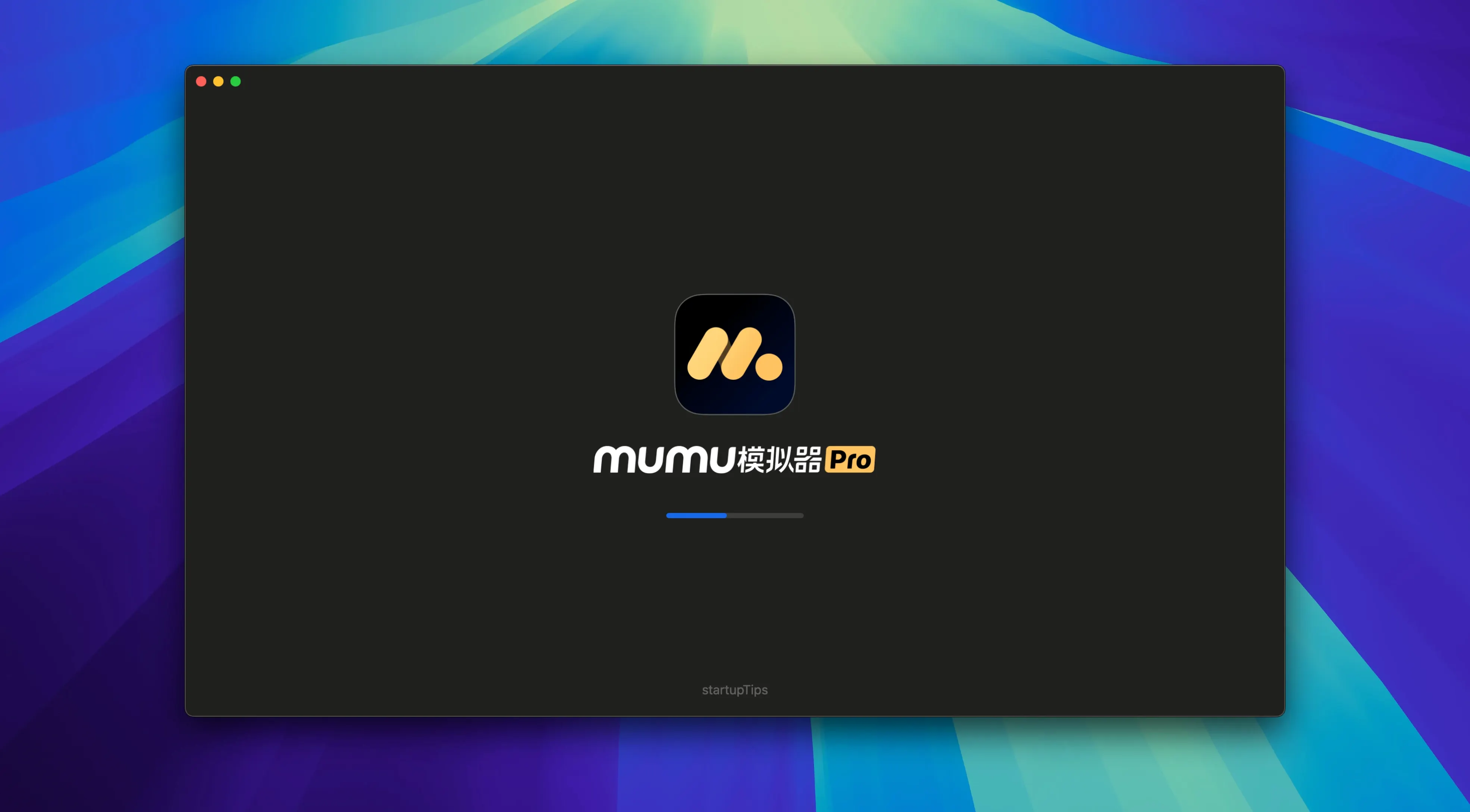
The first launch includes a short permissions walkthrough. Let it finish. Skipping the screen recording permission, in particular, disables key mapping and screen capture — two features you'll probably want by day two.
What’s new
Fixes some known issues on recent macOS releases.
Requirements
- macOS 11 or later
- Apple Silicon (M1 or newer)
FAQ
Does MuMu Player Pro work on Intel Macs?
No. It is built for Apple Silicon only and requires a Mac with an M-series chip.
What macOS versions does it support?
macOS 11 (Big Sur) and any later release.
Can I install apps from outside the Play Store?
Yes. You can sideload any APK file by dragging it onto the emulator window.
Comments 0
Sign in or create an account to leave a comment.
No comments yet…
If you’ve installed it, say how it went. Mention your Mac and macOS version — it helps the next person more than you’d think.