Mp3tag for macOS
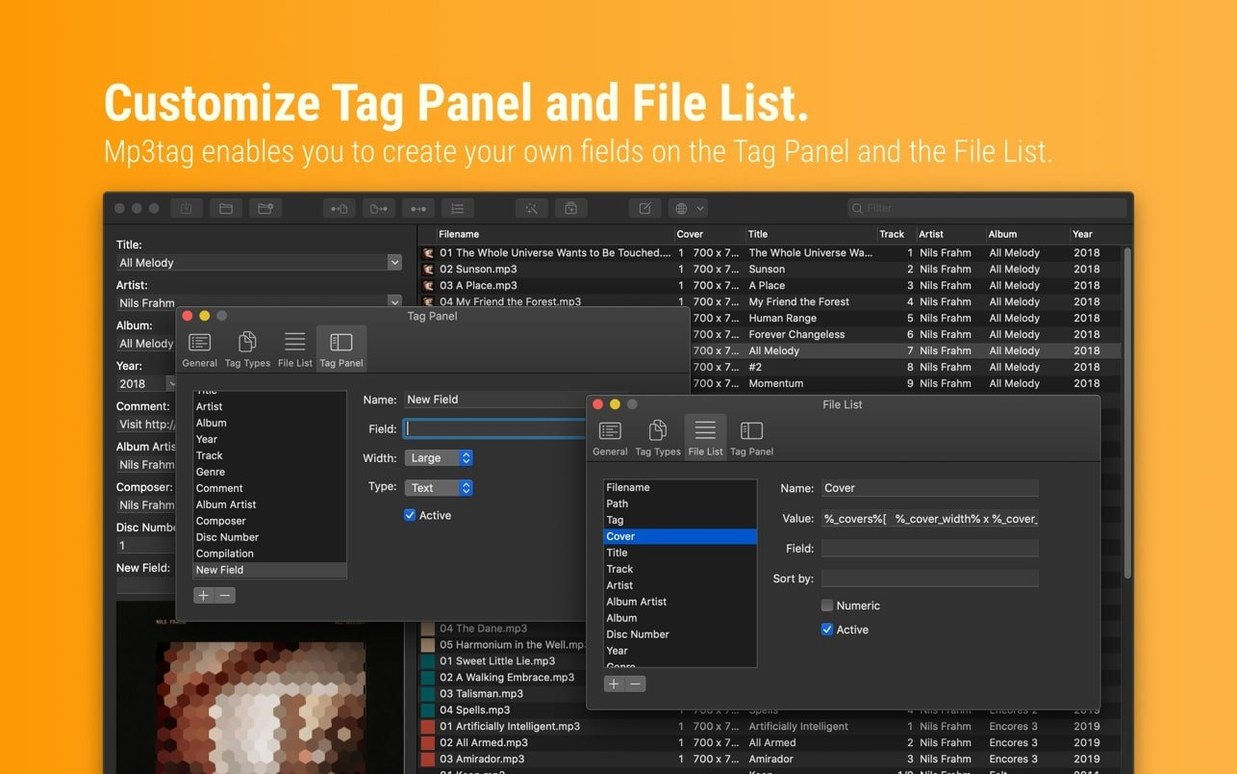
Description
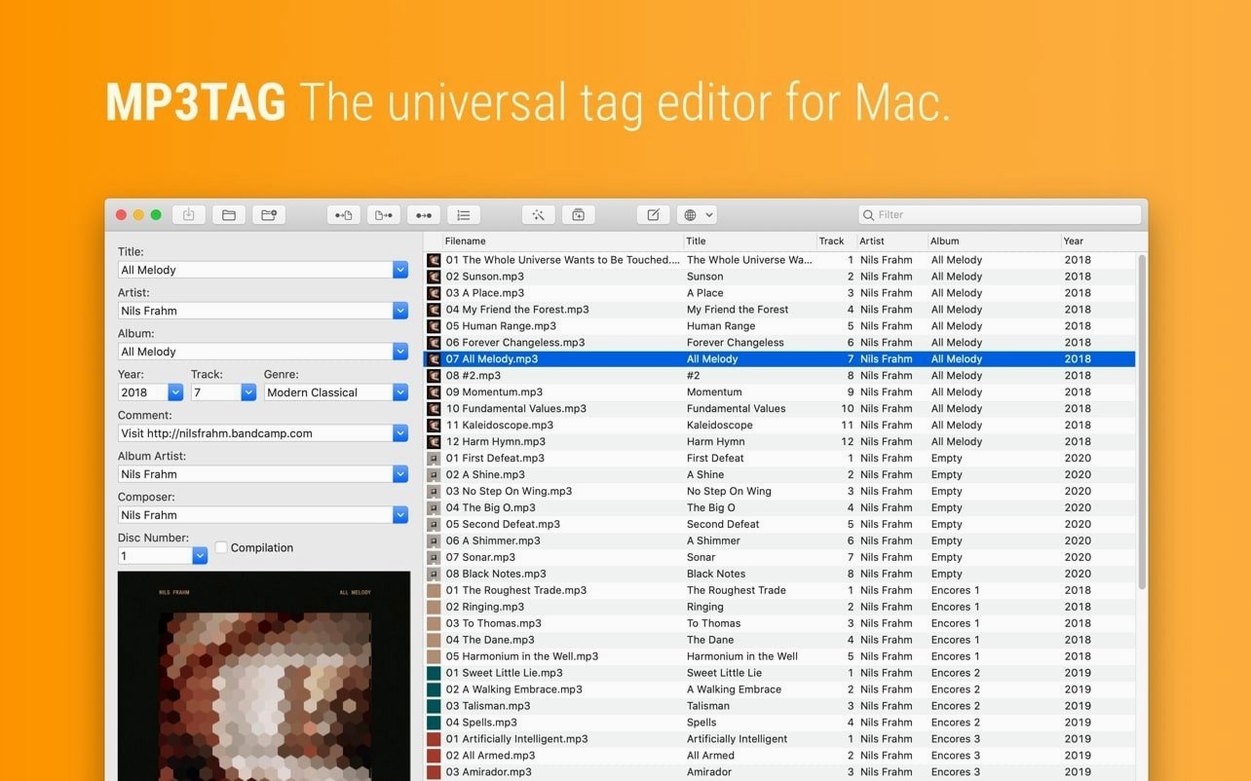
You have a folder of music files where half the albums are by 'Unknown Artist'. You want to fix them all in one go, pull in proper artwork, and have the files sort properly in your library. Mp3tag is built for this.
Does it do batch editing?
Yes. Select a whole album, a folder, or a mixture of tracks and edit the tags for all of them at once. You can also string multiple tasks together into action groups that run in sequence.
Can it find missing artwork and data?
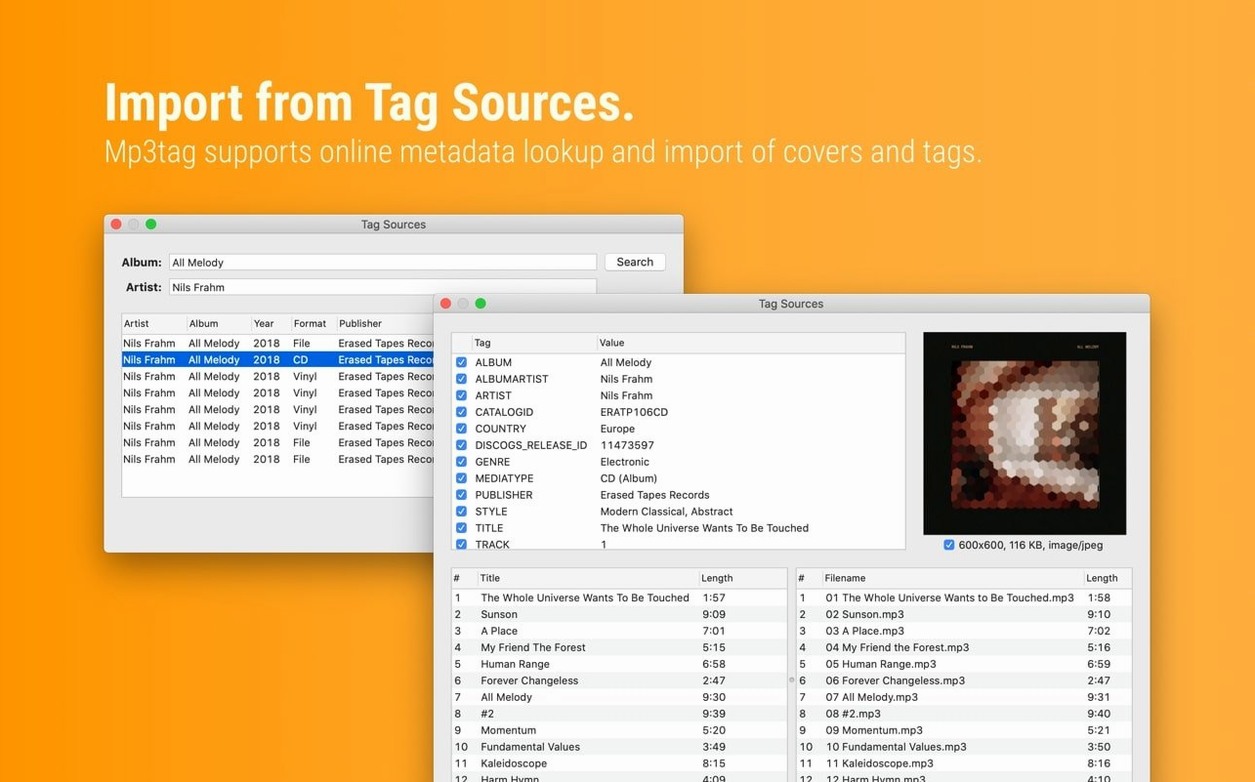
It can search Discogs and MusicBrainz directly for tag data and cover art. You can also import tag info from other sources and write it straight into the files.
Audio formats it reads and writes right now
MP3, MP4, M4V, FLAC, OGG, OPUS, AIF, DSF, MPC, and WAV. The current version 1.14.1 runs natively on both Intel and Apple Silicon Macs and needs macOS 10.14 or later.
Before you download
Several things come up repeatedly. One: does this behave like an Apple app? It does not. The interface is functional—grey panels, list views, straightforward menus—and you will spend your first ten minutes working out where things live. After that it makes sense.
Two: can you edit one field across a thousand files without breaking anything? Yes, but the undo is limited to the current session. Close the app and your last batch rename or tag wipe is permanent. Work on copies first if you are trying something new.
Three: does it need an internet connection? Only for Discogs and MusicBrainz lookups. Local editing, renaming and format conversion work offline. The app itself does not phone home.
People also ask whether it handles classical music gracefully. It handles the tags—composer, conductor, movement—but the automatic tagging sources are patchier for classical releases. You will probably type more manually than with pop or electronic albums. The batch tools still save you time once the data is in.
Decimal BPM values now survive MP4 round trips
Version 1.14.1 arrived in late September 2026 and sorted out several quiet annoyances. The most visible one: decimal BPM values now survive the round trip into MP4 files. Before, anything with a decimal point got truncated to an integer when you saved, so a track tagged 128.5 BPM would come back as 128. That mattered to DJs prepping sets where fractional BPMs affect beatmatching.
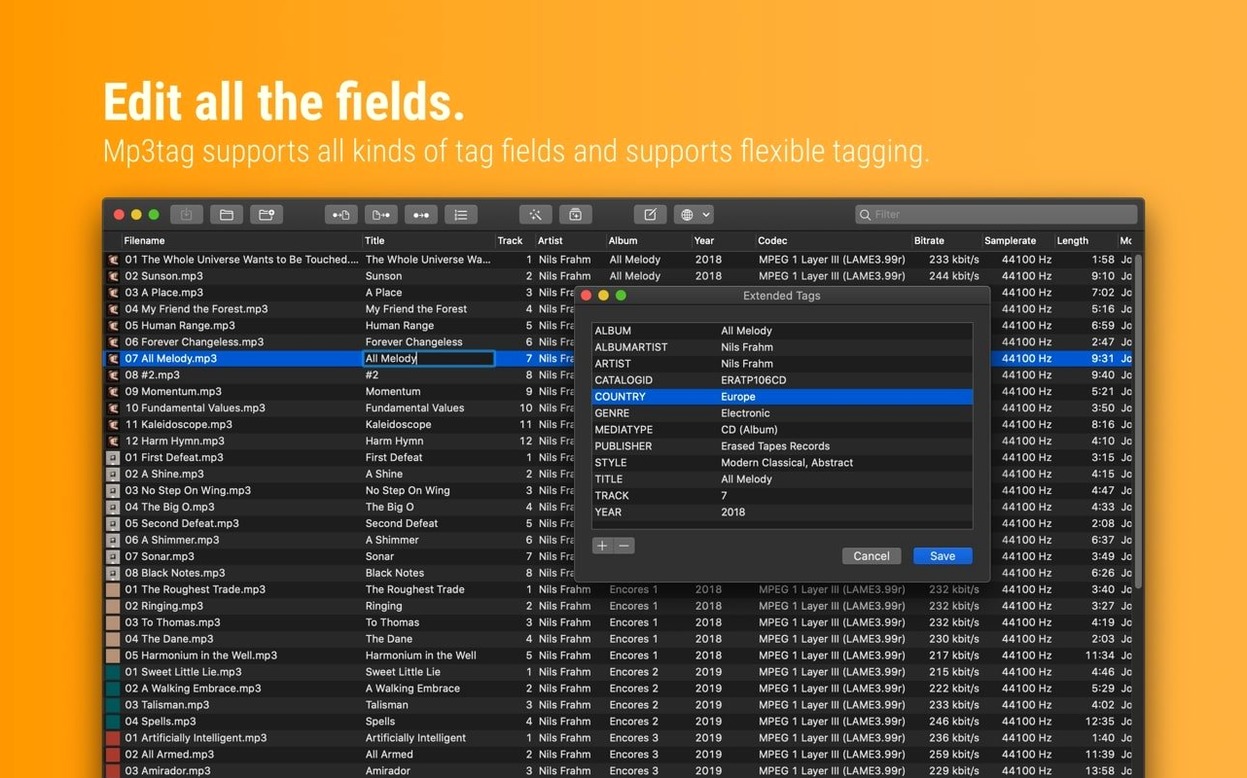
Three separate bugs involved the tag panel and cover art. If you edited cover art in the tag panel, then opened Extended Tags before saving, the cover changes were discarded. The same happened if you used Cover Search, Tag Sources, Converters, Auto-Numbering or Actions while the tag panel had unsaved edits—the app simply ignored your pending changes. Now it remembers them.
A crash specific to macOS 27 got fixed too. Adding action groups in the Action Groups window could bring the app down. That one was repeatable enough that anyone building complex workflows on a newer Mac hit it quickly. It no longer happens.
Gatekeeper blocks it on first launch
Gatekeeper blocks the app on first launch. This is standard for software distributed outside the App Store. Mount the disk image, right-click the app and choose Open, then confirm in the dialogue. If that does not work, open Terminal and drag the app icon onto the window after typing xattr -cr and a space—press Return and the quarantine flag gets cleared.
Tags look fine in Mp3tag but not in Finder or Music. Some apps read different tag versions. In Mp3tag's preferences you can set which ID3 version gets written for MP3 files. Try ID3v2.3 if Music.app is ignoring your artwork. For FLAC files, check that you are writing Vorbis comments rather than ID3 blocks.
MusicBrainz returns the wrong album. The search looks at your existing tags to narrow things down, so a file with a vague title gives vague results. Blank out the album and artist fields on a couple of tracks, type something more precise, then search again.
Renaming files moves them unexpectedly. The rename tool uses a pattern string. One stray backslash in the wrong place and your files land in a folder called %album% instead of the album name. Preview the result in the rename dialogue before you commit. There is a preview button—use it.
Cover art bloat. Some sources supply 3000x3000 pixel JPEGs at maximum quality. You end up with album folders where the artwork is larger than the music. Mp3tag can resize and recompress embedded covers on import. Set a maximum of 1000 pixels and JPEG quality around 85 in the cover preferences and you will barely notice the difference while halving the file size.
Tagging 400 FLAC files takes seconds
The app launches in under two seconds on any Mac from the last five years. Once open, it stays responsive. Tagging a folder of 400 FLAC files—reading them, writing artist and album fields, embedding resized artwork—finishes in a few seconds. The progress bar is honest; it does not hang at 99%.
Memory use sits around 120 MB with a modest library loaded. That creeps up if you load tens of thousands of files into one view, but you rarely do that in practice. Nobody wants to scroll through 20,000 tracks in a flat list. The sensible workflow is one folder, one album, one artist at a time.
Stability is good. Previous versions had edge-case crashes around the actions system, but 1.14.1 has been reliable in daily use. The fixed crash on macOS 27 was the last repeatable one I knew about. Autosave would be welcome—the app does not keep a recovery file—but the actual tag-writing engine does not corrupt data. In years of using it I have never had it mangle a file's tags beyond what I told it to do.
On Apple Silicon the app is a native build. It does not warm your lap or spin the fans. Batch conversions of a hundred WAV files to FLAC with full tagging peg a couple of performance cores briefly and then settle. It behaves like a tool that has been ported carefully rather than rushed out.
Overall, it is the kind of app that rewards a small upfront effort. Learn the action groups, set your cover preferences once, and then it fades into the background. You open it, fix a folder, close it. That is the whole relationship.
What’s new
Fixes a crash on macOS 27 when adding action groups. Cover changes in the Tag Panel are now kept when you use Extended Tags before saving. Unsaved Tag Panel changes are no longer thrown away during cover search, tag sources, conversions, auto-numbering, or actions. Decimal BPM values stay decimal when writing MP4 tags.
Requirements
- macOS 10.14 or later
- Intel 64-bit or Apple Silicon (M-series) Mac
Comments 0
Sign in or create an account to leave a comment.
No comments yet…
If you’ve installed it, say how it went. Mention your Mac and macOS version — it helps the next person more than you’d think.