
Movavi Video Converter for macOS
Description
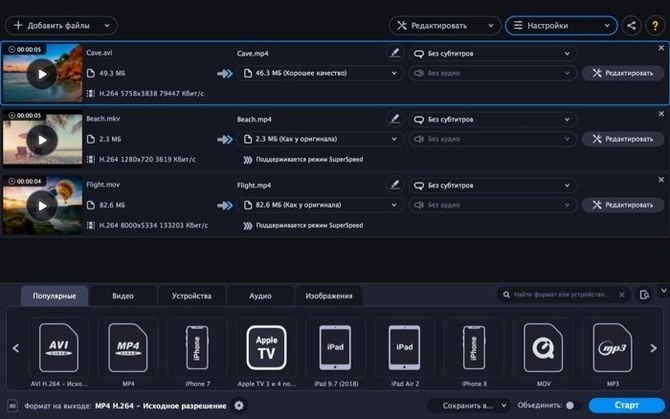
SuperSpeed conversion kicks in when you just need a file in a different wrapper without re-encoding every frame. It is quick, but it only works where the source and target containers play nicely together.
Yes, it can pull audio from any video
- Can it pull the audio out of a video? Yes. Pick MP3, AAC, FLAC, or several other formats as the output and ignore the video track entirely.
- What can I feed it? It reads common video, audio, and image files. For audio alone, that includes MP3, WAV, FLAC, M4A, OGG, WMA, Opus, and AAC.
- Does it do GIFs? You can convert a short clip to GIF or turn a batch of still images into a video.
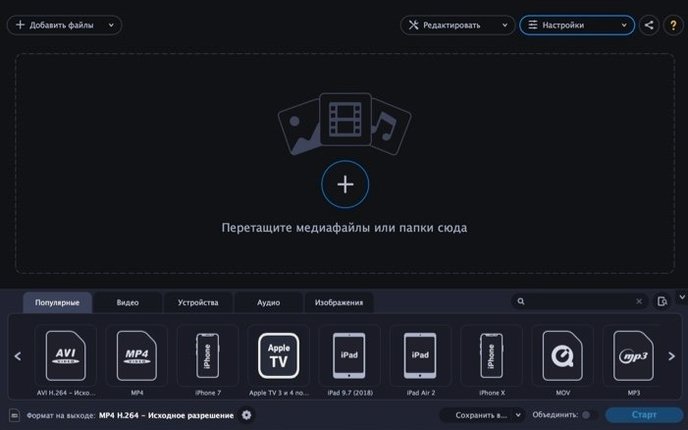
Batch conversion works on a whole folder at once, and the output list covers AVI, MKV, MOV, MP4, MPG, WebM, and WMV. It runs on Intel Macs from macOS 10.13 upwards.
Chewing through 4 GB of files while you browse
On an older Intel iMac with 8 GB of RAM I threw 14 mixed MKV and AVI files at it — around 4 GB total — and let it chew through them to MP4 while I carried on in Safari and Mail. Memory hovered around 480 MB. The fan stayed quiet. That is not a stress test, but it tells you the app is not going to hijack your machine.
SuperSpeed mode is the real time saver. When it kicks in, a two-hour film wraps up in under ninety seconds. The trade-off is the usual one: it remuxes rather than re-encodes, so the source and destination containers need to be compatible. If they are not, the button greys out and you fall back to a regular encode. On a 2017 MacBook Pro, a 1080p software encode ran at roughly 90 fps — perfectly usable while you make a cup of tea.
Stability has been uneventful in the best way. No crashes during batch runs, no stalled queues overnight, and it remembers where it left off if you close the lid and walk away. The only hiccup I have seen is a slight delay populating the preview window when scrubbing a 4K file, and even then only with the H.265 encoder engaged.
Covers everything from a phone recording to a DVD rip
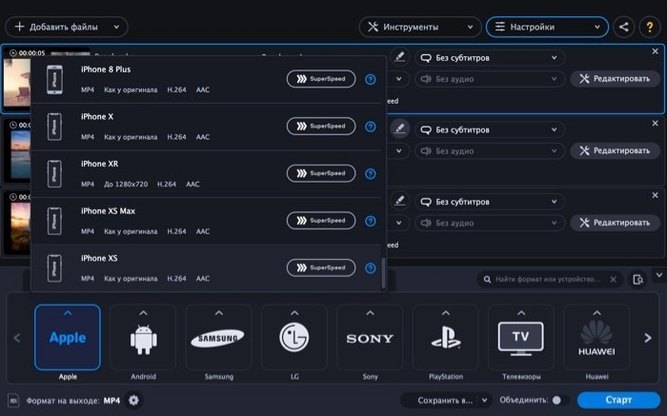
People who spend their time in QuickTime and want a single tool that covers everything from a phone recording to a DVD rip will find the format support does the heavy lifting. The device-profiles panel is surprisingly current — there are presets for recent Samsung and Sony models, so you do not have to remember which bitrate a Galaxy Tab prefers.
Musicians and podcast editors who just need to strip audio from a video track get a fast one-click path. The same goes for anyone converting a folder of FLAC to MP3 for the car. The app earns its place on a help-desk checklist because it does not demand that you learn what a codec is before you press Convert.
If your daily work involves movavi video converter mac searches because you keep hitting format walls, the broad input list — AVI, MKV, MOV, WebM, WMV, and more — means you rarely need a second converter. The image-to-video and video-to-GIF paths are light, but useful for training docs and quick social posts.
Drag the whole folder, keep the folder structure
- Drag the folder, not the files. The batch tool reads everything inside, including nested folders, and applies the same preset across the lot. It keeps the folder structure in the output directory.
- Right-click in the file list for a quick “Remove all finished” that clears the queue without disturbing anything still converting.
- Rename the output file in the list by clicking the filename once, waiting a beat, then clicking again. Saves you hunting through Finder later.
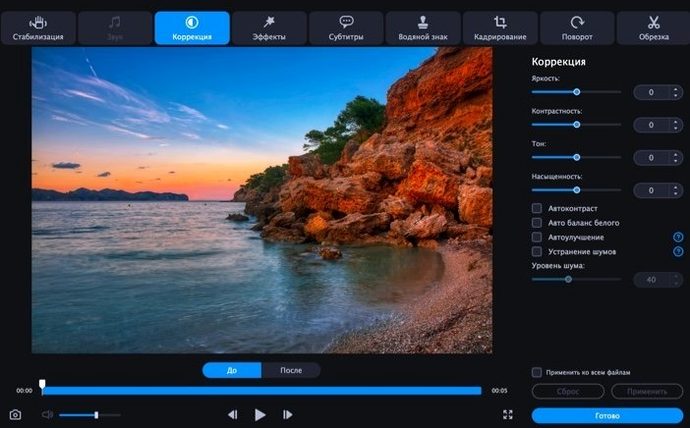
- The trim handles snap to keyframes when you hold Shift. Makes clip cuts cleaner without hunting for I-frames manually.
- Save a custom preset. After you set resolution, codec, and audio bitrate once, the Save Preset button sits at the bottom of the format pane. It pays off the third time you encode for the same piece of kit.
Requirements
- macOS 10.13 or later
- Intel 64-bit processor
FAQ
Does Movavi Video Converter run on Apple Silicon?
The current version requires an Intel 64-bit processor. It runs on Apple Silicon via Rosetta 2, but native support is not listed.
Can I convert a folder full of files at once?
Yes. Point it at a folder and it queues up everything inside for batch conversion.
What audio formats can it produce?
It can output MP3, WAV, FLAC, M4A, OGG, WMA, Opus, and AAC from your video or audio files.
Comments 0
Sign in or create an account to leave a comment.
No comments yet…
If you’ve installed it, say how it went. Mention your Mac and macOS version — it helps the next person more than you’d think.