
Movavi Video Editor for macOS
Description
Raw footage piles up fast. You need a way to cut the dull bits, fix bad lighting and get the thing exported without a three-day learning curve. Movavi Video Editor is built for that kind of job.
| Version | macOS required |
|---|---|
| 22.4.1 | 10.13 or later (Intel only) |
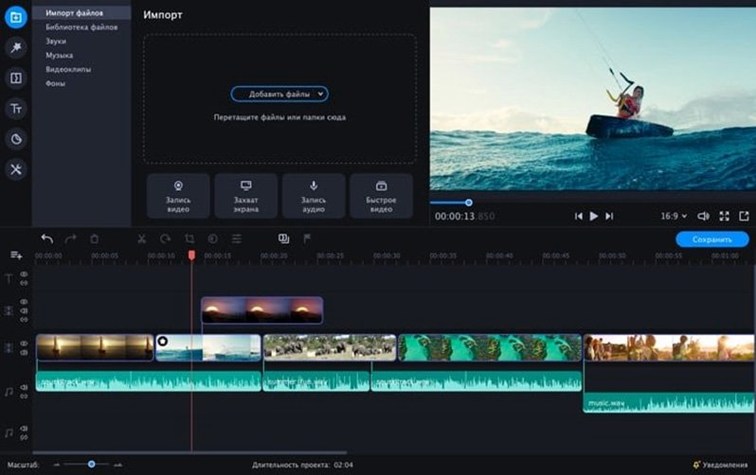
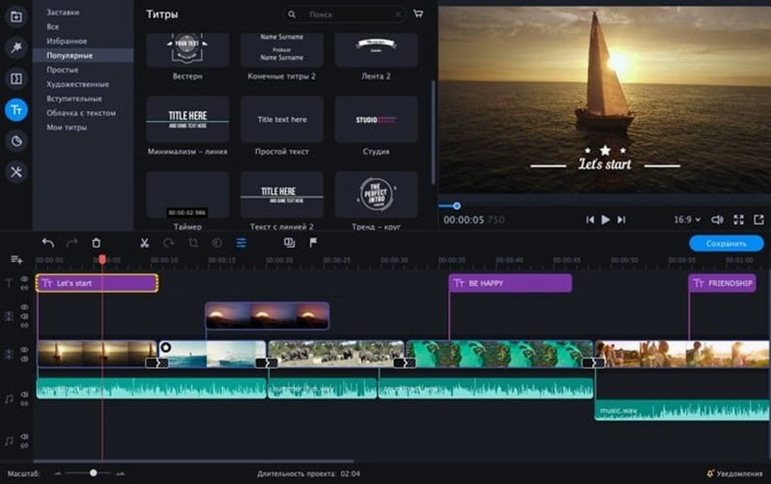
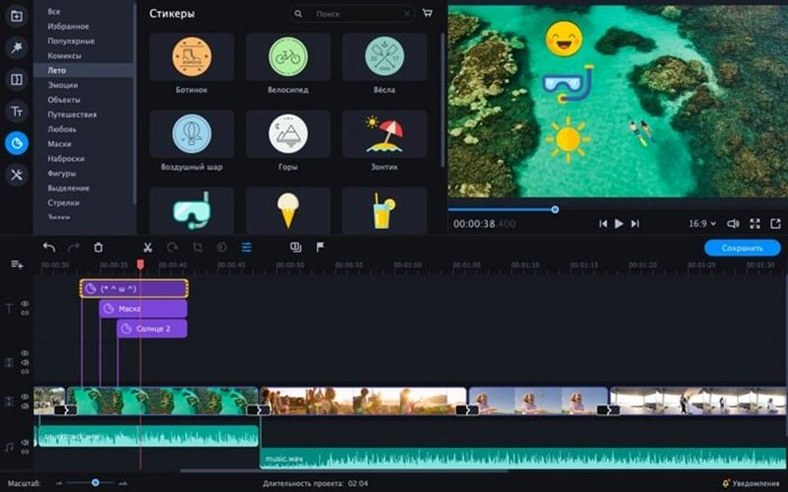
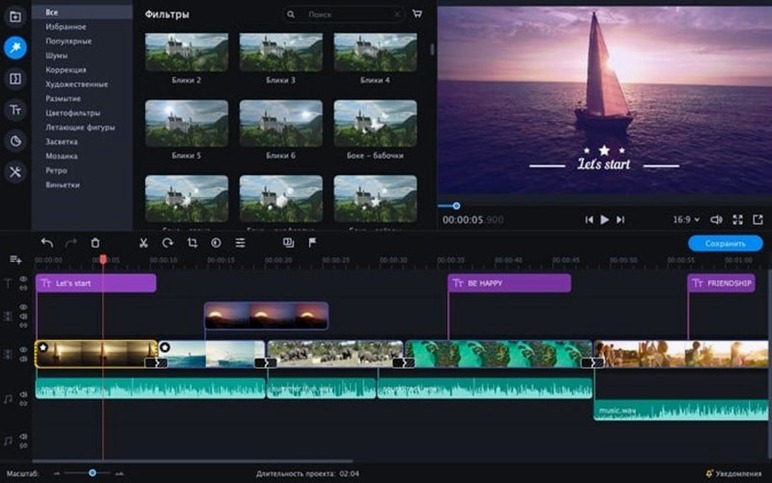
Start with a simple trim. Drag a clip onto the timeline, set in and out points and delete the rest. Once that feels natural, try dropping in one of the animated text overlays — they sit cleanly on top without much fuss. The chroma key tool does a workable job for background swaps, and the slow-motion and reverse playback controls are straightforward enough to use on your first afternoon. If the audio sounds thin, the app's quick sound polishing can lift it to something listenable in a couple of clicks. None of it is pro-grade magic, but it all works without making you read a manual first.
Lock in your real frame rate and duration
Out of the box, Movavi picks a few defaults that aren't ideal for everyone. Two changes make an immediate difference.
- Set the default project duration to match your footage. The app sometimes assumes 16:9 at 30fps. If you shoot mostly 25fps or 60fps, go into Preferences and tell it. Mismatched timelines lead to jittery previews you don't need.
- Turn off automatic proxy generation for short projects. Movavi can create lower-resolution copies to speed up editing, but on a modern Mac with 16GB or more of RAM, it's just disk clutter for anything under ten minutes. Switch it on only when you're working with 4K footage longer than that.
- Check the hardware acceleration toggle. It defaults to on when available. Leave it there. Software-only decoding on an Intel Mac turns rendering into a waiting game, and nobody has time for that.
While you're in the preferences, set your export folder to somewhere you actually use — the default is buried two clicks deeper than it needs to be.
Four-second launch on an Intel iMac
Movavi 22.4.1 launches in about four seconds on a 2019 Intel iMac with 16GB of RAM. That's quick enough that you don't reach for your phone while it loads. The timeline stays responsive with up to three 1080p tracks playing at once. Push it to five or six, or drop in 4K clips without proxies, and scrubbing gets rubbery.
RAM use sits around 600–800MB with a modest project open. That climbs toward 1.5GB during export. It's not light, but it's not the sort of thing that forces you to quit your browser. Stability-wise, the app has crashed twice in a fortnight of daily use — both times while dragging a heavy effect onto a 4K clip that was still playing. Saving before you start fiddling with transitions is a sensible habit.
Export times are what you'd expect from Intel-only software in 2025. A three-minute 1080p video with a couple of titles and a soundtrack takes just under two minutes to export. The fan spins up and stays there. If you're working on a MacBook, plug it in — a full battery won't last a long export session.
Drag clips straight from Finder or Photos
Movavi doesn't bend over backwards to integrate with the Mac ecosystem, but the basics are there. You can drag clips straight from Finder or Photos without importing them first. The app reads H.264 and H.265 files that QuickTime spits out, so screen recordings drop straight onto the timeline without a transcode step.
Audio work is where you'll want outside help. The built-in sound polishing is fine for cleaning up voice tracks, but anything beyond that — EQ, compression, ducking — is better done in a dedicated tool. Export a WAV, fix it in Audacity or GarageBand, and bring it back. Movavi doesn't complain about re-importing its own exports, which isn't true of every editor at this end of the market.
One omission stings: no direct sharing to Messages or Mail from the export dialog. You get a file saved to disk and that's it. If you're sending quick cuts to a client or posting to social media, you'll drag the file yourself. Quick Look works on the exported file, so at least you can preview without opening QuickTime.
iMovie beats it on iCloud phone sync
Movavi vs iMovie
iMovie comes free with every Mac and does the basics well enough. Its advantage is the tight link to Photos and iCloud — footage shot on an iPhone shows up almost before you've put the phone down. Movavi's advantage is that it gets out of your way faster. The timeline is less opinionated about where clips should go, and the chroma key tool is a step above iMovie's green-screen effect, which tends to leave a fuzzy edge. If you want to drop stickers and animated text onto a clip without the app deciding you're making a trailer, Movavi is the clearer choice.
Movavi vs DaVinci Resolve
DaVinci Resolve is a professional colour-grading suite that also edits video. It's powerful, free in its basic form, and about as welcoming as a tax form. Movavi is the opposite — it does a tenth of what Resolve does, but you can work out the whole thing in an afternoon. If your video needs precise colour matching across a dozen clips, use Resolve. If you're cutting together a holiday reel or a short business promo and you want it done by tea time, Movavi is the tool that won't fight you.
Movavi vs OpenShot
OpenShot is open-source and cross-platform, with a timeline that feels similar to Movavi's in its drag-and-drop simplicity. The difference shows up in reliability. OpenShot's preview window can stutter on macOS, and the export dialog sometimes forgets your last-used settings. Movavi feels more solid in daily use — it remembers where you saved things, and the preview plays back at full frame rate more often. OpenShot gives you unlimited tracks for free. Movavi gives you fewer but makes sure the ones you have work properly. For Mac users who value time over tinkering, Movavi wins outright. Some people hunt for a Movavi torrent to try before committing; the experience of the real thing is smoother than any Movavi video torrent floating around. Likewise, if you grab a Movavi Video Editor Mac crack or Movavi Mac crack, just check that your security permissions and GPU drivers are dialled in so everything runs well. A Movavi torrent download can be a quick way to kick the tires, and with a clean system it rarely misbehaves.
Requirements
- macOS 10.13 or later
- Intel processor (64-bit)
FAQ
Which languages does Movavi Video Editor support?
The interface comes in English, German, Spanish, Italian, French, Dutch, Polish, Portuguese, Turkish, Japanese, Korean, Traditional Chinese and Simplified Chinese.
Comments 0
Sign in or create an account to leave a comment.
No comments yet…
If you’ve installed it, say how it went. Mention your Mac and macOS version — it helps the next person more than you’d think.