Movavi Screen Recorder for macOS
Description
The scheduler stops recording at a set length, which saves you from trimming an hour of dead air because you forgot to hit stop. That's the kind of feature that earns its place on a help-desk shortlist.
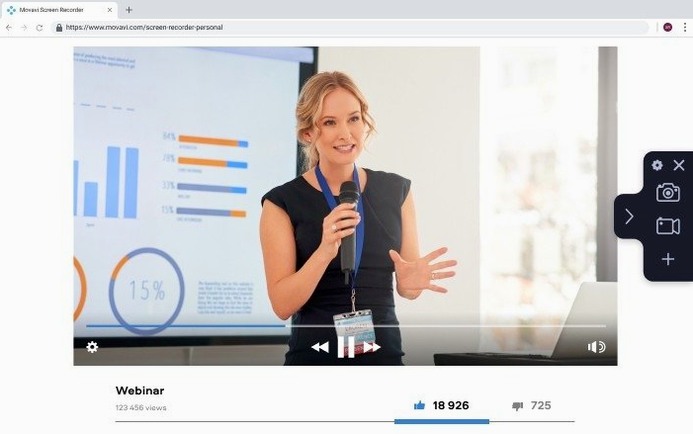
Desktop, audio, webcam and GIF capture
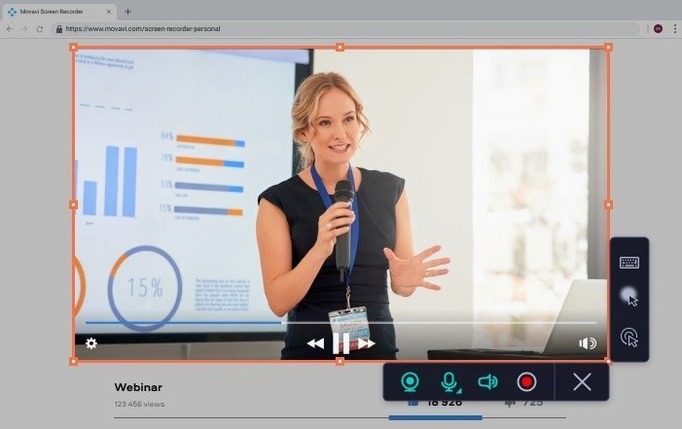
- Grabbing desktop activity and application windows with system audio or a microphone.
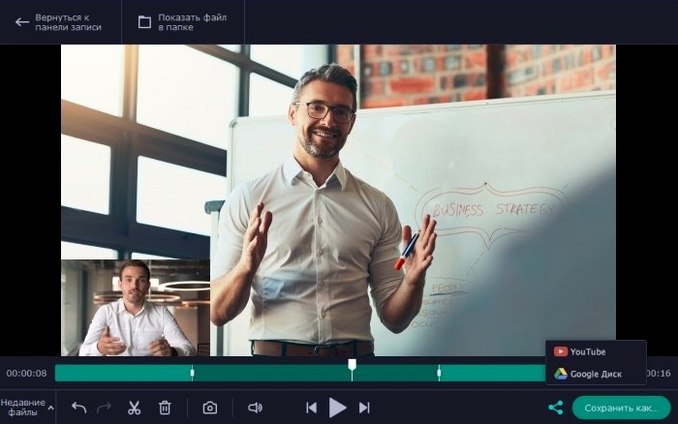
- Recording webcam footage alongside the screen — useful for quick walkthroughs.
- Saving recordings as standard video files or lightweight GIF animations.
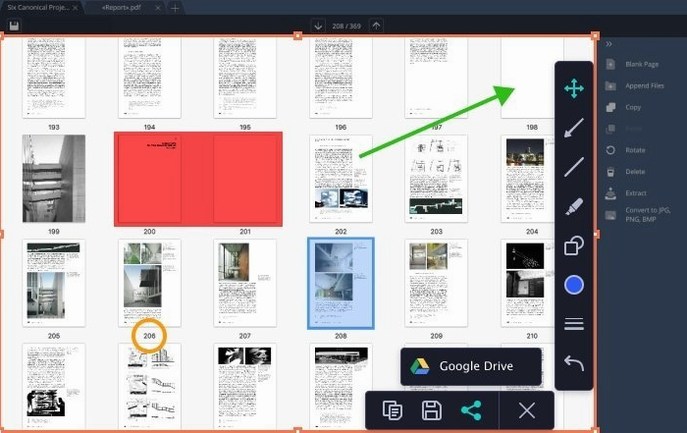
- Taking a screenshot and editing it before you save, without opening another app.
- Sending the finished file straight to Google Drive or YouTube.
Intel-only, English interface, maintenance update
- macOS 10.13 or later, Intel only — no Apple Silicon native support.
- The interface is in English.
- Version 23.1.1 is a maintenance release with minor fixes, not new tools.
Cursor click effects and keystroke display cut editing time
People making software tutorials get the biggest return here. The cursor click effects and on-screen keyboard-press display mean you can show what you're pressing without adding callouts in post-production. That alone saves a surprising amount of editing time.
Support staff and QA testers recording bug reports will like the webcam overlay — you can narrate while the viewer sees both your face and the screen. It keeps the explanation human without needing a separate video track.
Casual users who just want to grab a clip of a video call or save a live stream snippet will find the duration limiter useful. Set it for ten minutes, start recording, and walk away. No trimming, no forgotten stop button, no 2 GB file of your empty desktop.
If you mostly record short GIFs for chat threads or documentation, the built-in GIF export means you skip opening a converter. It's a niche thing, but once you have it you'll notice how often you reach for it.
Fully remappable custom hotkeys
A few things sit just below the surface and make the daily grind smoother. The custom hotkeys are fully remappable — not limited to a preset list. If you already use a global shortcut for something else, you can work around it without conflicts.
The screenshot editor that opens before saving is minimal but genuinely handy. You can arrow-and-text annotate a grab in seconds, then save it, copy it to clipboard, or bin it. No need to open Preview or mark it up afterwards.
Recording multiple video streams at once sounds technical, but in practice it means you can capture the desktop and the webcam as separate elements. Later, if you bring the recording into an editor, you have more flexibility to resize or remove the webcam feed without re-recording.
The scheduler accepts a date and time, not just a countdown timer. If you need to record a meeting that starts at 3 p.m. and you won't be back in time, set it once and let the Mac handle the rest. The recording stops automatically at the duration you specify.
Standard MP4 files open in any editor without conversion
Recordings drop into the Finder as standard MP4 files — no proprietary wrapper that only Movavi's own editor can read. That means you can open them in QuickTime, iMovie, DaVinci Resolve, or any NLE without conversion steps. The same goes for the GIFs: they're ready to drag into Slack, Teams, or a browser.
The direct upload to YouTube and Google Drive is a small timesaver, but it matters when you're publishing several clips in a row. You authenticate once, then send the file without opening a browser. It's not a replacement for a full upload workflow, but for quick sharing it keeps the task inside one window.
If you already use another Movavi app for editing, the recordings slot straight in with no format surprises. Even if you don't, the files behave like any other media on your Mac — no lock-in.
On the macOS side, the app respects the system's screen recording permission model. It asks once, then leaves you alone. It doesn't install a kernel extension or demand accessibility access beyond what's normal for a screen capture tool. That keeps it tidy in System Preferences, which anyone on a managed Mac will appreciate.
What’s new
Adds minor improvements and bug fixes.
Requirements
- macOS 10.13 or later
- Intel processor
FAQ
Can it record the webcam and screen at the same time?
Yes. You can capture the desktop or an application window while the webcam overlay records you, with microphone audio if needed.
What formats can it save?
It saves standard video files and animated GIFs. You can also take and edit screenshots before saving them.
Comments 0
Sign in or create an account to leave a comment.
No comments yet…
If you’ve installed it, say how it went. Mention your Mac and macOS version — it helps the next person more than you’d think.