Motionvfx - mTitle Cinematic for macOS
Description
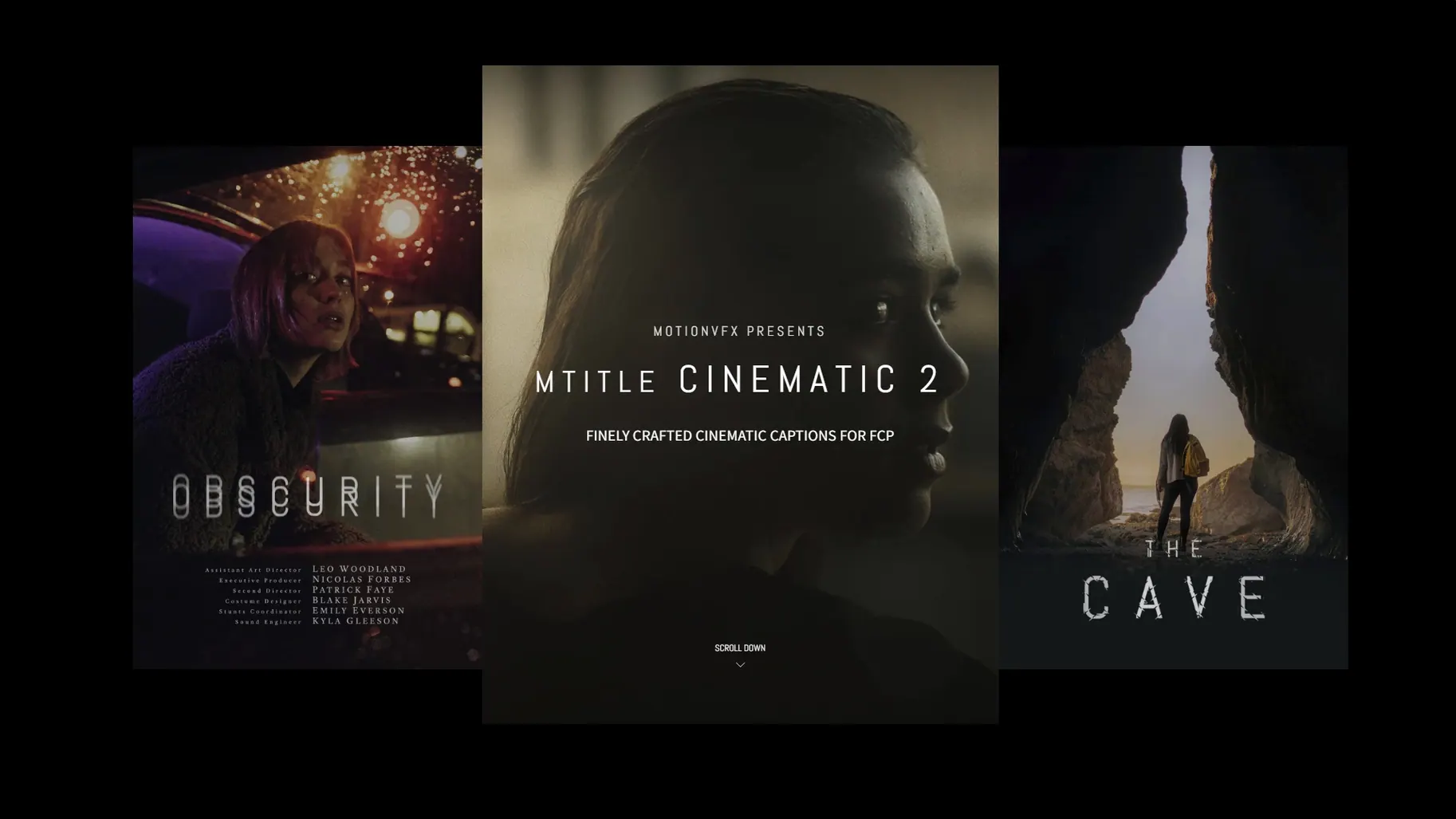
mTitle Cinematic is a pack of horizontal cinematic titles built for Final Cut Pro.
Where it runs, where it lands
You need macOS 10.14.4 or later. On the app side, the plugin expects Motion 5.4.3 or Final Cut Pro 10.4.6. There is no installer. You copy the template files to /Users/username/Movies/Motion Templates/Titles and the titles appear in the FCP browser under the Titles sidebar. Everything stays horizontal — these are widescreen titles, no vertical variants.
The sound of it
The pack is described as cinematic, and that is mainly about movement and weight. The animation curves are slow in, slow out. The type holds the centre of frame without jitter. If you cut short-form trailers or title sequences where the text needs to land with a bit of mass, this is the sort of thing you reach for when the built-in FCP titles feel too light.
Weight and friction the stock FCP titles cannot fake
If you have used Apple's built-in FCP titles you know the deal: they work, they render fast, and they look exactly like what they are. mTitle Cinematic adds weight and friction that the stock titles cannot fake. The lettering drifts in with more deliberate timing. The fades have a longer tail. It feels less like a software title and more like something that belongs on a cinema screen.
Compared to mTitle Mega Pack DVR, the Cinematic set is much narrower in scope. Mega Pack gives you lower-thirds, broadcast bars, split-screen callouts — the sort of stuff a news editor or corporate cutter needs every day. Cinematic does one thing: widescreen title cards that breathe. If you already own Mega Pack, Cinematic is not a replacement. It lives next to it for moments when the timeline needs a slower, more theatrical opener.
Stacked against title templates from Envato or generic marketplaces, the difference is in how the keyframes are built. MotionVFX templates use parameter controls inside Final Cut Pro — published sliders and checkboxes that actually work. A random third-party template might give you a flat .moef file with baked timing and no published parameters. That means you spend ten minutes ungrouping and hunting for keyframes just to change the fade duration. With mTitle Cinematic you adjust a slider in the inspector and move on.
Turning a placeholder title into a film opening
Say you have a three-minute short film nearly locked. The cut is solid but the opening title feels like a placeholder. You drop the playhead on the first gap clip and open the Titles browser. The mTitle Cinematic folder sits under the usual FCP headings. You scrub through the thumbnails until you find one with a slow reveal and a subtle lens-flare pass across the type.
- Drag the title above the gap clip. It snaps to the full length of the gap.
- Double-click the title text in the viewer. Type the film name. The font is already set — a heavy sans-serif with tight tracking. You leave it as is.
- Open the inspector. The template exposes sliders for fade-in duration, flare intensity and a background tint. You pull the fade-in from 1.2 seconds to 1.8 seconds. The flare you drop to 40 percent so it does not compete with the grade on the opening shot.
- Play it back at full resolution. The type settles with a soft deceleration. No frame drops on a ProRes 4K timeline. The whole adjustment takes under a minute.
You drop a second title from the pack over a black gap at the end for the credits header. Same pack, different template. The inspector parameters match in behaviour so you do not have to re-learn anything. The consistency across the 50 titles means you spend less time fiddling with keyframes and more time spotting the cut.
Building a trailer-sting from scratch
Here is a workflow for a short teaser sting — say fifteen seconds — using only mTitle Cinematic and a few stills. The task is to announce a film title over three rapid cuts.
Start with three still frames on the primary storyline: a wide landscape, a close-up of a prop, then black. Each sits for about four seconds. You want the title to appear across the second and third shot.
- Find a Cinematic template with a hard centre reveal — something that snaps the text into frame rather than fading. The thumbnail preview in the browser gives you a rough feel for the speed.
- Drag the template onto the timeline starting halfway through the second still. Trim the out-point so the title holds for a full beat over the black frame. The text input takes the film name in all caps. You set the tracking a touch wider in the inspector.
- Add a second instance of the same template on a connected storyline above the first. This one carries the tagline in a smaller point size, offset by half a second so it lands just after the main title. The built-in delay parameter in the inspector handles the timing. No manual keyframing needed.
- Hit the background tint slider for both titles and pull it to zero. You want the type over the stills, not over a generated grey wash. The pack lets you strip it back without breaking the animation.
- Play through the sting. Adjust the delay on the tagline until the rhythm feels right — main title lands, beat, tagline lands. Three minutes of tweaking and the sting is ready for a music bed.
The whole task stays inside Final Cut Pro. You never open Motion. The published parameters carry the load, which is exactly what you want when a director is leaning over your shoulder and the deadline was ten minutes ago.
Requirements
- macOS 10.14.4 or later
- Motion 5.4.3 or Final Cut Pro 10.4.6
FAQ
Do I need Motion to use mTitle Cinematic?
You can use it in Final Cut Pro 10.4.6 without opening Motion, but the plugin requires Motion 5.4.3 to be present on the system.
Comments 0
Sign in or create an account to leave a comment.
No comments yet…
If you’ve installed it, say how it went. Mention your Mac and macOS version — it helps the next person more than you’d think.