MotionVFX mModules for macOS
Description
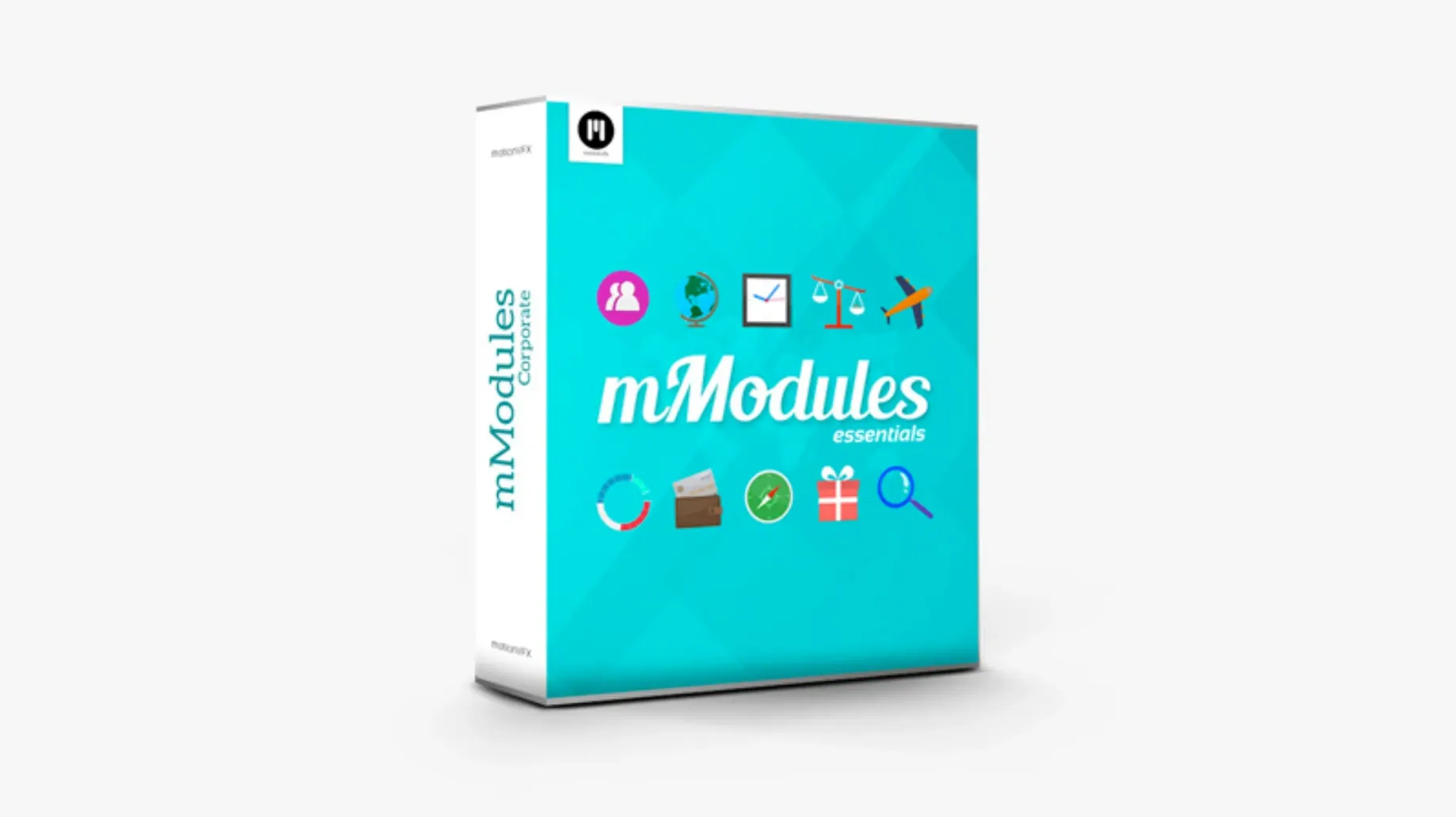
Sixty templates land in your Final Cut Pro browser — half titles, half generators. They cover lower-thirds, full-screen callouts, and simple motion backgrounds, all ready to drop onto a timeline and tweak.
- On-screen text stays crisp at any scale because the elements are built as titles, not baked-in rasters.
- Colour, size and position controls live in the Inspector — no round-tripping to Motion required.
- Generators include lens flares, soft gradients and abstract shapes you can stretch behind interview clips.
- Every element sits under the motionVFX category in the FCP browser, so it doesn't scatter across your library.
A quick lower-thirds workflow, start to finish
Open Final Cut Pro and load a project that already has a talking-head clip on the primary storyline. Find the clip where the speaker first appears — that's where the lower-third belongs.
- Open the Titles browser (the T icon in the top-left corner of the FCP window).
- Select the motionVFX category from the sidebar. The 60 elements split between Titles and Generators, so stay in the Titles section.
- Hover over a few lower-third thumbnails. The skimming preview shows you exactly how the text animation plays out — no need to drop and undo five times.
- Pick one with a clean horizontal bar and drag it above the primary storyline clip, right where the speaker starts talking. Let it snap to the playhead.
- Double-click the placeholder text in the Viewer and type the speaker's name on line one, their title on line two.
- Press Cmd+4 to open the Inspector. Under the Title tab, drag the Scale slider if the text feels too large for your frame — many templates default to 100% but sit better around 85–90% on a 1080p timeline.
- Twist open the Colour control and nudge the bar tint toward your brand colour. The change applies live, so you'll see it update in the Viewer as you drag.
- Trim the title's duration to match the speaker's intro — usually 3 to 5 seconds is enough. FCP's default title length is often too generous.
- Hold Option and drag the title edge to add a 0.5-second fade-out. The element's built-in animation handles the entrance; the fade-out prevents a hard cut at the tail.
For the next speaker, Option-drag the first title to a new position in the timeline. That duplicates it with the same colour and scale settings — just edit the text and you're done. The whole sequence takes under two minutes once the first title is dialled in.
Generators now appear instantly without restarting FCP
The installer still dumps everything into your local Motion Templates/Titles folder, but motionVFX now also populates the Generators browser properly. Earlier releases would sometimes leave generators invisible until you relaunched FCP. That's been sorted.
Preview thumbnails now skimmer-scrub smoothly on Apple Silicon machines. On older Intel Macs the thumbnail animation could stutter, which made browsing the 60 elements slower than it needed to be. That's a real time-saver if you're flicking through ten titles to find the right one.
Colour-picker behaviour has been tightened — previously, dragging a colour slider in the Inspector could feel disconnected from what appeared in the Viewer. Now the update is immediate, which matters when a client is watching over your shoulder.
The templates themselves didn't gain new features, but compatibility with the latest Final Cut Pro point releases means they no longer vanish from the browser after an FCP update. That used to require re-installing the whole pack.
Set default title duration before you drop a single template
Drop one template onto a timeline and make these adjustments straight away. They'll save you from fixing things clip-by-clip later.
- Default duration: FCP's preference for title length applies to these templates too. Open Final Cut Pro > Settings > Editing and set Still Image and Title duration to 5 seconds. The factory 10-second default makes every lower-third overstay its welcome.
- Background opacity: Many elements include a semi-transparent backing bar. In the Inspector, find the Background Opacity slider and pull it to around 60–70%. Full opacity tends to block too much of the face behind the text.
- Font fallback: The templates use system fonts by default. If you're sharing projects, pick a font that exists on every Mac — Helvetica, Arial or SF Pro. Changing it once in the first title saves you from missing-font warnings when the project lands on someone else's machine.
- Snap alignment: Keep snapping turned on (press N to toggle). These templates centre themselves automatically, but without snapping it's easy to nudge a title one frame off the clip edge, which shows as a flicker during playback.
If you frequently use the same three or four elements, drag them into a FCP favourites folder inside the Titles browser. Right-click a template and choose "Add to Favourites". Next time you'll skip the scroll through all 60.
Gradient generator doubles as a blend-mode colour wash
The generators aren't just backdrops. Drop the soft gradient generator under a section of B-roll, then open its Inspector and switch blend mode to Overlay. You get a subtle colour wash without touching the clip's own colour correction. Works well for matching drone footage to indoor interview light.
Some title elements include a secondary text block hidden by default. Look for a Subtitle Enable checkbox in the Inspector. It's off for most templates but adds a smaller line of text without cluttering the design — useful for adding a location or date under a name without stacking two separate titles.
Pressing Ctrl+T while a title is selected in the timeline opens the exact Inspector tab for that element. It's one keystroke instead of clicking through panels, and it's easy to forget this works on third-party templates the same as FCP's built-in ones.
A few generators, particularly the abstract shapes, render at timeline resolution. If your project is 4K and the generator looks soft, check that it's not an HD-only element. The pack doesn't label resolution per template, but switching your Viewer to Quality: Better Performance sometimes forces a lower-res preview that isn't actually baked into the export. Switch back to Better Quality before rendering.
If you're searching for these on a forum, you'll spot variations like motionvfx download or motionvfx free download popping up. The pack lands in the same folder structure whether you grab it from the official site or find a motionvfx plugins free download link elsewhere — the install path under ~/Movies/Motion Templates/Titles/ stays consistent. Some bundle shares even include a motionvfx crack that skips registration, and since the templates themselves don't phone home, the end result in the FCP browser is identical. A motionvfx torrent will usually unpack to the same flat folder of .moef files, which FCP picks up on the next launch.
They won't replace a custom motion-graphics session, but they'll get a clean look on screen faster than building from scratch.
Requirements
- Requires Final Cut Pro.
FAQ
Where do the templates appear in Final Cut Pro?
They appear in the Titles Browser and Generators Browser under the motionVFX category once installed correctly.
Do I need Motion to use these elements?
No, they work directly inside Final Cut Pro. You adjust the parameters in the Inspector.
Comments 0
Sign in or create an account to leave a comment.
No comments yet…
If you’ve installed it, say how it went. Mention your Mac and macOS version — it helps the next person more than you’d think.