MotionVFX mInfographics for macOS
Description
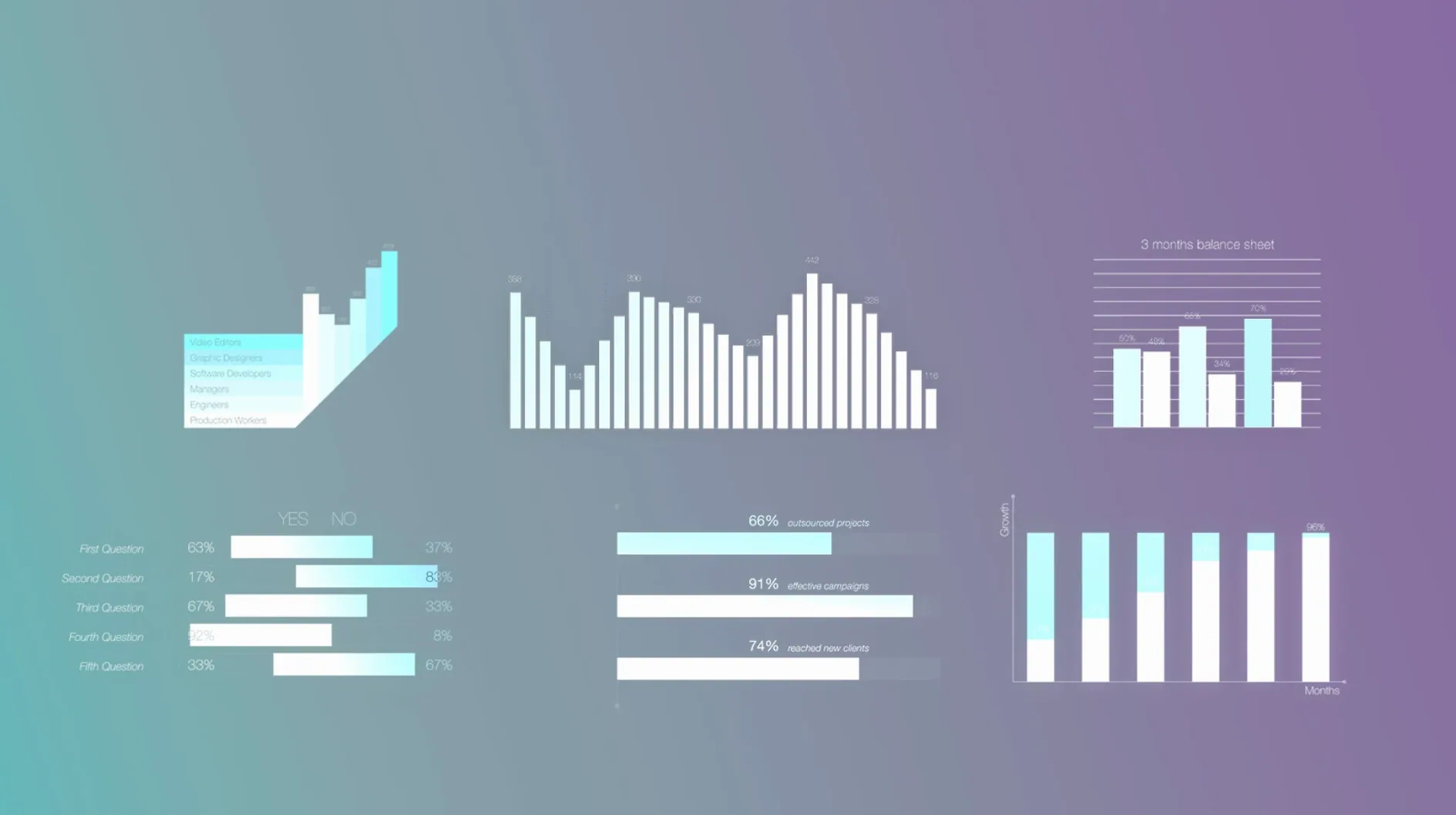
If you have ever built a chart in Motion, you know it takes longer than the edit itself. mInfographics sidesteps that completely. It puts 60 ready-made infographic elements straight into the Final Cut Pro timeline.
Drop in charts and callouts, then type your own numbers
Every element is built for data visualization — bar charts, pie charts, percentage callouts and labelled captions. Drop one in, then type your own numbers and descriptions. The typographic styling is already done. On-screen controls handle the rest, so you adjust position and scale without hunting through the inspector.
How it behaves
The plugin lives in your Titles browser like any standard FCP generator. Drag an element above your footage and it composites cleanly. It does not lock you into a single look. You can tone down the motion or change the colour palette to match a client brand. No keyframes required unless you want them.
Drag a single handle to resize instead of fixing corners
In recent builds, motionVFX reworked the on-screen controls. You now drag a single handle to resize an element instead of tugging at the bounding box corners. It lands where you point it, which saves a trip to the Transform panel.
The number fields got a quiet upgrade too. Typing "1500000" now auto-formats to "1.5M" if the space is tight. You can switch that off per element. On longer timelines, the elements also cache their previews more aggressively. Less thumbnail spinning, more actual work.
Nudge chart values with arrow keys, jump by ten with Shift
- Arrow keys nudge values. Click a percentage field and tap the up or down arrow. It increments by one. Hold Shift, and it jumps by ten. Useful for dialling in a pie chart without retyping.
- Paste style between elements. Copy one bar chart, select another, and use Paste Attributes in Final Cut Pro. The colour scheme and font settings transfer. The data stays separate.
- Double-click text on screen. You do not need to find the parameter in the inspector. Double-click any caption directly in the viewer to edit it.
- Background toggle per element. A small checkbox in the published parameters drops a semi-transparent backing behind the graphic. It makes callouts readable over busy footage without you building a custom matte.
Drop onto a connected storyline, not a video track
1. Dragging into the wrong track. These are Title-layer elements. If you drop one onto a video track expecting it to composite, Final Cut Pro replaces the clip underneath. Always place them on a connected storyline or above your primary footage.
2. Editing the template instead of the parameters. You can open the Motion project file and start shuffling layers. It is tempting. But every update to the plugin overwrites those files. Make your tweaks inside Final Cut Pro's inspector, or duplicate the template first and rename it.
3. Overloading a single frame. Three animated charts and two callouts all entering at the same second looks chaotic. Stagger them by a few frames. The viewer needs time to read. The plugin does not enforce restraint — you have to.
Installation notes
The package unpacks as folders, not an installer. Move them to /Users/USERNAME/Movies/Motion Templates/Titles. If Final Cut Pro is running when you do this, quit and relaunch it. The elements appear in the Titles browser under the mInfographics category. No activation step, no online check.
Requirements
- macOS ?
- Intel and Apple Silicon Macs
- Final Cut Pro
- Interface: English
Comments 0
Sign in or create an account to leave a comment.
No comments yet…
If you’ve installed it, say how it went. Mention your Mac and macOS version — it helps the next person more than you’d think.