Motion for macOS
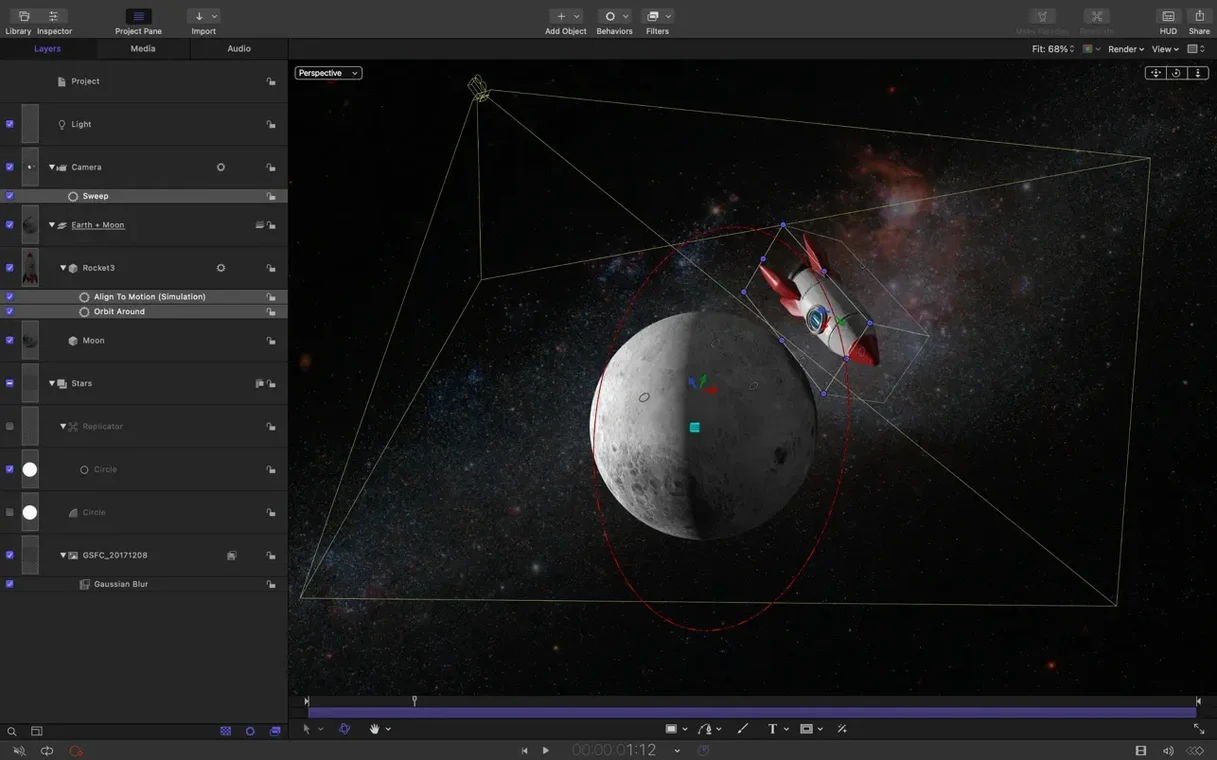
Description
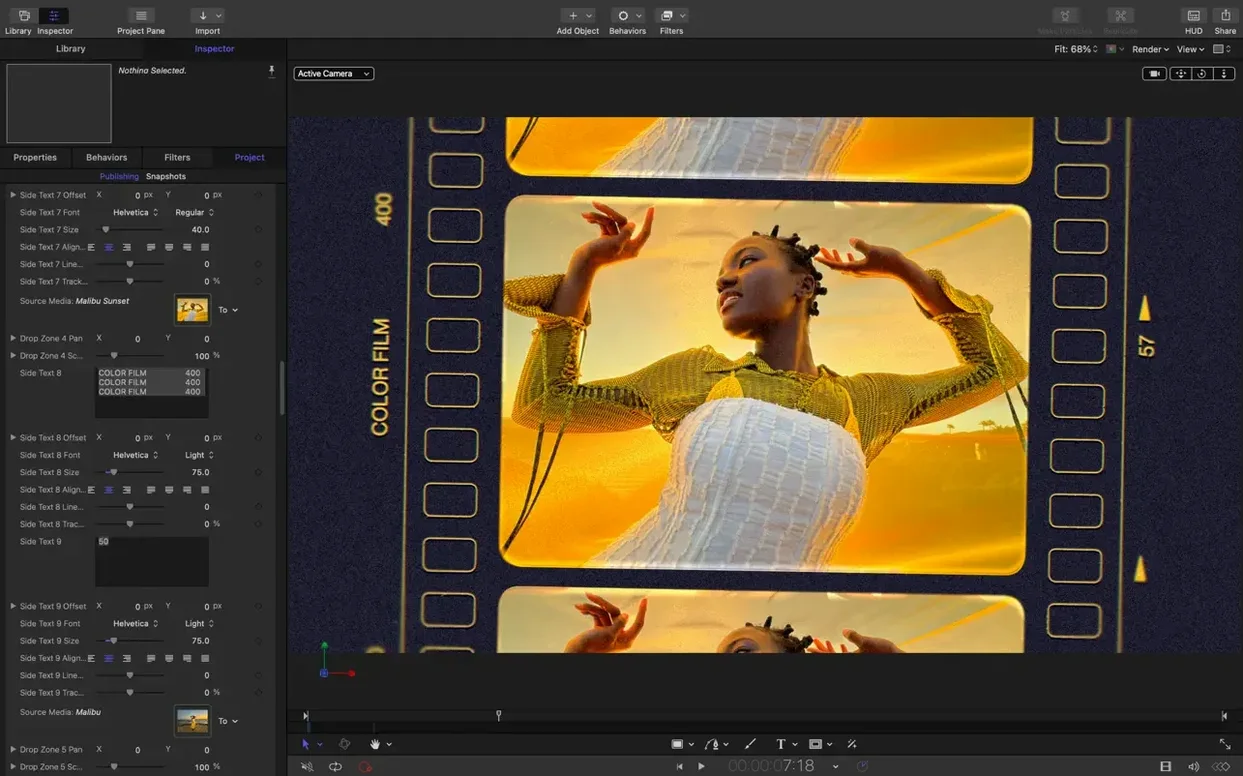
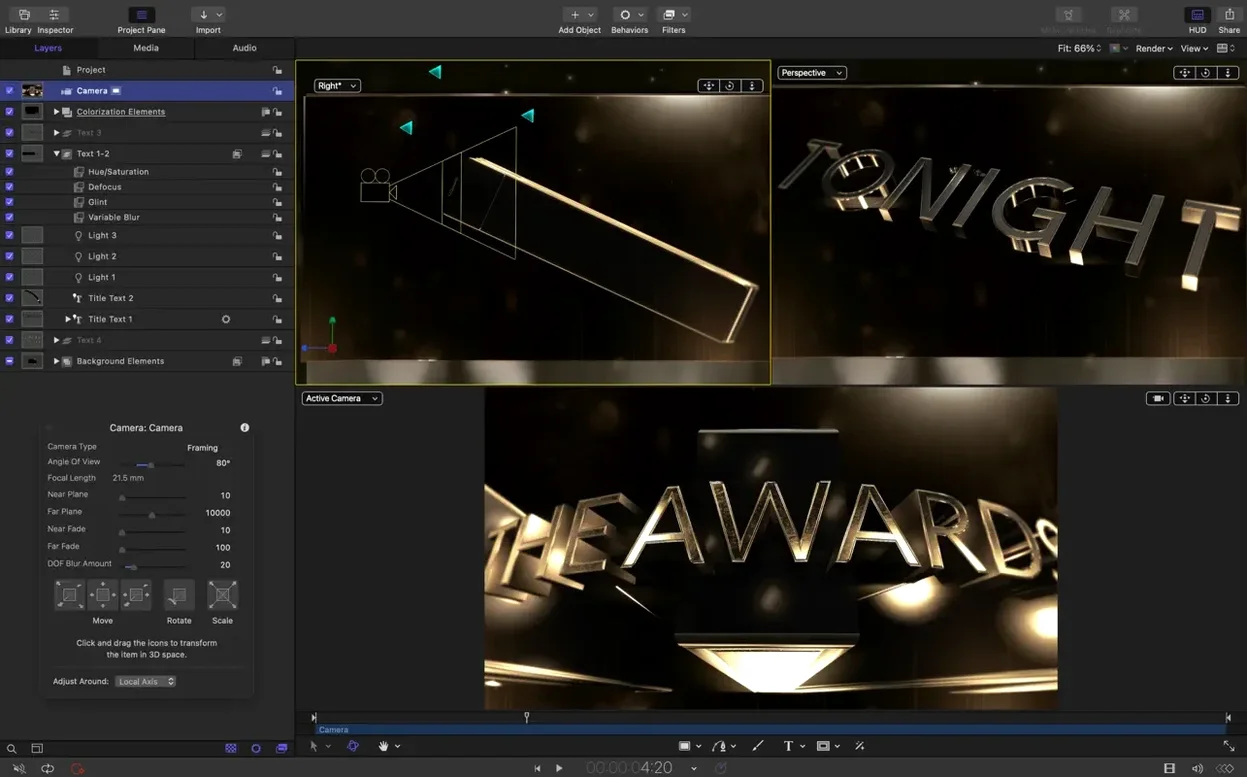
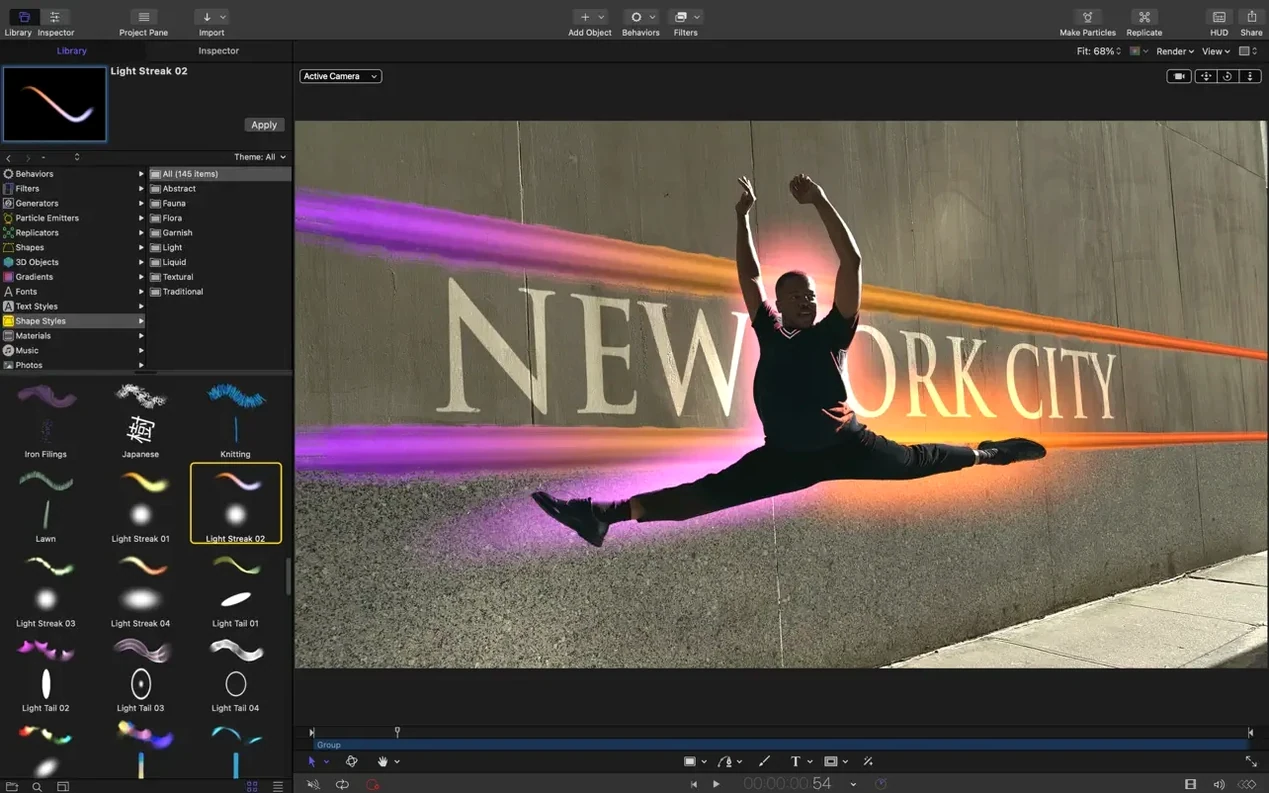
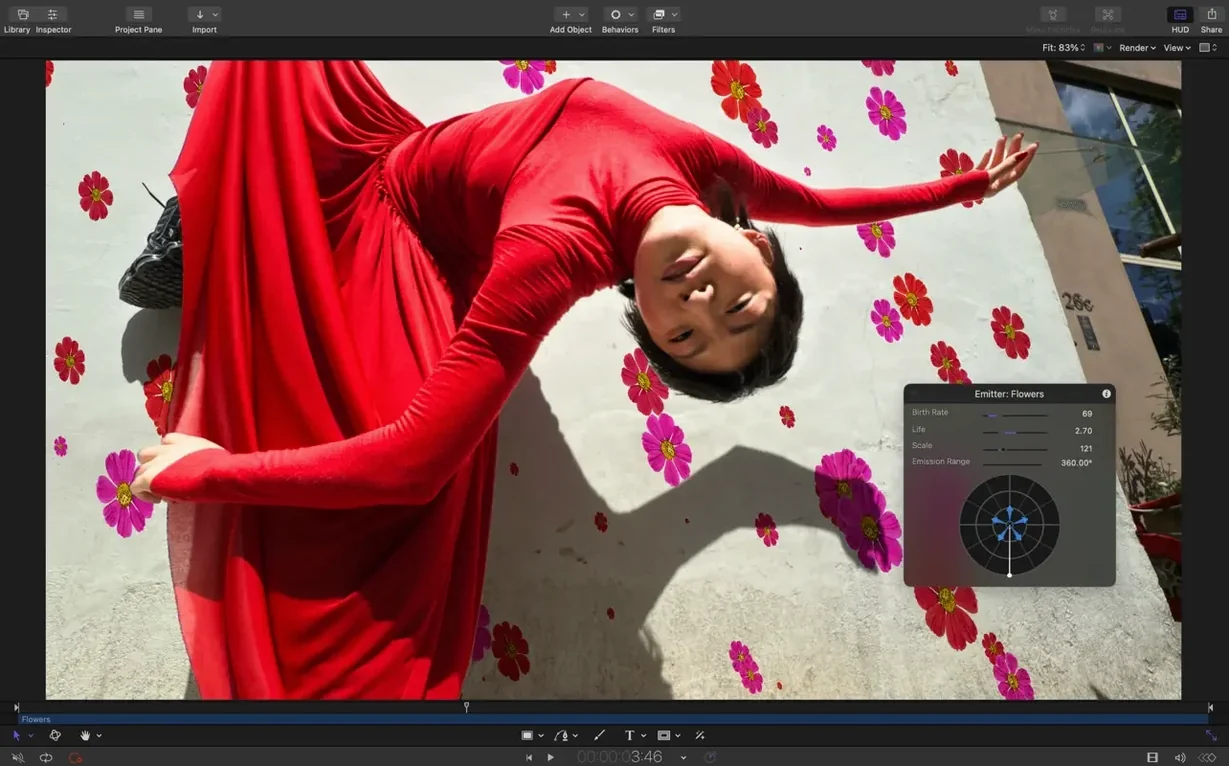
The Stagger, Cascade, and Reverse controls are the sort of thing that saves an editor's afternoon. You drop a handful of clips onto the timeline, pick a behaviour, and Motion works out the offsets so you don't have to nudge keyframes one by one. It's small, practical thinking baked into a tool that mostly gets talked about for its flashier side — cinematic 3D titles, particle emitters, and composites you'd spot in a commercial or a television title sequence.
| Current version | macOS required |
|---|---|
| 6.3 | macOS 15.6 |
Motion is built for video editors, not illustrators or 3D generalists. It assumes you're sending something back to Final Cut Pro, maybe routing a master through Apple Compressor afterwards. The real-time engine handles effects and text without pre-rendering, which keeps a session moving when you're trying three title treatments before lunch. It runs on Intel 64-bit and Apple Silicon Macs, and this release tidies up a few loose ends — a texture bug in 3D text and emitters, bezier mask selection that could miss a click, and some colour correction filters that rendered too bright on macOS 26.
Your title cuts off because the timeline is too short
Jumping straight into the 3D text tool without setting a project duration first. Motion defaults to a few seconds, and nothing looks worse than a carefully animated title that cuts off mid-fade. Set the timeline length before you place a single element.
Ignoring the Project Properties panel entirely. A 4K timeline with 8-bit colour will bite you later when banding shows up in a gradient background. Switch to 16-bit float before you start building anything with soft blends or glows. It's a checkbox and it costs you nothing.
Dragging massive source files onto the canvas. A 6000-pixel Photoshop comp scaled down inside Motion still carries all its weight during playback. Resize assets externally to something close to your frame size. The real-time engine appreciates the consideration.
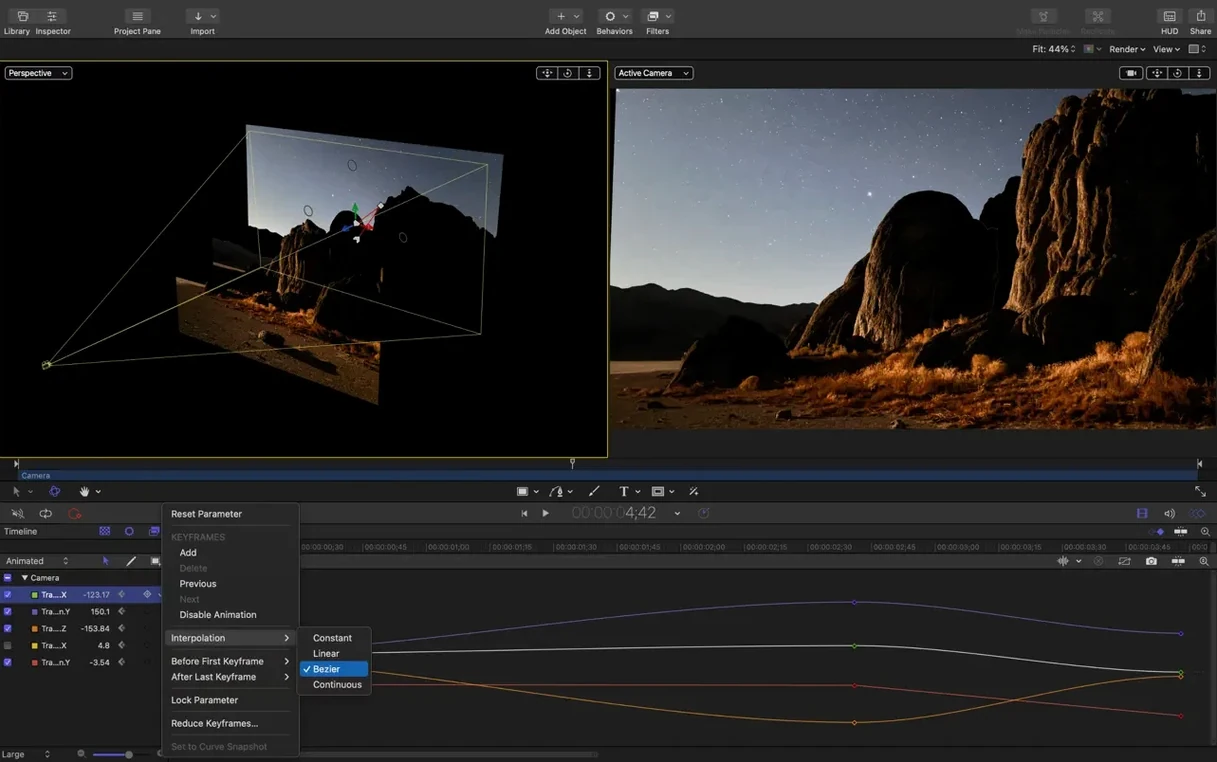
Treating behaviours as keyframes. Newcomers often add a Throw behaviour, then spend ten minutes hunting for velocity curves that don't exist. Behaviours are procedural — adjust the drag, spin, or rate sliders instead of diving into the Keyframe Editor.
Forgetting that groups have their own blend modes and opacity. You'll see someone duplicate a layer five times to build a glow effect when one group with Add mode and a blur would do it in two clicks.
FCP templates teach you more than the manual
Open a Final Cut Pro generator template and pick it apart. Motion ships with dozens, and they're better teachers than the manual. Select a text effect you recognise from the FCP browser, open it in Motion, and look at which behaviours drive the entrance and exit. Then tweak the numbers and watch what breaks.
Make a throwaway project with particle emitters and 3D text together. Just to feel where your machine starts to stutter. On an Apple Silicon Mac you'll get further than you expect, but every setup has a ceiling. Knowing yours stops you building a project that chokes during client review.
Learn the shortcut for the HUD — F7. The floating heads-up display puts the most-used controls under your cursor without hunting through the Inspector tabs. Opacity, blend mode, and a few behaviour sliders live there, and it's the fastest way to rough out a look.
Practise sending a project to Final Cut Pro and back. Drop a Motion title into an FCP timeline, right-click it, choose "Open in Motion," make a change, save, and switch back. That round-trip is the whole point of the integration, but plenty of people stay inside Motion for hours building things they could test in context in seconds.
SVG import keeps logos sharp at any resolution
SVG import means you can finally pull a logo from a designer's vector file without converting it to a raster first. The file scales cleanly at any resolution, which matters when you're building a title at HD and the producer decides it's going out at 4K. No re-render of the graphic, no blurry edges.
The stagger, cascade, and reverse controls turn what used to be a fiddly manual job into a couple of clicks. Twenty layers don't need twenty sets of keyframes with offset calculations — just select them, apply the behaviour, and adjust spacing. The reverse option is particularly handy when you've built an intricate entrance animation and need a matching exit.
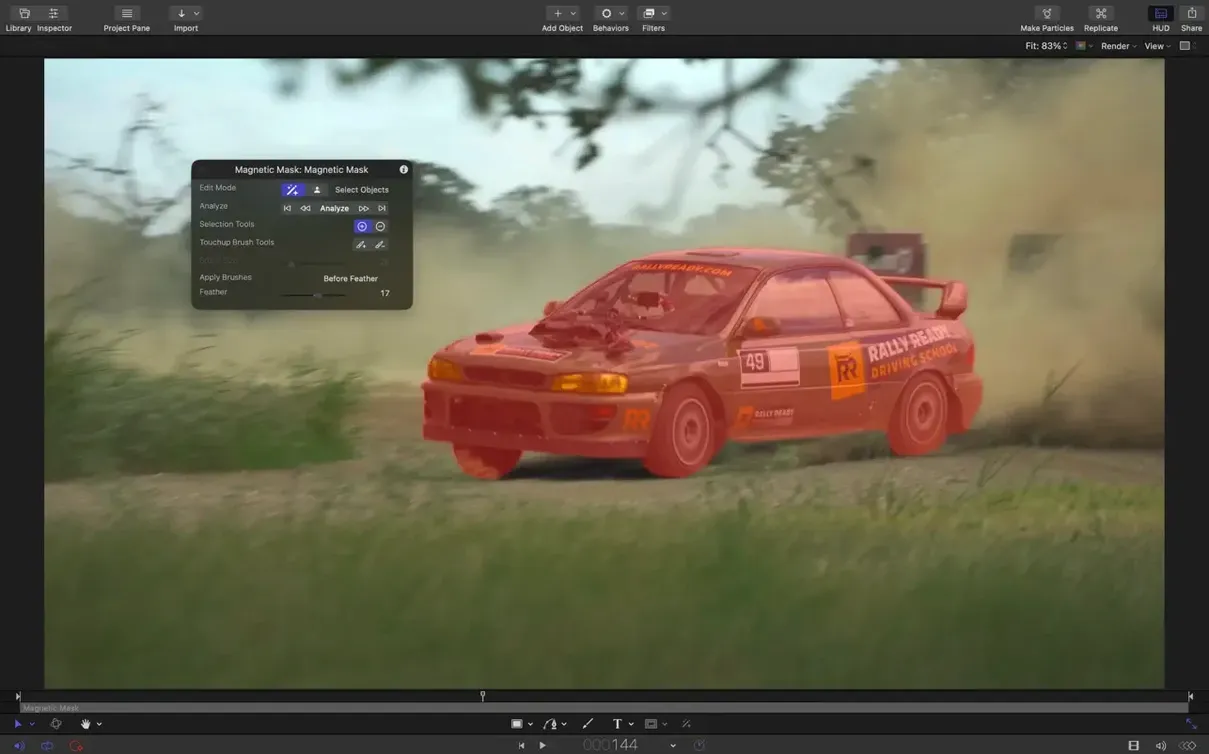
Bezier mask selection actually works now. Before 6.3, you'd click a vertex and Motion might ignore you, especially on high-resolution displays. That alone makes rotoscoping or isolating part of a shot less of a fight.
The texture bug fix for 3D text and particle emitters matters more than it sounds. You'd set up a scene, scrub through, and a particle system would momentarily flash the wrong texture frame. Fine for a draft, unusable for a final render. Fixed. Same goes for the colour correction rendering quirk on macOS 26 — if you were grading on that OS, some filters pushed brighter than they should. Now they match what you saw in earlier macOS versions.
Render quality hides softness and antialiasing
Switch the default render quality to "Better" in Motion's preferences. The app ships set to "Performance," which is fine for rough layout, but you'll misjudge softness and antialiasing until you see the proper output. You can toggle back to Performance with a toolbar button when you need speed.
Turn on "Show Overlays" for safe zones if you're delivering for broadcast. Title-safe and action-safe guides are off by default, and you won't notice until a network QC report comes back asking why the lower third bleeds past 4:3 centre-cut. Two seconds in View > Overlays saves that conversation.
Set your background to "Transparent" in Project Properties when building templates for Final Cut Pro. The default is black, which looks fine inside Motion but blocks whatever's underneath in an FCP timeline. Any title or effect meant for use in Final Cut should be checked with transparency on before you save it.
Adjust the playback RAM cache size if you're on a machine with plenty of memory. Motion allocates conservatively by default. Bumping the cache up in Preferences > Cache gives you longer real-time previews before the timeline bar turns red and forces a render.
What’s new
Adds SVG import that scales to any resolution without softening.
Adds Stagger, Cascade, and Reverse controls for clip sequencing.
Fixes Bezier Mask vertex selection so clicks land where you expect.
Fixes incorrect texture media during playback for some 3D text and particle emitters.
Fixes brighter-than-expected rendering for select colour correction filters on macOS 26.
Includes performance updates for a more responsive workflow.
Requirements
- macOS 15.6 or later
- Intel 64-bit or Apple Silicon Mac
FAQ
Is Motion meant for standalone animation work?
Not really. It's designed to supply titles, transitions, and effects for video editors, and it integrates tightly with Final Cut Pro and Apple Compressor.
Can I use Motion on an Intel Mac?
Yes. Version 6.3 supports both Apple Silicon and Intel 64-bit Macs running macOS 15.6 or later.
Comments 0
Sign in or create an account to leave a comment.
No comments yet…
If you’ve installed it, say how it went. Mention your Mac and macOS version — it helps the next person more than you’d think.