
Mole for macOS

Description
You run a quick scan on a Friday afternoon because the Mac feels sluggish. Mole lists 4.2 GB of caches, old logs and an uninstall leftover from an app you removed months ago. You uncheck the one item that looks useful and let it clear the rest. The machine feels no different, but the space is back.
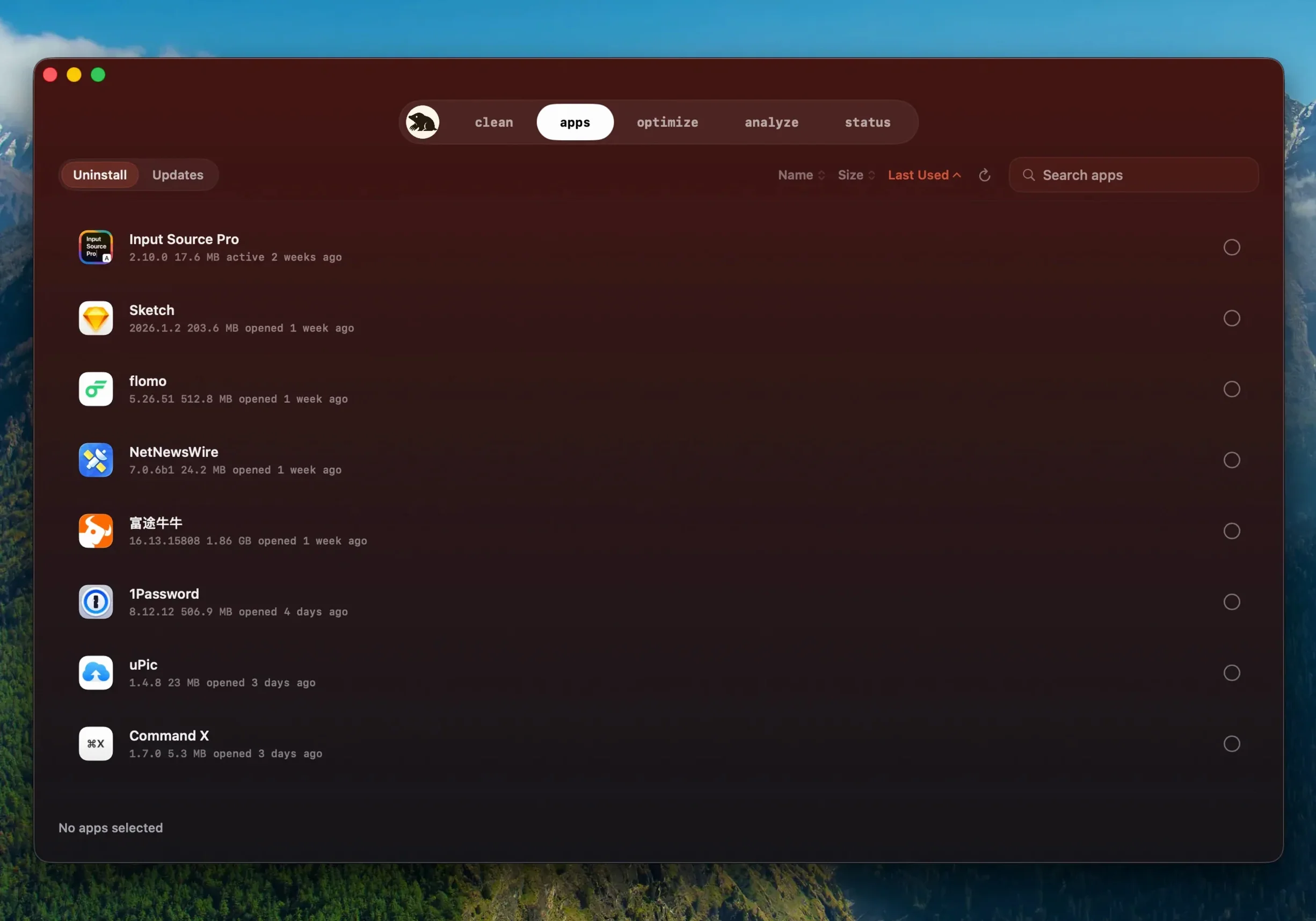
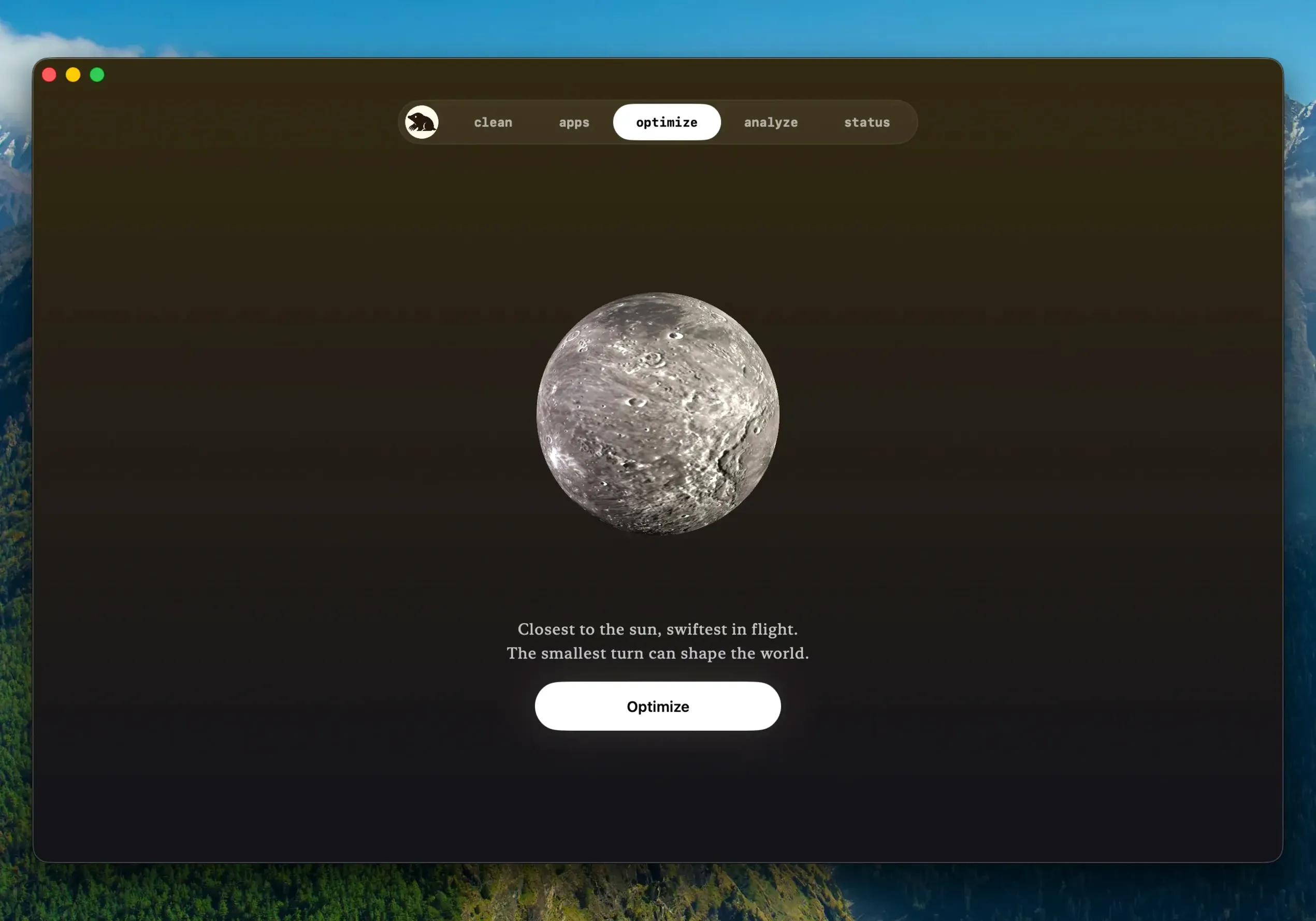
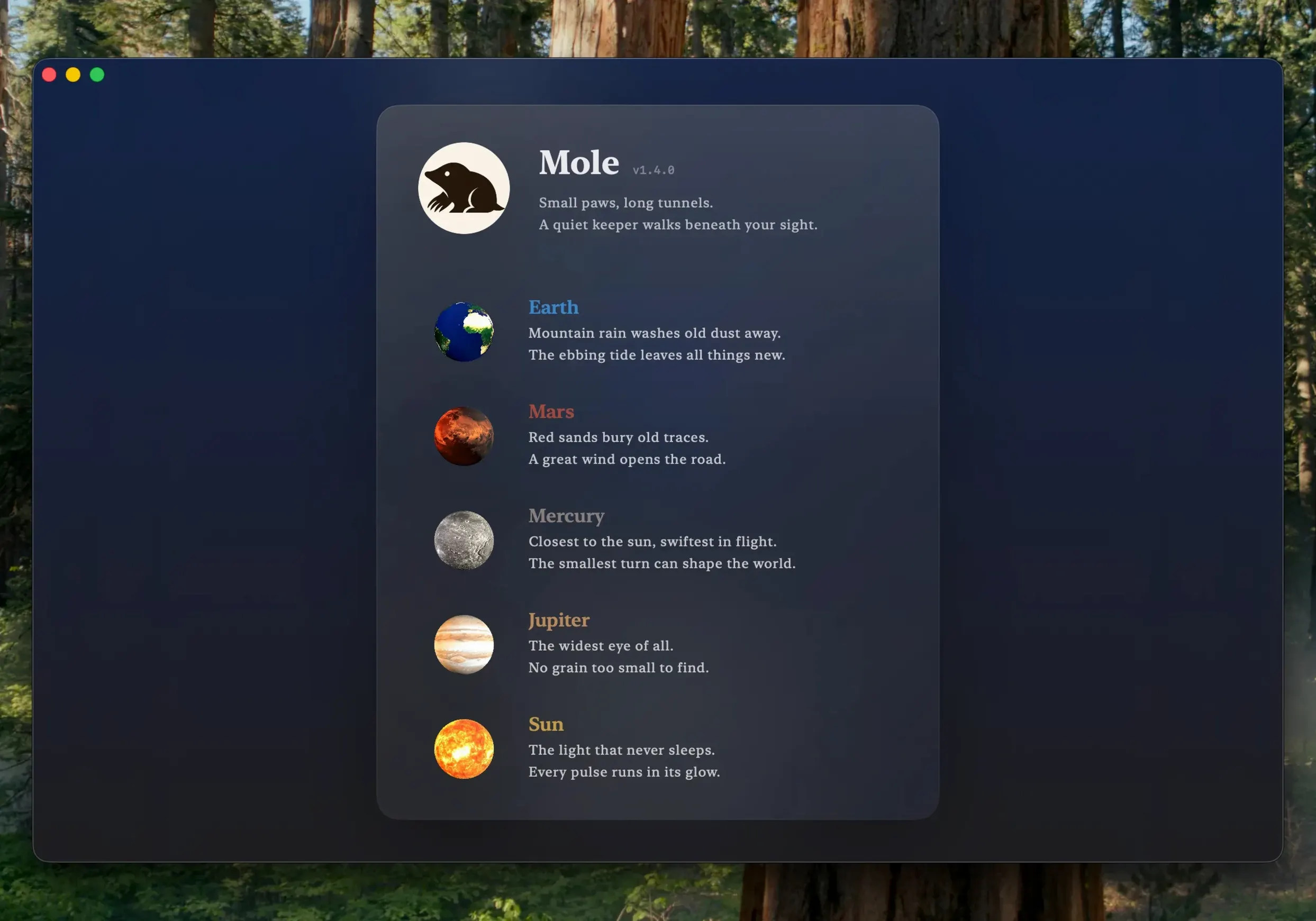
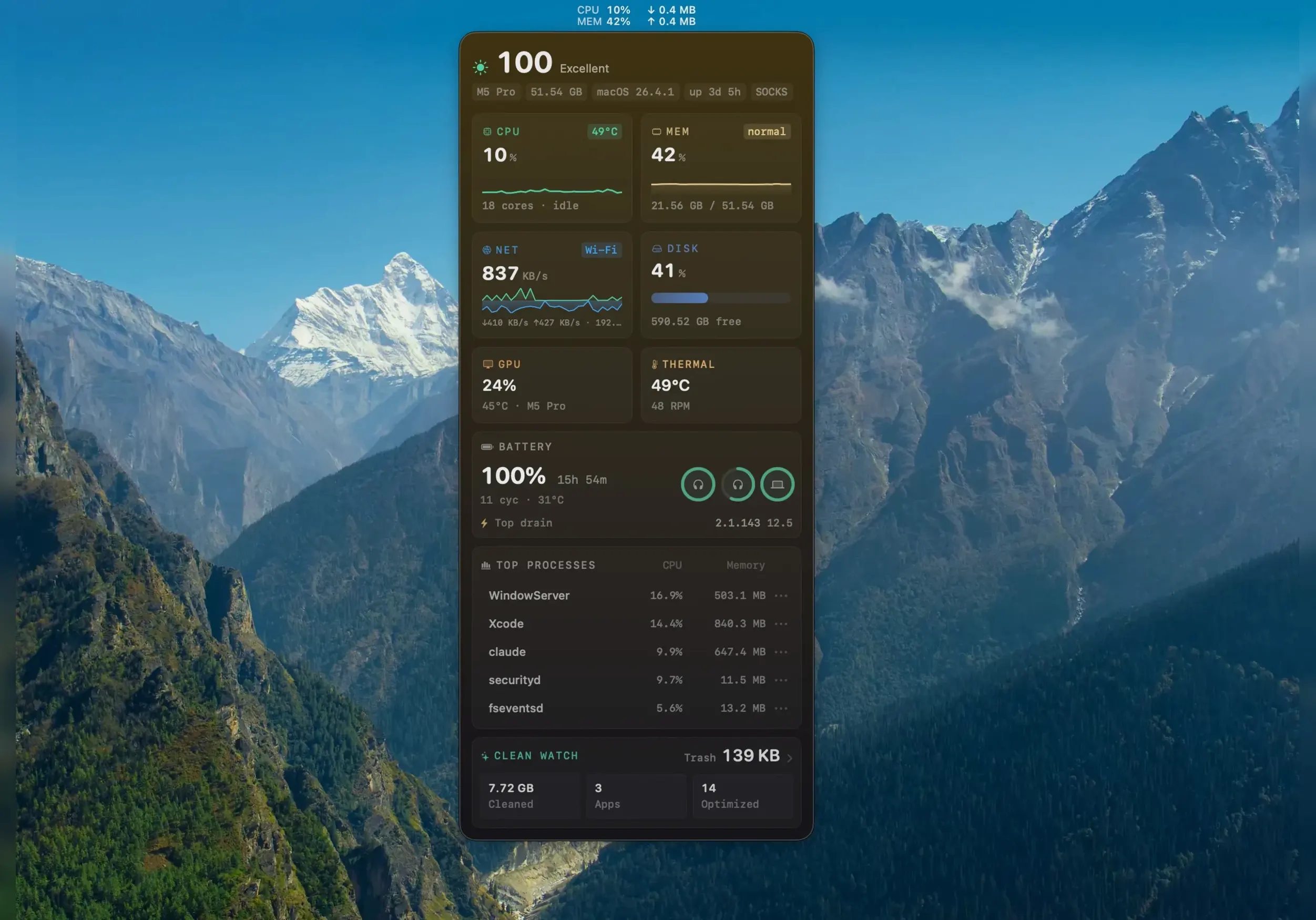
Mole puts scanning, cleaning, app removal and system status checks in one window. It works locally by default and shows you the file list and sizes before it touches anything. When it cannot be certain about an item, it skips it.
Cache cleanups, app leftovers, and Dock startup items
- Reclaiming space from caches and temporary files
- Removing app leftovers after a standard uninstall
- Clearing startup items from the Dock
macOS 14+, full disk access, and the CLI is a separate download
- Requires macOS 14 or later
- The Mac app is a separate download from the CLI project
- Full disk access needs to be granted for a complete scan
Scan stops halfway? Check full disk access first
A scan that stops halfway usually means Mole doesn't have full disk access. Open System Settings, go to Privacy & Security, then Full Disk Access and flip the switch next to Mole. Run the scan again and it should reach every corner of the drive.
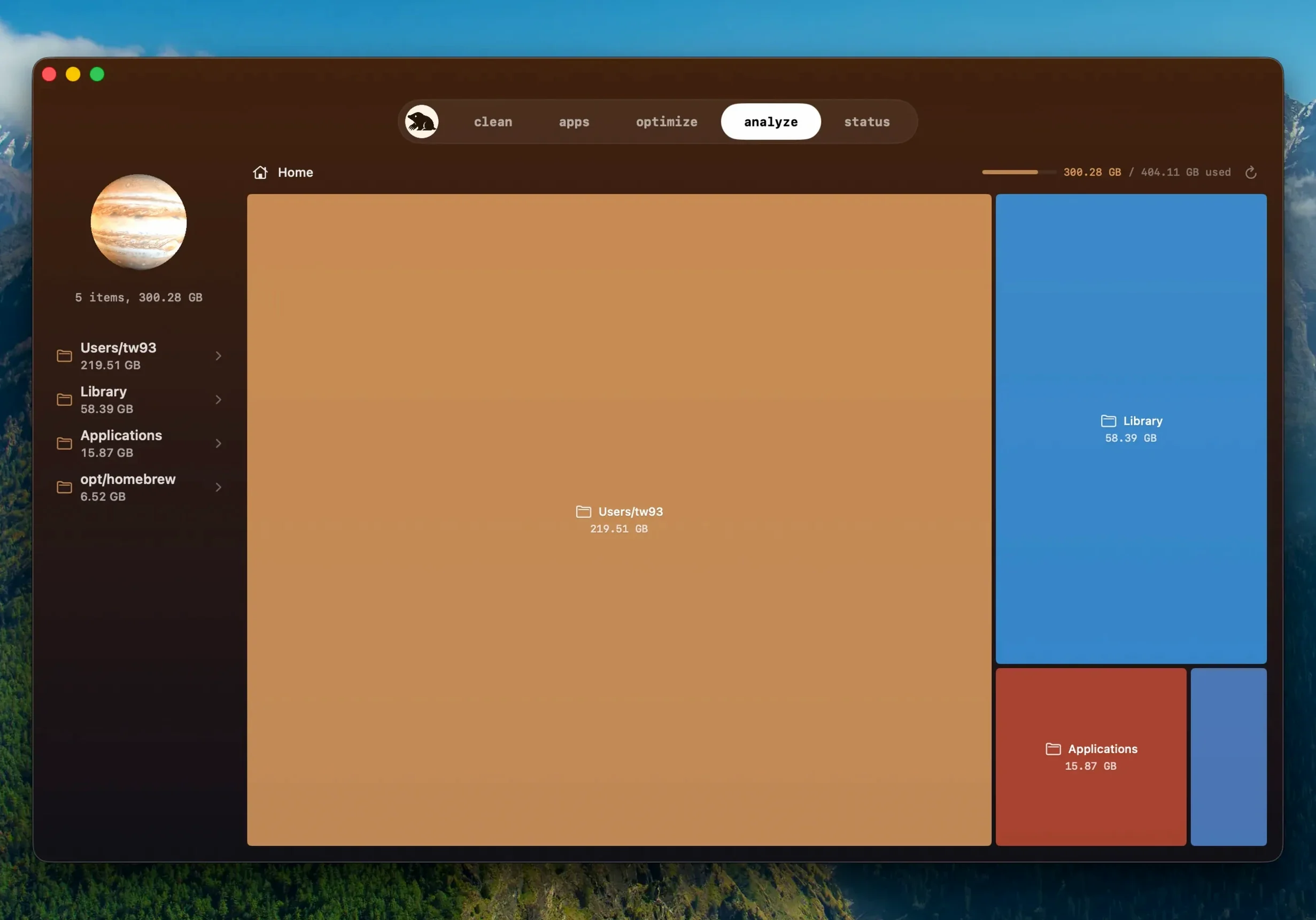
If the tree map shows a single grey block labelled "Other" taking up half the drive, that's normal. macOS lumps Time Machine snapshots, mail downloads and Spotlight indexes into that category. Mole can't break those down further, but you can clear local snapshots with its one-click maintenance tasks. Don't be surprised when the number barely moves — the files belong to the system, not to junk.
An app update that refuses to install through Mole's built-in updater sometimes means the app is running. Mole 1.14.0 asks before it quits a live app, but if you dismiss the prompt by accident, quit the app yourself and trigger the update again. The download won't repeat — Mole reuses what it already fetched.
Tuesday morning check after a weekend of photo edits
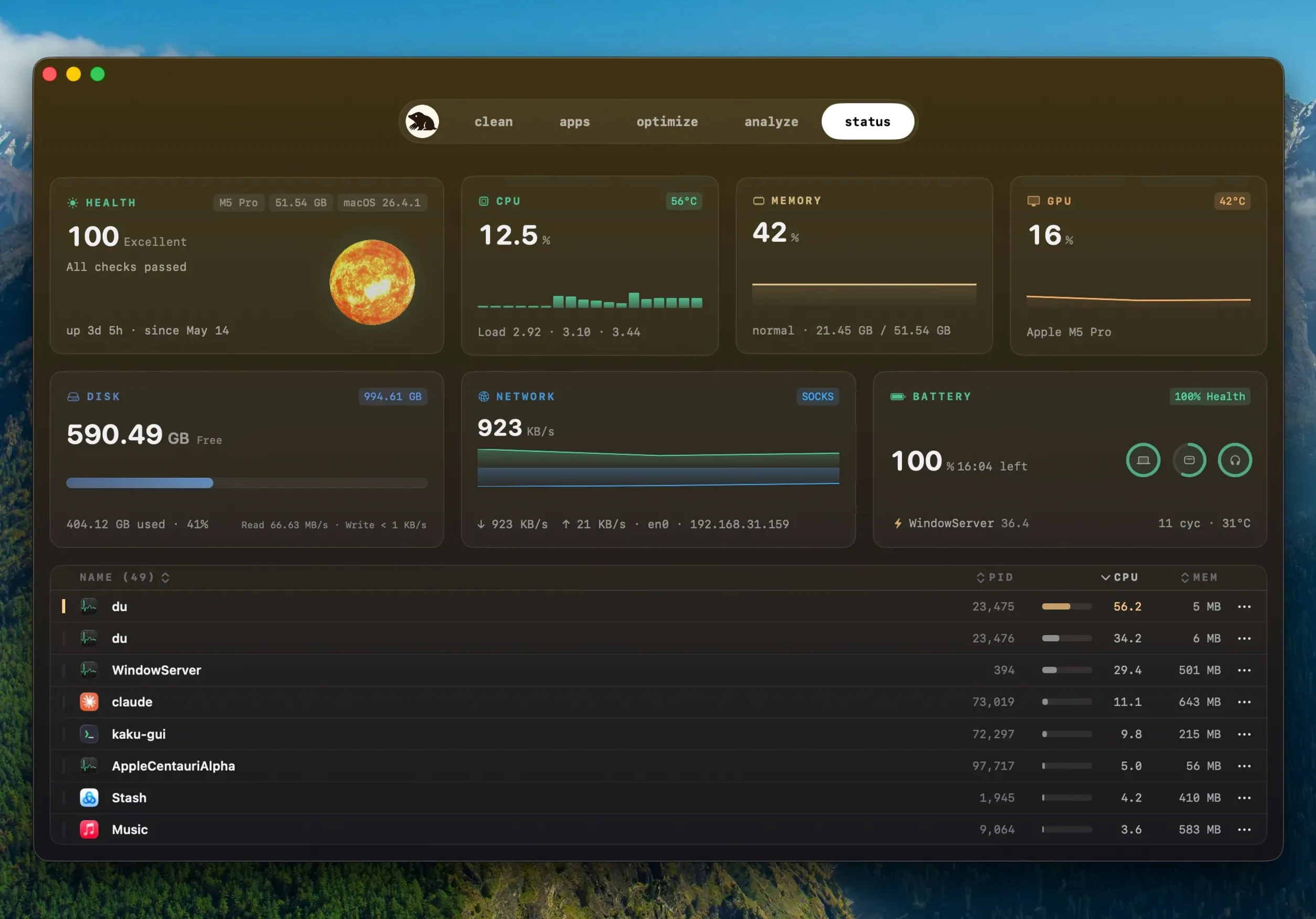
You open the app on a Tuesday morning after a weekend of photo edits and large downloads. The status overview shows memory pressure in the yellow, so you start with the System Status tab to check what's hogging RAM. A background renderer you forgot about is sitting at 6 GB — you quit it straight from the list.
- Switch to the Clean tab and hit Scan. Mole crawls user caches, system logs and app leftovers for about 20 seconds.
- The results appear grouped by category with sizes. You expand the Xcode cache entry — 3.1 GB from old simulator builds you don't need. Leave it ticked.
- Scroll to browser caches. 800 MB. You keep that one. Untick it.
- A leftover folder from Mole 1.12.1 sits in application remnants. You ran that version months ago and updated long since. Tick it.
- Hit Clean. Mole asks for confirmation, then clears the selected items in under ten seconds.
Before you close the app, you click through to the disk analysis view. The tree map paints a clear picture: a fat square for Photos Library, a thinner one for virtual machines, a sliver for the project files you actually edit daily. You make a mental note to archive the VMs to an external drive and quit Mole. The session lasted maybe four minutes.
Apple Silicon full scan finishes in 15 to 25 seconds
A full scan on a 512 GB drive completes in roughly 15 to 25 seconds on Apple Silicon. Intel machines take a little longer, closer to 35 seconds on older hardware. The progress bar doesn't lie — it moves steadily, no phantom pauses or beach balls.
While idle in the menu bar, Mole sits at under 80 MB of RAM and barely registers on the CPU chart. During a deep scan it'll spike one core briefly, then settle back down. The real-time system stats panel adds a negligible load; the numbers update every second without causing fans to spin up.
The app hasn't crashed once across several weeks of daily use. It handles large cleanup batches without freezing, even when you select 20 GB of files in one go. The only quirk worth noting: on machines that once ran Mole 1.8.0 or Mole 1.11.0 for Mac, fresh installs sometimes prompt for full disk access twice. Grant it once more and the dialogue stops appearing. A minor annoyance, not a dealbreaker.
What’s new
- Adds in-app updates for apps downloaded from websites
- Detects a newer build of the same version
- Asks before quitting a running app and reopens it after installation
Requirements
- macOS 14 or later
- Intel and Apple Silicon Macs
- Full disk access supported
FAQ
Does Mole send my file list anywhere?
No. Scanning and cleaning run locally by default, so your file information stays on your Mac.
Can Mole update apps I downloaded outside the App Store?
Yes. Version 1.14.0 can update apps downloaded from websites, asking before it quits a running app and reopening it afterwards.
Comments 0
Sign in or create an account to leave a comment.
No comments yet…
If you’ve installed it, say how it went. Mention your Mac and macOS version — it helps the next person more than you’d think.