Moho Pro for macOS
Description
Smart Bone dials are where Moho Pro shows its age and its smarts. You set them up once to turn a head or curl a fist, then reuse that movement across a whole scene without touching a single keyframe.
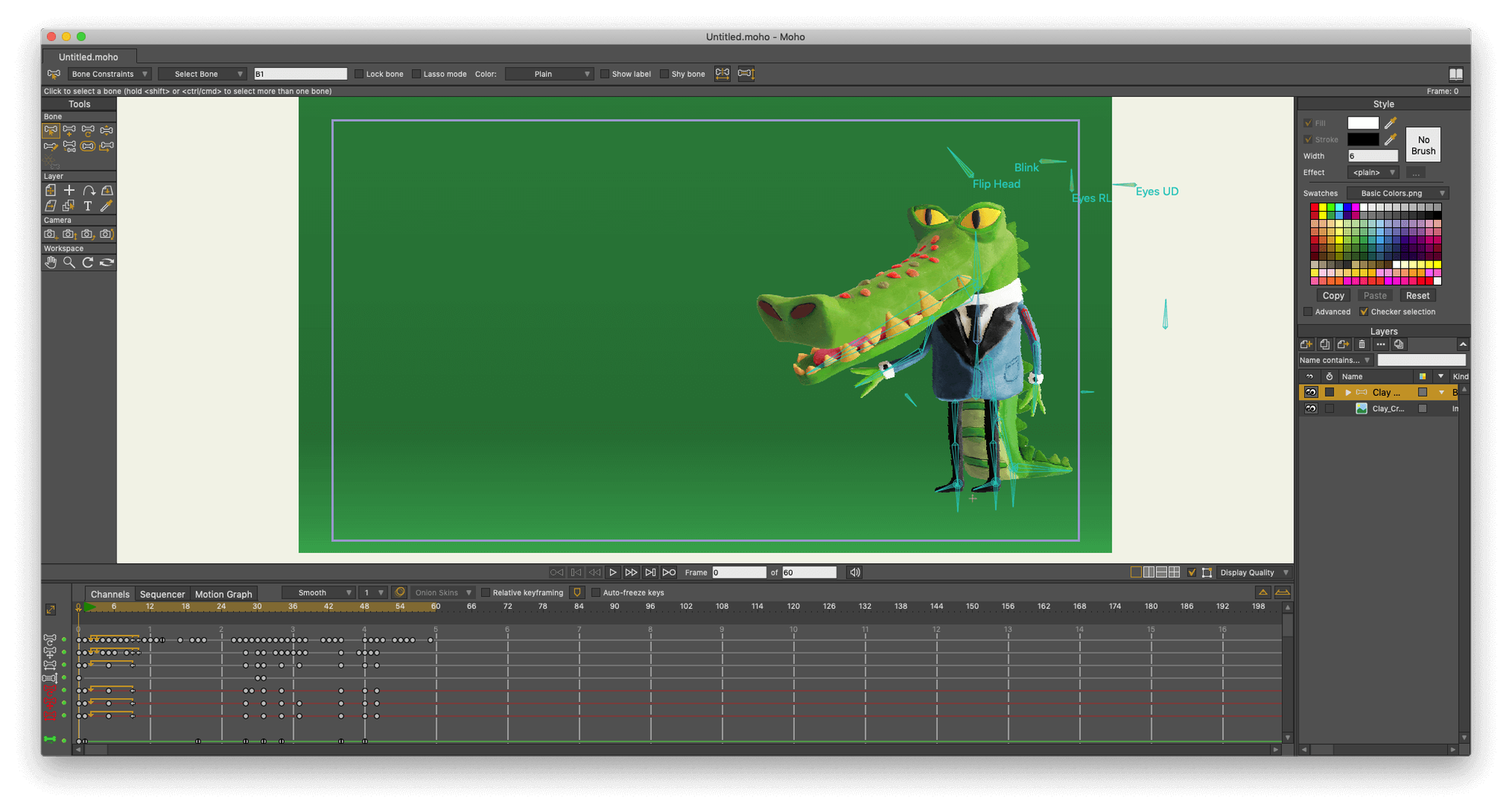
Rig a character for cut-out animation
You build skeletons with bones and pins, add Smart Bone actions for predictable movement, then animate by posing. It is proper character work, not just sliding flat layers around.
Simulate physics with real-world properties
The physics engine lets you assign density, gravity, friction and elasticity to objects. Drape a scarf that settles naturally or make a stack of boxes tumble — no hand-keying needed.
Export to Unity, Unreal or Godot
Moho speaks to game engines through layered PSD support and now direct glTF/GLB export. You can animate in Moho and drop the result straight into a 3D pipeline.
Mistakes beginners make when they start
New Moho users tend to do a few things that make their first week harder than it needs to be. Most of it comes from treating the software like a simpler vector drawing app.
Drawing everything on one layer
It is tempting to sketch a whole character on a single vector layer. Then you try to rig it and nothing moves independently. Moho needs separate layers for limbs, head, torso — anything that bends or shifts. Group them in a bone layer and you can actually animate.
Ignoring the z-depth ordering
Beginners often place all layers at the same depth, then wonder why the arm sits on top of the body no matter what they do. Moho's 3D space is real, even for 2D rigs. A small z-shift on a shoulder joint fixes layering without manual reordering every frame.
Overcomplicating the rig before testing
Adding twenty Smart Bone actions before you have tested a basic walk cycle is a recipe for frustration. Build the spine and legs, test the movement, then layer in the clever stuff. A simpler rig that works beats a fancy one that breaks on frame twelve.
Forgetting to set origin points
Every layer and group has an origin. If you leave it at the default centre, rotations will pivot from the wrong spot. A forearm that rotates from its middle looks broken. Set the origin at the elbow where the joint actually lives.
How Moho compares with other Mac animation tools
People often weigh Moho against Toon Boom Harmony, Adobe Animate and Blender's Grease Pencil. They overlap in places but suit different brains and budgets.
Moho vs Toon Boom Harmony
Harmony is the industry standard for TV and feature animation. Its rigging is deeper, its deformers more granular and its node-based compositing is genuinely powerful. Moho cannot match that. What Moho does better is stay out of your way. You can build a working character rig in an afternoon, not a week. For indie projects, game animation or short-form work, Moho is faster to production. Harmony expects a pipeline. Moho works fine with one person and a deadline.
Moho vs Adobe Animate
Animate grew from Flash and still thinks in frames and tweens. It is strong for frame-by-frame broadcast-style work, but its bone tool is basic next to Moho's skeleton system. If you animate characters with cut-out rigs, Moho gives you Smart Bones, pin bones and physics. Animate gives you a bone tool that feels like an afterthought. The vector drawing in Animate is more fluid for freehand work, so some artists rough in Animate and rig in Moho.
Moho vs Blender (Grease Pencil)
Blender's Grease Pencil puts 2D drawing inside a full 3D environment. That is uniquely powerful for shots that mix 2D characters with 3D sets. But Grease Pencil is still a generalist tool bolted onto a 3D suite. Moho is purpose-built for 2D rigging, and it shows in the details — automatic joint binding, target bones, the sequencer. If your project is primarily 2D, Moho feels more direct. If you need 3D backgrounds and camera moves, Blender wins.
A quick walk-cycle workflow
- Prep the character layers. Make sure each limb is on its own layer, origins set at the joints. Group everything under a single bone layer. Name your bones properly — left_thigh, left_shin, left_foot. You will thank yourself later.
- Build the skeleton. Add bones for spine, hips, thighs, shins, feet, shoulders, forearms and hands. Use the Manipulate Bones tool to check that every bone moves its assigned artwork cleanly.
- Set up a target bone for the feet. Add a small bone at floor level and target both foot bones to it. This keeps the feet planted while the body moves — no foot-sliding.
- Pose the contact positions. Go to frame 1, pose the character mid-stride: front foot forward, back foot behind, arms opposite to legs. Go to frame 12, mirror the pose. Moho's flip pose command is useful here if your rig is symmetrical.
- Add the passing position. At frame 6, shift the body up slightly and bring the feet together underneath. The target bone from step 3 helps the feet stay put.
- Cycle and tweak. Set the walk cycle to repeat. Play it back at 24fps. Adjust the body's up-down curve in the motion graph until the weight shift feels right. A slight hip rotation on each step sells the movement.
- Add secondary motion. Use the physics engine on hair or clothing layers. Set low friction and a little gravity, let the bones do the walking, and the physics will add natural sway without extra keyframes.
The whole thing takes about twenty minutes once the rig is solid. That is where Moho earns its keep — the rigging investment pays back every time you reuse the character.
What’s new
Adds glTF/GLB export for game engines and 3D tools. Fixes particle system and layer bugs. Updates the scripting interface to Lua 5.4.4.
Requirements
- macOS 10.15 or later
- Intel or Apple Silicon Mac
- 64-bit OS
- OpenGL 4.1 capable graphics card
- 2.0 GHz Intel Core i3 or better
- 4 GB RAM minimum
- 1.6 GB free disk space
- Internet connection for activation
Comments 0
Sign in or create an account to leave a comment.
No comments yet…
If you’ve installed it, say how it went. Mention your Mac and macOS version — it helps the next person more than you’d think.