Mimestream for macOS
Description
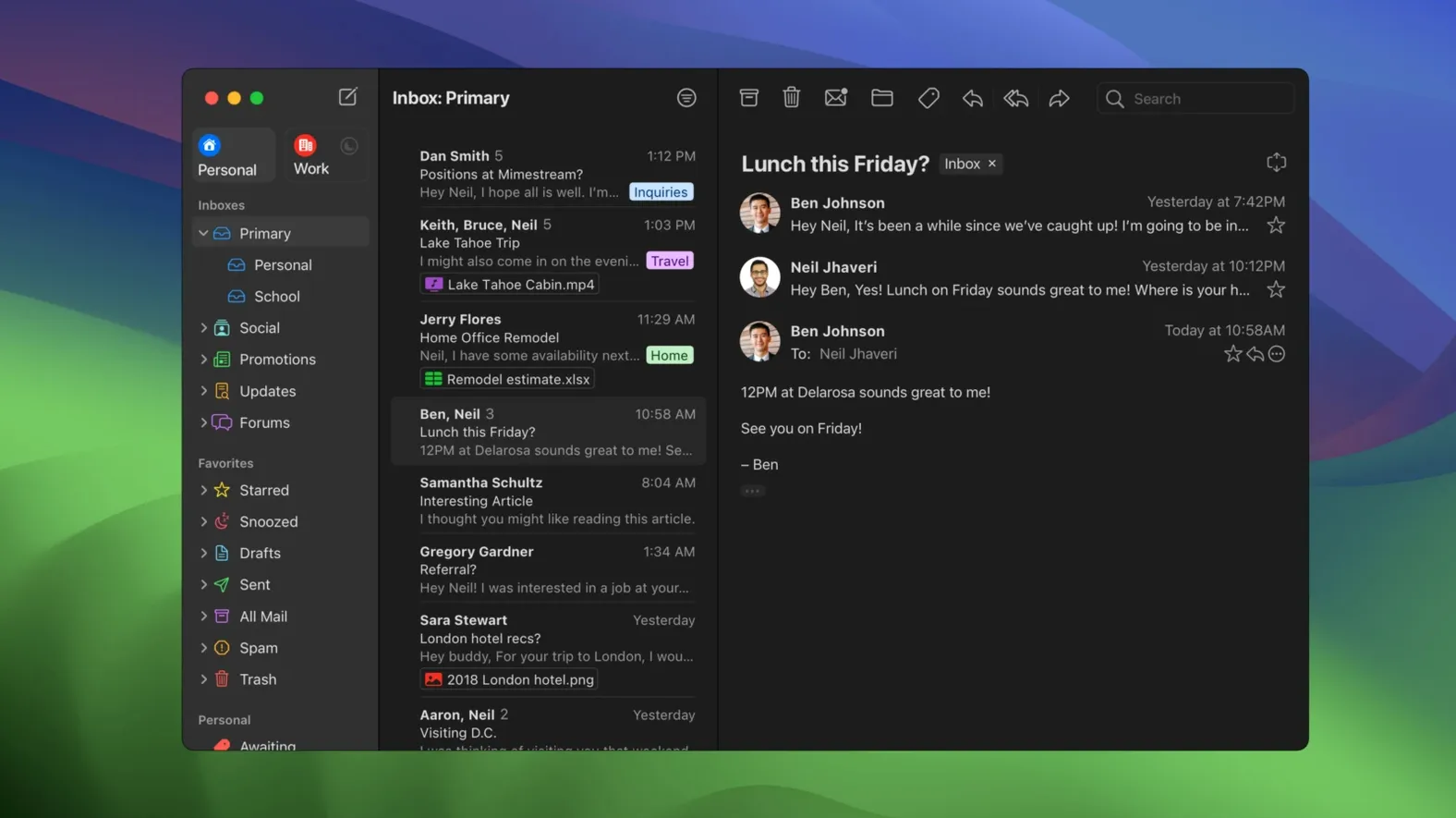
Mimestream suits people who live in Gmail but want a proper Mac app around it. It is not a general-purpose email client. It connects to Google accounts and nothing else, using the Gmail API instead of IMAP. That means your Gmail signatures, aliases and server-side filters just show up — no extra setup.
Push notifications that bypass servers, plus an All Inboxes view
Private Push notifications landed in 1.10, skipping notification servers and keeping message previews off the network. An optional All profile lets you see every inbox at once. The update also added addresses for unknown senders and made notification actions configurable. On macOS 26 and later, Private Push is on by default.
Google account and macOS 12 still required
The core deal is unchanged. You need a Google account and macOS 12 Monterey or newer. Tracking-pixel blocking covers more than 50 services, and the keyboard shortcuts match Gmail's web set or Apple Mail, whichever you prefer. The next major version will need macOS 14, but for now 1.10.8 remains the stable release on older systems.
Switch keyboard shortcuts to match your Gmail or Apple Mail muscle memory
Out of the box, Mimestream picks sensible defaults. A few tweaks make it feel more like yours.
- Keyboard shortcuts. Head to Preferences > Shortcuts and pick Gmail or Apple Mail. If you have years of muscle memory from the web, stick with Gmail. The Apple Mail set suits people who switch between accounts on different services.
- Notification actions. Version 1.10 lets you configure what happens when you click a notification. Set it to archive or delete instead of just opening the message. Saves a step every time.
- Tracking protection. It is on by default, but check Preferences > Privacy to confirm. The counter shows how many pixels it has blocked so far. Satisfying in a quiet way.
- Swipe gestures. In Preferences > Swipes, pick what a left or right swipe does. Archive, trash, mark read, snooze — pick the two you use most.
- All profile. Enable it in Preferences > Profiles if you want a unified inbox. Off by default, and that suits plenty of people. Turn it on only if you miss the everything-in-one-place view.
Faster notifications with no preview data leaving your device
Private Push is the quietest upgrade with the loudest effect. Notifications arrive faster and nothing about your inbox previews touches a third-party server. On macOS 26 and later you do not even need to switch it on — it is the default.
The All profile solves a long-standing gripe for people with several Google accounts. Before 1.10 you flipped between profiles manually. Now one click shows everything at once, without mixing labels or search results across accounts.
Addresses for unknown senders appear inline now, saving you from opening a message just to see who it is from. Combined with configurable notification actions, the daily grind of triaging mail got noticeably quicker. Less clicking, less waiting.
Offline search hits a wall for older messages
Offline search returns nothing. Mimestream caches recent messages locally, but older mail needs a connection. If a search comes up empty while offline, wait until you are back online and try again. The Gmail API keeps your search syntax intact — operators like from: and has:attachment work the same as on the web.
App quits unexpectedly on older macOS versions. Version 1.10.8 runs on Monterey, but future releases will need macOS 14. If you are holding onto an older Mac, stick with this build and turn off automatic updates. It remains stable and fully functional.
Notifications stopped working after an update. On macOS Ventura and earlier, check System Settings > Notifications and confirm Mimestream is allowed. On Sonoma and later, Private Push handles things differently — toggle it off and on again in Mimestream's preferences if alerts go silent.
Signatures or aliases did not sync. Mimestream pulls these from Gmail's servers, not from local settings. Log into Gmail on the web and check that the signature or alias exists there. If it does, restart the app. If it still does not appear, remove and re-add the account — the API re-syncs everything fresh.
People hunting for a mimestream download sometimes miss that it only does Gmail. That catches out users with Outlook or iCloud accounts mixed in. The app will not add them. Keep a second mail client around if you need more than Google.
What’s new
Private Push notifications enabled by default on macOS 26 and later. Adds an optional All profile, addresses for unknown senders, and configurable notification actions.
Requirements
- macOS 12 Monterey or newer
- Apple Silicon or Intel Mac
- A Google account
FAQ
Does Mimestream work with non-Gmail accounts?
No. Mimestream only supports Google accounts and uses the Gmail API rather than standard IMAP.
What macOS version does Mimestream need?
Version 1.10.8 requires macOS 12 Monterey or newer. Future versions will need macOS 14 or later.
Does Mimestream sync Gmail signatures automatically?
Yes. Signatures and aliases set up in Gmail sync automatically without manual configuration.
Comments 0
Sign in or create an account to leave a comment.
No comments yet…
If you’ve installed it, say how it went. Mention your Mac and macOS version — it helps the next person more than you’d think.