
Millumin for macOS
Description
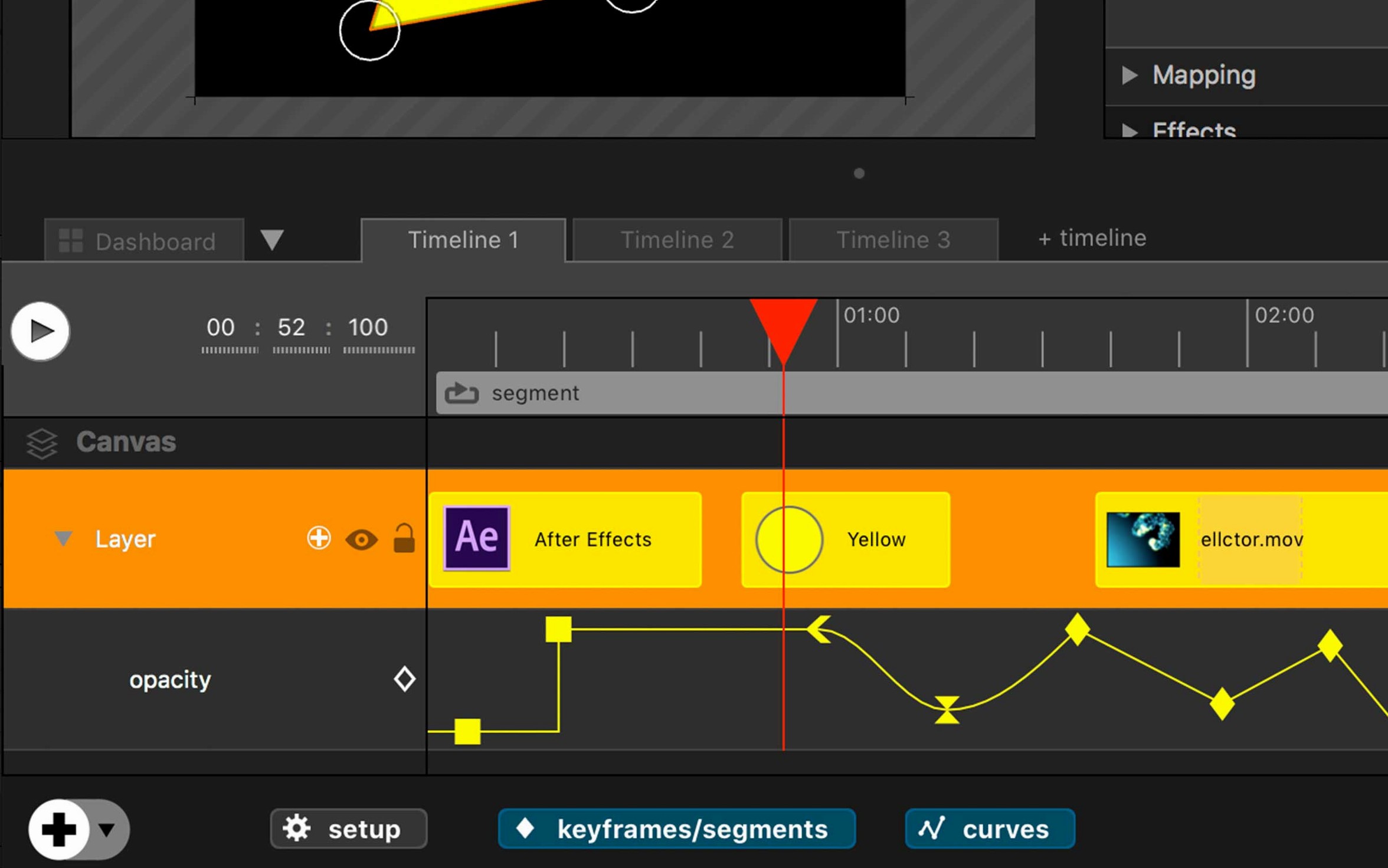
Getting a Mac to drive projections, lights and sound cues in a live show usually means bolting together three or four different apps and hoping they stay in sync. Millumin puts those pieces into one timeline so you don't have to babysit MIDI routings mid-performance.
Does it replace QLab or Resolume?
Not entirely — it sits between them. You might still fire a QLab cue for precise audio, but Millumin handles the video mapping and interactive layer that QLab wasn't built for. It talks to Resolume via Syphon, so you can treat it as a pixel source rather than a competitor.
What about connecting real-world hardware?
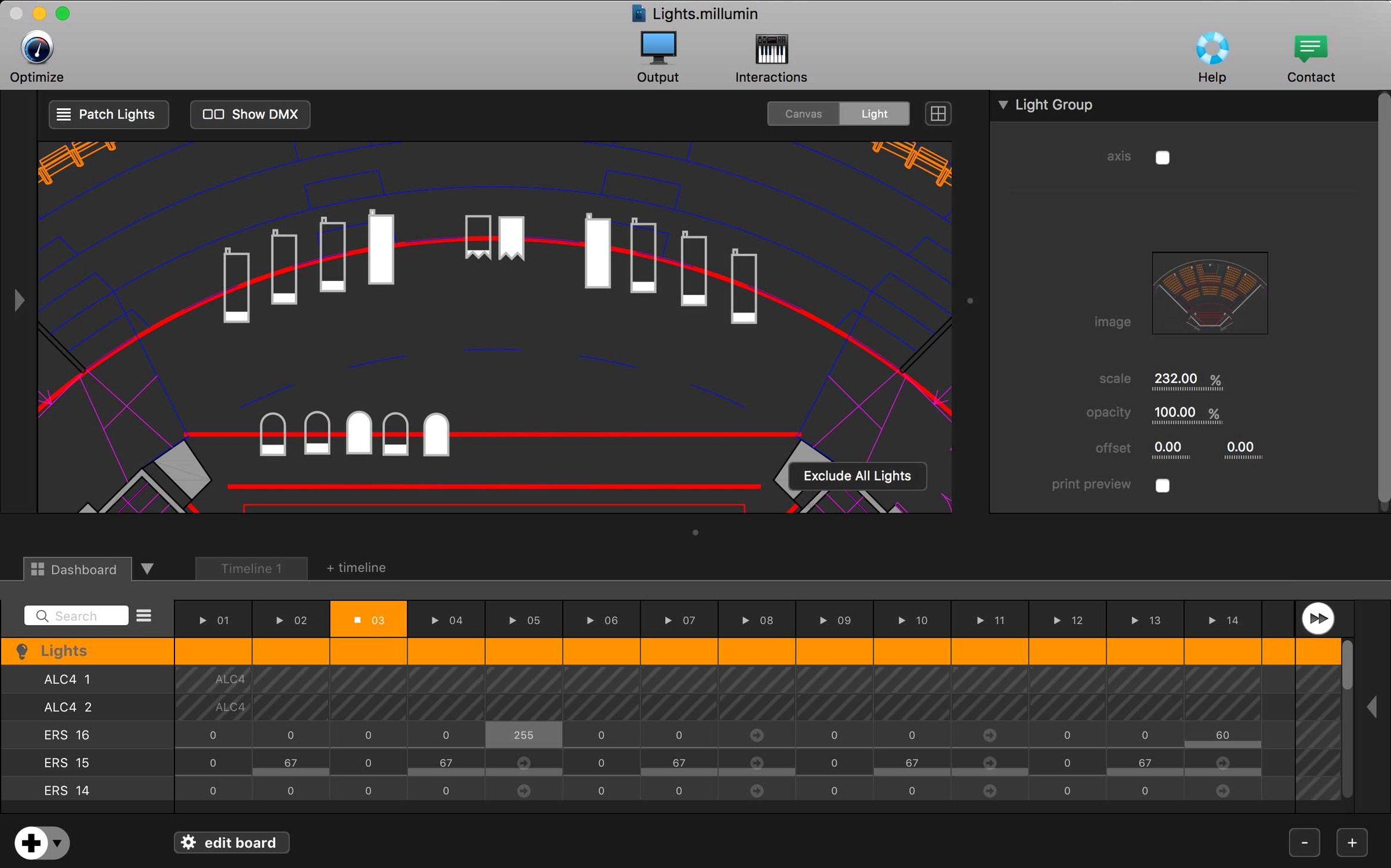
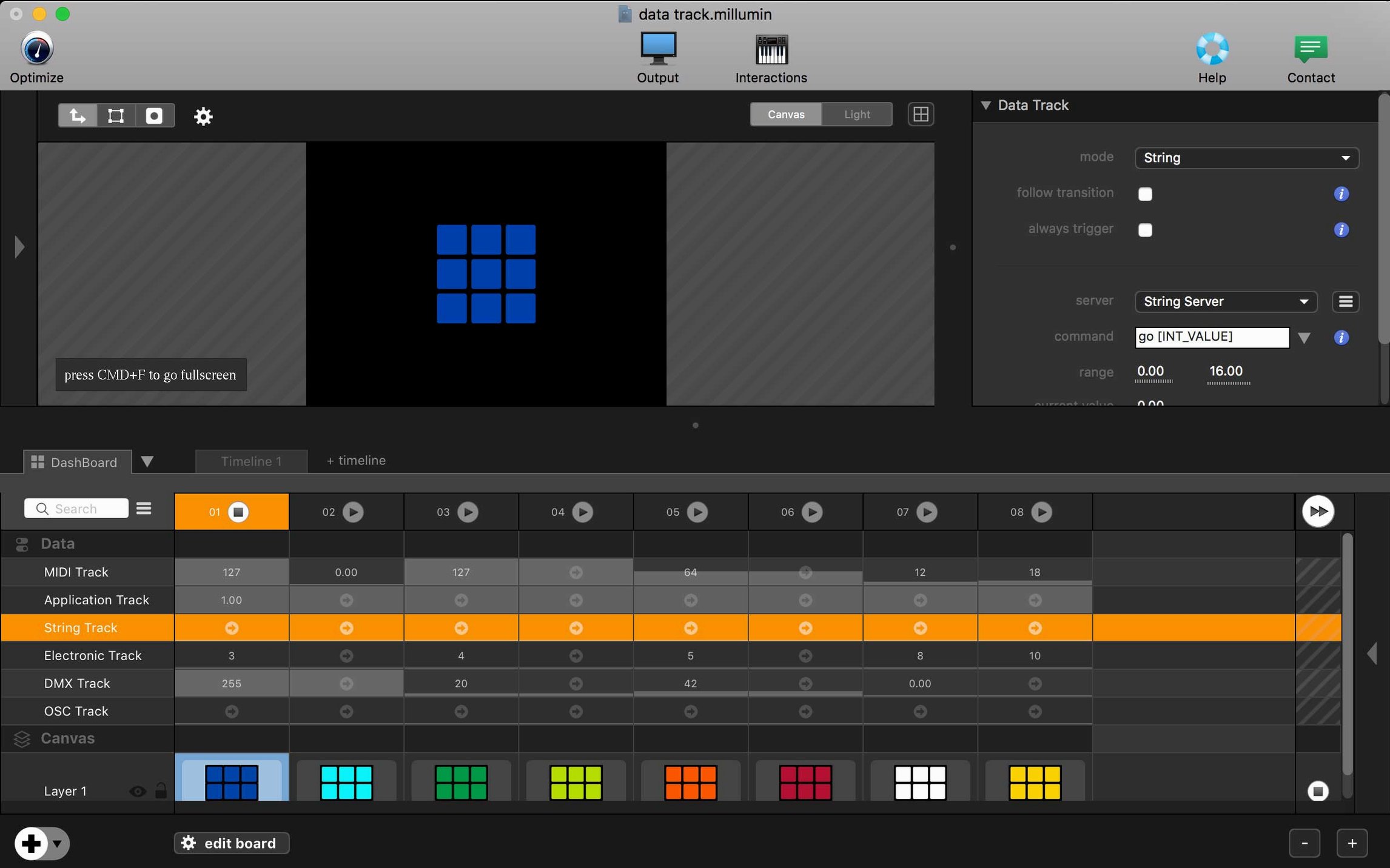
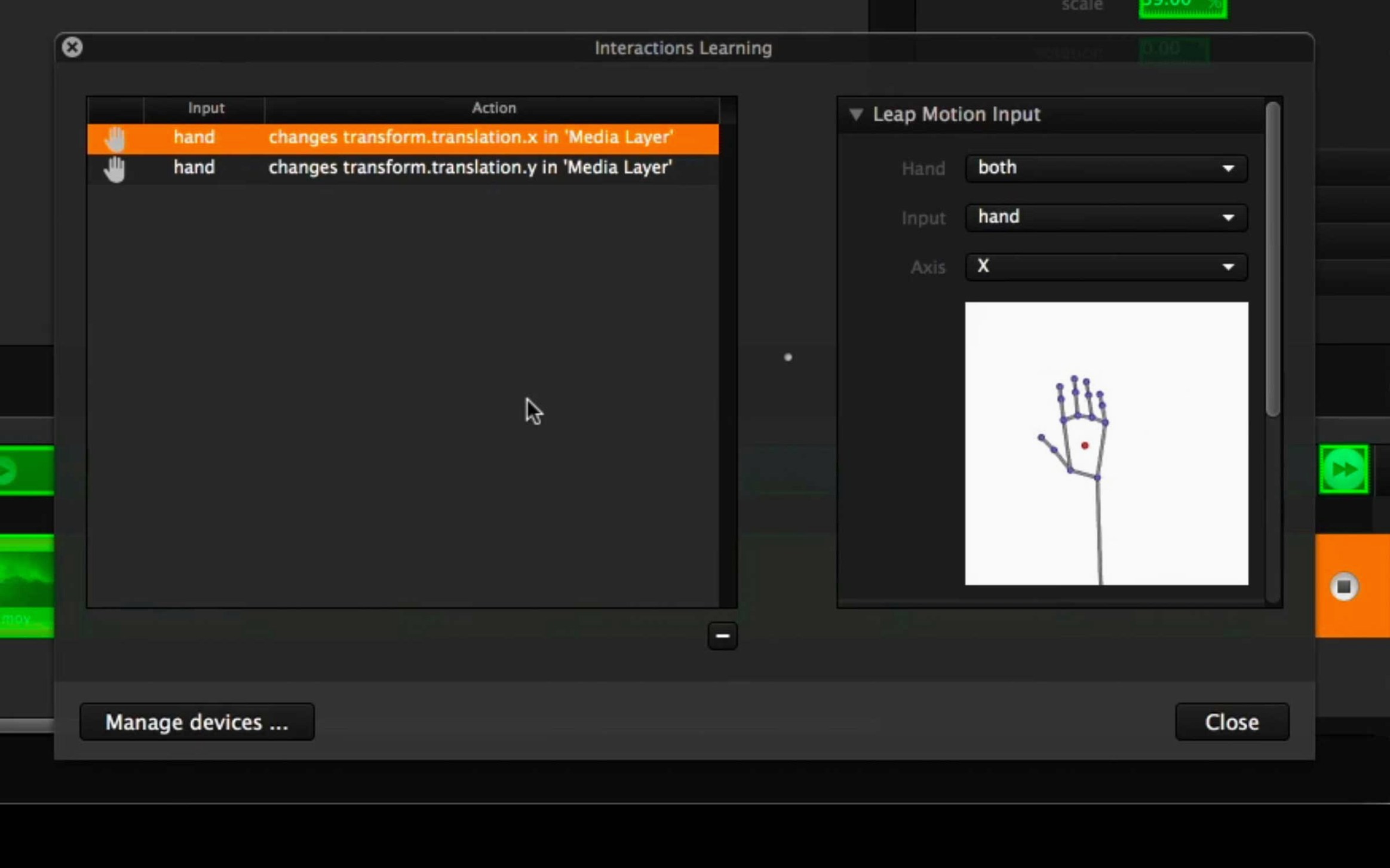
DMX lights, MIDI controllers and OSC‑capable mixing desks all appear on its device list. If a piece of kit speaks a standard show‑control protocol, Millumin can usually address it without extra translation software.
Rosetta-only on Apple Silicon, so test before show day
Officially, no — it's built for Intel 64‑bit Macs running macOS 11 Big Sur or later. On Apple Silicon it runs through Rosetta, which works but isn't something you'd want to rely on for a show‑critical machine without testing first.
Cue-list thinkers and projection mappers pick it up fastest
Three groups tend to hit the ground running. Theatre technicians who already think in cue lists and timelines will recognise the column-based layout within ten minutes. Videomapping artists coming from MadMapper or Resolume pick up the quad-warping and mask tools quickly because the terminology matches what they know. Interactive installation designers get the most long-term value: the OSC and MIDI bridge turns a single Mac into a show controller without needing a separate computer just to translate signals.
If your work is purely linear — play this video file, then that one — you will use maybe a fifth of Millumin. The people who stay with it are the ones who need a lighting desk, a media server and a DMX node to act like a single piece of kit.
Set a fixed canvas size before you build anything real
Before you build anything real, do two things that the contextual help won't push at you.
- Set a fixed canvas size early. The default stage resolution follows your first imported clip. Change it manually to 1920×1080 or your projector's native size before you place a single surface. Resizing later when you have twelve mapped quads is tedious.
- Name every layer in the dashboard. "Layer 4" means nothing mid-tech-rehearsal when the director asks you to nudge the cyc brightness. Names like "Cyc – bottom blend" save you from squinting at tiny thumbnails.
Also worth doing: assign a MIDI fader to the master dimmer on day one. When a lamp blows or a projector overheats, grabbing a physical fader is faster than finding the mouse.
Workflow: mapping a shop-front projection
Here is a concrete job, start to finish, the way a small studio might tackle it for a one-night event.
Setup. You have a 5000‑lumen projector pointed at a brick shop front with two uneven windows and a recessed doorway. The client supplied a two-minute looped animation and a logo still. Your Mac runs Millumin, with a cheap USB‑DMX dongle feeding two LED pars for a pavement wash.
- New project, stage size 1920×1080. Import the animation and logo into the media bin. Drag the animation onto the first dashboard column so it plays as a loop.
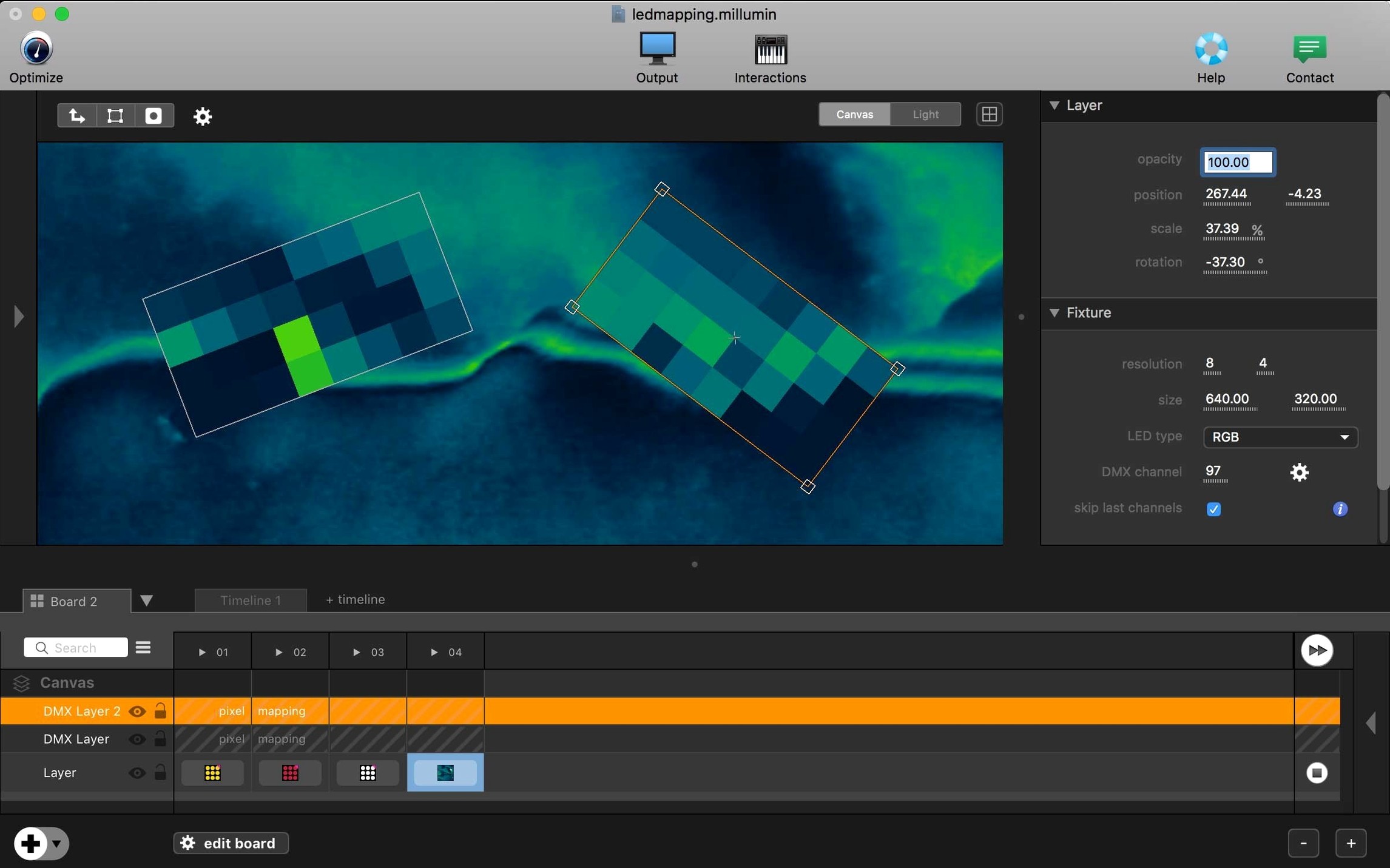
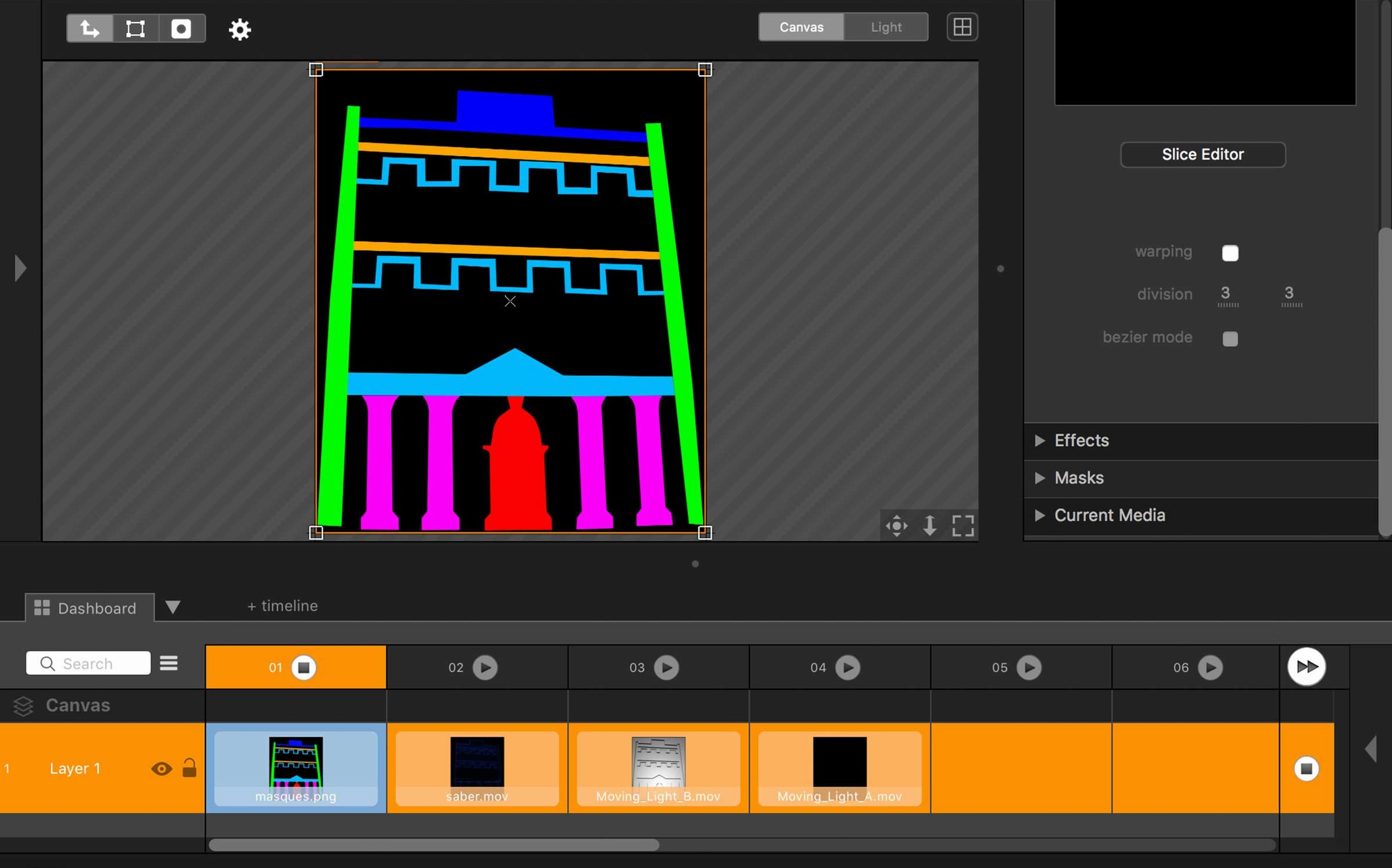
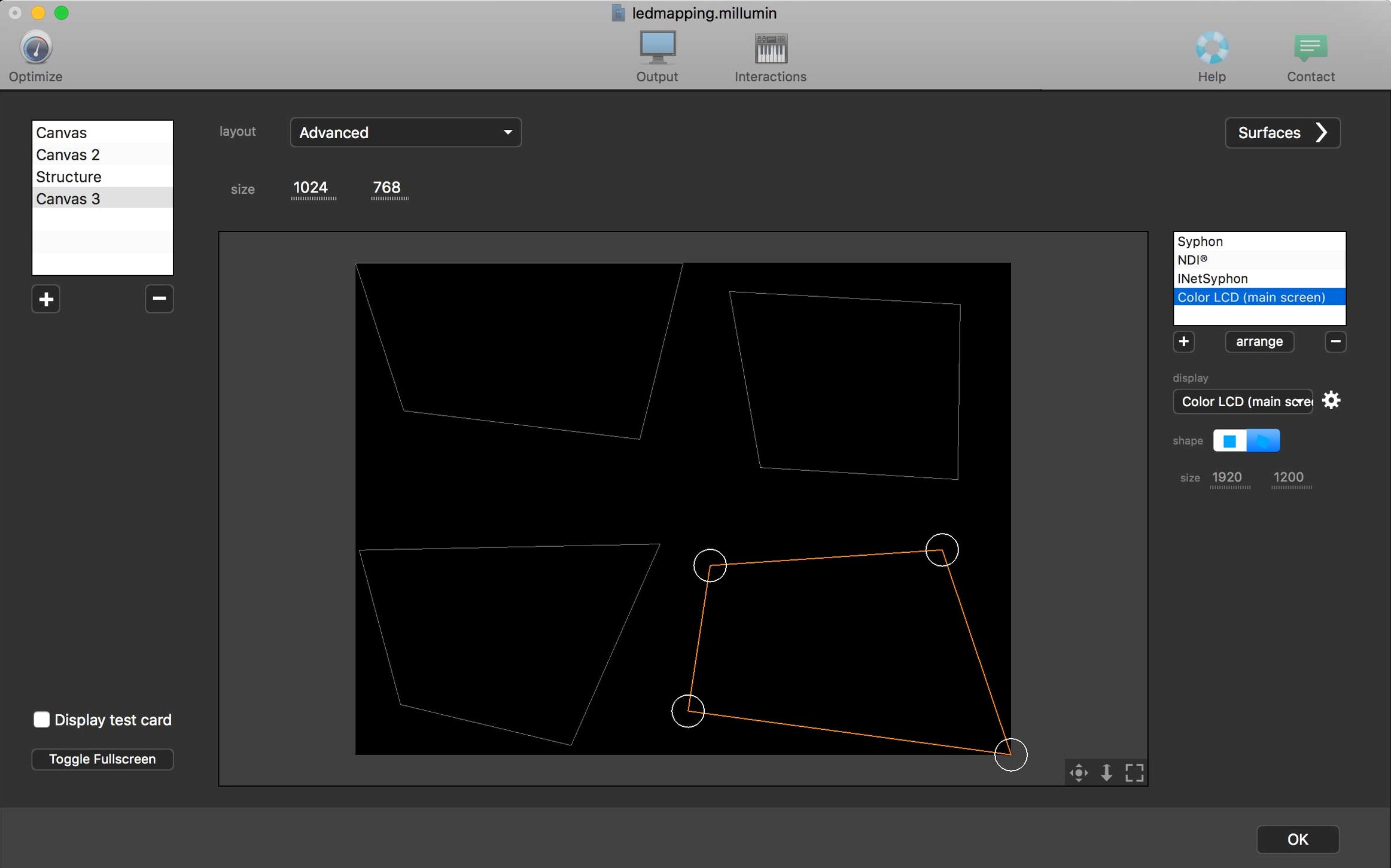
- Create three mapping surfaces. Name them "Left wall", "Door recess" and "Right wall". For each, go to the output setup, select the surface and roughly drag its corners in the preview window to match the physical architecture. Don't use the automated grid yet.
- Test with the projector on. Millumin's test‑pattern button projects a numbered grid. Walk up to the wall and drag corner pins while looking at the actual building, not the screen. The door recess surface needs a slight keystone correction — use the quad‑warp handles, not the canvas crop, so the logo stays sharp when you place it there later.
- Soft‑edge the joins. Where "Left wall" meets "Door recess", add a soft‑edge mask set to about 8% blend. This hides the seam without obvious dark banding.
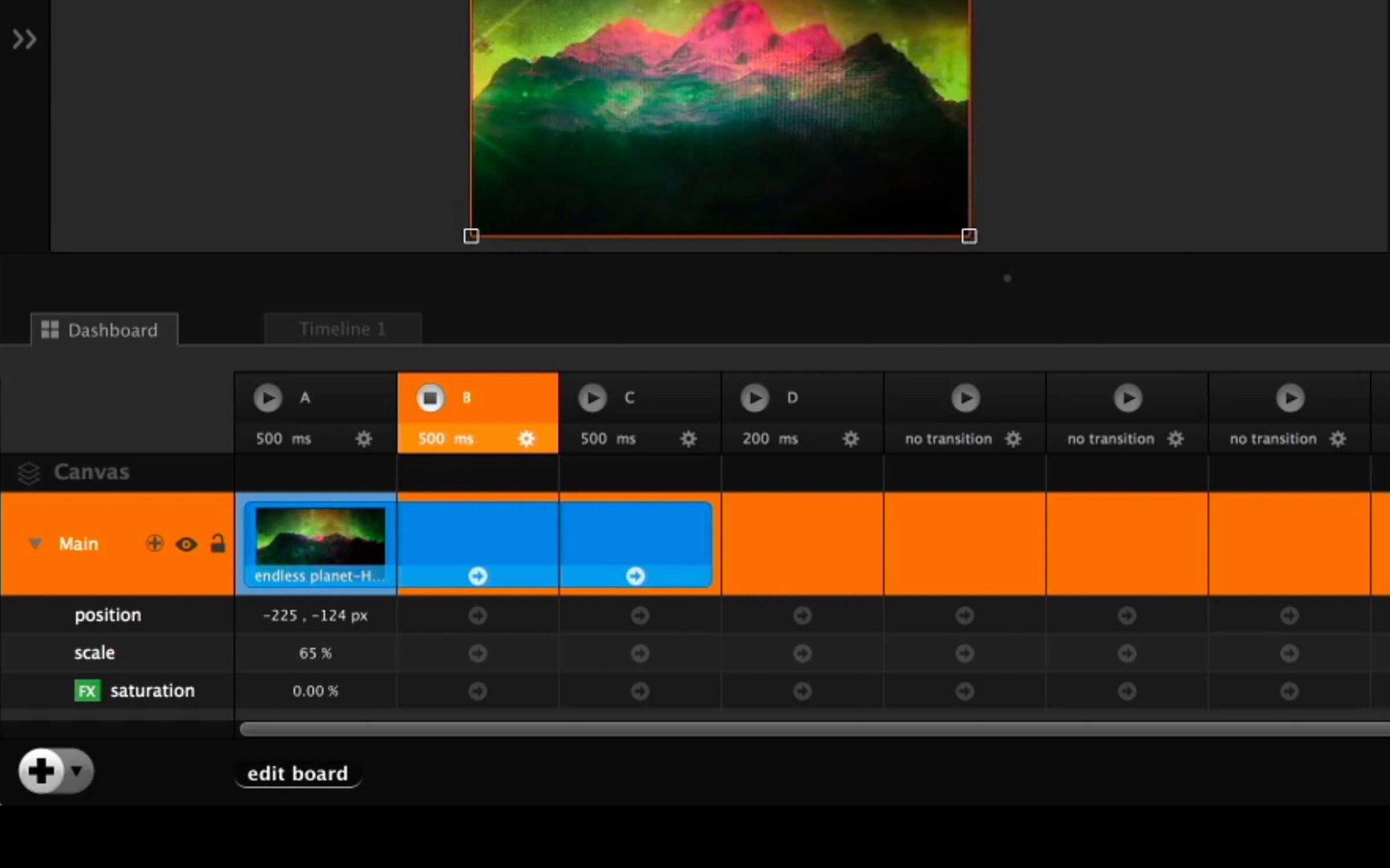
- Queue the logo. Drop the logo still into the dashboard, drag its output to the "Door recess" surface only. Set its opacity to fade up over two seconds via a dashboard curve. Assign a keyboard trigger — say, the spacebar — to fire that column.
- Add the DMX wash. Switch to the DMX tab, patch the two LED pars as RGB fixtures starting at channel 1. Create a simple blue chase and place it on a new dashboard column. Link the column to the same spacebar trigger so the pavement wash changes colour as the logo fades up.
- Run through once. Hit play, watch the full two-minute loop, check that the logo fires on cue and the pars respond. Save the project and quit. Relaunch Millumin, re‑open the project, confirm everything recalls. Never trust a show file you haven't cold‑opened at least once.
That whole setup takes under an hour if the projector is already rigged and focused. The timeline stays readable because only four columns exist: the loop, the logo cue, the lighting chase and a blank blackout column at the end.
Requirements
- macOS 11 Big Sur or later
- Intel 64‑bit processor (Apple Silicon runs via Rosetta)
- Interface language: English
Comments 0
Sign in or create an account to leave a comment.
No comments yet…
If you’ve installed it, say how it went. Mention your Mac and macOS version — it helps the next person more than you’d think.