MediaMate for macOS
Description
Anyone who watches video, joins calls, or just adjusts volume often knows the frustration: a huge graphic blocks the centre of the screen right when you need to see something. MediaMate is for people who want those controls out of the way but still visible.
macOS 13 and Touch Bar mode required
MediaMate needs macOS 13 Ventura or later. It runs natively on both Apple Silicon and 64-bit Intel Macs, so any supported machine is fine. Macs with a Touch Bar need a separate mode to be enabled, but the app still works. The interface is in English.
Compact brightness, volume, and keyboard backlight HUDs
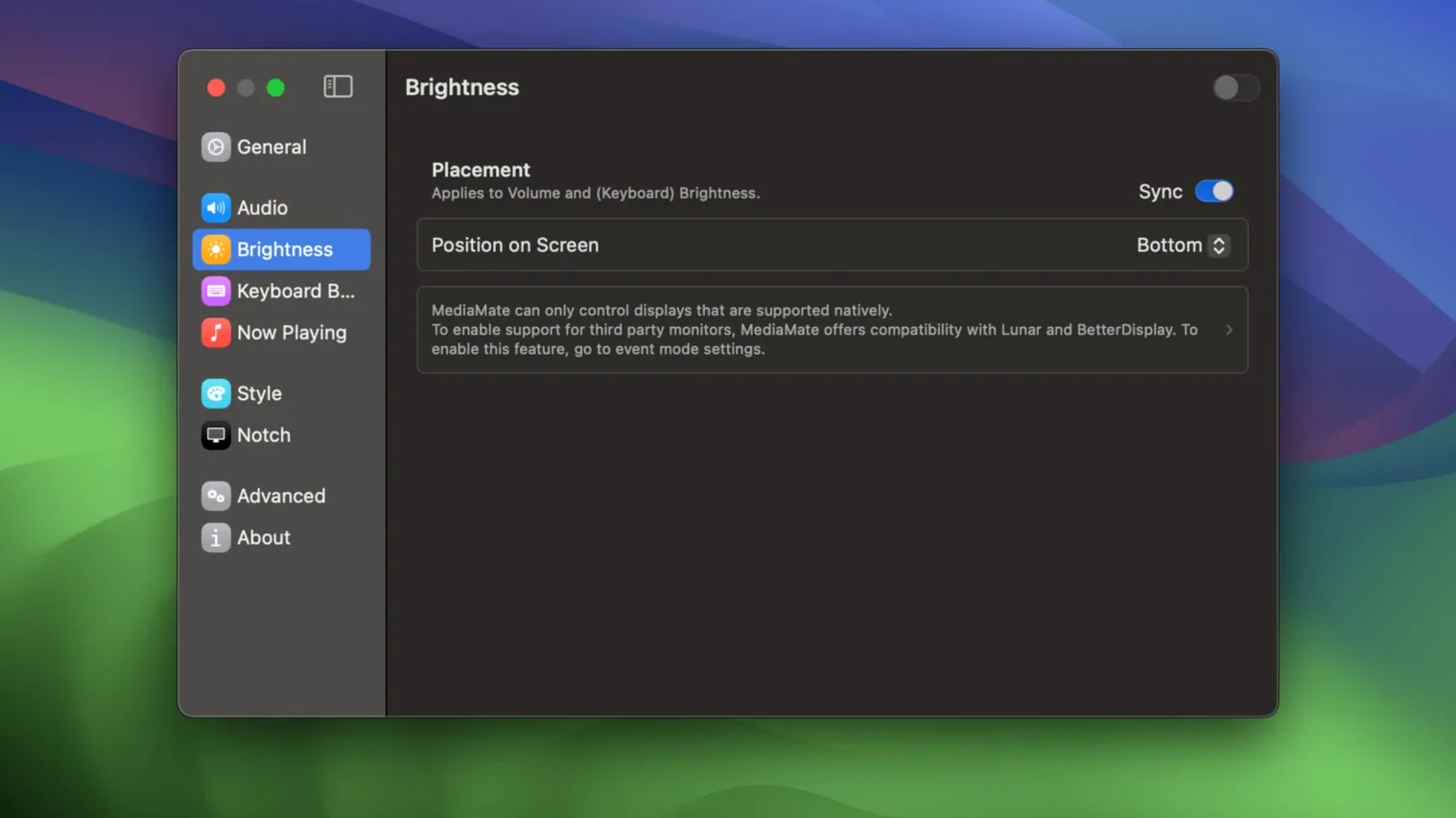
The app replaces the standard brightness overlay with a compact indicator. It does the same for volume and includes a control for keyboard backlight brightness, so you can see the level change without blocking your work. A small now-playing HUD also shows the current media track, keeping information visible but tidy.
Switch to the minimal style and pick a non-clashing edge
Open the app and head straight to the Appearance tab. The default HUD style is fine, but you can shrink it further by switching to the minimal style. While you're there, pick a screen edge that doesn't clash with your dock or menu bar — the bottom-left corner tends to work well for most setups.
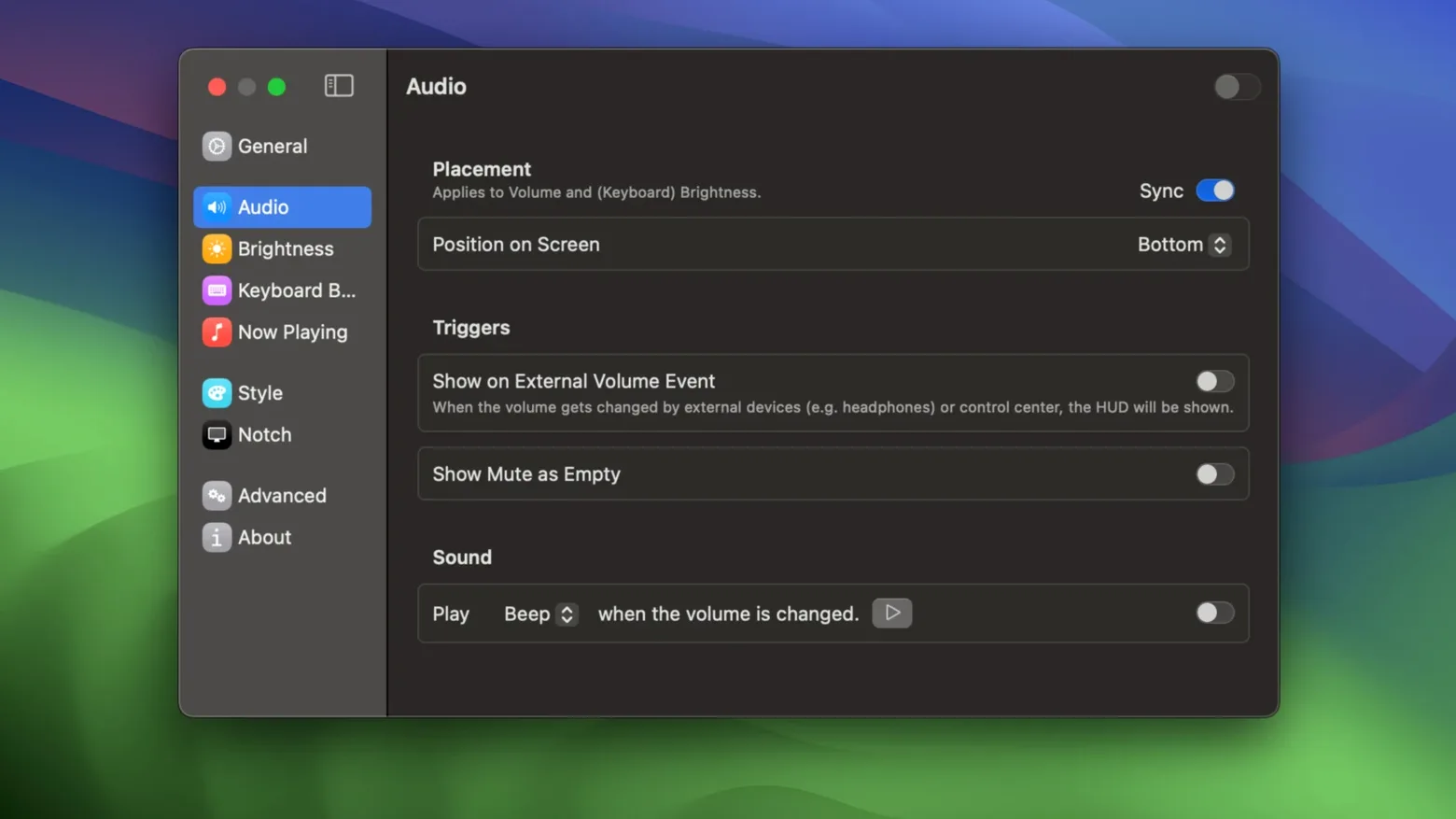
Next, visit Behaviour and turn on Show on all spaces. Without it, the HUD only appears on the active desktop, which misses the point when you're hopping between full-screen apps. If you use external monitors, also enable Show on all displays so you aren't left guessing which screen the indicator landed on.
One more thing: the keyboard backlight HUD is off by default. If you tap the brightness keys on an Apple keyboard and want feedback, flip that switch in the Keyboard section. It's a small addition that saves you squinting at the keys in a dark room.
Wait before moving the centre-top now-playing HUD
After installing mediamate mac app, give it a day or two before tweaking the now-playing HUD. The default position is centre-top, which feels intrusive until you realise it only appears when a track changes. If you're the sort who skips songs constantly, drag the preview duration down to two seconds — long enough to read, short enough to forget it's there.
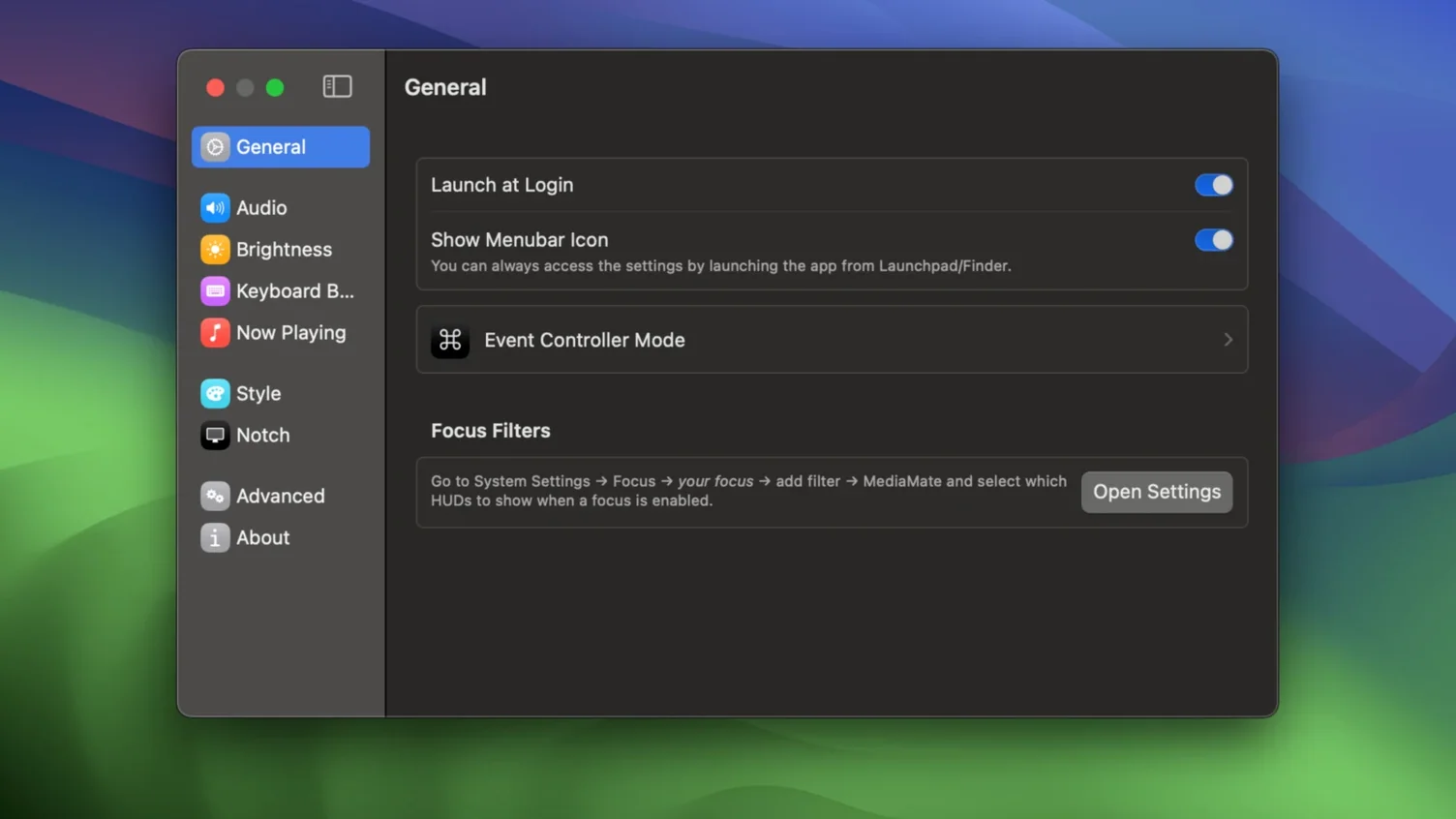
Touch Bar users need to enable the separate fallback mode in General. The native Touch Bar integration won't work, but the on-screen HUD steps in and behaves exactly as it does on other Macs. It's one extra click during setup, then you can ignore it forever.
If you share your screen often during calls, test the HUD with your conferencing app. MediaMate's overlay sits above most windows, but some apps with aggressive screen-capture modes can hide it. Moving the HUD to a corner usually solves this without further fiddling.
Option-click the menu bar icon for quick toggles
Hold Option while clicking the menu bar icon to reveal a quick settings panel. It skips the main window entirely and lets you toggle individual HUDs on or off without breaking your flow. Useful when a game or video player uses its own volume overlay and you want to avoid double indicators.
The now-playing HUD offers a click-to-skip gesture that isn't advertised anywhere. Click the track title to jump to the next song — it works with Music, Spotify, and anything that ties into the system's media controls. A small detail, but one that saves a swipe or a keyboard shortcut.
If you're hunting for an older version like mediamate 3.8.3, stick with the current release. The developer ships small, frequent fixes, and rolling back means losing refinements to the HUD positioning logic that arrived with later builds. The app is light enough that staying updated costs you nothing in performance.
Requirements
- macOS 13 Ventura or newer
- Apple Silicon or 64-bit Intel processor
Comments 0
Sign in or create an account to leave a comment.
No comments yet…
If you’ve installed it, say how it went. Mention your Mac and macOS version — it helps the next person more than you’d think.