Magic Disk Cleaner for macOS
Description
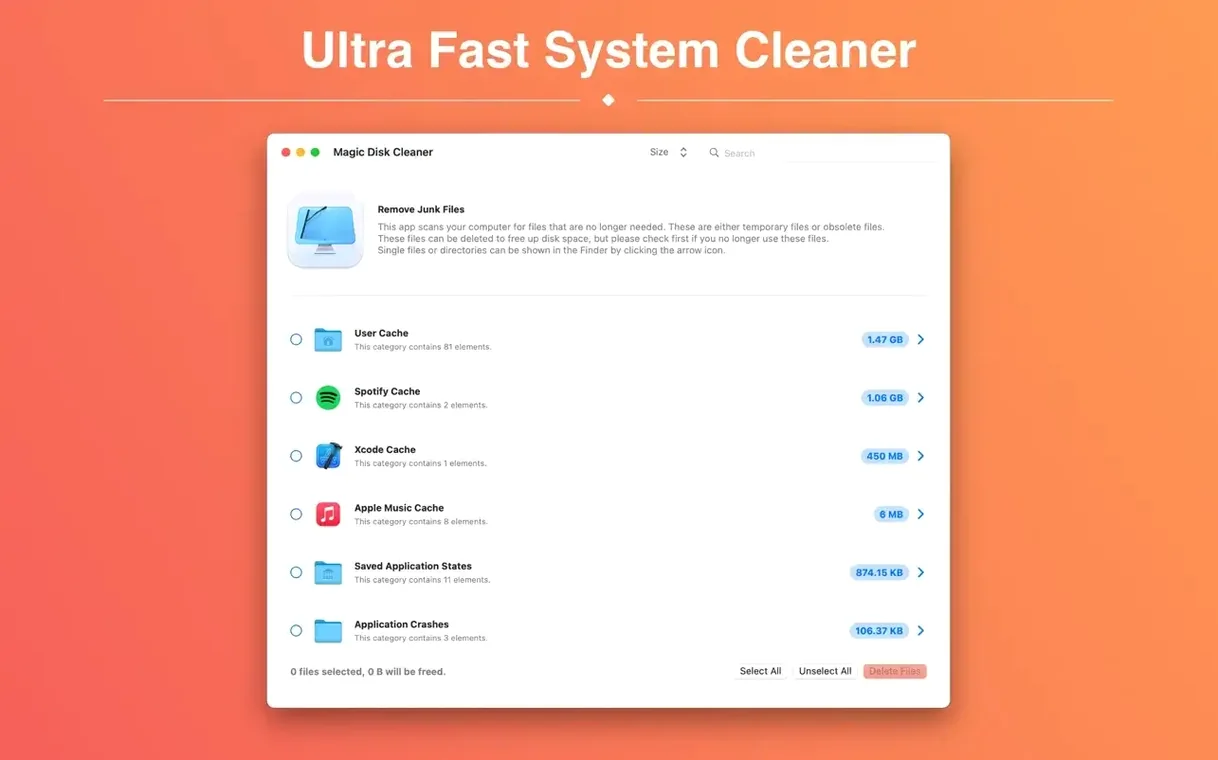
Version 5.4.0 keeps things simple. No new features landed this time, but the foundation stays solid: a fast search for temporary files and nothing else. The app scans standard locations, shows you what it found, and lets you delete the lot with one click — or leave things as they are.
Reclaiming space from months of built-up caches and logs
- Clearing caches and logs that build up over months
- Getting a quick figure for how much space temp files are using
- Running a cleanup without wading through settings or wizards
Scans only temporary file locations, not your whole system
- Scans only temporary file locations — not a full system cleaner
- No scheduling or automatic background cleaning
Clicking Delete before reading what’s on the list
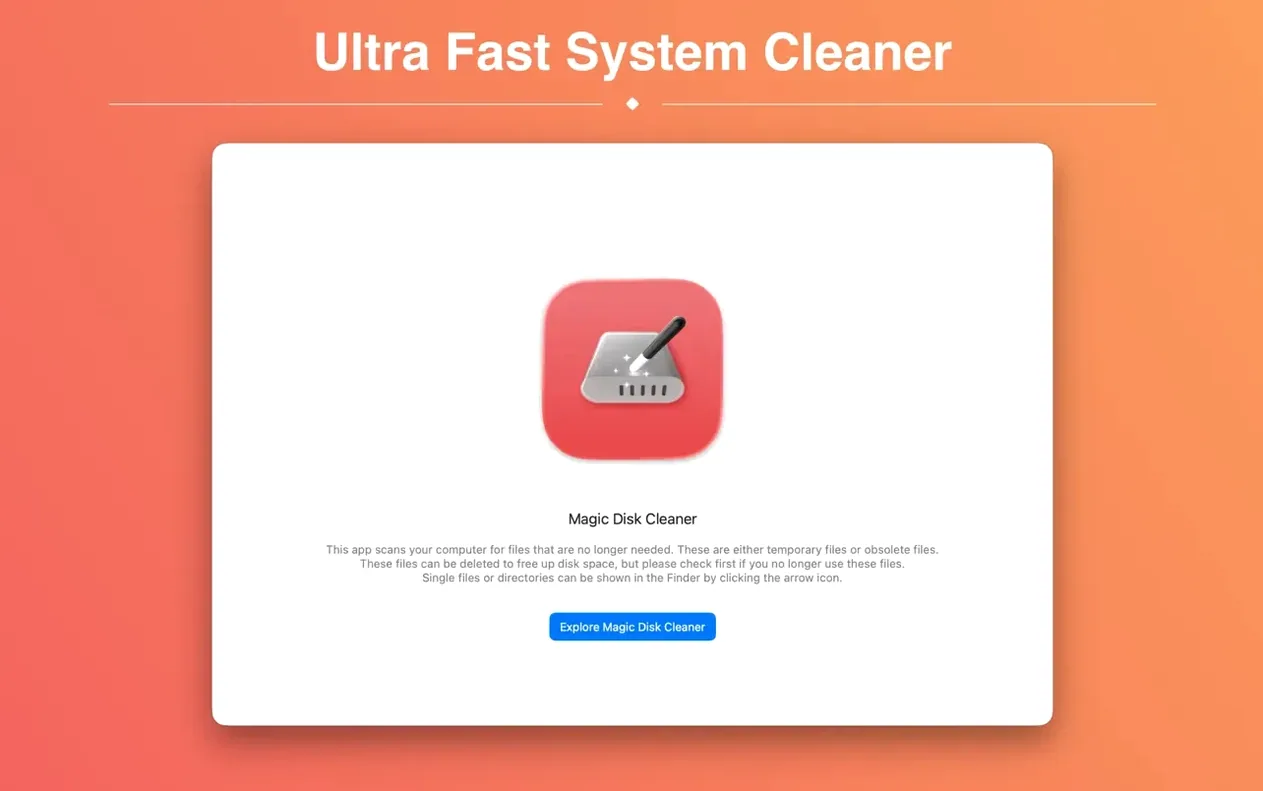
First time you open Magic Disk Cleaner, the scan starts straight away. No welcome screen, no instructions. Some people panic and click Delete before reading what's on the list. That's a mistake — not a dangerous one, but it means you never learn what the app actually found.
The scan results show file paths. A common error is assuming every entry is junk. Temporary files are disposable by definition, but if you're troubleshooting a slow app, you might want to note which cache folder was bloated before wiping it. Otherwise you lose the clue.
Another slip: running the app once and forgetting about it for a year. Temporary files come back. A monthly habit takes thirty seconds and keeps the number small enough to review properly. People who treat Magic Disk Cleaner as an emergency button miss half the point.
Finally, some users drag the app to the trash without ejecting the disk image first. The mounted volume sits there, Finder shows a phantom drive, and they blame the software. Eject the DMG, then tidy up.
Under-the-hood fixes for macOS 15.6 and Apple Silicon
Version 5.4.0 didn't add visible features. The changes were under the hood: compatibility fixes for macOS 15.6 and later, plus continued support for both Apple Silicon and Intel machines. If you updated from an older 4.x build, the biggest shift was the move to a native ARM binary — scans finish noticeably faster on M-series Macs compared to the Rosetta-translated older releases.
Earlier 5.x updates refined the scan paths. The app got better at finding temporary files left by system services that previous versions missed, including some caches buried in /private/var. Day to day, that means a slightly larger number on the results screen and a slightly emptier drive after you click Delete. Nothing dramatic, but incrementally useful.
The interface stayed the same throughout: a single window, a progress bar, a file list, and one button. Sascha Simon has resisted adding menus or preferences, so the everyday experience hasn't changed much since the app first appeared. You launch, you look, you delete — the routine is identical.
It never touches your documents, photos, or user data
Will it delete anything important? The app only touches files it identifies as temporary — caches, logs, and system detritus that macOS or applications can recreate on demand. It never goes near documents, photos, or user data. You also have to click the Delete button yourself; there's no automatic removal, no background process that decides for you.
Can I see what it found before I commit? Yes, that's the entire workflow. After the scan finishes, you get a list of file paths and their sizes. You can scroll through, expand folders, and decide whether anything looks worth keeping. If you're unsure, close the app and nothing happens.
Does it work alongside other cleaners? Generally, yes. Magic Disk Cleaner focuses narrowly on temporary files, so it won't fight with a tool that manages duplicates or uninstalls applications. If two cleaners target the same cache folders, one will simply find them empty after the other has run — no conflict, just a smaller number on the second scan.
One-purpose cleaner versus a full maintenance suite
Magic Disk Cleaner vs. CleanMyMac X. CleanMyMac X is a full maintenance suite: malware scanning, optimisation tools, app uninstaller, the works. Magic Disk Cleaner does one thing. If you want a dashboard that nags you about system health, CleanMyMac covers that ground. If you want a five-second temp-file check with zero background processes, the smaller tool fits better. CleanMyMac scans more locations but also sits in memory; Magic Disk Cleaner runs and quits.
Magic Disk Cleaner vs. DaisyDisk. DaisyDisk shows you a visual map of everything on your drive — documents, media, archives, the lot. It answers "what's taking up space?" across your entire disk. Magic Disk Cleaner answers a narrower question: "what temporary files can I safely remove right now?" They complement each other well. Use DaisyDisk to spot a bloated folder you didn't know about, then use Magic Disk Cleaner for the routine clear-out.
Magic Disk Cleaner vs. OnyX. OnyX is a power-user tool for running system maintenance scripts, rebuilding databases, and tweaking hidden preferences. It also clears caches, but it wraps the job in a complex interface with dozens of checkboxes. Magic Disk Cleaner strips the task down to one window. Beginners find the smaller app less intimidating; experienced users sometimes keep both — OnyX for deep maintenance, Magic Disk Cleaner for the daily sweep.
What’s new
Fixes a few crashes that could trip up a long cleanup session, and tidies up some sluggish interface bits.
Requirements
- macOS 15.6 or later
- Apple Silicon and Intel 64-bit
FAQ
Does Magic Disk Cleaner delete files without asking?
No. It shows you what it found and waits for you to confirm before removing anything.
Comments 0
Sign in or create an account to leave a comment.
No comments yet…
If you’ve installed it, say how it went. Mention your Mac and macOS version — it helps the next person more than you’d think.