Magnet for macOS
Description
Magnet runs on any Mac with macOS 13 Ventura or later. Intel and Apple Silicon are both supported. It handles Retina and non-Retina displays without fuss, and you can throw up to six external screens at it.
An invisible update that keeps macOS compatibility
Version 3.0.7 didn't ship with publicised feature changes — this release keeps the engine running on newer macOS builds. The core toolset is unchanged.
Quarters, halves and full-screen snapping
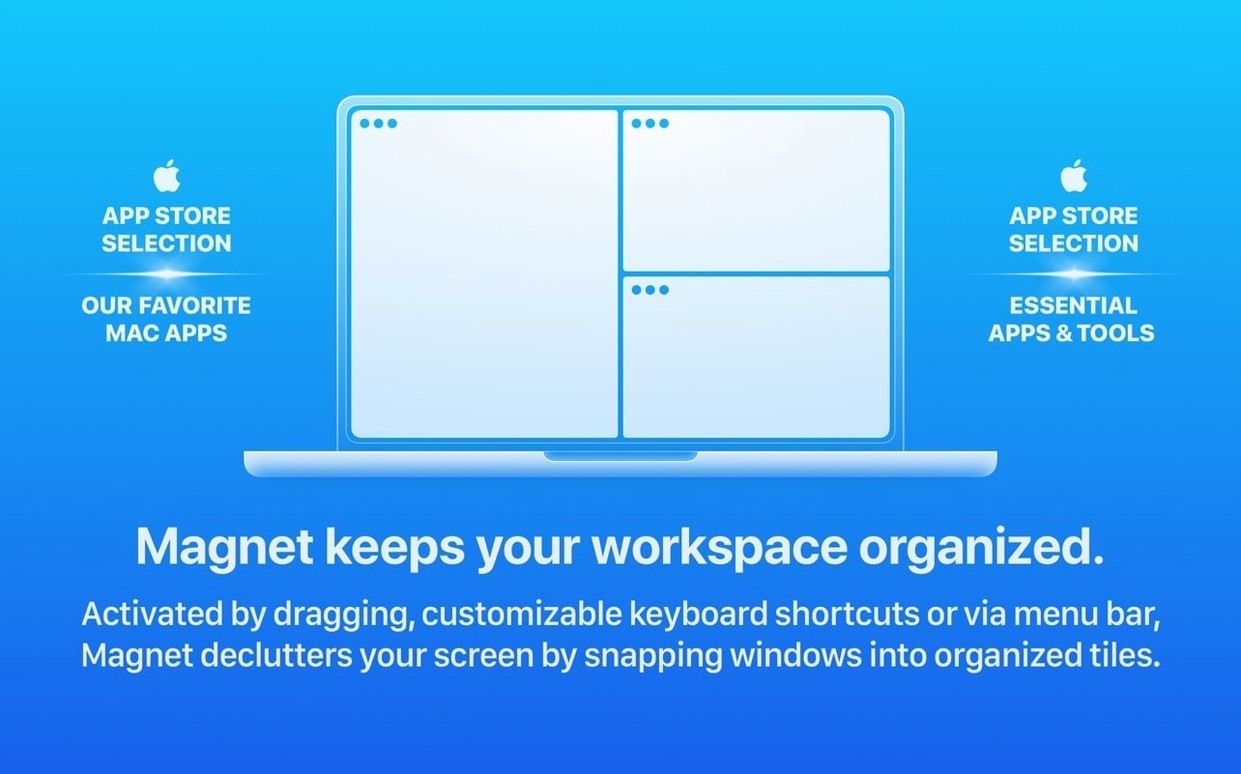
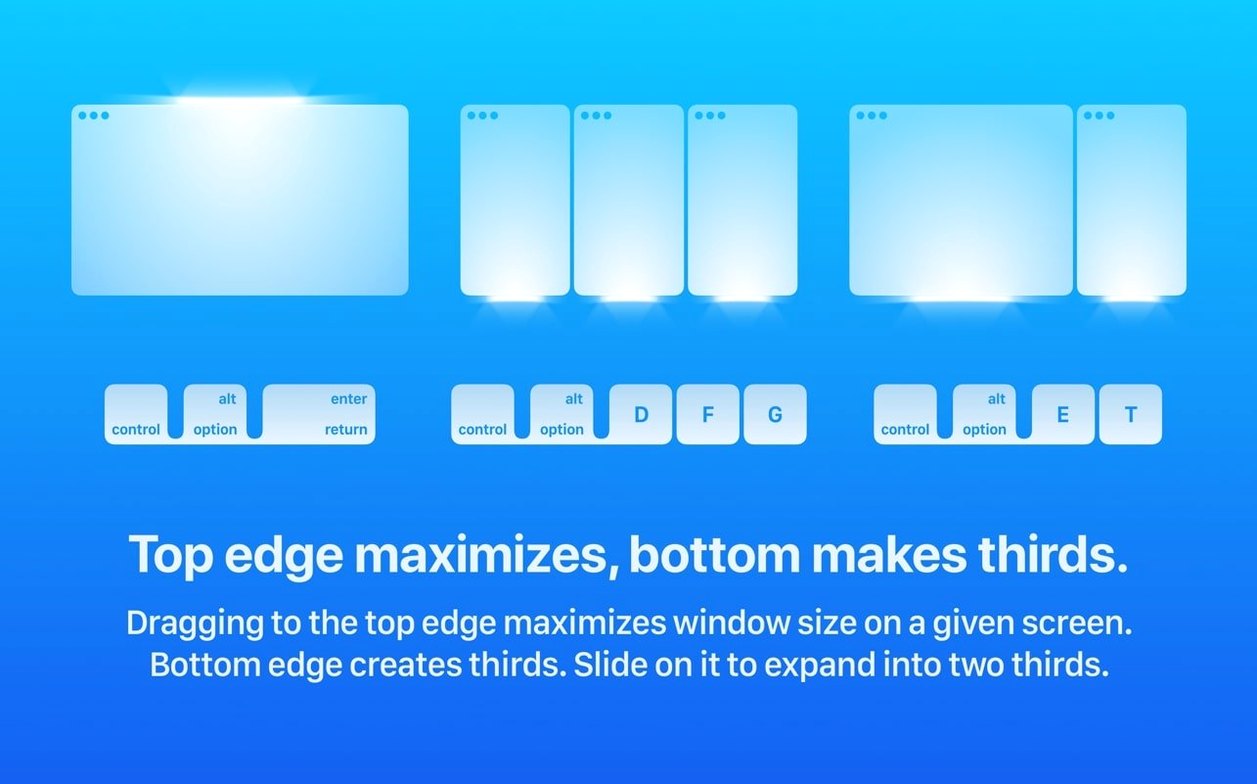
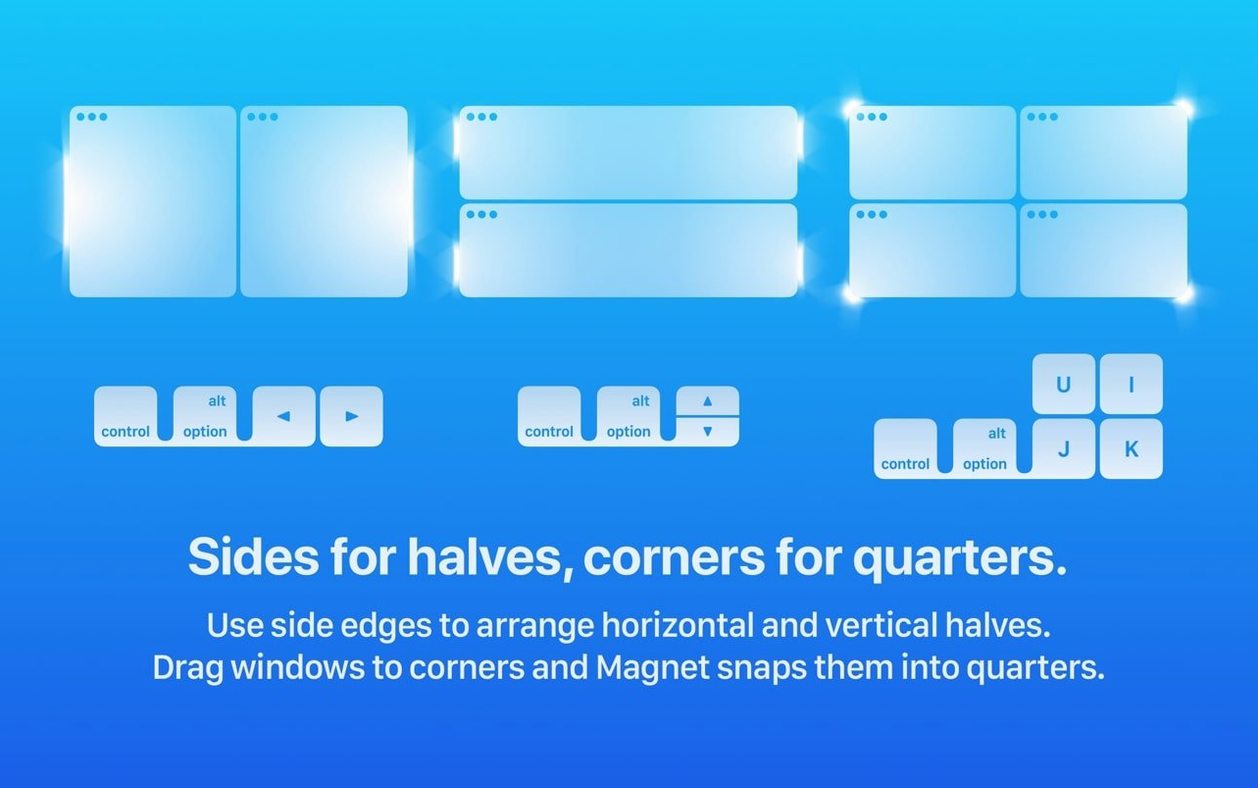
You still get a straightforward window manager that thinks in quarters, halves and full-screen. Keyboard shortcuts do the heavy lifting. Drag a window to an edge and it snaps into place. Custom layouts are there if you need something less standard. The app stays out of your way until you ask for it.
The first thing to accept is that Magnet will feel awkward for about two days. You’ll drag a window and expect nothing to happen, then remember you installed it. That’s normal. Don’t uninstall it yet.
Pick three shortcuts and use only those for the first week. My suggestions: left half, right half, maximise. That covers 80% of what most people actually need. Bind them to combinations your fingers already know — I use ⌃⌥← and ⌃⌥→ for halves, ⌃⌥↑ for full screen. The Control-Option cluster sits underused on most keyboards, and your thumb can reach the arrows without leaving the home row.
Once those three stick, add the corner quarters. After a fortnight, you’ll stop thinking about it entirely. That’s the point where Magnet earns its keep.
Hide the menu bar icon and two other early tweaks
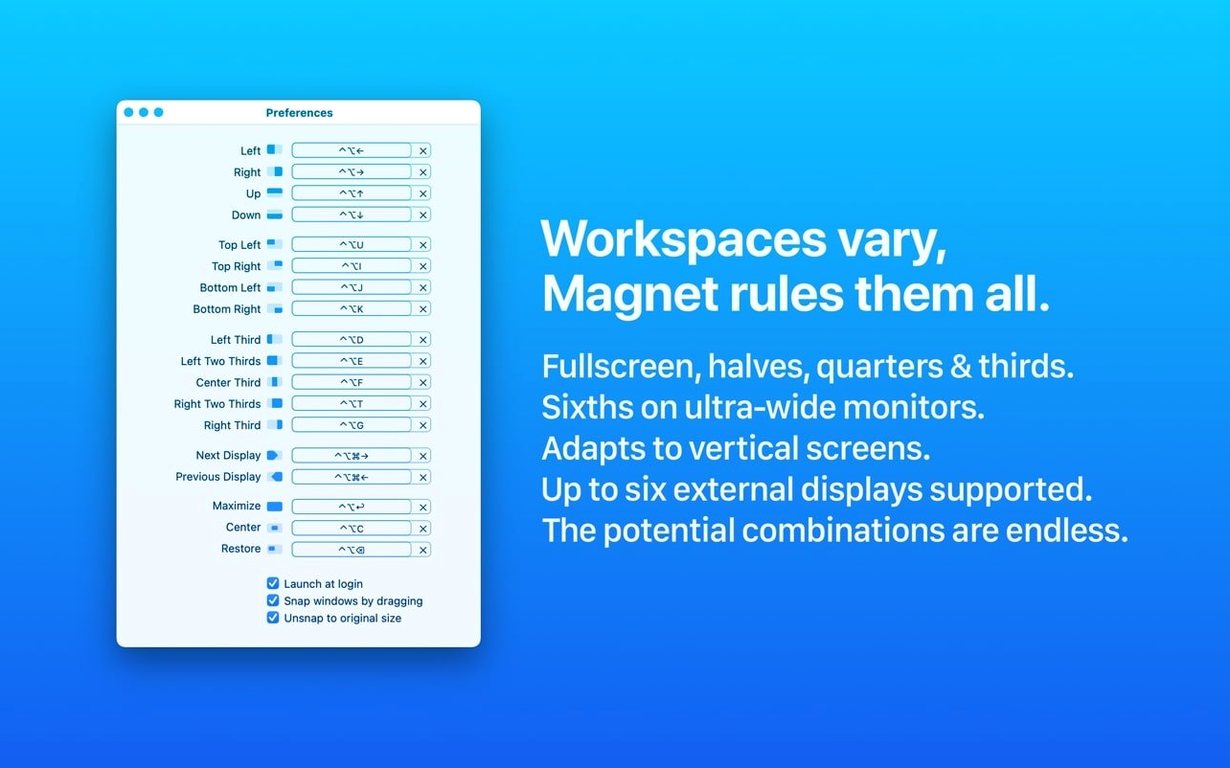
Open Magnet’s menu bar icon. Click the gear. You’ll land in a preferences pane that’s refreshingly short on mystery toggles. Three things worth changing straight away:
- Disable the menu bar icon if you don’t need it. Magnet runs in the background regardless. The icon is useful for discovering hotkeys early on, but once you’ve memorised your set, it’s clutter. Untick “Show in menu bar” and reclaim the space.
- Turn off “Snap windows by dragging.” This sounds counterintuitive — isn’t dragging the whole point? It is, until you’re nudging a palette in Photoshop or lining up two Finder windows by hand and Magnet keeps grabbing them. I leave snapping on for edges but off for corners. Experiment. You can re-enable it in two clicks.
- Set “Reopen on login” to your preference. It’s off by default. If you’re going to use Magnet every day, turn it on. It’s a lightweight process — no splash screen, no dock bounce, no reason to launch it manually every morning.
If you’re a magnet download macos user who grabbed the app from a direct source rather than the App Store, the preferences pane looks identical. The app behaves the same way wherever you got it.
Mail, a browser and a spreadsheet in the first five minutes
You sit down with a coffee. Mail is open, a browser with six tabs, and a spreadsheet you’d rather not look at. Here’s how Magnet earns its screen real estate in the first five minutes.
Step one: you’re reading an email that references a figure in the spreadsheet. ⌃⌥← snaps Mail to the left half. ⌃⌥→ snaps Numbers to the right. You glance between them, check the number, move on. No resizing by hand, no overlapping title bars.
Step two: the browser needs more room. You’re comparing two product pages. Right half for Safari, left half for the second window — or, if you’re on a 27-inch screen, quarters. ⌃⌥D drops the active window into the bottom-left corner. The second one goes top-right. You’ve got four documents visible at once without touching the mouse.
Step three: you need to focus. ⌃⌥↑ maximises the spreadsheet. Not macOS full-screen-with-a-new-Space maximise — Magnet’s version fills the desktop without hiding the menu bar or moving you to a separate virtual desktop. That distinction matters when you’re flipping between apps quickly.
Step four: you finish, stand up, and Magnet has done its job. You didn’t open its preferences once. The app never interrupted you.
If you came looking for a magnet mac download that handles this without fuss, that’s the experience you’re getting. Version 3.0.7 runs the same on a 2020 Intel MacBook Pro and an M3 MacBook Air.
Unassigned thirds and sixths for ultrawide screens
- Sixths and thirds. The default shortcut list shows halves and quarters, but there are also thirds (left, centre, right) and even sixths for ultrawide displays. These aren’t assigned to keys by default — you need to set them manually. If you work on a 34-inch monitor, thirds are a revelation. Two side-by-side browser windows at two-thirds each leave a sliver of desktop for a notes window.
- The “Next Display” shortcuts. Buried in the shortcut list are commands labelled “Next Display.” They move the active window to the next monitor and snap it to the same position. Three monitors deep in a spreadsheet session, this saves you from dragging across bezels.
- Right-click the menu bar icon. Even if you keep the icon visible, most people never right-click it. Doing so gives you a list of all layouts — quarters, thirds, full screen, everything — without opening preferences. Useful when you’ve forgotten the hotkey for a layout you use twice a month.
- It ignores full-screen apps gracefully. If an app is in native macOS full-screen mode, Magnet leaves it alone. No conflict, no error beep. The app just quietly steps aside.
If you’re still exploring how to get a Magnet torrent Mac build or a direct Magnet download for Mac, the functionality described here is identical across distribution methods. The app doesn’t phone home, doesn’t require an account, and doesn’t gate features behind where you found it.
Requirements
- macOS 13 or later
- Works on Apple Silicon and Intel 64-bit Macs
FAQ
Does Magnet work with multiple monitors?
Yes. It supports up to six external displays, so you can manage windows across a full desk setup.
What layouts does Magnet offer?
It covers full-screen, half-screen and quarter-screen snaps, plus custom layouts you can arrange yourself.
Which Macs can run Magnet?
It runs on any Mac with macOS 13 Ventura or later, on both Intel and Apple Silicon machines.
Comments 0
Sign in or create an account to leave a comment.
No comments yet…
If you’ve installed it, say how it went. Mention your Mac and macOS version — it helps the next person more than you’d think.