MainStage for macOS
Description
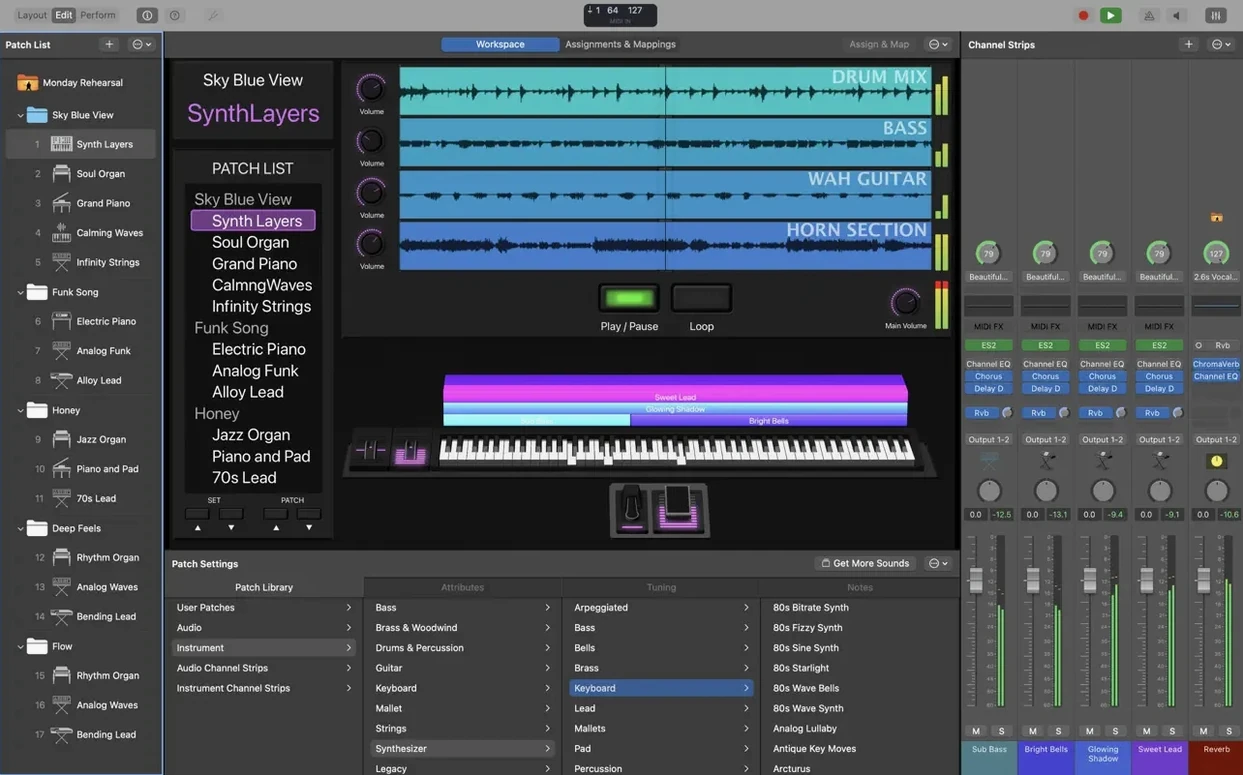
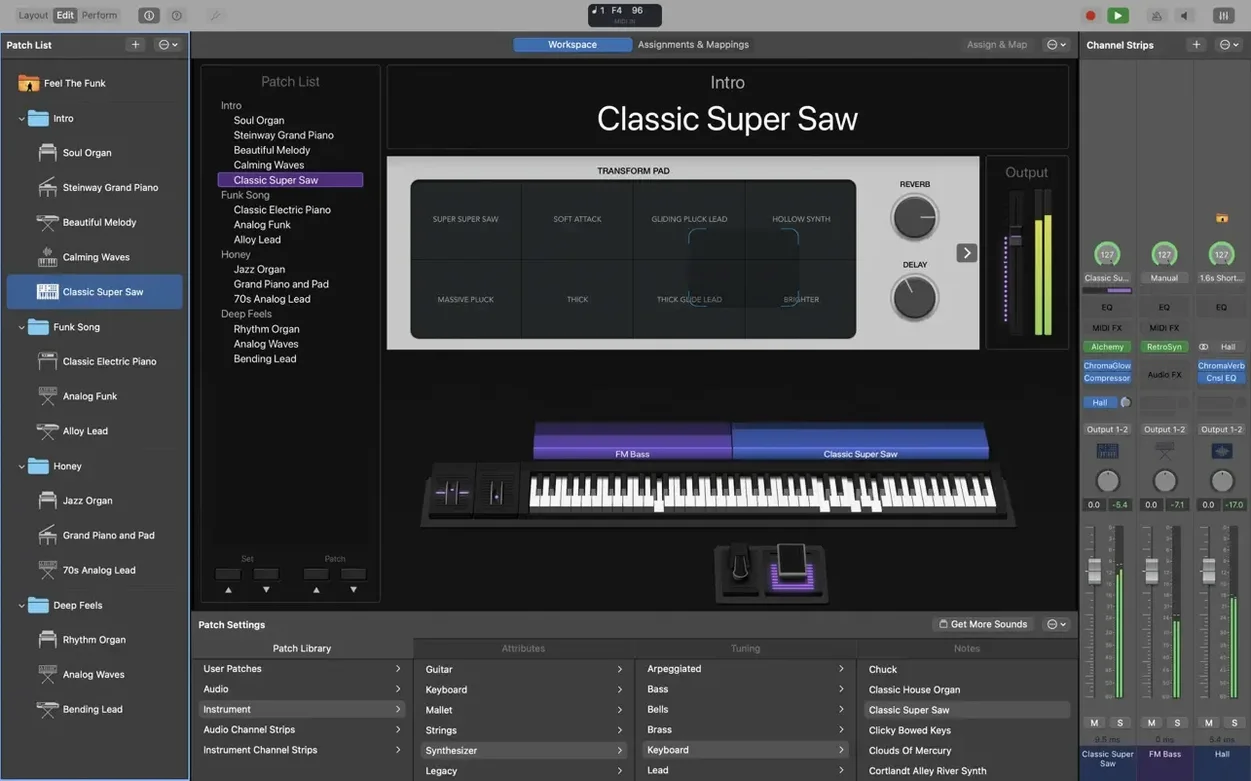
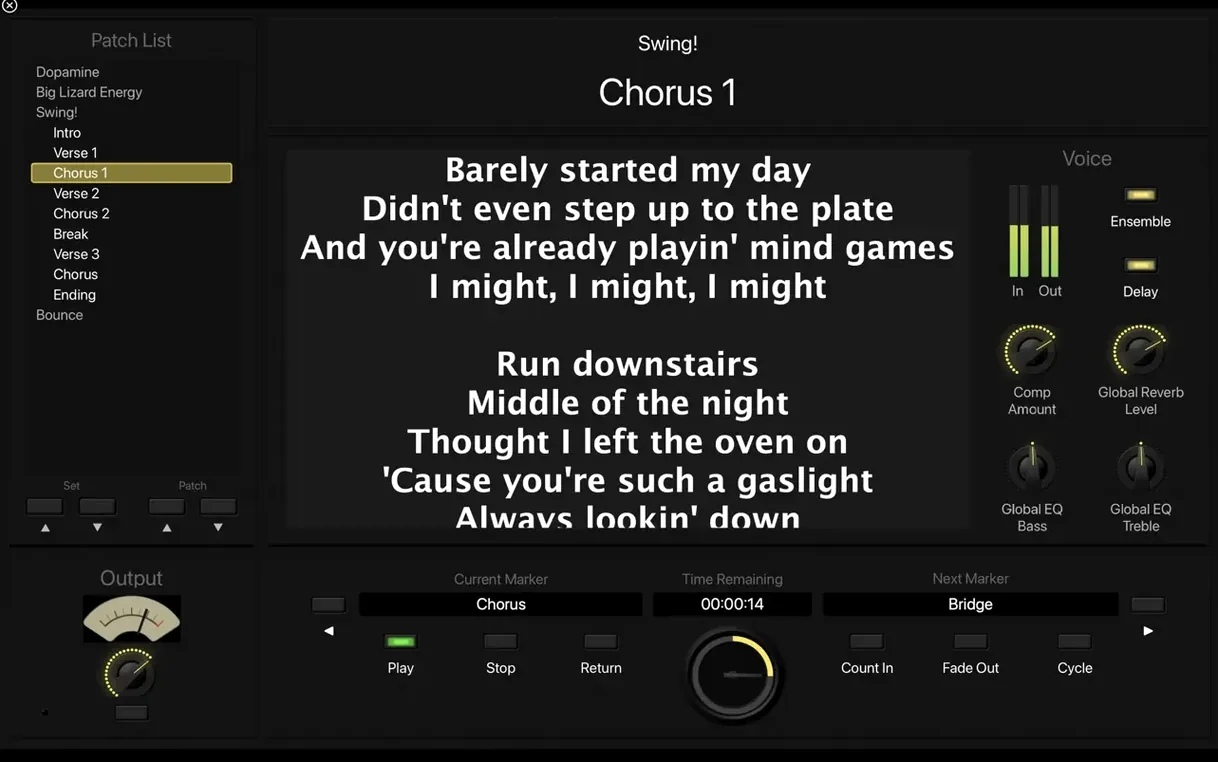
MainStage 4.3.1 requires an Apple Silicon Mac running macOS 15.6. A minimal install asks for 6 GB of disk space; pulling in the full Sound Library needs 57 GB. It is built solely for live performance, giving you a full-screen workspace that hides the desktop and keeps controls where you can see them at a glance.
What the current version brings and what stayed the same:
- Sampler instruments now load the correct sounds — a fix that matters when a patch relies on a specific multisample.
- Incoming MIDI SysEx messages are no longer blocked, so hardware that relies on those handshakes works again.
- You can once more type numbers straight into the Add Channel Strip window instead of dragging sliders.
- The Sound Library still ships over 1,800 instrument and effects patches. More than 750 are sampled instruments.
- Patches still switch without interrupting held notes or tails. That was never broken.
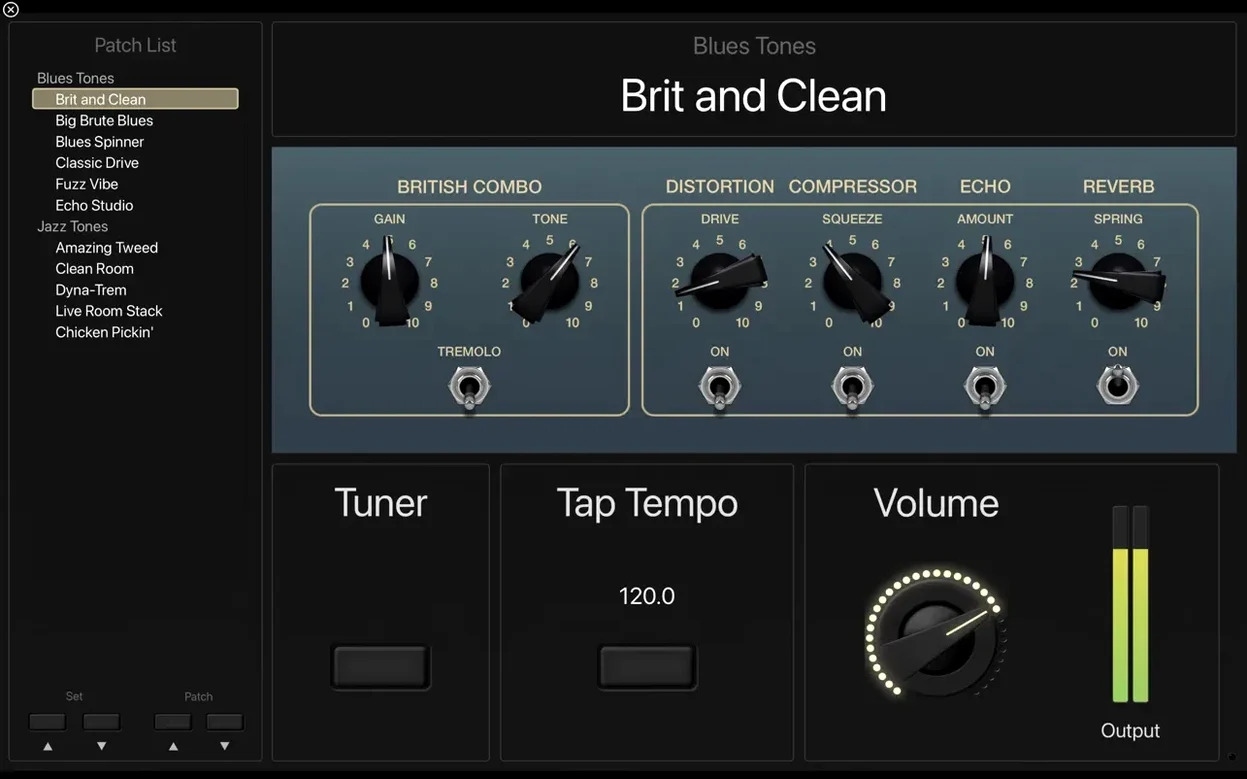
- Amp Designer, Pedalboard, and the full-screen tuner remain on board for guitar and bass players.
It still loads sounds from Logic Pro and GarageBand, and the Touch Bar on older MacBook Pro models still gives you workspace control. Nothing flashy here — just a handful of fixes on top of the same live-focused tool it has always been.
Swap the buffer size so your gig doesn't crackle
MainStage ships with a handful of defaults that make sense for demo-browsing but not for a gig. A few minutes in the preferences panel saves you mid-set surprises.
Audio buffer. Head to Audio Preferences and set the I/O Buffer Size to 128 samples or lower if your Mac can handle it. The factory default is usually 256 — fine for playback, sluggish for live playing. Drop it until you hear crackles, then step back one notch. On Apple Silicon Macs, 64 samples is often stable with a modest patch count.
Send unused notes off. In the General tab, tick “Send All Notes Off When Switching Patches”. Without it, a sustaining pad from patch A can drone right through patch B. That sounds arty exactly once, then it sounds like a mistake.
MIDI input filtering. MainStage listens to all connected controllers by default. If you use a keyboard and a separate pad controller, you will get double triggers. Switch to Layout mode, select each screen control, and assign it to a specific MIDI port and channel under the Hardware Input inspector. Takes five minutes. Stops you from triggering a kick drum sample every time you play middle C.
Patch list navigation. In Performance mode, the Patch List jumps to whatever you click. If you prefer stepping with a footswitch or a keyboard button, map “Previous Patch” and “Next Patch” to hardware buttons in the Actions tab of Layout mode. Then disable “Select Patches With Mouse” in Performance preferences so a stray click does not derail your set list.
Plug-ins, sample rates and routing that trip up MainStage
Most problems trace back to three things: third-party plug-ins, sample rates, and patch-level routing.
Crackles and dropouts. A 64-bit Audio Unit plug-in that works fine in Logic can misbehave in MainStage. Some plug-ins hog the main thread whenever a patch loads. Isolate the culprit by bypassing plug-ins one at a time in Edit mode. Once found, either replace it with a stock alternative or wrap it in a summing stack so MainStage treats the whole block as one unit — that often stabilises CPU spikes.
Silent patches after switching. This usually means the new patch is looking for an audio input that does not exist in your current concert. Check the channel strip input assignment. If you built the patch with an external synth routed to Input 3–4 but your current audio interface only exposes Input 1–2, MainStage stays quiet. Reassign the input or delete the unused channel strip.
MIDI SysEx that still fails. Version 4.3.1 fixed the blanket SysEx block, but some hardware expects a specific device ID byte. Open the External Instrument channel strip, click the MIDI Output tab, and make sure the channel and port match your hardware. A Roland synth listening on channel 2 will ignore a message sent on channel 1, and MainStage does not guess.
Patch list jumping on number entry. That was a 4.3.1 fix — entering values no longer switches patches. If you see it happen anyway, check that you are not accidentally hitting a mapped “Next Patch” button while typing. It sounds obvious, but on a dark stage, a footswitch is easier to nudge than you think.
Sampler loading wrong sounds. Also fixed in 4.3.1. If a legacy concert still shows the old behaviour, resave the patch. MainStage caches sample references, and a resave forces it to rebuild the cache with the corrected logic.
Build a Rhodes-and-pad split with its own ambience
Here is a practical setup for a keyboard player who needs a Rhodes below C3 and a pad above, with a bit of ambience on both.
- Open a new concert, then go to Edit mode. Delete the default Electric Piano patch so you start clean.
- Add a new patch. Name it something you will recognise mid-gig — “Rhodes+Pad” works.
- Add two channel strips: one software instrument for the Rhodes, one for the pad. Instantiate Vintage Electric Piano on the first, and pick a warm analogue pad from the Sound Library on the second.
- Set key ranges. Select the Rhodes channel strip, open the Layer Editor at the bottom of the workspace, and drag the low-key handle to C3 and the high-key handle to B2. On the pad channel strip, set the low key to C3 and the high key to C6. Now the split is active.
- Add a send to a bus on the Rhodes strip, insert a stereo delay on that bus, and dial the mix back to about 18%. Do the same for the pad but with a plate reverb. This keeps each sound’s space distinct without muddying the other.
- Map Smart Controls. Switch to Layout mode, drag two knobs onto the workspace, and assign one to the Rhodes channel strip fader and one to the pad fader. Now you can blend the two layers on the fly with hardware knobs or the on-screen controls.
- Test patch switching. Duplicate the patch, change the pad sound, and toggle between them while holding a chord. Notes should sustain across the switch. If they cut off, re-check that “Send All Notes Off” is not interfering — it only fires on the patch you leave, not on the held notes of the new patch.
This setup takes about ten minutes to build. Save it as a concert template and you never need to do it again.
Where MainStage fits with other apps and macOS features
MainStage does not run plug-ins in a DAW timeline — it expects to be the host. But it plays well with the rest of your music setup in a few useful ways.
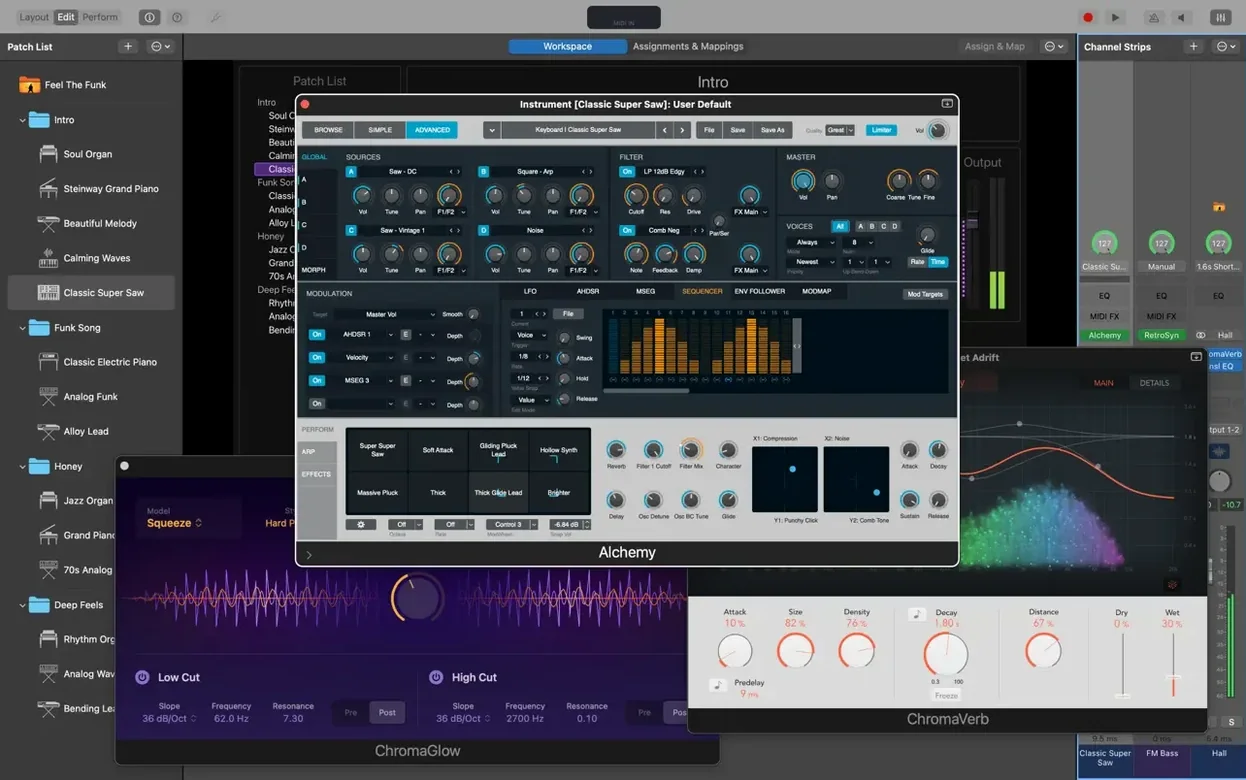
Logic Pro and GarageBand. The Sound Library is shared between all three. Patches you save in Logic appear in MainStage, and vice versa, as long as both apps are on the same Mac and use the same Library path. If you build a complex Alchemy pad in Logic, save it as a patch, and it shows up in MainStage without exporting anything. The same goes for custom sampler instruments. GarageBand users on the same Apple Silicon Mac will find their sounds available too — no extra download needed.
Audio Unit plug-ins. Any 64-bit Audio Unit you already own works inside MainStage. That includes instruments from smaller developers and effects suites you bought for Logic. The scan happens on first launch. If a plug-in fails validation, MainStage skips it silently. Open the Plug-in Manager to see what passed and what did not — the list is the same one Logic uses.
macOS Audio MIDI Setup. MainStage inherits your system-wide audio and MIDI configuration. Create an aggregate device in Audio MIDI Setup to combine two interfaces, and MainStage sees it as a single output. The I/O labels you set there carry over, so a channel strip input named “Synth L” in Audio MIDI Setup appears as “Synth L” in MainStage. That alone saves you from guessing which input is which during soundcheck.
IAC Driver and inter-app MIDI. Turn on the IAC Driver in Audio MIDI Setup and MainStage can send MIDI to other apps on the same Mac. Useful if you run a separate metronome app or a visual cue system that listens for MIDI note triggers. Patch changes in MainStage can fire scene changes in QLab or light a specific DMX cue — all over a virtual MIDI cable.
Apple Loops. The 4,600 loops in the dance and electronic genres live in the Loop Browser. Drag one onto the Playback plug-in and it syncs to the concert tempo. The Playback plug-in handles stereo and multichannel backing tracks, so you can run stems — click, cues, and backing — from one patch without a separate playback rig.
What’s new
- Fixes an issue where incoming MIDI SysEx messages were blocked.
- Restores the ability to type numbers into the Add Channel Strip window.
- Sampler instruments now load the correct sounds.
Requirements
- macOS 15.6 or later
- Apple Silicon Mac
- 6 GB free disk space (minimal install) or 57 GB (full Sound Library)
- Requires 64-bit Audio Unit plug-ins
FAQ
How many instruments come with MainStage?
It includes more than 80 instrument, effect, and MIDI plug-ins, plus over 750 sampled instruments in the Sound Library.
Can I use Logic Pro sounds in MainStage?
Yes. MainStage loads sounds from Logic Pro and GarageBand, and shares a collection of plug-ins and sounds compatible with Logic.
Does MainStage support guitar and bass recording?
It is designed for live performance rather than recording, but it includes Amp Designer, Pedalboard, and a full-screen tuner for guitar and bass.
Comments 0
Sign in or create an account to leave a comment.
No comments yet…
If you’ve installed it, say how it went. Mention your Mac and macOS version — it helps the next person more than you’d think.