MacWhisper for macOS
Description
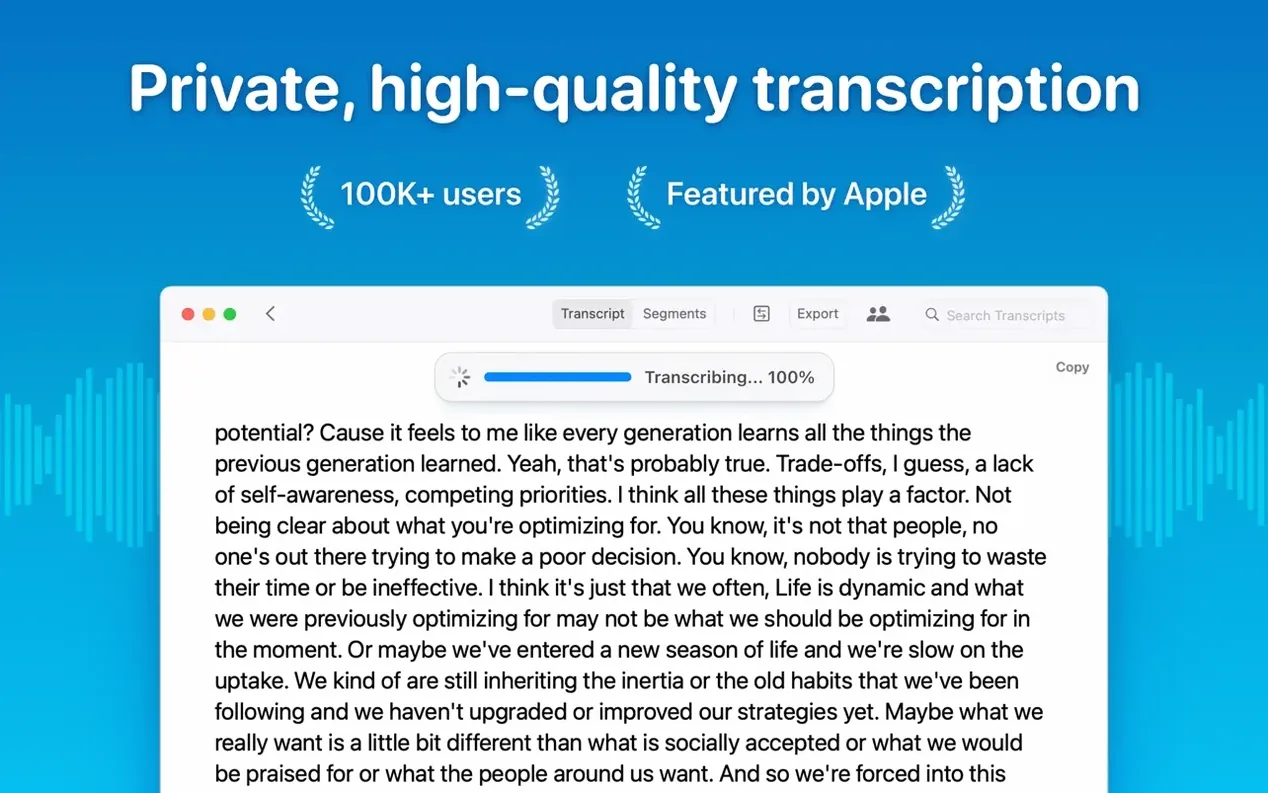
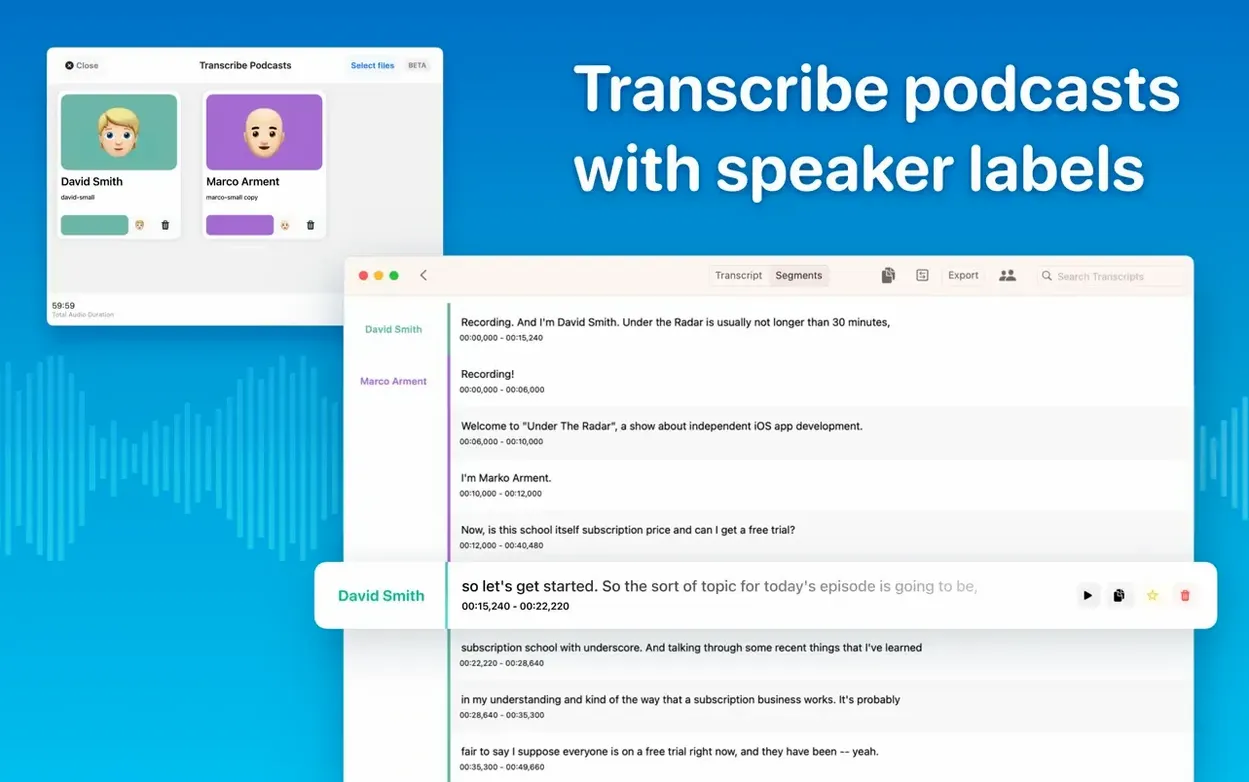
Version 15.2 tightens up a few practical corners. Real-time meeting transcripts have arrived, so you can watch the text appear as people talk. The speaker recognition model has been swapped out for one that draws cleaner lines between voices, and you can now sort your transcripts into folders and subfolders instead of staring at one long list.
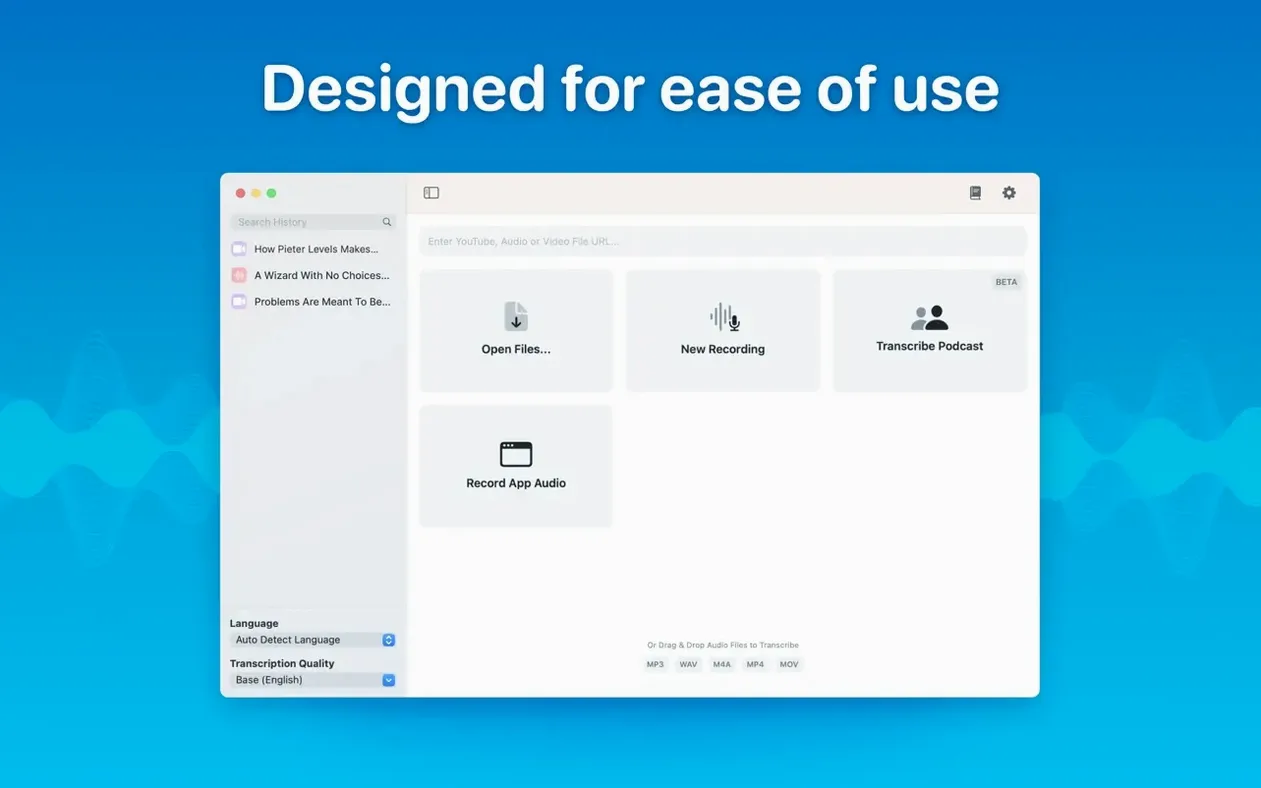
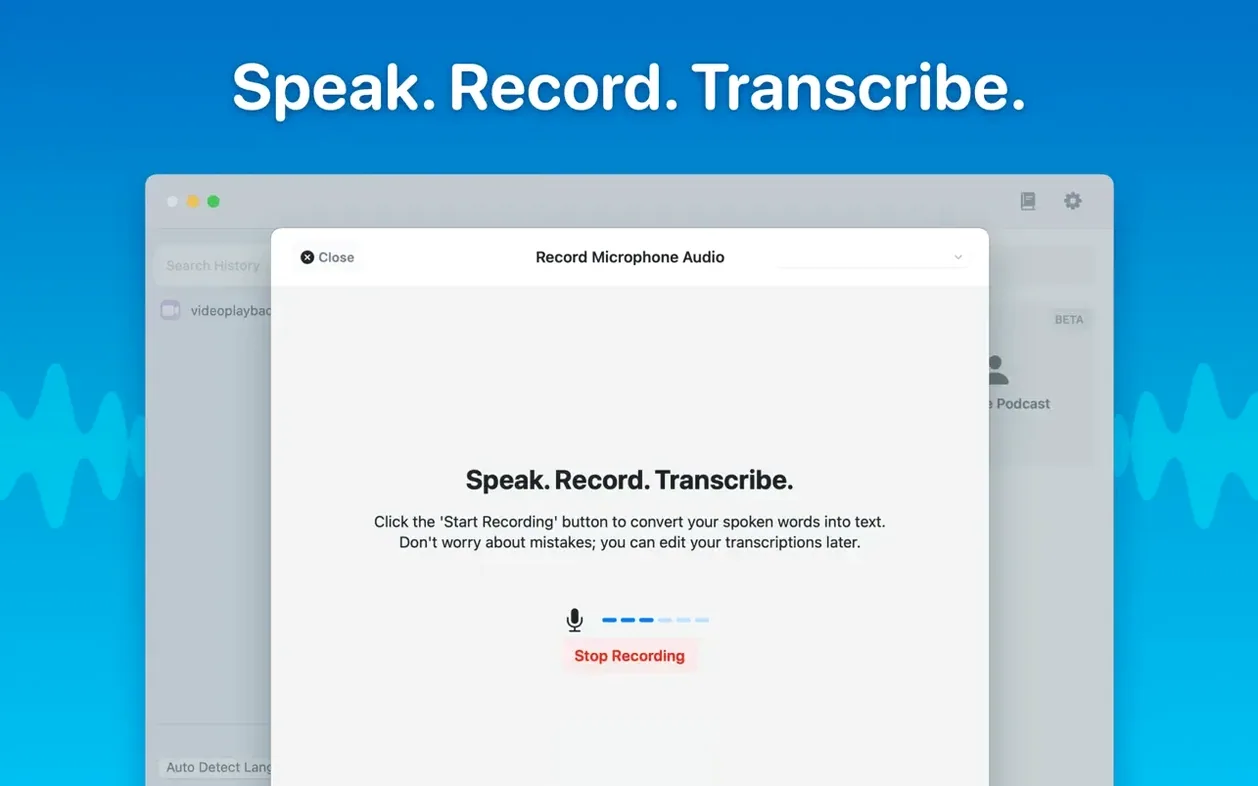
Beyond that, the bones of the app stay familiar. It runs entirely on your Mac, turning audio into text with a choice of Whisper models — Tiny through to Large-V3. You pick a file, or let it listen to a meeting, and it gets on with the job.
Batch-transcribe 100 languages offline
- Transcribing interviews, lectures and meeting recordings locally — nothing leaves your machine
- Working with audio in around 100 languages, with manual selection or auto-detection
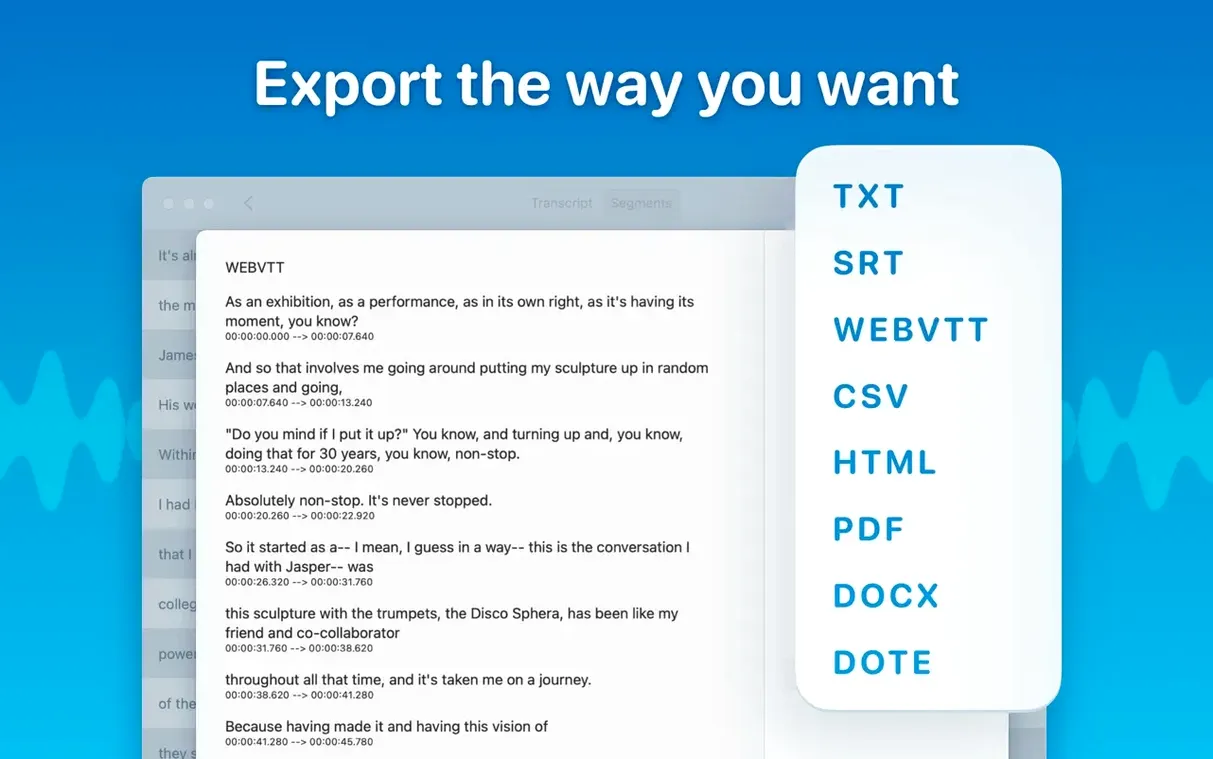
- Batch processing a queue of files and exporting them all to formats like Word, PDF or HTML in one go
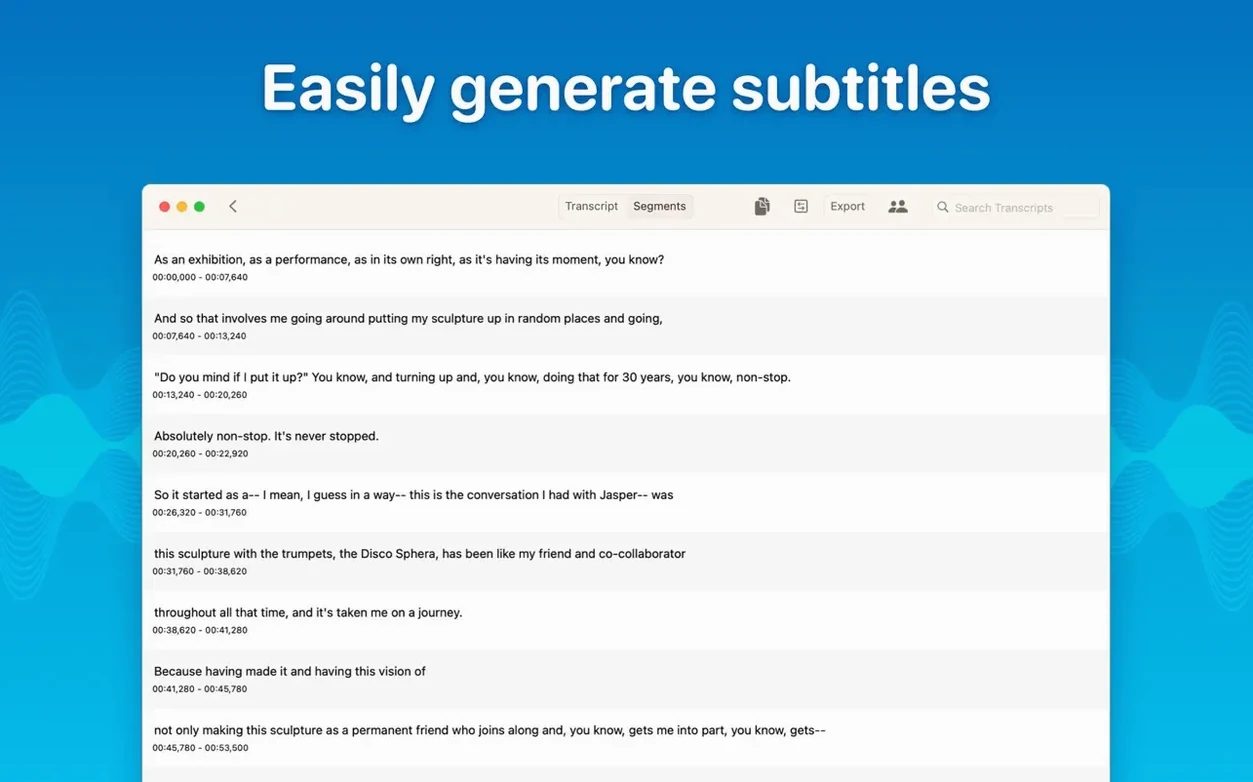
- Exporting subtitles as SRT or VTT for video work
- Editing out filler words or deleting segments directly in the transcript
Larger models catch more detail but run slower
- macOS 14 minimum; runs on Intel and Apple Silicon Macs
- Model choice affects speed and accuracy — the larger models are slower but catch more detail
- Supported file types cover the common ones: mp3, wav, m4a, mp4, mov, ogg and opus
Transcription runs offline after a one-time model download
Does it need an internet connection? No. The transcription models run on your Mac. You download a model once — Tiny, Medium, whatever you pick — and after that it works offline. The audio stays local too. Nothing gets uploaded to a server.
How fast is it? That depends on two things: which model you choose and what chip your Mac has. Apple Silicon Macs chew through the work noticeably quicker. Tiny and Base models are snappy even on Intel machines. Large-V3 on an older Intel Mac will give you time to make tea.
Can it handle two people talking over each other? The new diarization model in 15.2 does a reasonable job of separating speakers when they take turns. Overlapping chatter still trips it up, same as most transcription tools. For a clean podcast recording with decent mic discipline, it labels speakers well enough to follow the conversation.
What happens if I drag in a two-hour file? It processes it. The progress bar moves, the fans might spin up, and eventually you get a transcript. No file-length cap that I've hit. Just be realistic about model size versus patience.
Auto-detect English and Polish in one batch
Anna has four hour-long sociology interviews recorded on her phone as m4a files. They're in a mix of English and Polish. She drags all four onto MacWhisper at once, sets the language to auto-detect, and picks the Medium model — accurate enough for her needs without tying up her MacBook Air all day.
While the first file processes, she creates a folder called Dissertation interviews and a subfolder for each participant. By the time she's made coffee, the first transcript is ready. She skims through, deletes a few ums and false starts, then copies a key quote straight into her notes app. She exports the lot as Word documents and emails them to her supervisor before lunch. The audio never left her laptop.
Large-V3 overkill for clear single-speaker audio
Picking the biggest model for everything is the classic one. Large-V3 sounds like the best option because it's the biggest, but for a clear single-speaker recording it's overkill. You burn time and heat for marginal gains. Try Medium first, then step up only if the transcript has obvious gaps.
Another is forgetting to check the language setting. Auto-detection works well, but if you know the file is Dutch, tell it so. The app occasionally guesses wrong on short clips, and a misidentified language produces word soup.
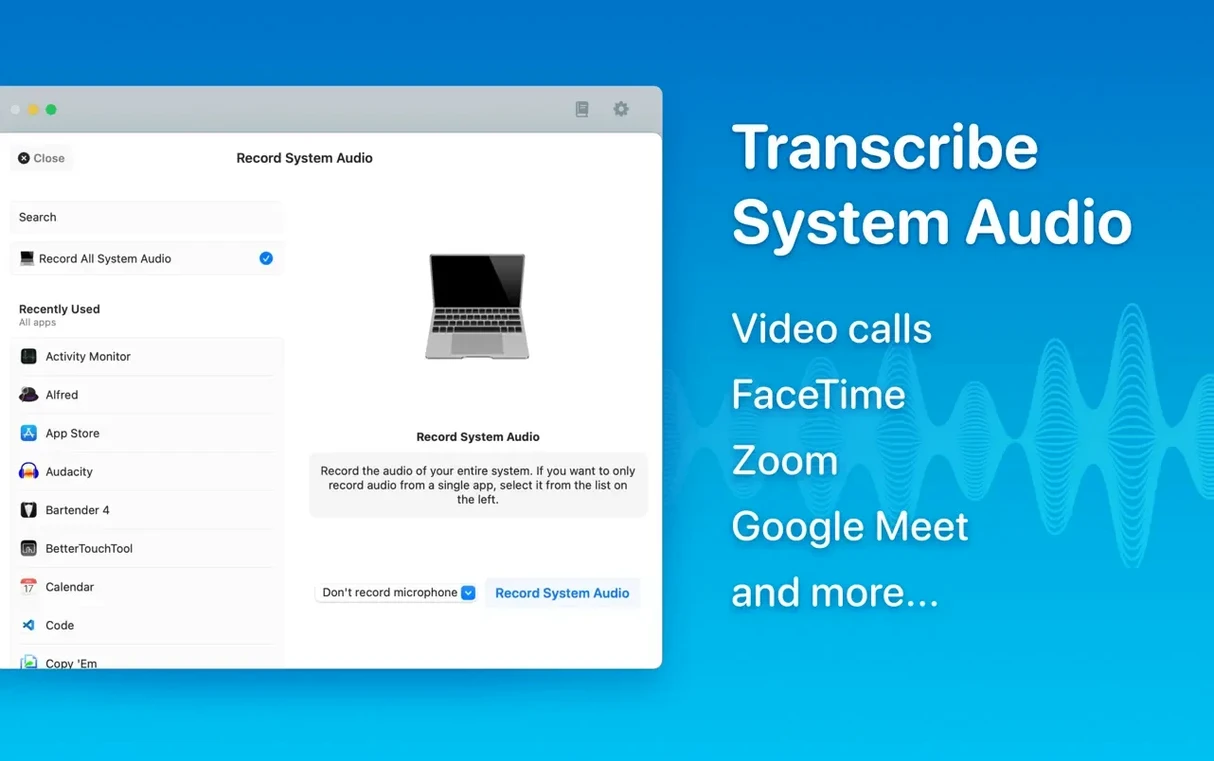
Third mistake: transcribing system audio without checking your output routing first. If you're capturing a video call, make sure the audio is actually going where you think it is. A blank transcript after twenty minutes of recording is usually a routing problem, not a bug.
Gibberish transcript means language mismatch
Transcript is gibberish. Almost always a language mismatch. Check what language the app detected. If it says something daft like Swahili for a clearly English recording, switch from auto-detect to the correct language and run it again.
App crashes on launch after updating. Version 15.2.1 fixed a specific crash on macOS 15 with the Live Captions language menu. If you're on an older version, grab the current one. On M1-series Macs, Qwen3-ASR support was removed in the same update because it caused instability — so if you were relying on that model, switch to a standard Whisper one.
Speaker labels are all wrong. The diarization model works best with distinct voices and minimal crosstalk. If it's labelling everything as Speaker 1, your audio probably has one dominant voice or poor channel separation. There's no manual override for speaker names, but you can edit the transcript text itself to add names in brackets.
Export hangs on a big batch. Exporting ten files to three formats each is a lot of work. Do smaller batches, or export to one format first and then run the others separately. The app doesn't queue exports gracefully under heavy load.
Recording system audio produces silence. On macOS 14 and later, you sometimes need to grant screen recording permission — not just microphone access — for system audio capture to work. Check System Settings > Privacy & Security > Screen Recording and make sure MacWhisper is ticked.
If you're hunting for a macwhisper pro torrent or a MacWhisper cracked build, you'll want to confirm it's a recent version that includes the diarization improvements and the folder system. The current build from Good Snooze handles real-time meeting transcripts and the updated speaker recognition model properly, so check that those features are intact in whatever MacWhisper torrent you grab.
Requirements
- macOS 14 (Sonoma) or later
- Apple Silicon or Intel 64-bit Mac
FAQ
Can MacWhisper transcribe audio in different languages?
Yes, it supports transcription in around 100 languages and can either auto-detect the language or let you select it manually.
What export formats does the app offer?
You can export transcripts as Word, PDF or HTML, and save subtitles as SRT or VTT files.
Comments 0
Sign in or create an account to leave a comment.
No comments yet…
If you’ve installed it, say how it went. Mention your Mac and macOS version — it helps the next person more than you’d think.