MacPilot for macOS
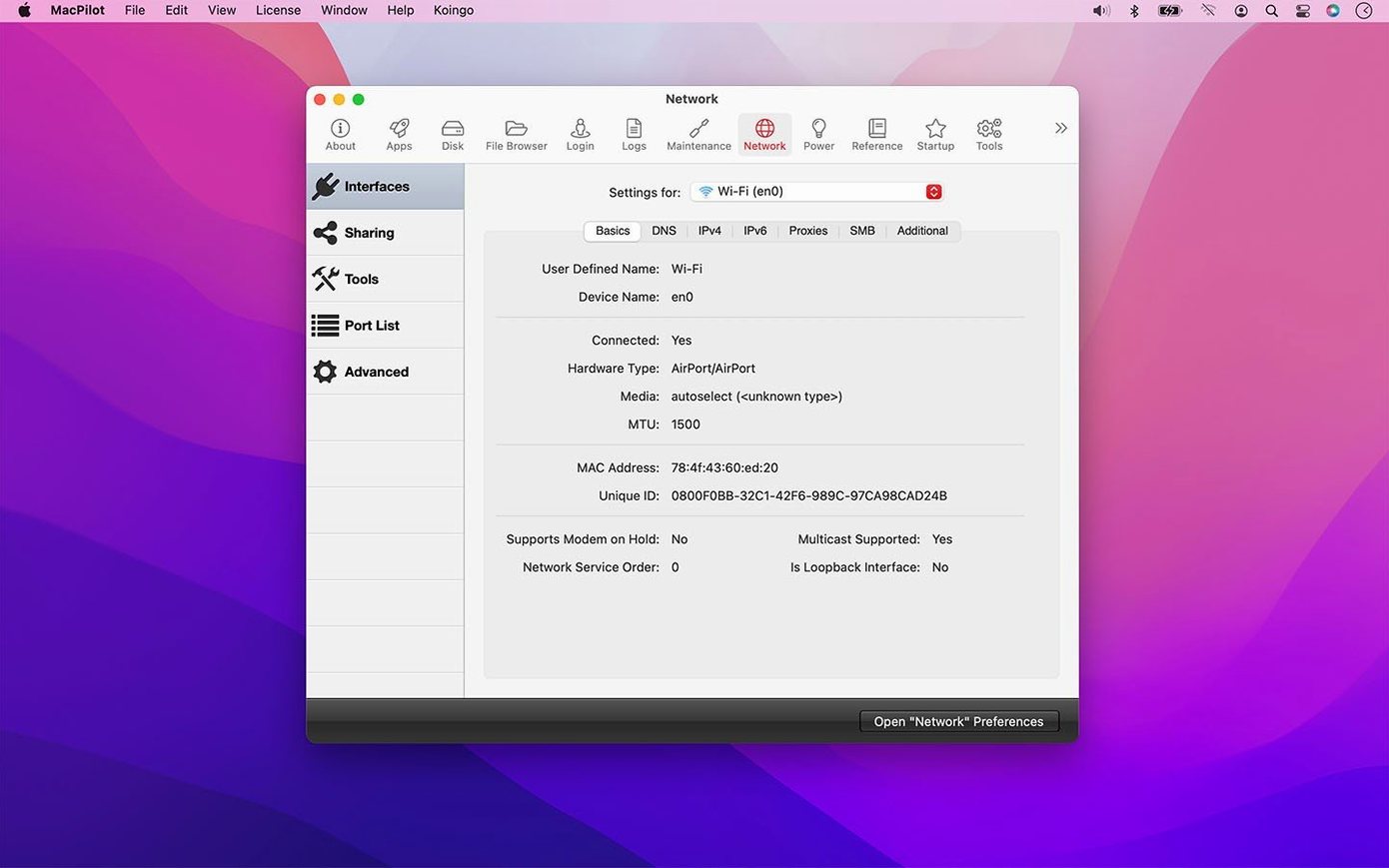
Description
MacPilot gets the most use from people who know macOS has more knobs and dials than Apple lets you see. Instead of hunting down terminal commands or obscure plist keys, they open one app and flip the switches they actually want.
| Key detail | Quick fact |
|---|---|
| Developer | Koingo Software |
| Current version | 18.0.1 |
| macOS requirement | macOS 13 Ventura |
| Architecture | Apple Silicon and Intel |
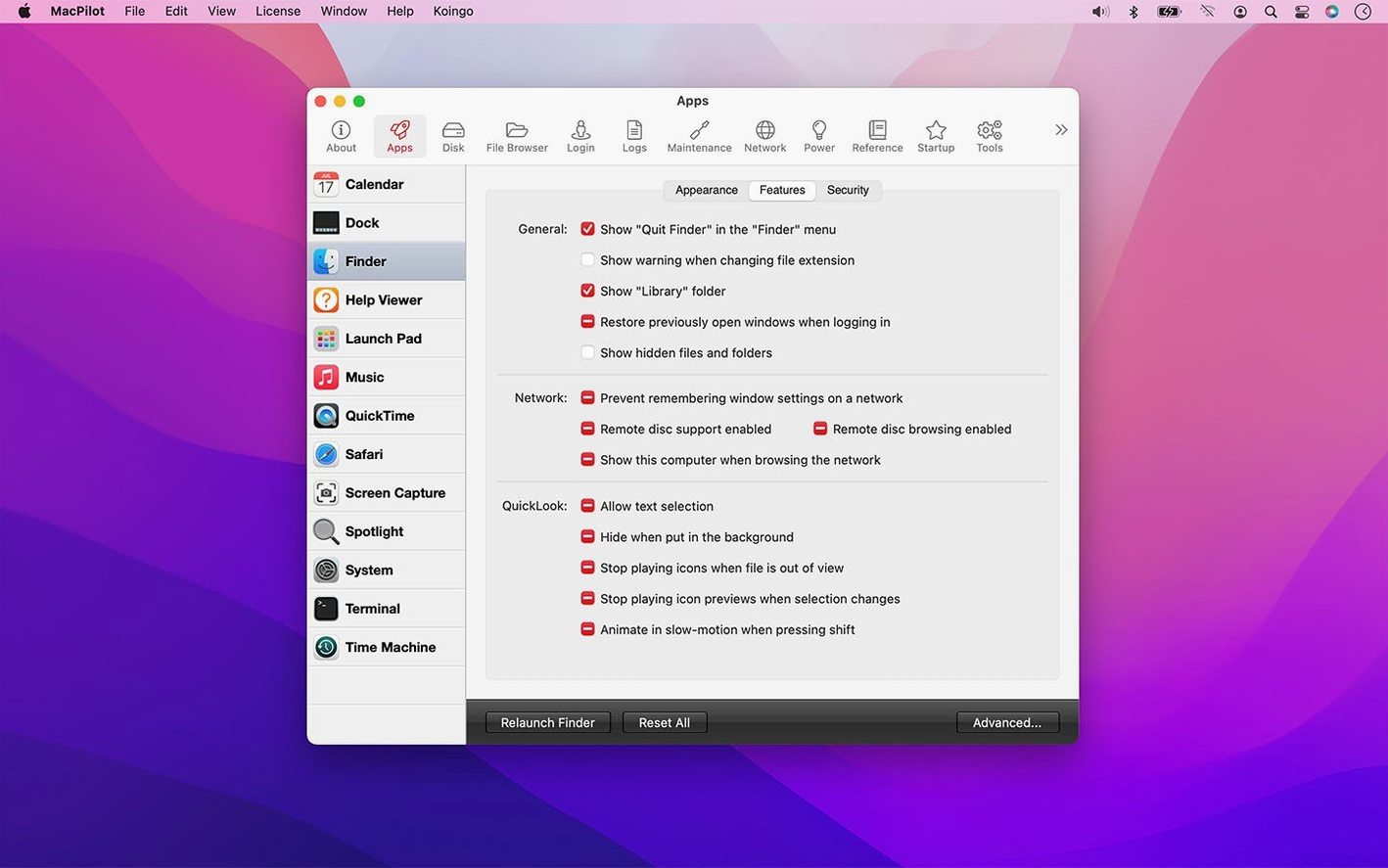
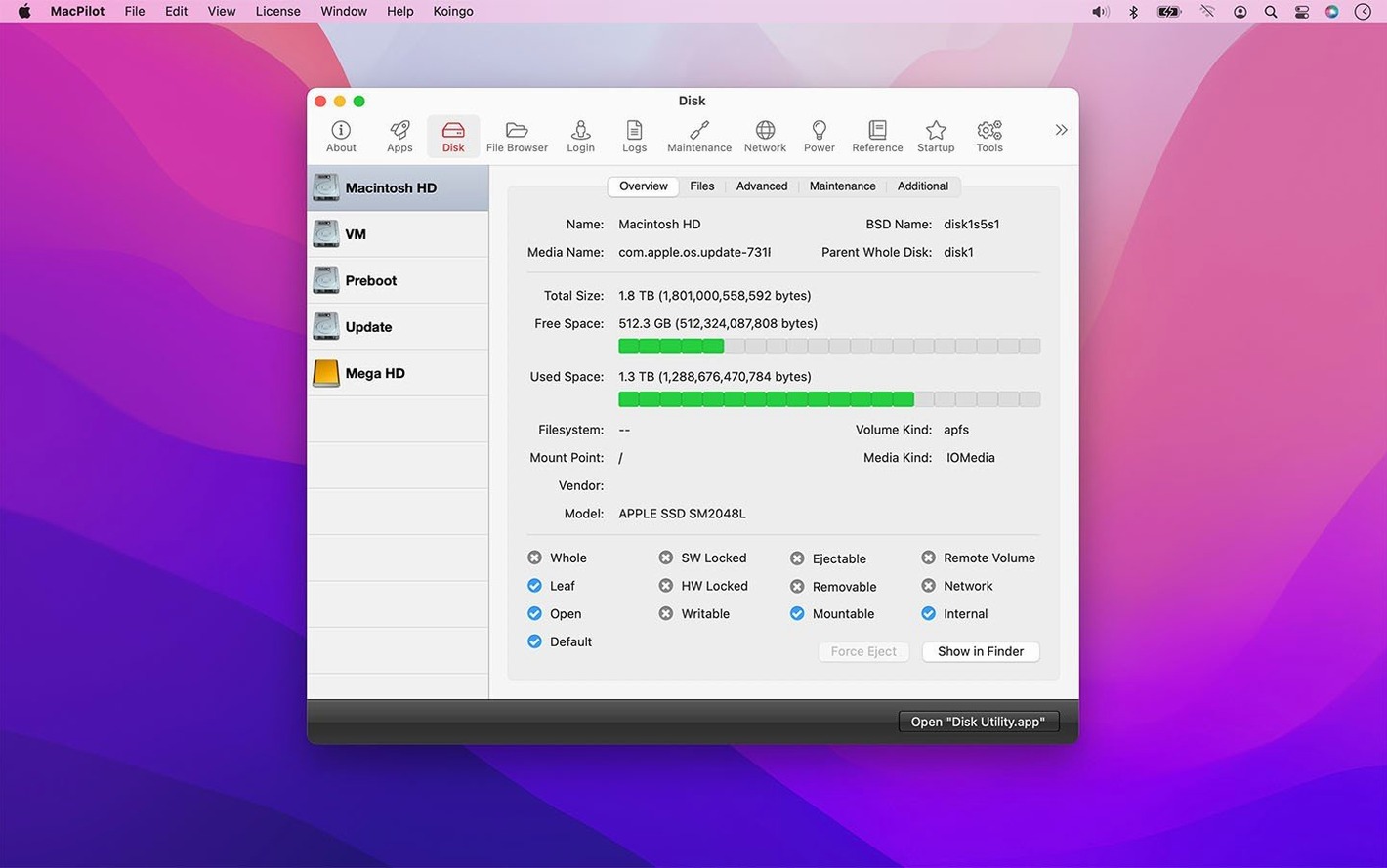
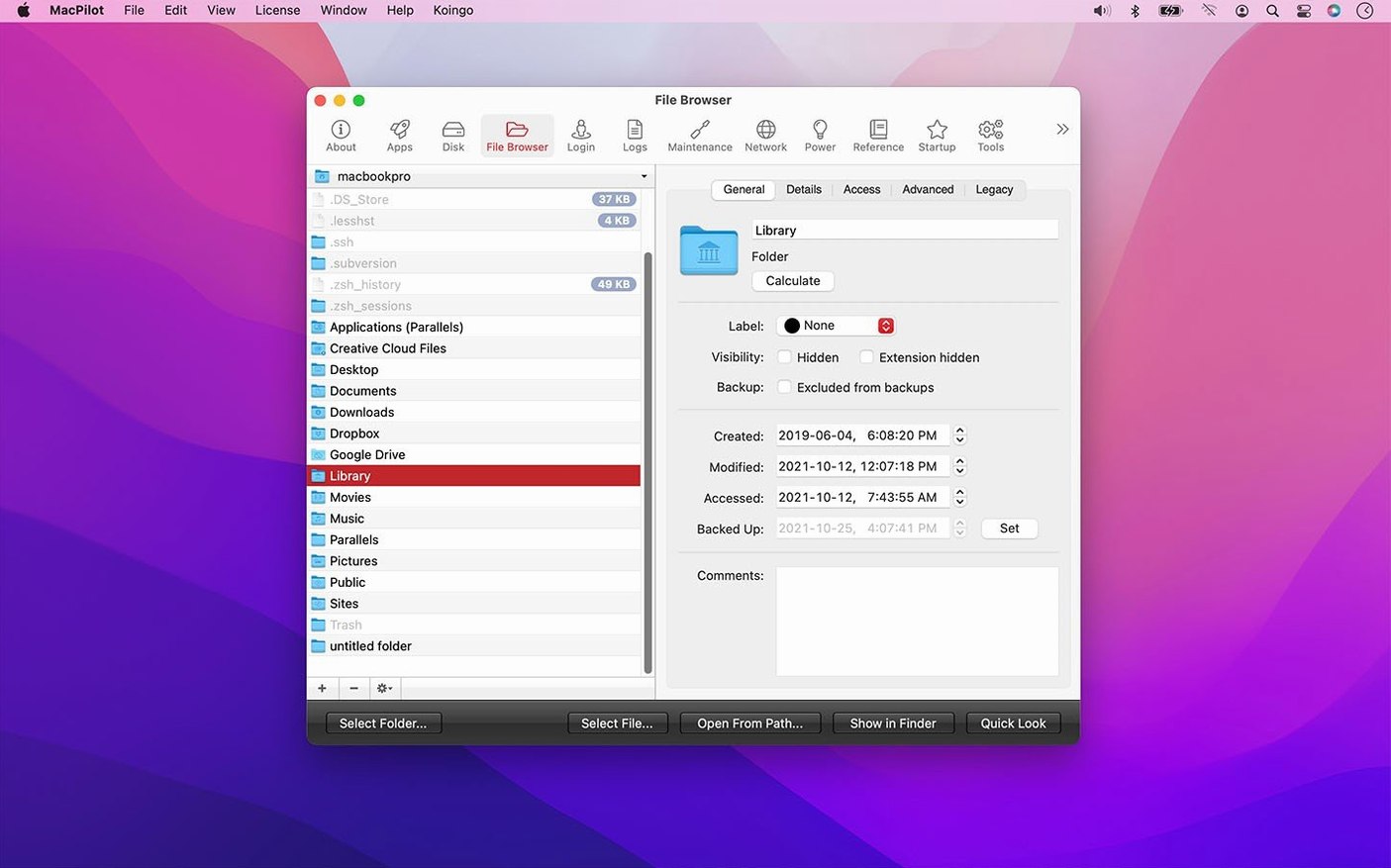
It wraps a graphical interface around hundreds of hidden macOS preferences. You can change the default screenshot file format, force the Trash to empty when it’s being stubborn, and toggle invisible files in Finder without remembering a single defaults write string. A built-in file browser shows system and invisible files from inside the app. There’s also a system profile view that digs up more hardware detail than About This Mac offers. Network tweaks, maintenance scripts and a property list editor round out the toolkit. Version 18.0.1 tightened up safety when editing protected preferences, logs and NVRAM settings, so the app is less likely to let you shoot yourself in the foot.
Add invisible spacers and custom stacks to your Dock
A few of MacPilot's best moves aren't labelled in big type. The Dock pane, for instance, lets you add spacers and stacks that Apple's own Dock preferences menu never mentions. One click inserts a blank gap between app icons; a second click puts a folder stack exactly where you want it. No plist editing, no restart.
In the Finder section, the option to show hidden files is obvious — but the ability to keep them visible after a Finder relaunch is a separate tick-box tucked a row below. Tick both if you regularly poke around .config folders. The Screenshots pane also hides a small gem: you can strip the drop shadow from window grabs. Screenshots destined for documentation look cleaner instantly.
A few keyboard-driven shortcuts inside the app save repeated trips to the sidebar. Pressing ⌘F inside the Features list jumps straight to the search field, and tabbing through a pane activates sliders and checkboxes without reaching for the mouse. The File Browser remembers your last path between sessions, which is handy when you are working inside a single sandboxed container across several days.
It starts with the retro chime when you power on
Picture a Tuesday morning. The machine boots and plays the old-school startup chime — enabled last month via MacPilot and quietly satisfying every time. You open the app and it lands on the Features Database, still filtered to “Dock”. You add a second spacer because the Downloads stack keeps drifting left.
Next, a colleague sends a screenshot in JPEG format you need to annotate. The artefacts annoy you. You click into Screenshots, switch the format from JPEG to PNG, and take a replacement capture. The change takes effect immediately. No logout, no terminal command. While you are there, you untick “Include date in filename” so the files sort cleanly by name on the server.
Before lunch, the Trash in your home folder refuses to delete a locked .plist leftover from a beta app. You open Maintenance & Cleaning, check “Force Empty Trash” and let it run. Ten seconds later the item is gone. You browse the system profile on your way out just to confirm the SSD wear level has not budged since last month.
Workflow: prepping a Mac for a new user
When a Mac changes hands, the defaults Apple ships are rarely what the new owner wants. Here is a start-to-finish run with MacPilot doing the heavy lifting.
- Create the local account and log in. Skip iCloud setup for now.
- Open MacPilot and head to Finder. Tick “Show hidden files” and “Show path bar” so the user sees where they are from day one. Set “Show all filename extensions” to avoid the .jpg-is-really-a-.png confusion.
- Move to Dock. Strip out the stock app clutter: uncheck apps they will never use. Add a spacer, then add a Downloads stack sorted by date added so recent files float to the top.
- Jump to Screenshots. Set format to PNG, disable the shadow, and change the default save location to a “Screenshots” folder already sitting in their home directory.
- Go into System and disable the startup sound if the Mac lives in an open-plan office. Enable the expanded Save dialog by default so network shares are always one click away.
- Run the maintenance scripts: repair permissions and rebuild the LaunchServices database so file associations feel snappy on the first day of real work.
- Lock the settings you do not want meddled with using the padlock icon in each pane. Hand over the machine.
The whole process takes under fifteen minutes. The user starts with a Mac that behaves less like a shop-floor demo and more like a workstation. When someone searches for macpilot 17 tips online, they often stumble across workflows just like this — version 18.0.1 simply makes the steps faster and the safety rails a little higher.
What’s new
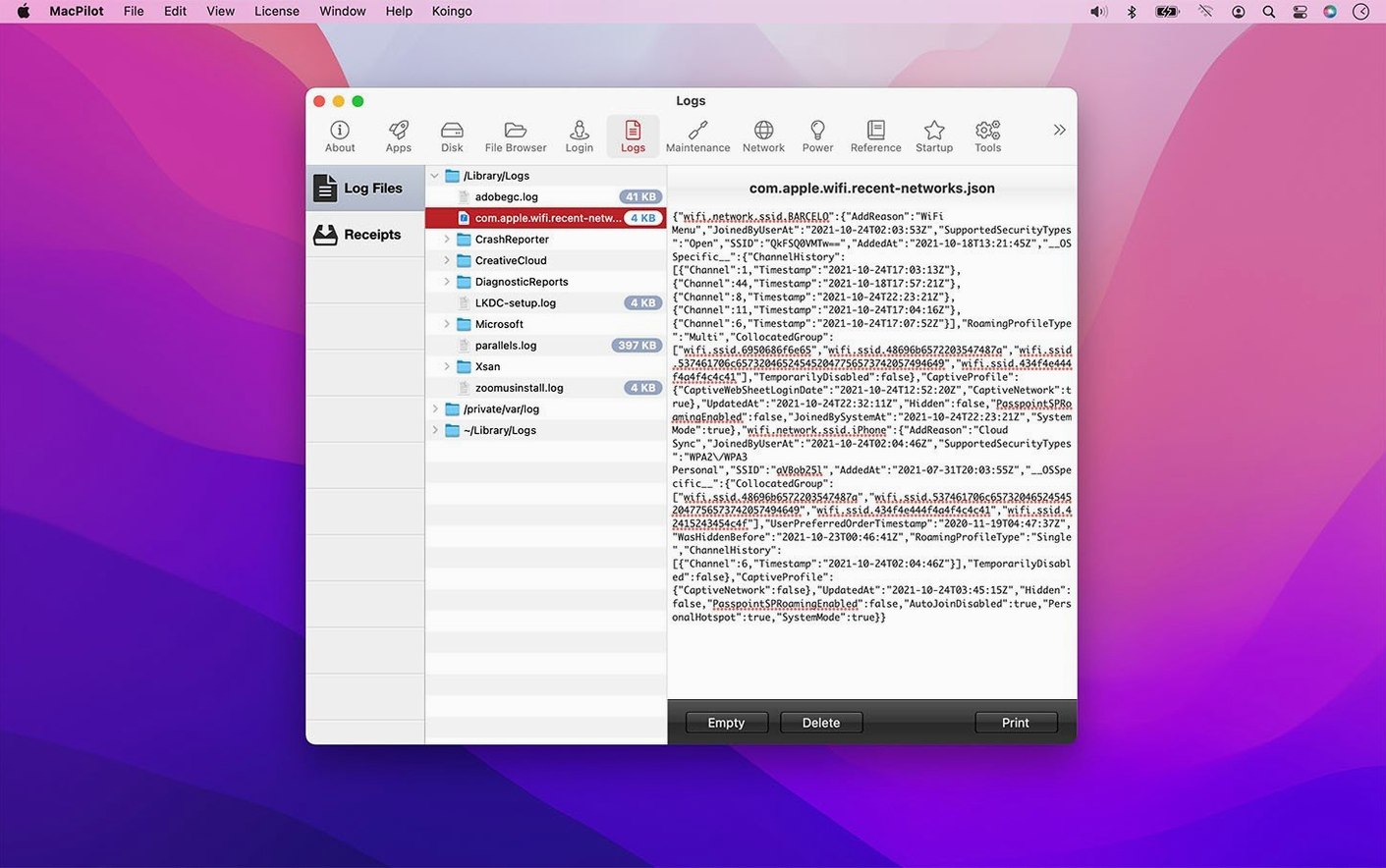
Improves file date handling for creation, access, and backup dates. Improves command progress, failure, and cancellation reporting. Improves safety when editing protected preferences, property lists, logs, Trash contents, NVRAM settings, and login pictures. Improves reliability of the Features Database, property list editor, Hex editor, File Browser, Manuals viewer, and I/O Benchmark.
Requirements
- macOS 13 Ventura or later
- Apple Silicon or Intel Mac
FAQ
Can MacPilot show hidden files in Finder?
Yes. There’s a toggle in the interface that shows invisible and system files directly in Finder, no terminal command needed.
Can it change the screenshot file format?
It can. You pick the format you want in the app and it applies the change system-wide. No plist editing required.
What Macs does the current version run on?
Version 18.0.1 needs macOS 13 Ventura or later and runs natively on both Apple Silicon and Intel Macs.
Comments 0
Sign in or create an account to leave a comment.
No comments yet…
If you’ve installed it, say how it went. Mention your Mac and macOS version — it helps the next person more than you’d think.