MacDroid Pro for macOS
Description
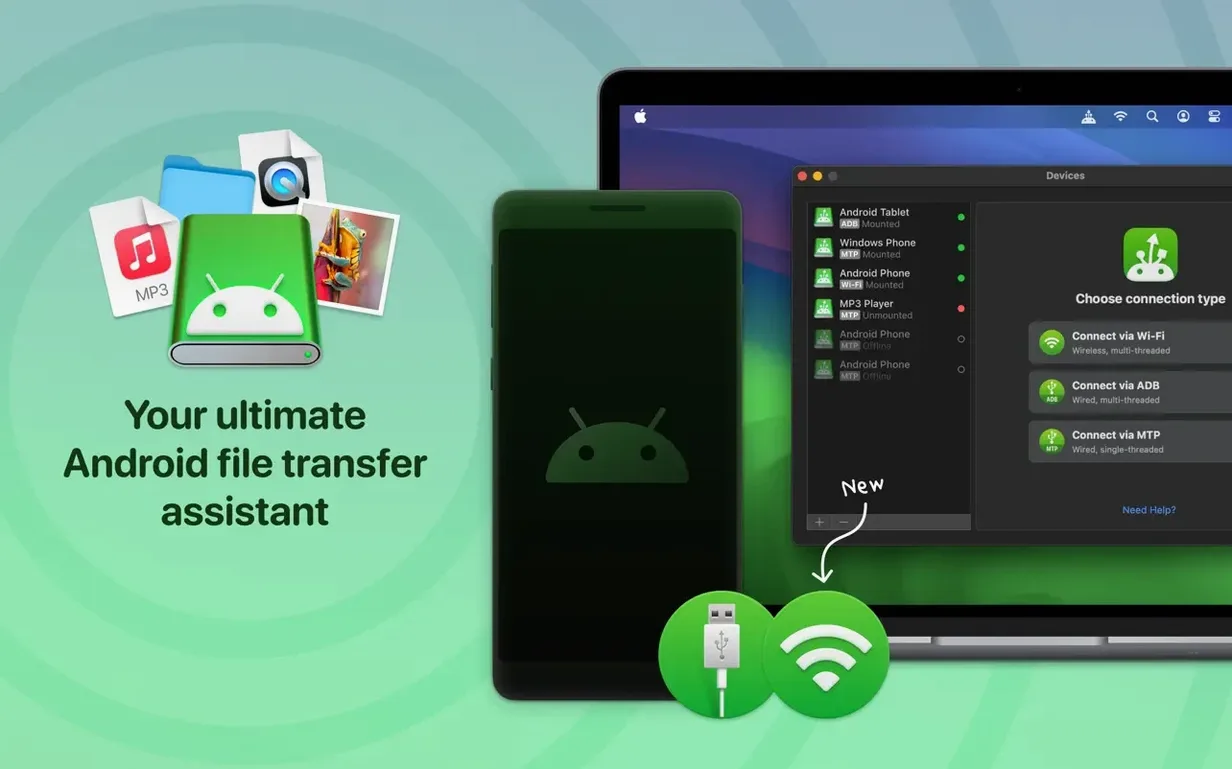
If your Android phone is where your photos, music and work files live, moving them to a Mac can be a chore. MacDroid Pro is built to make that direct connection behave more like a regular disk drive. The 2.10 update tidies up a few long-standing rough edges in that process.
What got faster?
Loading large folder listings over MTP is snappier. The connection itself was reworked, so the initial handshake between your phone and Mac should be more consistent now.
Any new language support?
Traditional Chinese was added to the interface. That brings the total to eleven languages, covering most users who need it.
Did it fix anything annoying?
Yes. A bug where changing the cache volume could cause file downloads to fail has been patched. No more mysterious stoppages mid-transfer.
Mounting as a local drive, no cloud needed
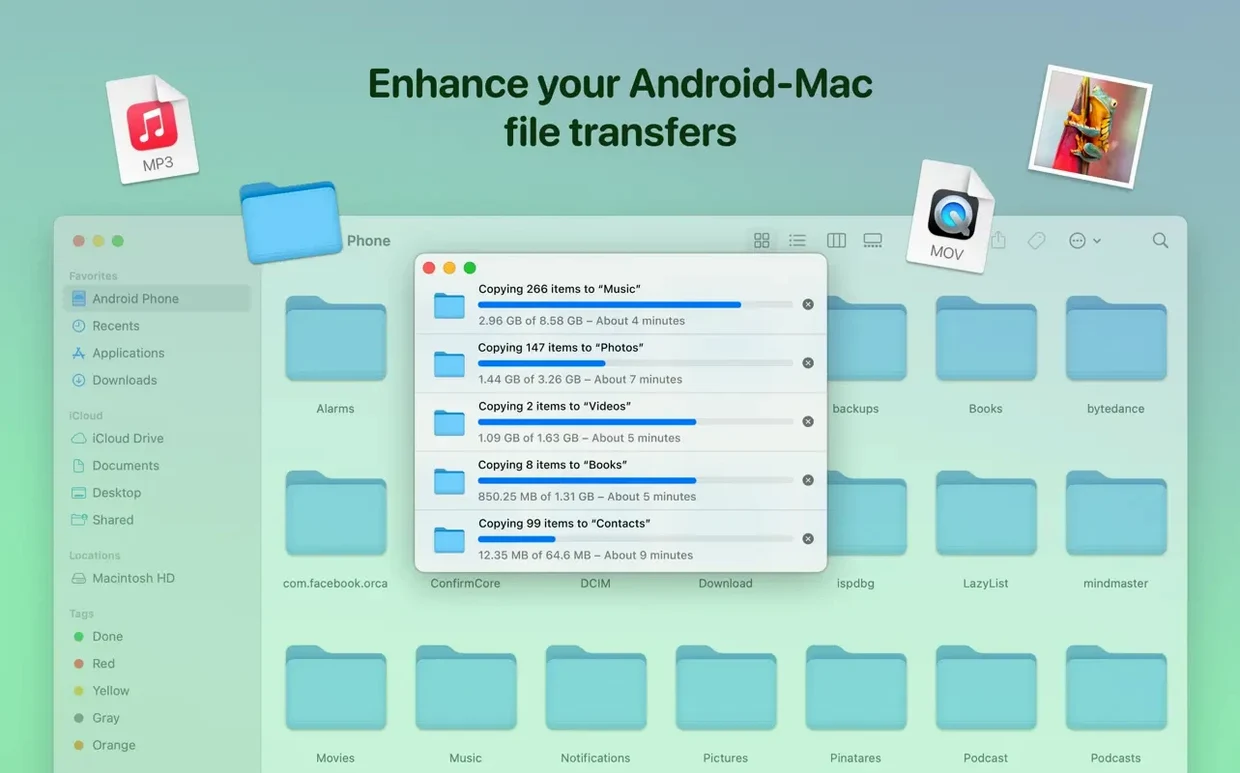
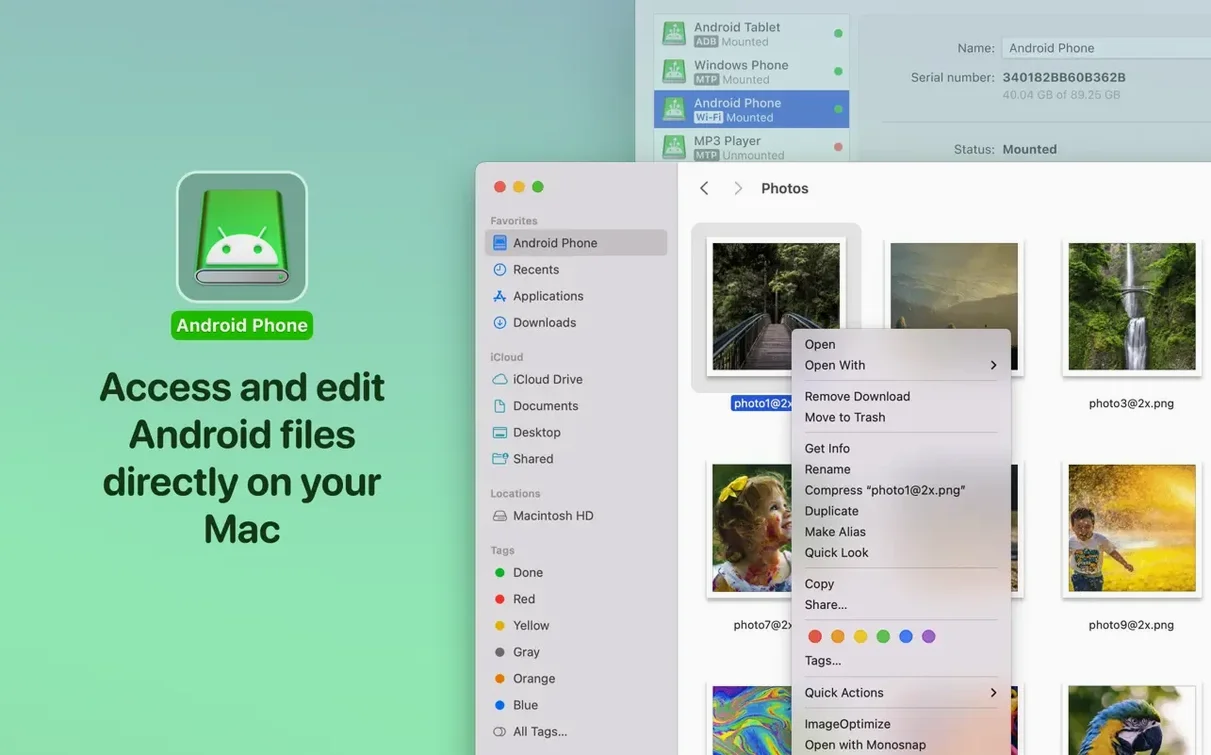
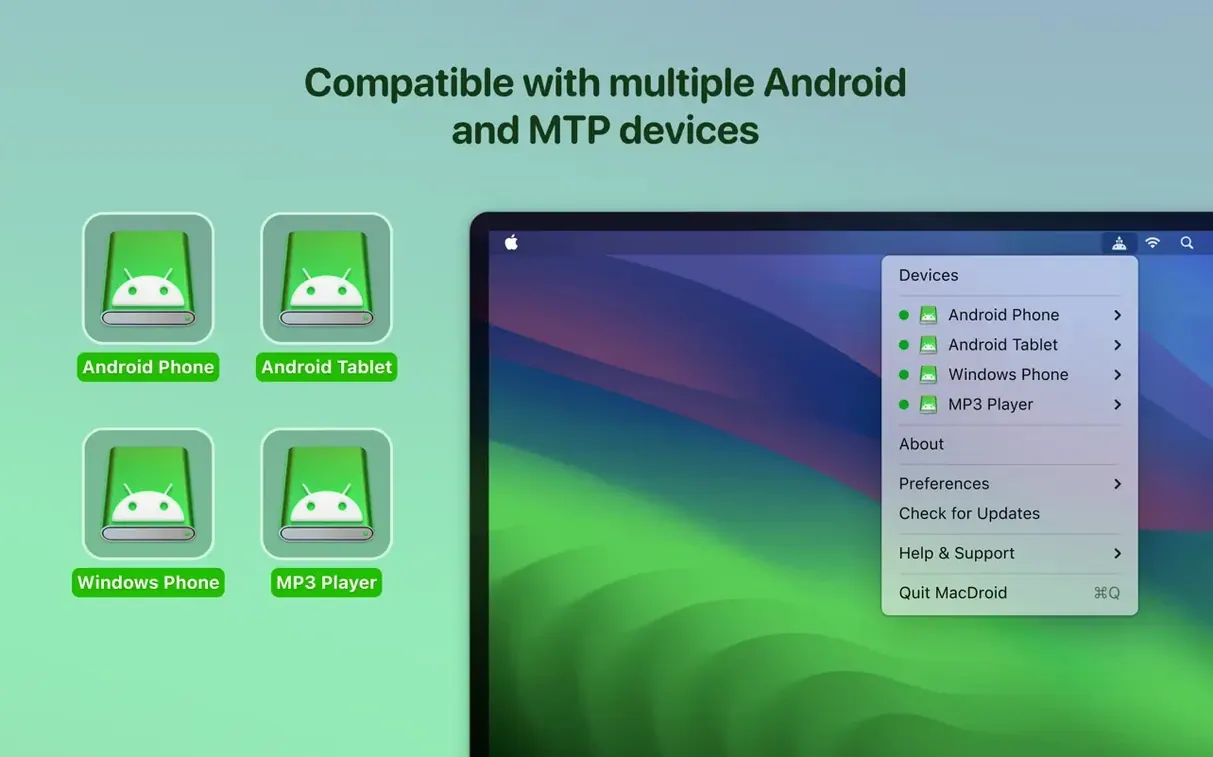
You still mount your Android device as a drive on the desktop. You can move whole folders, transfer photos to your Mac, or add music between the two systems without a cloud service getting in the way.
First few days: get the connection right
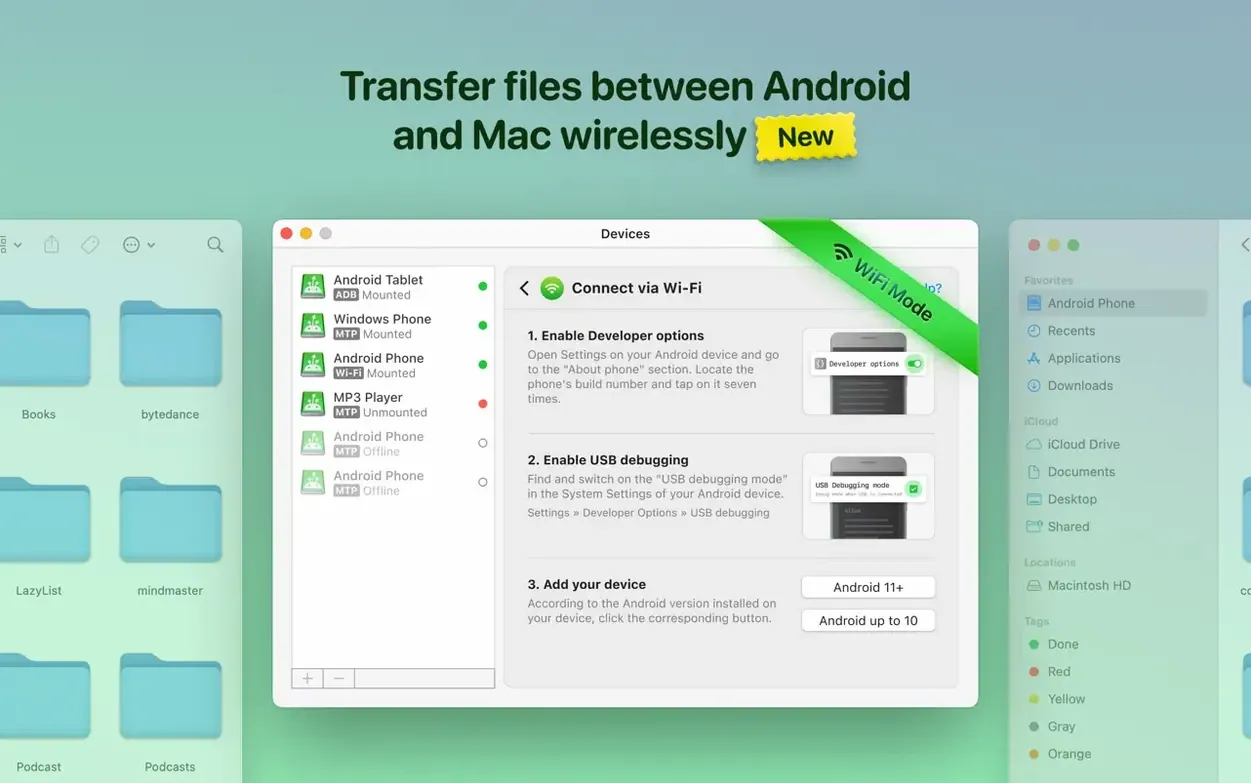
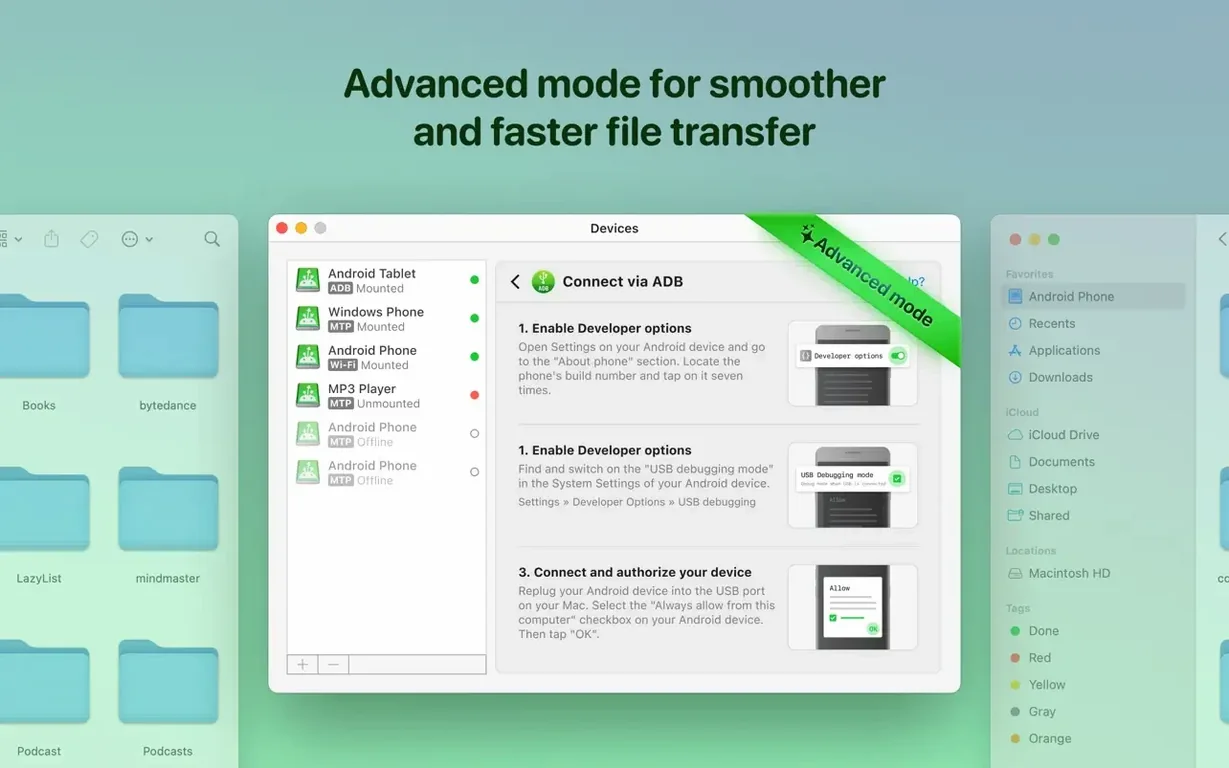
Spend ten minutes setting this up properly and you'll save yourself a lot of irritation later. The app works over USB, ADB or Wi‑Fi. USB is the one to start with. Connect the cable, unlock your phone and check the notification shade. If Android asks what mode to use, pick File Transfer / MTP. Don't leave it on "Charging only" and then wonder why nothing mounts.
macOS 11.5 handles the USB handshake better than some older versions, but if the phone doesn't appear within fifteen seconds, unplug and reconnect. The 2.10 MTP improvements help here, though a dodgy cable is still a dodgy cable. Try a different port if needed — Mac USB-C ports can be picky about third-party leads.
Once the phone mounts, open a Finder window and check you can see both internal and external storage. Some Android handsets label the SD card as a separate volume. MacDroid Pro handles that without extra steps, which is one reason people look for a macdroid crack rather than putting up with Android File Transfer's single-volume limitation.
Yanking the cable can corrupt your files
The most common mistake is ejecting the phone by pulling the cable. Don't. Use the eject button in the app's menu bar icon, or right-click the mounted volume on the desktop and choose Eject. Yanking the cable mid-write can corrupt files on the Android side, especially on older devices where the SD card filesystem isn't journaled.
Another trap: editing files directly on the phone without checking which folder they're in. You can open an Android file straight from the mounted volume, edit it on your Mac and save it back. That's useful, but if the file lives in a system-protected area — like an app's private data folder — the save might silently fail or the changes might get overwritten next time the app syncs. Stick to the obvious folders: DCIM, Music, Download, and any user-created directories.
Wi‑Fi mode is tempting but introduces lag if your router is busy. Use it for small batches of photos, not for moving a season of video. And if you're trying a macdroid crack for mac to explore the connection-mode limits, just make sure ADB mode has USB debugging enabled in Android Developer Options. Many beginners skip that step and assume the feature is broken.
Best with Lightroom Classic and local file apps
MacDroid Pro isn't trying to replace cloud sync. It pairs best with apps that work on local files. If you shoot RAW photos on an Android phone and process them in Lightroom Classic, mount the device, drag the folder across and Lightroom imports them as if they came from a card reader. No intermediate copy to iCloud or Google Drive needed.
It also works alongside macOS Spotlight and Quick Look. Once the phone volume is mounted, you can press spacebar to preview a file, search by name, or drag a track from the Music folder into the Music app — the Mac treats it as local storage. That integration is what makes the "disk drive" metaphor hold up.
For people who keep local music libraries, the app slots into a workflow with something like Swinsian or VLC. Plug in, copy the albums across, eject, done. The whole-folder transfer feature means you're not rebuilding playlists file by file. It's also why terms like macdroid pro 2.5 still float around in forums — that version was a turning point for folder-level operations, and the current 2.10 only refines what was already working.
How a photographer might use it
Imagine a freelance photographer who shoots on a Pixel 8 Pro because the JPEG processing suits their previews. They're on location, the SD card fills up and the MacBook Air they carry doesn't have an SD slot. They connect the phone over USB, mount it with MacDroid Pro and see two volumes: internal storage and the external SD. The DCIM folder on the card shows 300 RAW files from the morning shoot.
They drag the entire folder to a working directory on the desktop, rename it by date and start culling in Photo Mechanic. Twenty minutes later, the keepers are in a Lightroom catalogue, the phone is ejected and the card is formatted in-camera for the afternoon session. No card reader, no cloud upload over hotel Wi‑Fi, no emailing files to themselves. Just a straight cable transfer that behaves like a disk.
On the way back, they drop a folder of watermarked JPEGs onto the phone's Pictures directory for a client meeting the next morning. The whole round trip takes under three minutes. That's the scenario where a macdroid cracked for mac search usually starts — someone who's tried the free alternatives, hit their limits and wants the direct-drive workflow without the workarounds.
What’s new
- Adds Traditional Chinese localisation.
- Improves connection and operation with devices over MTP.
- Makes loading of file and folder listings faster.
Requirements
- macOS 11.5 or later
- Intel and Apple Silicon Macs
FAQ
What Android connection type does MacDroid Pro use?
It uses MTP (Media Transfer Protocol) to communicate with Android devices, which this update makes noticeably more stable.
Comments 0
Sign in or create an account to leave a comment.
No comments yet…
If you’ve installed it, say how it went. Mention your Mac and macOS version — it helps the next person more than you’d think.