Loopback for macOS
Description
If you've used Audio Hijack, you know Rogue Amoeba's approach to capturing sound. Loopback is its quieter sibling—the one that wires things together behind the scenes. It creates virtual audio devices that show up in any app's input list, ready to carry a mix of sources wherever you need them.
How do I send music from Spotify into a voice call?
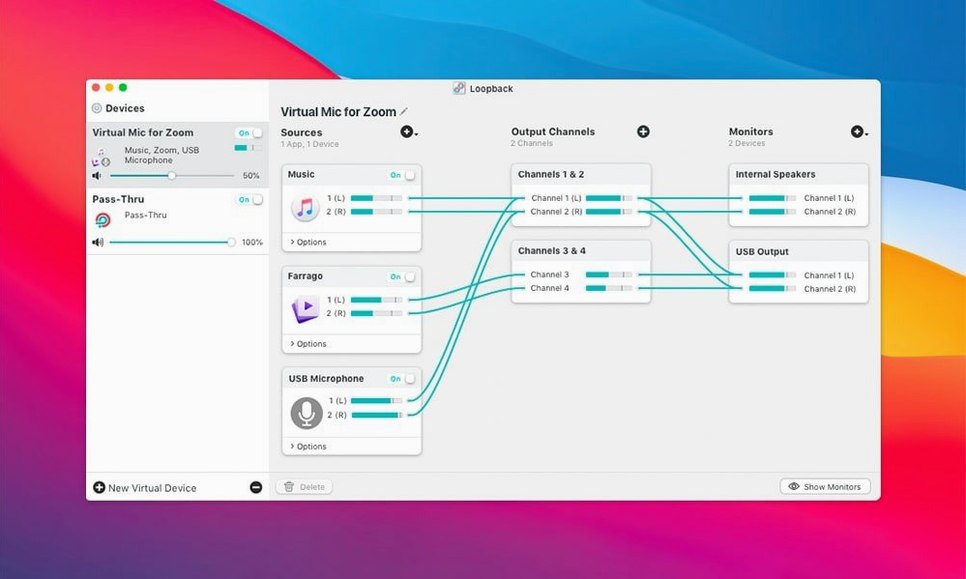
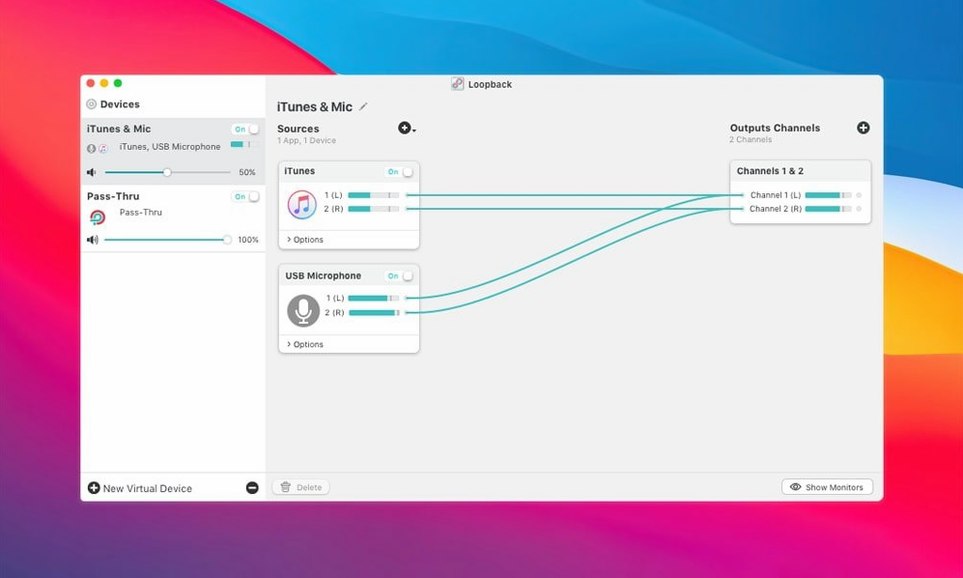
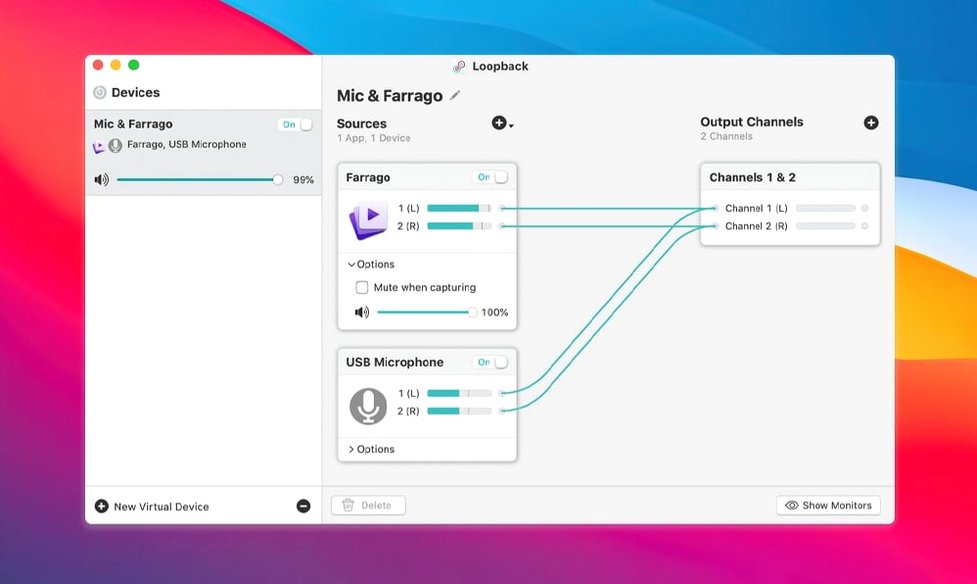
Create a new virtual device and add Spotify as a source, then add your microphone. Set your chat app's input to that device. Both signals arrive as one.
Can I combine my mic with desktop audio for a recording?
Yes. Add your physical microphone and your Mac's system output as sources in Loopback. Point your recording software at the virtual device. No extra hardware needed.
Looks like a plain microphone to any app
That's the whole point. The virtual device looks like a plain microphone input, so any app that accepts audio can use it. It's a wired patch panel, not a plug-in.
What's the link between Loopback and Audio Hijack?
Creates a virtual device, then stays out of the way
Loopback doesn't try to be a recorder. It creates a virtual device and then gets out of the way. That virtual device appears in System Settings under Sound, and inside any app that asks for a microphone—Zoom, OBS, QuickTime, Logic, you name it. The app has no idea it's hearing a mix of three different sources. It just sees an input.
That simplicity means Loopback slots in cleanly with other tools. You might use Audio Hijack to capture the final stream while Loopback handles the routing upstream. Or you might pipe a virtual device into a DAW for live processing, then send the DAW's output somewhere else. Loopback doesn't care what you chain after it.
Apple's own features pick it up too. Voice Isolation and Wide Spectrum in macOS Ventura and later work with Loopback devices the same as they do with a physical mic. Screen Recording's audio capture in QuickTime sees the virtual input. Even Siri dictation will use it if you set it as the default. No special configuration needed—just select it and carry on.
A typical session: routing game audio and chat into a stream
Say you're streaming a game through OBS and you want your microphone, the game audio, and a Discord call all in the mix. Here's how that plays out, step by step.
Step 1. Open Loopback. Click the plus button and name the new device "Stream Mix".
Step 2. Add three sources. First, your USB microphone from the sources list. Second, Discord—Loopback can grab audio from specific apps. Third, the game. Use the 'Running Processes' section to select it.
Step 3. Adjust levels. Each source gets its own volume slider. Pull Discord down a touch so call audio doesn't drown out the game. Leave your mic at unity for now; you'll tweak later if needed.
Step 4. Open OBS. In the audio settings, set the microphone to "Stream Mix". OBS now hears all three sources as one input. No extra audio sources cluttering your OBS scene. One input, one level meter, done.
Step 5. Do a quick test recording in OBS. Play back the clip. Game audio is there, your voice is clear, Discord chatter sits underneath. If anything's off, hop back to Loopback and nudge a slider.
Pass-through volume affects your own monitoring
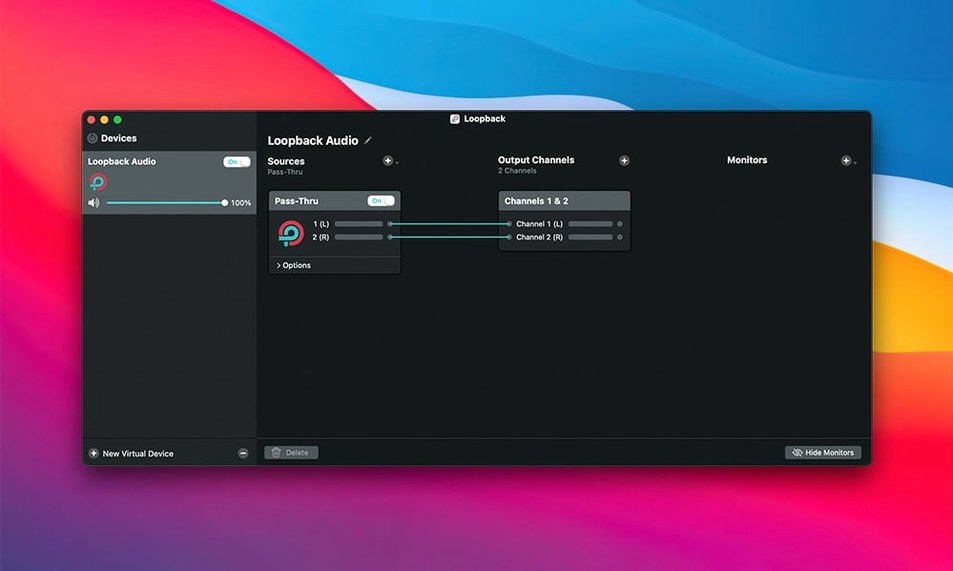
The pass-through feature is easy to overlook. Each virtual device has a volume control that also affects what you hear through your own speakers or headphones. If you want to monitor exactly what's going out, leave it up. If you don't need local monitoring—say the stream already has a delay and you don't want an echo—pull it to zero.
Right-click any source to rename it. The name carries through to the virtual device, so if you label a source "Guest Mic" instead of "Scarlett 2i2 Input 1", that's what shows up in Audio Hijack or any recording app that reads channel names.
Option-click the volume slider on any source to reset it to zero instantly. Same shortcut works across most Rogue Amoeba apps, but nobody tells you about it.
You can reorder sources by dragging them. The order matters mainly for your own sanity when you glance at the mixer, but it also affects how multi-channel devices present their channels. Put the most important source at the top so it maps to channel 1 automatically.
If you've been searching for a way to download loopback and get routing set up without fuss, the install process mirrors Audio Hijack's. Open the disk image, drag the app to Applications, and launch it from there. If macOS blocks the ACE component on first run, the installer prompts you through allowing it in Security & Privacy. One restart of the audio engine and it's ready.
Leaves your physical inputs and outputs untouched
Will it break my existing audio setup? No. Loopback creates additional virtual devices. It doesn't touch your physical inputs or outputs. Your existing mic and speakers keep working exactly as before. If you uninstall it, the virtual devices disappear and everything reverts.
Does it add latency? A tiny amount, usually imperceptible. The processing happens at the system level through the same audio pipeline everything else uses. For voice calls, streaming, and screen recordings, you won't notice it. Musicians tracking live instruments might want to monitor directly through their interface instead, but for any scenario where you're routing pre-recorded audio or spoken word, it's fine.
What happens when I update macOS? Rogue Amoeba keeps pace with Apple's releases. Version 2.5.0 runs cleanly through macOS Sequoia with no launch warnings. The ARK plugin that handles the low-level audio routing got a bump to version 13.5 for this release, so the plumbing underneath is current.
Can I use it without Audio Hijack? Absolutely. Loopback works standalone. The pairing is powerful—Hijack records, Loopback routes—but neither requires the other. Plenty of people use Loopback solely to pipe Spotify into Zoom calls or to combine mics for podcast recordings, and never touch Audio Hijack at all.
When someone goes looking for a loopback crack mac workaround, they usually find that the real thing comes from a developer who updates for every macOS release. That matters when Apple changes the audio subsystem and your routing suddenly stops working the day after an OS update — so check whether the build you grabbed includes a post-install patch script to re-sign the kext for your specific OS version.
Audio Hijack captures audio; Loopback routes it. They share engine components and work well together, but each does its own job.
What’s new
Adds support for macOS 27.
Fixes the launch warning on macOS 27.
Updates the ARK audio plugin to version 13.5.
Requirements
- macOS 11 or later
- Intel or Apple Silicon Mac
FAQ
What does Loopback actually do?
It makes combined audio available anywhere on your Mac by creating virtual devices that route sound from applications and hardware inputs to any other app.
Which macOS versions can run the current Loopback download?
Loopback 2.5.0 runs on macOS 11 through macOS 27, with native support for both Intel and Apple Silicon Macs.
Comments 0
Sign in or create an account to leave a comment.
No comments yet…
If you’ve installed it, say how it went. Mention your Mac and macOS version — it helps the next person more than you’d think.