Luminar AI for macOS


Description
Over a dozen AI tools ship with Luminar AI, each trained on a specific job a retoucher would normally do by hand. The headline features—Accent AI and Sky AI—get the attention, but the real grunt work happens in the lesser-known modules that deal with skin, eyes, bodies and fine detail.
| Key detail | What you get |
|---|---|
| Current version | 1.5.5 (13797) |
| Plugin mode | Works inside Lightroom Classic and Photoshop |
| Architecture | Intel and Apple Silicon |
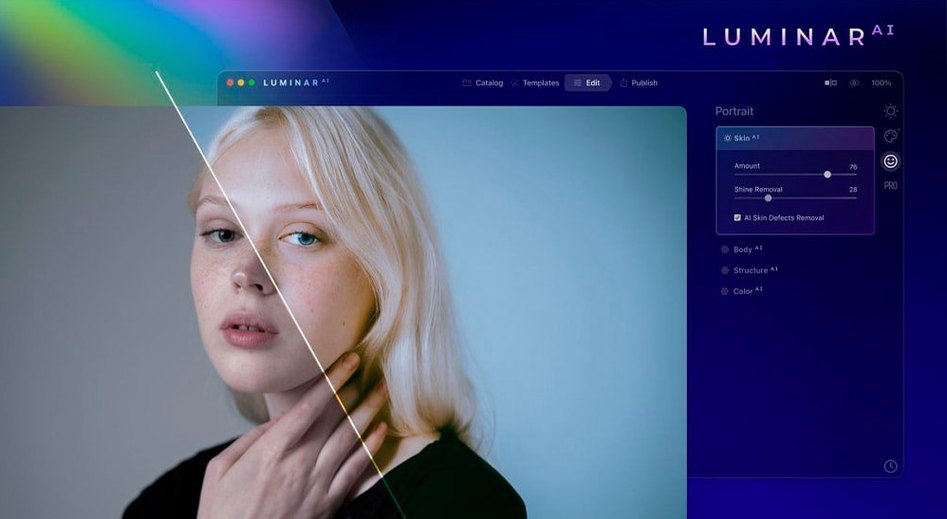
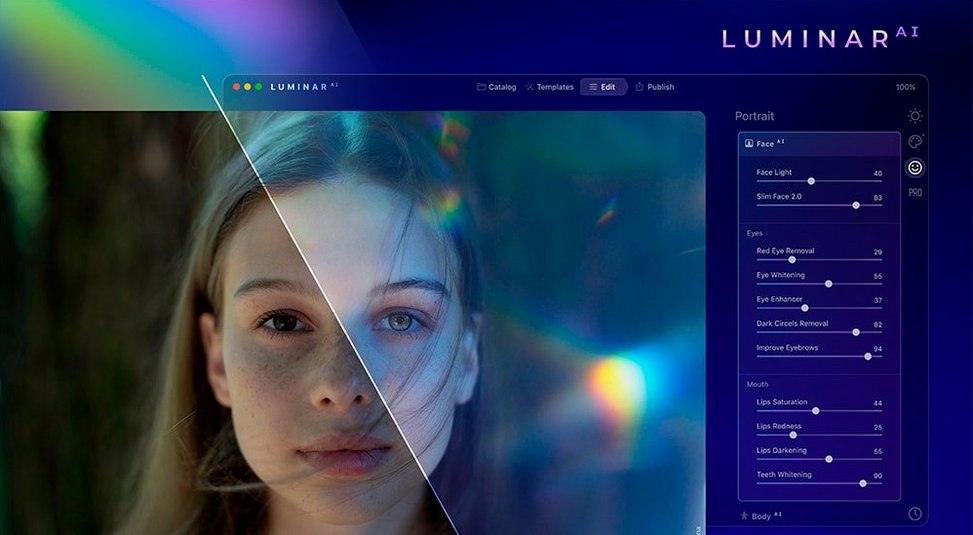
Skin AI removes blemishes but leaves pores, texture and hair intact—something a simple blur can't do. Iris AI handles eye whitening and pupil definition without making subjects look glassy. Body AI adjusts torso and abdomen shape in small increments. For landscapes, Structure AI sharpens detail selectively across people, water, sky and solid objects in one pass, while Atmosphere AI layers in fog, haze, steam or drizzle with depth-aware masking.
Option‑drag a slider to slow it down
Luminar AI buries a few shortcuts that save real time once you know they're there. Double-click any slider handle to reset it to its default value — no hunting for a tiny reset arrow. While dragging a slider, hold Option to slow the movement for finer control. That's handy on Iris AI and Face AI, where small adjustments matter.
The Templates panel has a search bar nobody notices. Type "moody" or "fog" rather than scrolling through dozens of presets. You can also star templates you come back to often; they'll appear in a Favorites tab. If you work across an external monitor and a MacBook screen, the app remembers which panel layout you had on each — undock your MacBook and the panels reflow to the single screen without a fuss.
Another overlooked trick: the History panel supports scrubbing. Click and drag left or right across the history steps to flip through edits like a flipbook. Beats clicking Undo twelve times to see if you've gone too far.
From flat backlight to a sky with detail
A raw file lands from a Sony A7 III — backlit, slightly underexposed, with a bland grey sky over a reservoir. The kind of shot that needs four adjustments at minimum.
Step 1: Open the image in the standalone app. Templates try to guess a starting point, but I ignore them and head straight to the Edit panel. First move: Accent AI. One slider, bumped to about 35. The foreground lifts, shadow detail comes back in the trees, and the water picks up a bit of contrast. It's rarely the final look, but it's a better starting point than the flat raw.
Step 2: The sky. Sky AI scans the horizon line, drops in a replacement from the built-in library — a late-afternoon sky with soft cumulus. The reflection on the water doesn't update, so I tick Sky Reflections and knock the blend slider to 60%. Now the reservoir mirrors the sky without looking like a composite.
Step 3: The dog on the towpath is a silhouette. Accent AI didn't reach him. I switch to Local Masking, paint a rough gradient over the path, and lift exposure by half a stop. No AI here, just a manual brush — but it's a reminder the app isn't fully hands-off.
Step 4: A quick pass with Structure AI set to People for the dog's fur, then a second pass on the trees with the Objects slider. The image sharpens without crunching into HDR territory. Export as a full-resolution JPEG. Whole session: under three minutes.
Clean up sky‑replacement spill on buildings
Sky replacement picks up foreground objects. If Sky AI repaints part of a building or a lamppost, open the Mask Refinement dropdown inside the tool. Use the Foreground Defocus slider and the Close Gaps option. For stubborn edges, click Edit Mask and brush out the affected area in red overlay view. Works nine times out of ten.
Skin AI oversmooths some areas. The default strength can be aggressive on older skin or high-ISO shots. Drop the Skin Defects slider to around 20–30 and push Skin Texture up slightly. The algorithm respects natural skin grain, but it needs a nudge on files with heavy sensor noise.
The app feels sluggish on large catalogs. Luminar AI is not a cataloguing tool — it works best with single images or small batches. If you point it at a folder of 400 raw files, thumbnail generation bogs down. Work from a folder of shortlisted selects. On older Intel machines, closing the Templates panel while editing frees up a surprising amount of GPU headroom.
Body AI creates unnatural warping. Small increments only. Anything past 20 on the abdomen slider starts pulling background elements. If you need more than a subtle tweak, switch to Photoshop for liquefy work — Body AI is a quick retouch tool, not a full liquify replacement.
The plugin doesn't show up in Lightroom. After you run the Luminar AI installer, open Lightroom Classic and check Photo > Edit In. If it's missing, restart Lightroom. Still missing? The plugin installer sometimes puts the file in the wrong Library folder. Check /Library/Application Support/Adobe/Lightroom/External Editor Presets/ for a .lrplugin file and copy it to the user Library equivalent.
Requirements
- macOS 10.13.6 or later
- Intel or Apple Silicon Mac
Comments 0
Sign in or create an account to leave a comment.
No comments yet…
If you’ve installed it, say how it went. Mention your Mac and macOS version — it helps the next person more than you’d think.