
MacBooster for macOS
Description
It runs on macOS 11.5 and later, on Intel and Apple Silicon Macs. You need about 70 MB of free disk space. If your Mac is a few years old and starting to drag, that is the machine it is aimed at.
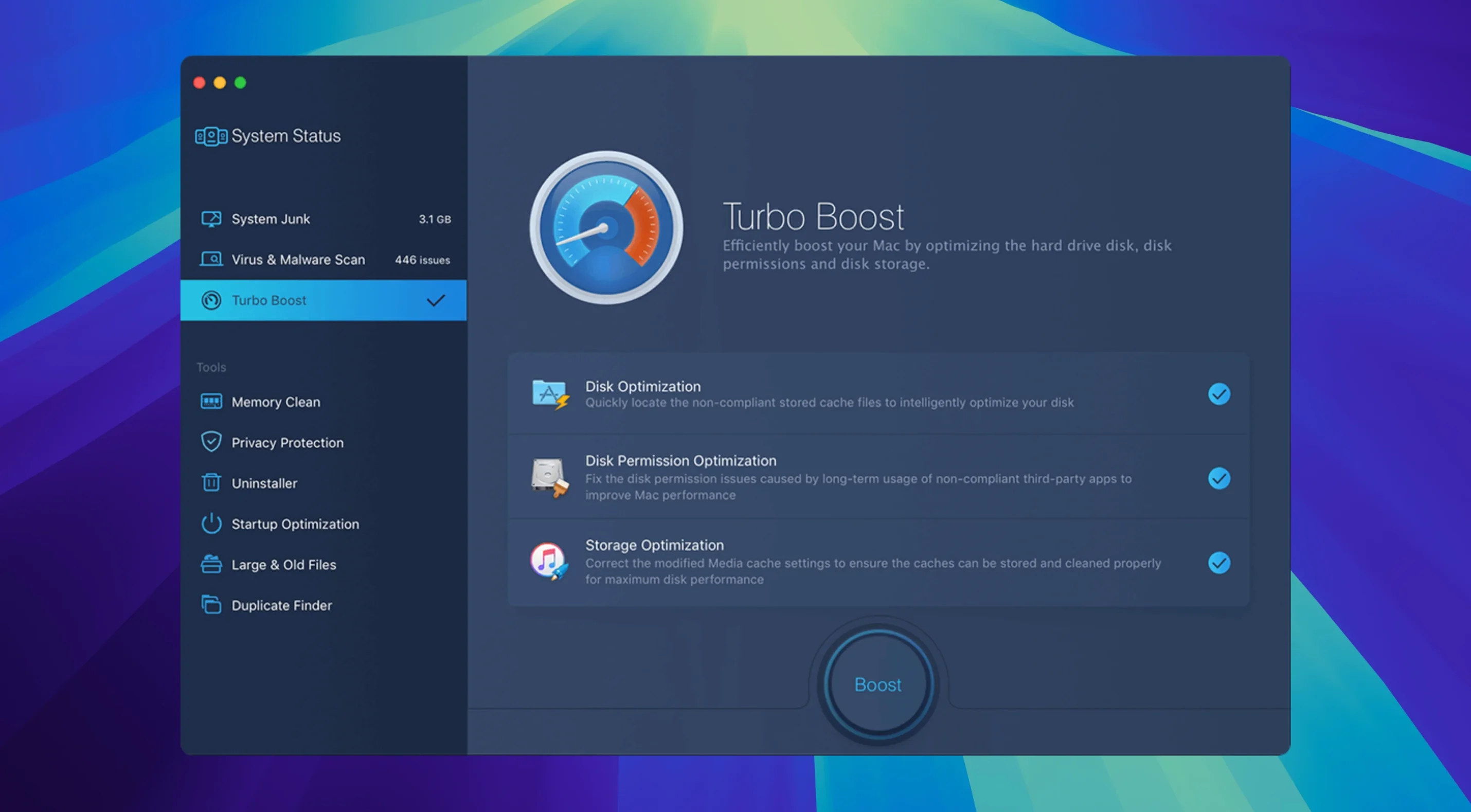
Open the main dashboard and let the System Status scan run first. It looks at three things: junk files, security threats, and RAM. You get a health score and a list of what it found. You can fix everything with one click, but on a first run I would uncheck the Turbo Boost section and deal with the junk and malware scans first. That way you see what actually needed attention.
The cleanup module knows about twenty types of junk — caches, logs, language packs you never use, old iOS backups, that sort of thing. The malware scanner is basic but catches the usual adware and browser hijackers. Neither module will surprise you, but they are quick.
After a cleanup, open the Disk Optimization tool. It repairs permissions and can defragment a mechanical hard drive. SSDs do not need defragmenting, and the app is smart enough not to try. Leave that ticked and let it run.
Two tools nobody clicks on day one
After installing macbooster 8, most people run System Status once and forget about it. That is fine, but you miss half the value. Spend ten minutes poking at two tools nobody clicks on day one.
Large File Cleaner. It finds files over 50 MB and sorts them by size. Before you delete anything, scroll past the obvious — yes, that 12 GB Steam library matters — and look for old disk images, installer packages you downloaded once, and render caches from apps you removed years ago. Each one is small on its own; together they eat tens of gigabytes.
Duplicate Finder. Sort by path, not by name. You will spot folders where you copied a project three times "just in case" and never came back. It also catches duplicate photos with different filenames, which is useful if you have ever merged two photo libraries.
Do not bulk-delete. Tick three or four items, remove them, then scan again. The confirmation dialog is not the place to discover you kept your only copy of a tax return in a folder called "Stuff."
Memory drops back to 40 MB after a scan
Macbooster 8 is not a lightweight app, but it does not sit in the background eating CPU cycles once a scan finishes. Memory use hovers around 120–180 MB during an active scan, then drops back to about 40 MB when idle in the menu bar. On an 8 GB machine that is noticeable but not painful.
Scan speeds are reasonable. A full System Status pass on a 256 GB SSD takes under two minutes. The malware scanner is slower — around four minutes on the same drive — because it checks each file individually. It is not a replacement for a dedicated security tool, but it catches the low-hanging adware that slips past browser warnings.
Crashes are rare in this build. The main window occasionally takes a second to redraw after waking from sleep, and the Duplicate Finder can stall briefly on network shares if you point it at a mounted NAS. Neither is a dealbreaker. If you hunt down a macbooster 8 license key free from a source you do not trust, you may introduce instability that has nothing to do with IObit's code. Stick to the clean install and you avoid that headache entirely.
Monday morning with 30 Safari tabs and a whining fan
It is Monday morning. Mail has been open for three days, Safari has thirty tabs, and the fan is whining before you have touched the keyboard. Here is what a session actually looks like.
- Open macbooster 8 pro from the menu bar. The System Status panel sits dead centre.
- Click Scan. The progress bar slides across while it tallies junk, checks for malware, and reads memory pressure. About ninety seconds later you get a number — usually "Fair" or "Poor" on a machine that has not been restarted in a week.
- Uncheck Turbo Boost. That feature tweaks system settings I prefer to handle myself. Leave Junk Files and Security Threats ticked.
- Click Fix. The app clears caches, deletes temporary files it identified as safe, and removes any adware traces. It takes under a minute.
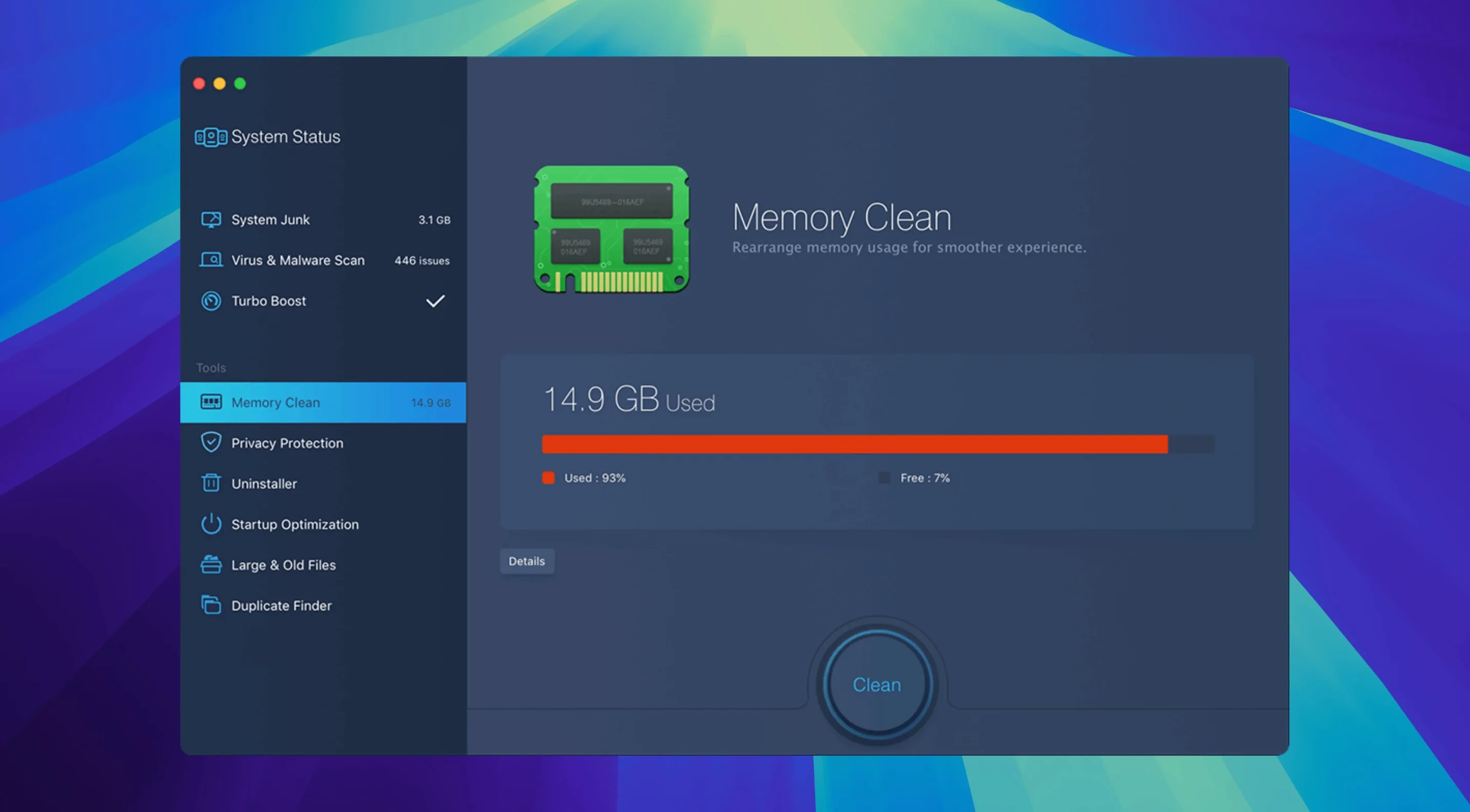
- Open Memory Clean. You see a bar chart of wired, active, and compressed memory. Click Clean. The wired memory figure drops slightly; the compressed figure drops more. Safari feels snappier immediately because the app flushed browser caches that were piling up.
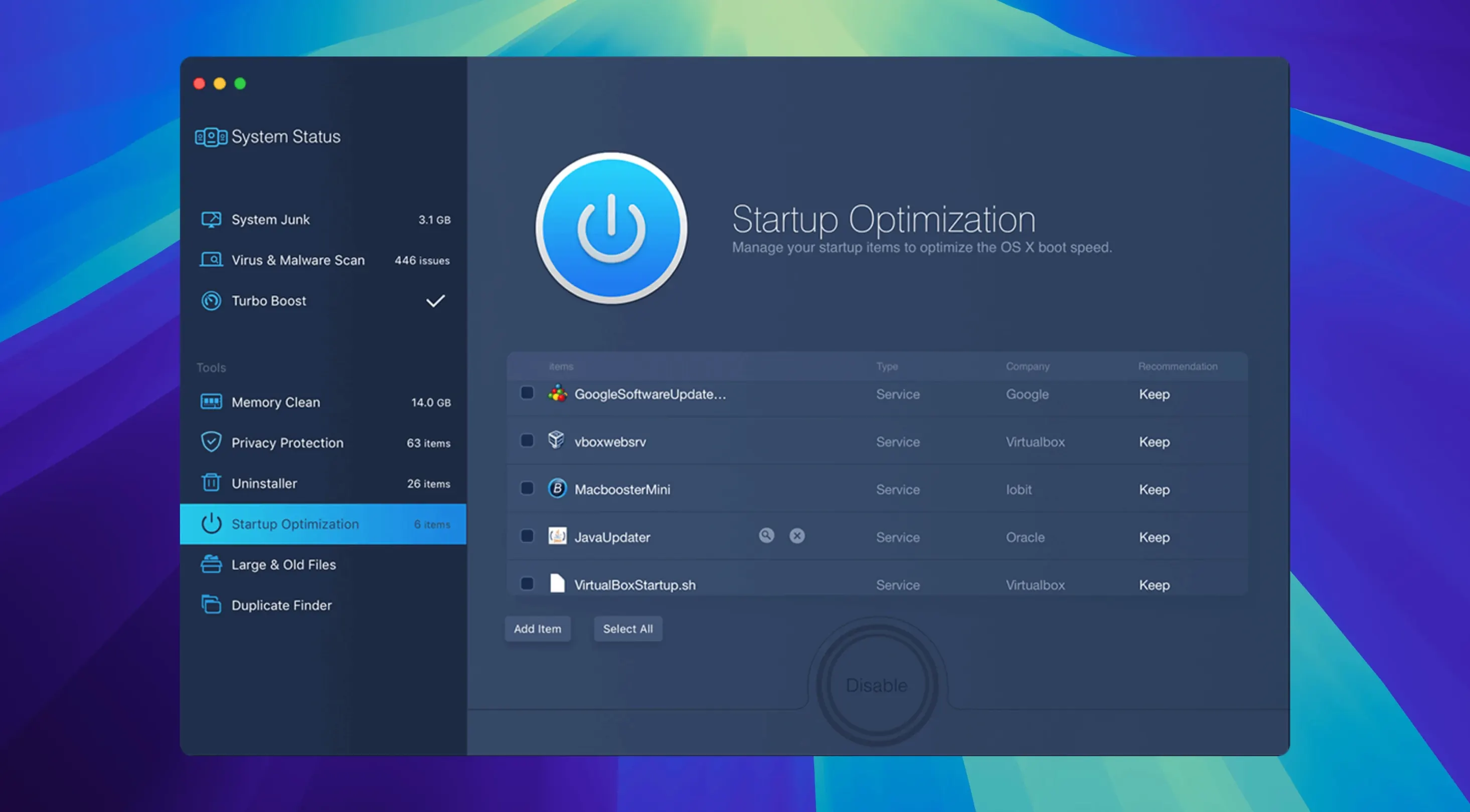
- Open Startup Optimization. Disable two launch agents you forgot about — one for a printer you no longer own, one for a video conferencing app that does not need to load at boot. These changes take effect on the next restart.
- Close the app. The whole process took under five minutes, and the fan has settled down. You get on with work.
That is the rhythm MacBooster 8 settles into. Not a daily ritual — more like a Monday morning tidy-up. Run it once a week and the Mac stays in a state where a single cleanup pass actually makes a difference, because you catch the junk before it piles up. If you're using a MacBooster crack, just make sure you've got the rhythm dialled in and the permissions sorted so it slots into that weekly groove without a hitch.
Requirements
- macOS 11.5 or later
- Intel or Apple Silicon Mac
- 70 MB or more of free disk space
FAQ
What are the seven tools MacBooster 8 provides?
It bundles tools for uninstalling apps, cleaning memory, optimizing startup items, protecting privacy, and removing large or duplicate files and photos.
Comments 0
Sign in or create an account to leave a comment.
No comments yet…
If you’ve installed it, say how it went. Mention your Mac and macOS version — it helps the next person more than you’d think.