Luminar Neo for macOS

Description
Luminar Neo runs on any Mac with macOS 12.0 or later. It is a universal app, so it works on both Intel machines and Apple Silicon models. Skylum recommends 8 GB of RAM at minimum, with 16 GB or more for smoother performance on large layered files.
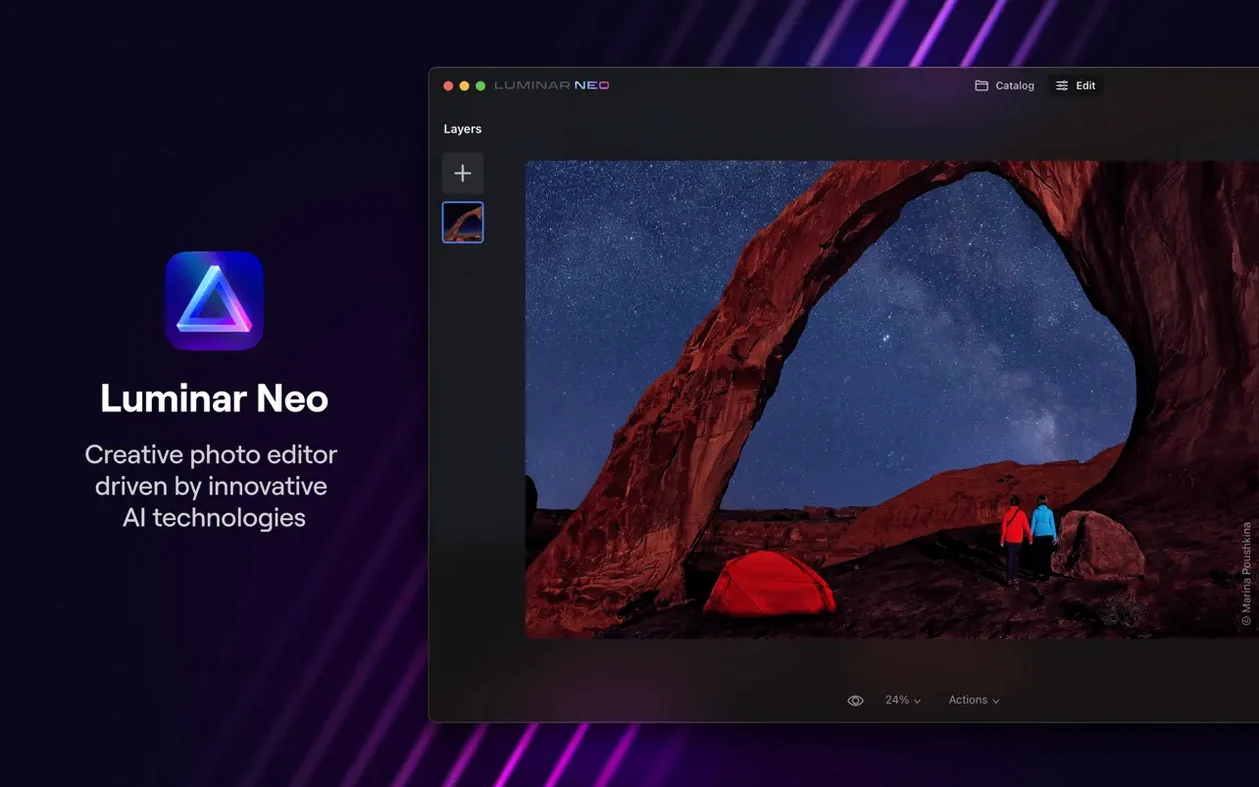
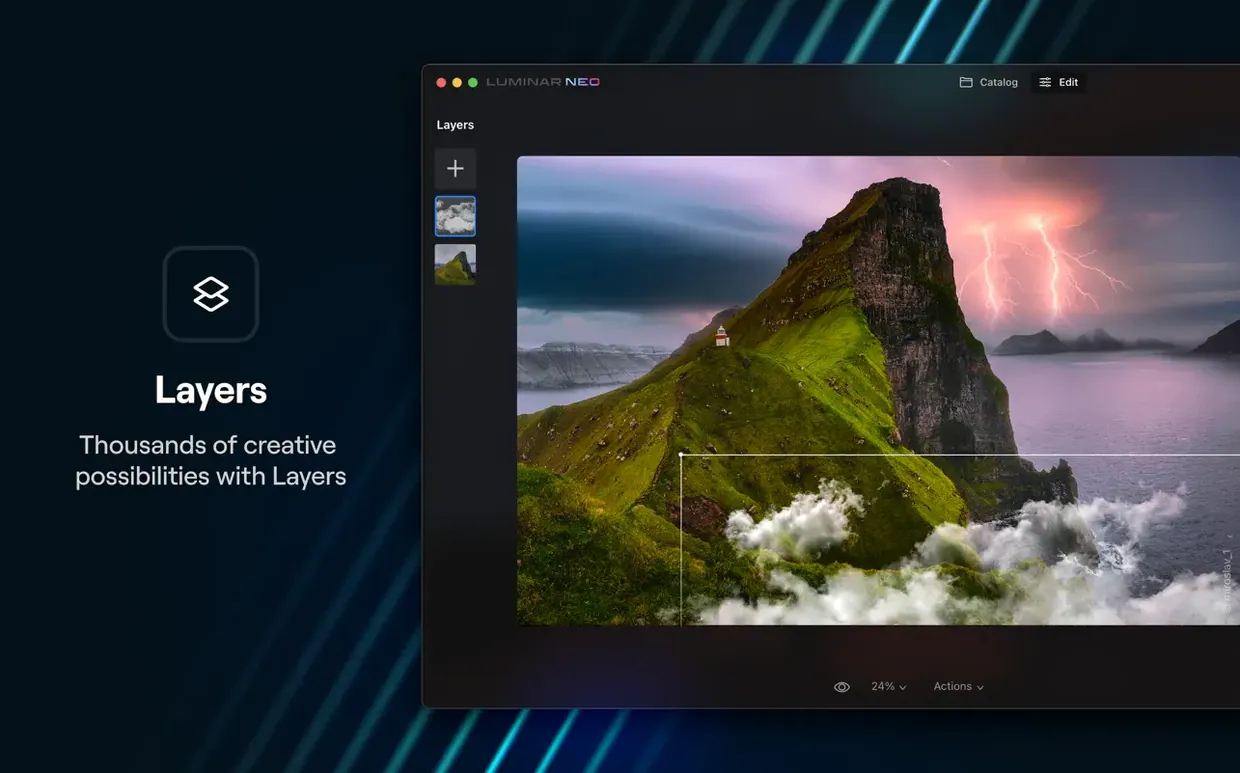
The app grew out of Skylum's LuminarAI and pushes those ideas further. It gives you dust removal, relighting controls and background replacement — all AI-assisted. Layer support means you can stack adjustments without flattening your work, which keeps things non-destructive.
Version 1.26.0 is a substantial update. The AI Assistant now appears directly inside the Presets and Edit tabs, cutting down the time you spend hunting for the right starting point. The idea is quicker, less guesswork editing without losing the fine controls when you need them.
It is aimed at professional-quality results, but the toolset is approachable enough for anyone who wants to clean up and rework an image without wrestling with complex manual tools.
Load a raw file and the first thing you notice is how quickly Luminar Neo builds a usable preview. It analyses the shot in a couple of seconds — scene depth, subject, sky, skin tones. You do not have to wait for a progress bar to crawl across the screen.
The AI Assistant now sits right in the Edit tab. Click it and the app suggests a set of adjustments based on what it sees. For a backlit portrait, it might lift shadows, tone down highlights and add a gentle vignette. The suggestions are a starting point, not gospel. You can pull every slider back afterwards.
From there, a typical session might go like this:
- Open the Presets tab and hover over a few looks. The preview updates instantly on the image. Pick one that gets the mood roughly right.
- Switch to Edit. If the AI Assistant has not already run, tap it now. Accept the adjustments that make sense, reset the ones that do not.
- Add a layer for local work. Use the masking brush to paint over the subject's face, then apply a subtle skin-enhancing preset to just that area.
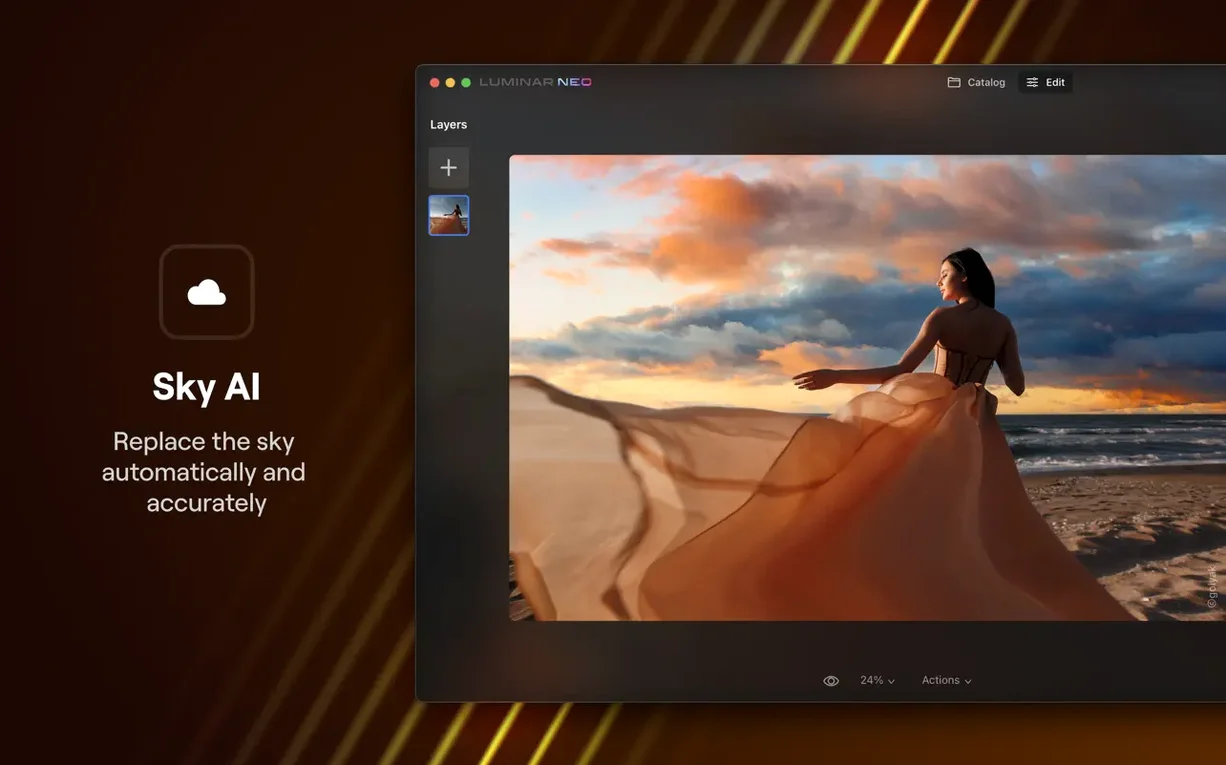
- Head to the creative tools. Drop in a new sky with a couple of clicks, or use the relighting sliders to shift where the light appears to fall.
- Zoom to 100% and run the dust-spot removal across the whole frame. It catches sensor spots that manual cloning would miss.
- Add a final adjustment layer for global contrast and export a full-resolution TIFF.
The whole thing might take ten minutes. The layer stack stays editable, so you can revisit the file tomorrow and tweak the sky without redoing everything else.
Treating AI as one-click magic
The biggest mistake is treating the AI tools as one-click magic that needs no oversight. The sky replacement works well on landscapes with a clear horizon, but throw in a messy tree line or a person with flyaway hair and the mask edges need cleanup. Skylum's algorithms are good — they are not psychic.
Another common stumble: stacking too many presets on top of each other. Each preset is a full set of slider adjustments. Applying three in a row often produces muddy contrast and weird colour casts. Pick one preset, then fine-tune manually. The result looks cleaner.
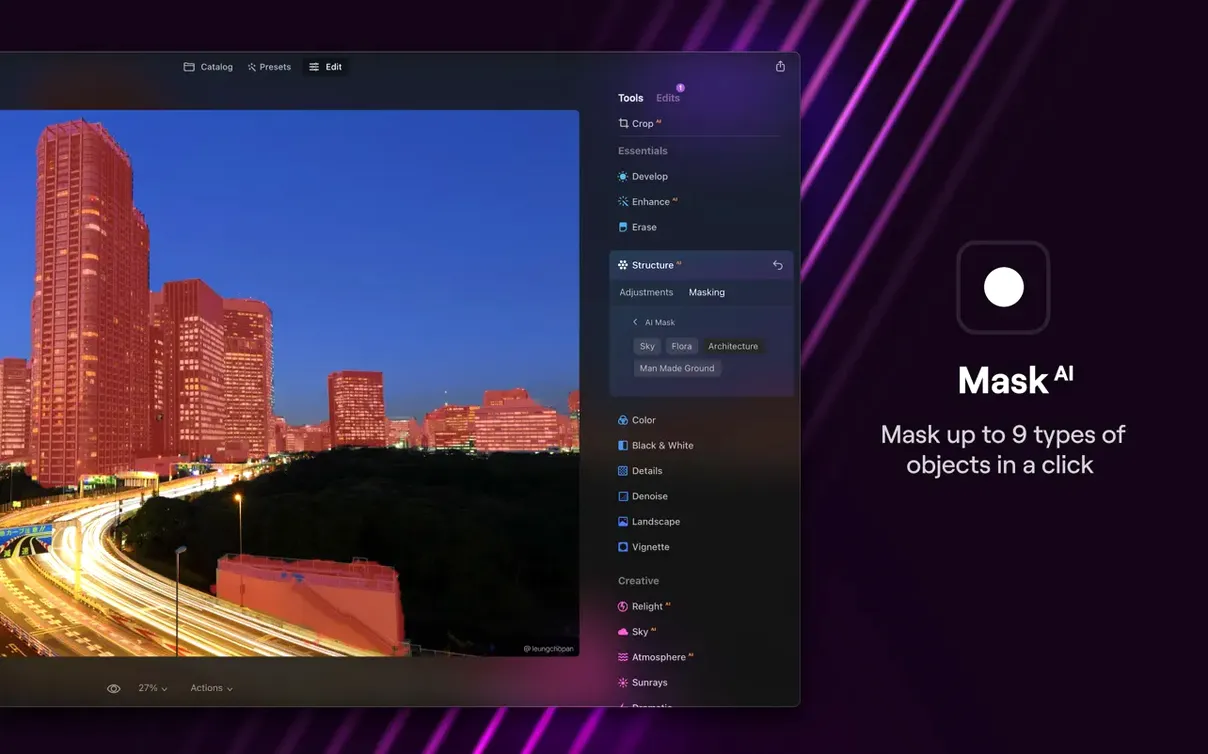
Beginners also overlook the masking options inside layers. Every adjustment layer can be brushed in selectively, but the brush icon is small and easy to miss. People end up applying noise reduction to an entire portrait when they only needed it on the background.
Lastly, the relighting tool confuses users who expect it to invent light sources. It shifts existing illumination — it does not add a spotlight where there was none. If the original shot is flatly lit from the front, relighting can only do so much before the image looks artificial.
Faster launches, no catalogue lock-in
Compared to Adobe Lightroom Classic, Luminar Neo is faster to open and less intimidating for someone who does not live inside a catalogue system. Lightroom wins on batch processing and tethered shooting, but it has no layer support and its sky-replacement equivalent requires a trip to Photoshop. If you edit one image at a time and want creative tools without switching apps, Neo makes more sense.
Next to Pixelmator Pro, the line is blurrier. Pixelmator Pro runs nimbly on Apple Silicon, handles layers beautifully and costs less in the long run. Its AI tools — colour matching, super resolution, background removal — are genuinely useful. But Pixelmator Pro is a general image editor that does photography as one of many things. Luminar Neo was built specifically for photo work. Its dust removal, relighting and sky tools are more polished for that single task. Pixelmator Pro is the better all-rounder; Luminar Neo is the better darkroom assistant.
ON1 Photo RAW is the closest direct competitor. Both offer non-destructive layers, AI masking and sky swaps. ON1 packs in more features — HDR merging, focus stacking, a full print module — but the interface feels busier and the learning curve is steeper. Luminar Neo strips things back. You get fewer tools, but each one is easier to find and faster to apply. ON1 suits the photographer who wants a Lightroom replacement that does everything in one app. Luminar Neo suits the photographer who already has a workflow and wants a creative sidekick.
Batch retouching for portrait and wedding work
Portrait and wedding photographers who deliver edited galleries quickly. The AI skin and face tools cut retouching time for batches of headshots or event work. The preset system makes it simple to keep a consistent look across a full set of images.
Landscape shooters who do not want to learn complex luminosity masking. The sky replacement and relighting sliders handle dramatic edits in seconds. Results hold up well for prints up to A3, especially when you take the time to refine mask edges.
Hobbyists moving up from Apple Photos or the basic tools built into their camera. Luminar Neo does not demand cataloguing or file-management decisions. You open an image, you edit it, you export it. The interface does not punish curiosity — you can explore every slider without breaking anything.
It is less suited to high-volume studio tethered workflows, deep compositing jobs with dozens of layers, or anyone who needs CMYK soft-proofing for print. That is not what it was built for.
People sometimes search for a Luminar Neo Mac torrent hoping to try before committing, and they land on pages listing version 1.26.0 alongside older builds like Luminar Neo 1.24.2. The app itself, once you have it running, makes a strong case for sitting in the dock alongside the big-name editors — not as a replacement, but as a fast creative layer on top of whatever workflow you already use.
What’s new
- Adds AI Assistant to the Presets and Edit tabs
- Aims to make editing faster and less fiddly
Requirements
- macOS 12.0 or newer
- Intel or Apple Silicon Mac
- 8 GB RAM minimum, 16 GB recommended
FAQ
Does Luminar Neo replace backgrounds automatically?
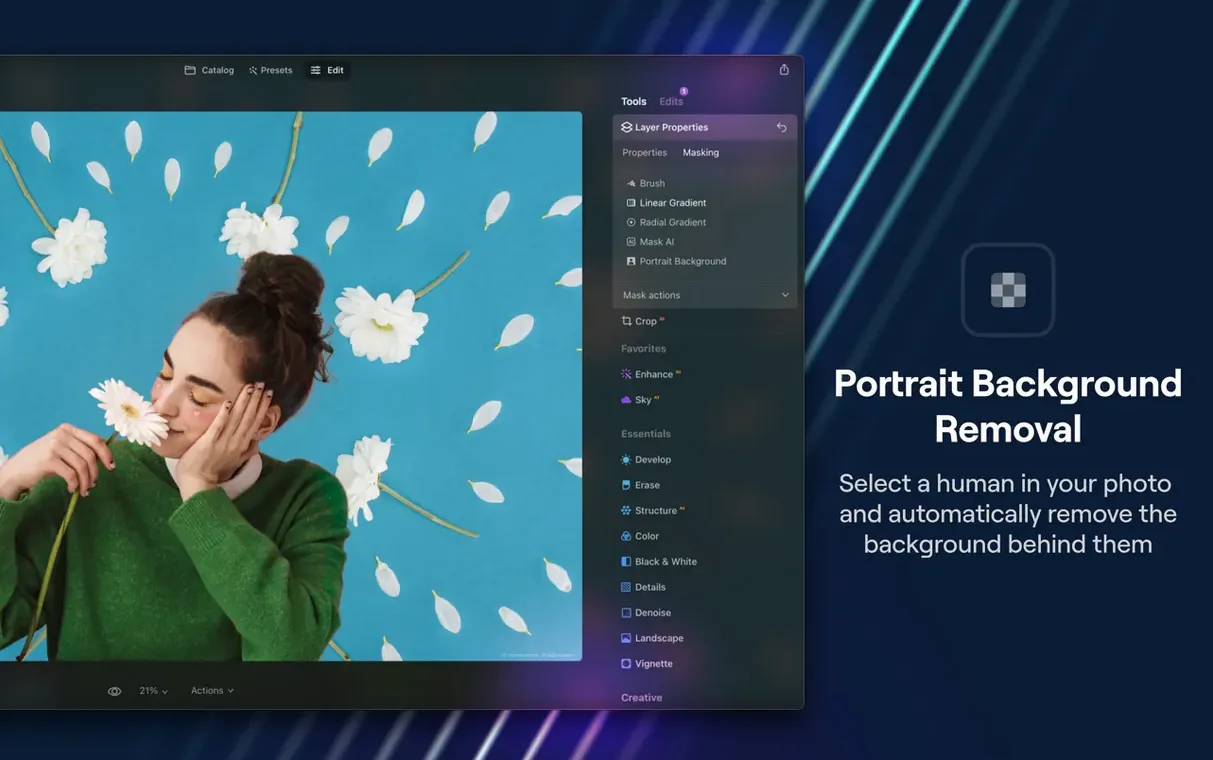
Yes, background replacement is built in, using AI to detect and mask the subject so you can drop in a new backdrop without manual brushing.
Comments 0
Sign in or create an account to leave a comment.
No comments yet…
If you’ve installed it, say how it went. Mention your Mac and macOS version — it helps the next person more than you’d think.