
Little Snitch for macOS
Description
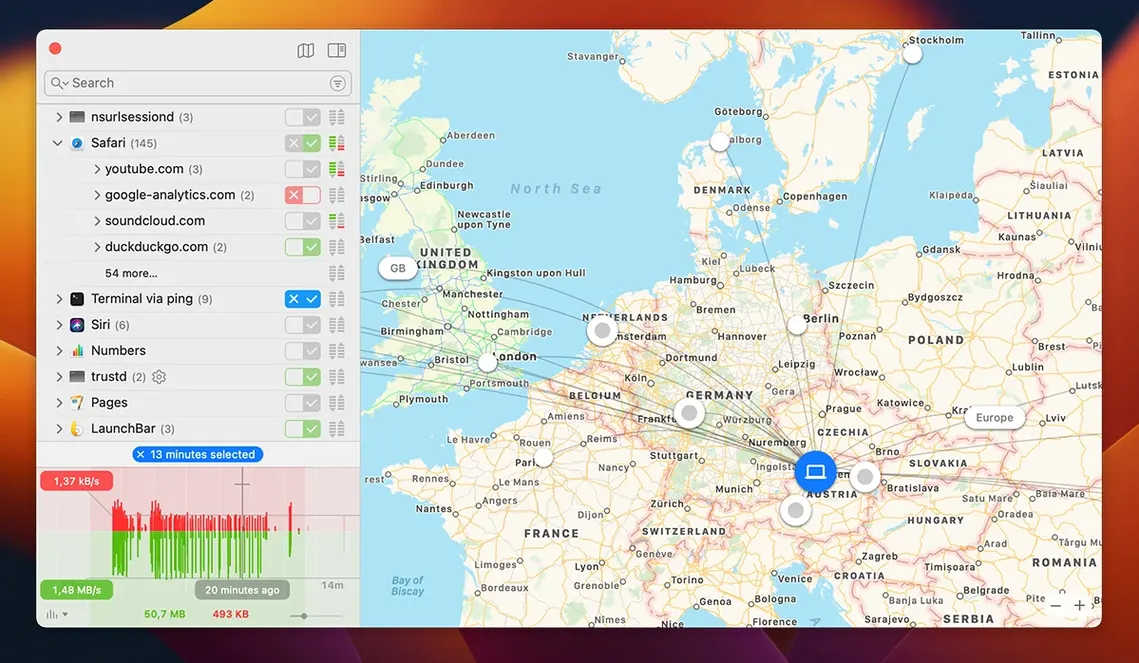
The Network Monitor is where you'll spend most of your time. It shows live traffic as an app-and-server list, an hourly history graph, and a world map dotted with connection endpoints. You can spot something phoning home in seconds.
Map every server your apps touch and decide per‑connection
- Seeing exactly which servers your apps talk to, plotted on an interactive map.
- Deciding per-connection: allow once, deny, or write a permanent rule right from the alert pop-up.
- Watching hourly traffic patterns to catch background chatter you didn't ask for.
- Scripting rules and queries through the command-line tool when a GUI isn't enough.
The first few days are chatty while you train it
- Alerts arrive the moment an app tries a new connection. The first few days are chatty while you train it.
- Rule lists need occasional tidying, especially if you uninstall apps without removing their rules first.
- Encrypted DNS handling has changed in version 6.5, so previous rule behaviour may shift slightly.
Switch to Alert Mode so your first week isn’t a firehose
The defaults are sensible, but a couple of tweaks make the first week far less noisy.
- Switch to Alert Mode with a profile. Go to Little Snitch > Profiles and make sure you're running the default profile, not Silent Mode. Silent Mode swallows alerts and applies generic rules — useful later, confusing at the start when you're trying to build a rule set you understand.
- Turn off "Show Research Assistant" in alerts. The pop-up that offers community-sourced rule suggestions can be helpful, but it adds clutter. In the alert window, uncheck its box and the decision buttons become cleaner: Allow, Deny, or the time-limited options.
- Set Quiet Mode scheduling. If you work in bursts, schedule Quiet Mode for deep-focus hours. Little Snitch > Quiet Mode lets you postpone all alerts, then review them as a batch. Much better than being interrupted mid-flow by a connection you'll allow anyway.
- Shorten the map update interval. The world map is pretty but the default refresh rate is conservative. In Network Monitor, use the gear menu and drop the update interval to 1 second. You'll see connections appear almost instantly, which helps when you're chasing down what an app just did.
Uninstalled apps leave dead rules behind
People hit the same handful of problems. Here's what they are and how to get past them.
Alert fatigue in the first few hours
A fresh install of Little Snitch triggers an alert for nearly every app you open. That's normal. The system services alone — mDNSResponder, trustd, com.apple.geod — generate dozens of prompts. The fix isn't to deny them blindly. Allow system processes with "Any Server" for their core domains, then tighten the rules later once you know what's essential. You can always edit a rule in Little Snitch Configuration under the Rules tab.
App breaks after denying a connection
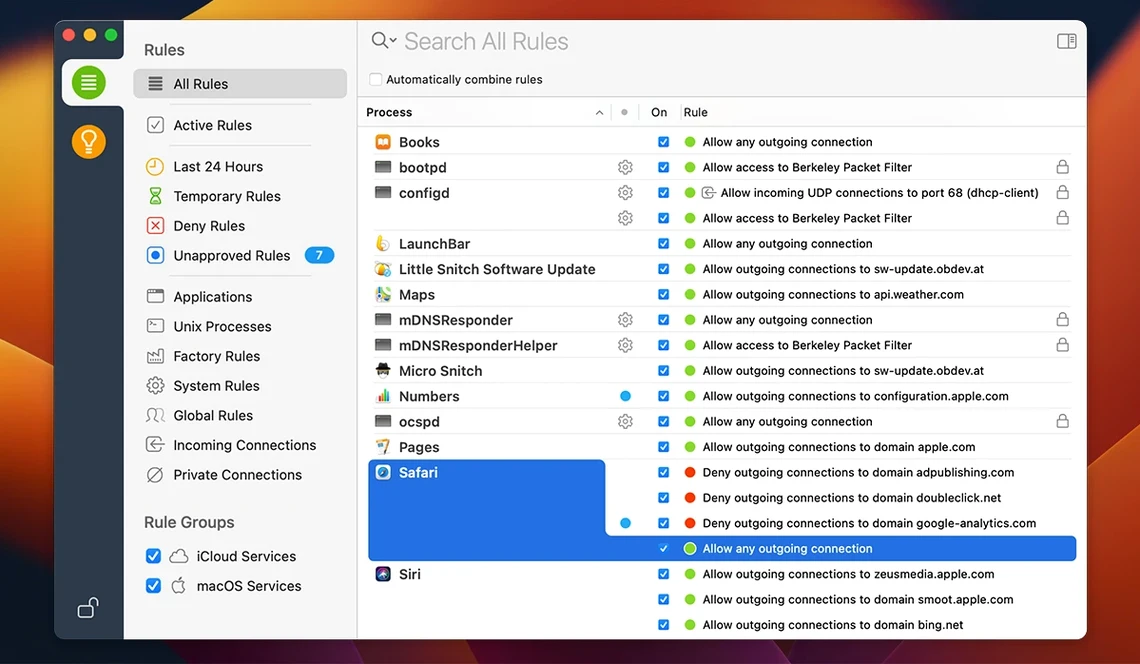
If you deny something and an app stops syncing, updating, or loading content, open Little Snitch Configuration, find the rule, and either delete it or change it to "Allow" temporarily. Better yet, use the "Until Quit" option during the alert — it gives the app a chance to work without locking you into a permanent decision you'll have to undo.
Inbound connection noise
Version 6.5 no longer labels inbound connections with hostnames, so you'll see IP addresses you don't recognise. Don't panic. Most are local network chatter from devices like printers or other Macs. Focus your rule-writing on outbound connections first — they're the ones that matter for privacy.
Encrypted DNS rules behaving differently
The 6.5 update improved encrypted DNS handling, which means some DNS-over-HTTPS providers that previously triggered generic rules may now appear as distinct connections. If you're using a VPN or custom DNS, expect to see new prompts. Create a permanent allow rule for your DNS endpoint and you won't be bothered again.
Rules disappearing after an app update
If an app updates itself and suddenly Little Snitch treats it as a new application, check the rule path. Some updaters change the app bundle location or signature. Little Snitch 6.5 monitors bundle integrity while the app runs, but version bumps can still break the chain. The simplest fix is to delete the old rule and create a fresh one for the updated binary.
Use “Until Quit” to build a baseline without locking yourself in
The goal isn't to write every possible rule on day one. It's to build a baseline that stops nagging you while catching the interesting stuff.
- Use "Until Quit" liberally. For apps you're unsure about, grant temporary permission for a single session. If you open it three times and need the same connection each time, then write the permanent rule. No rule clutter, no regret.
- Check the hourly traffic graph once a day. Glance at Network Monitor's history tab right before shutting down. A spike at 3 a.m. from an app you didn't leave open is worth investigating. The graph makes patterns easy to spot without digging through logs.
- Group rules by app, not by server. When you open the Rules list, use the app grouping view. Seeing all of an app's rules bundled together makes tidying easier when you uninstall something.
- Export your rules after the first week. File > Export Rules in Little Snitch Configuration saves your rule set. If macOS throws a wobbly or you do a clean install, you won't have to retrain the firewall from scratch.
- Don't ignore the command-line tool. Even if you prefer the GUI,
littlesnitchin Terminal can dump active rules, toggle the firewall, or query connection history. Handy for sticking into a troubleshooting script.
Ella stopped upload stuttering by catching a background sync tool
Ella cuts video for corporate clients. She works on a Mac Studio at home and frequently sends large files to cloud storage, agency review platforms, and media asset libraries. Her internet connection is fast, but she's noticed stuttering during uploads when other apps quietly start syncing in the background.
She installs Little Snitch on a Monday morning and sets it to Alert Mode. Within thirty minutes, she's seen prompts from a half-dozen menu bar utilities and two Adobe background processes she didn't know were running. She allows her cloud storage client and video conferencing tool straight away — those are obvious. A media encoder app tries connecting to a telemetry server she doesn't recognise; she denies that one permanently with a click.
By Tuesday, she's tired of the Creative Cloud desktop app phoning home during export sessions. In Network Monitor she spots the connection — an Adobe analytics endpoint — and opens Little Snitch Configuration to change its rule from Allow to Deny. The stuttering during uploads drops noticeably.
On Wednesday she discovers Quiet Mode scheduling. She sets it to activate automatically during her 9 a.m. to 1 p.m. editing block. The alerts pile up silently. At lunch, she opens the deferred list, approves the obvious ones, and denies a game launcher that had no business checking for updates while she worked.
By Friday, Ella has fewer than a dozen permanent rules and a feel for what her Mac actually does when she isn't looking. She exported her rule set to a USB stick — insurance she hopes she never needs. The world map in Network Monitor has become a small pleasure, showing her upload targets in Sydney, Dublin, and Los Angeles during client handoffs.
What’s new
- Adds compatibility with macOS 27 Golden Gate.
- Monitors app bundle integrity while running.
- Adds an experimental NAT64 implementation.
- Improves encrypted DNS handling.
Requirements
- macOS 14 or later
- Works on Intel and Apple Silicon Macs
- Languages: English, German
FAQ
Does Little Snitch let me allow or deny every connection?
Yes. Each time an app tries to reach a server, an alert appears and you can allow or deny that attempt, either once or as a permanent rule.
Comments 0
Sign in or create an account to leave a comment.
No comments yet…
If you’ve installed it, say how it went. Mention your Mac and macOS version — it helps the next person more than you’d think.