LightBurn for macOS
Description
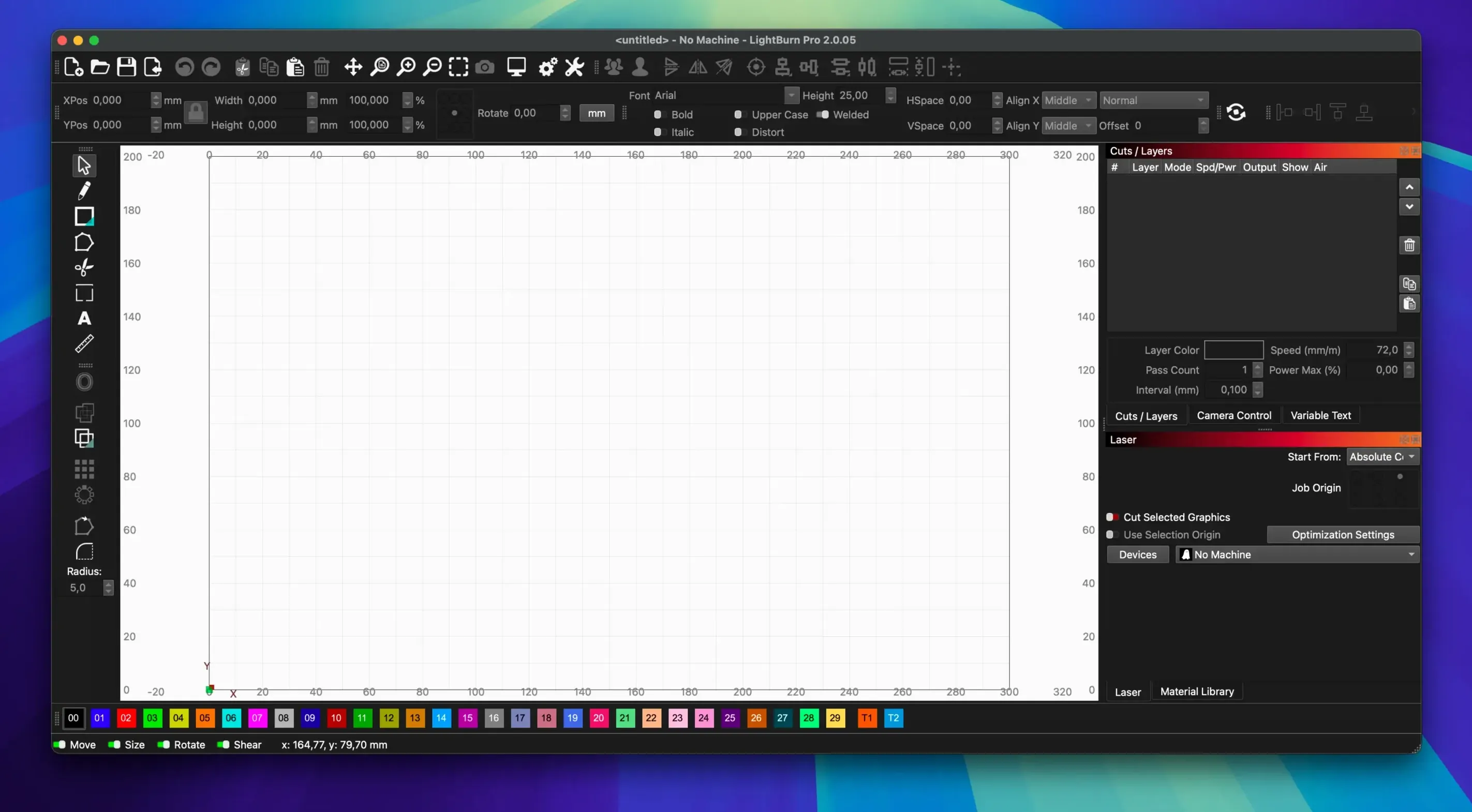
If you've ever laid out a job in Illustrator then babysat it through a separate machine controller, LightBurn will feel like the tool those two should have been. It puts a full vector editor and direct laser control in a single window, so the path from sketch to finished cut stays on one screen.
- A proper vector editor with boolean operations, offset, weld and a node-editing toolbar for cleaning up artwork without leaving the app.
- Image tools for tracing, masking and edge enhancement when you need to turn a bitmap into something the laser can use.
- Controls for power, speed, pass count and cut order—set once per layer and forget.
- A material library with preset settings so you spend less time guessing numbers on scrap card.
- Layout tools that let you arrange, duplicate and nest parts directly on the machine bed.
Version 2.0 brought Dark Mode and more shape tools to the mix, and the whole thing runs on macOS 11 onwards. Just remember that Apple Silicon Macs need Rosetta installed—it's an Intel app all the way down.
Assign any swatch to a material preset with a right-click
Right-click on any colour swatch in the layer palette and you can assign it to a material preset with one click. No digging through menus. The same palette lets you double-click a layer name to rename it instantly—useful when a job has six different cuts and you need to tell them apart at a glance.
The Shift key does more than you might expect. Hold it while dragging a shape and it locks movement to the current axis. Hold it while nudging with the arrow keys and the step distance doubles. Hold it while clicking a node in Edit Nodes mode and you can select several at once without a marquee drag.
Another one: the Preview window remembers its zoom and pan position between runs. If you're tweaking a small detail on a large job, you can leave the preview zoomed in on that corner, adjust a setting, and run it again—the view won't snap back to fit the whole bed. That saves about four seconds per cycle, which adds up fast on a fiddly job.
There's also a little-known shortcut for lining up artwork with the physical material on the bed. Click "Frame" in the Laser window and the head traces a bounding rectangle around your selected shapes. It won't fire the laser—just moves the head so you can see where the cut will land. Useful when you're using up offcuts and need to place a shape precisely on a scrap of plywood that's already half-cut from a previous job.
Layers control speed, power, and cut order—not just names
The most common beginner mistake is treating layers as just organisational labels. They aren't. Each layer holds its own speed and power settings, and the cut order follows the layer stack from top to bottom. If you put an engraving pass on a layer above a cut line, LightBurn will engrave first, then cut the outline. That's usually what you want. Put them the wrong way round and you'll watch your laser score a delicate engraving onto a piece that then falls out of the sheet because the outline cut ran first.
Another one: people often ignore the "Line Interval" setting when engraving, thinking the dpi value covers everything. It doesn't. Line interval is the physical spacing between scan lines in millimetres. Leave it at the default on a diode laser and you'll get banding. Drop it to match your laser's spot size and the engraving smooths out noticeably—at the cost of more time, naturally.
And if you're coming from Illustrator or Inkscape, watch out for the selection behaviour. Clicking a shape with the cursor tool selects the whole group. To grab a single shape inside a group, double-click it. To back out, double-click empty canvas. People who don't know that end up ungrouping everything, which defeats the purpose of keeping a tidy design.
Renders smoothly on Intel, runs under Rosetta on Apple Silicon
LightBurn isn't a lightweight app, but it doesn't feel bloated either. On an Intel Mac the interface draws quickly and the preview renders without the micro-pauses you get in web-based controllers. On Apple Silicon machines running under Rosetta there's a slight launch delay—maybe three seconds on an M1—but once the window is up, everything responds at native-feeling speed. The translation layer doesn't get in the way of the actual work.
Memory use sits around 300–400 MB with a modest job open. A complex file with several hi-res bitmaps and dozens of vector layers can push that past a gigabyte, which is worth remembering if you're on an 8 GB machine with other heavy apps running. The app has been stable through version 2.0.05; crashes are rare and usually trace back to a specific SVG import quirk rather than the kind of random beachballing that plagues some creative software. The fix for one such crash—SVG files with ungrouped DEF shapes—landed in this release.
Direct connection to the laser over USB is solid. If the cable gets yanked mid-job, the software pauses and waits for you to plug it back in, then offers to resume where it left off. That's not flashy, but it's saved more than one piece of acrylic from the bin.
A job run from start to finish
A sign-maker picks up a client sketch on a Tuesday morning—a simple house number with a floral border, to be cut from 3 mm birch ply. She drops the JPG onto the workspace and traces it with the built-in vectoriser, tweaking the threshold slider until the petals come out clean and the noise in the background disappears. She cleans up a couple of wobbly nodes with the Edit Nodes toolbar, then assigns the border to a cut layer and the numbers to a second, slower cut layer so the tight corners come out crisp.
She pulls up the material library, selects "Birch Ply 3mm," and the power and speed values fill in from a preset she tuned six months ago. A quick frame confirms the artwork sits inside the offcut she clamped down. She hits Start and watches the first pass trace the numbers while she preps the next client's file on the same screen. No exporting, no switching machines, no USB stick. When the laser finishes, the part lifts out clean and she has it sanded and packed before lunch.
What’s new
Fixes a crash when importing SVG files with ungrouped DEF shapes. Fixes window title bar placement when stored offsets are wrong. Fixes rotary jogging direction in CCW mode.
Requirements
- macOS 10.13 or later.
- Intel 64-bit processor; requires Rosetta on Apple Silicon.
Comments 0
Sign in or create an account to leave a comment.
No comments yet…
If you’ve installed it, say how it went. Mention your Mac and macOS version — it helps the next person more than you’d think.