LaunchOS for macOS
Description
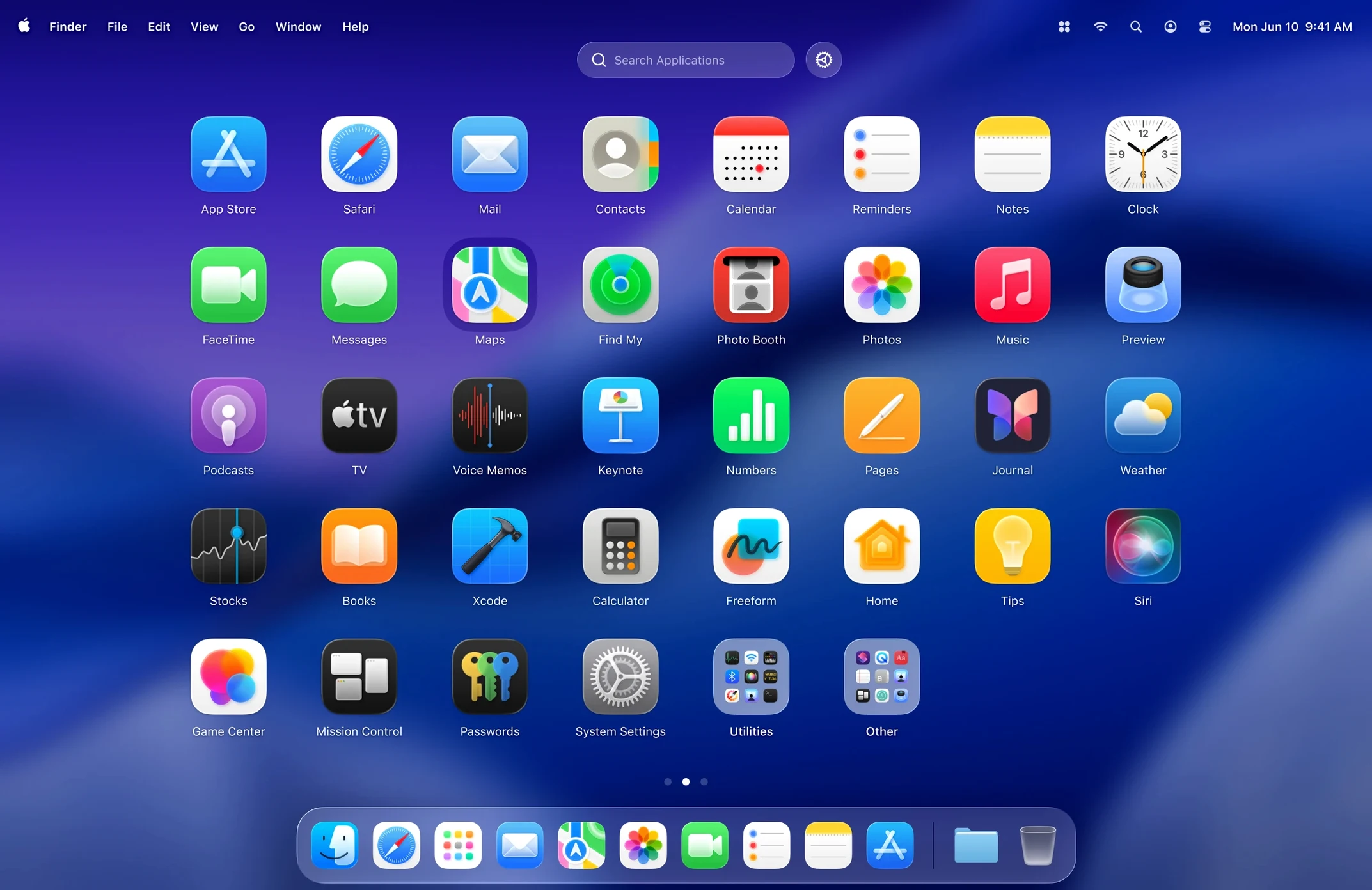
LaunchOS is a replacement for Apple's built-in Launchpad that gives you actual control over how your apps appear.
Tools a power user will actually use
- Keyboard shortcuts for launching apps. No mouse needed once you set them up.
- App uninstallation with long-press or right-click. Version 2.1.0 added this. You can remove apps directly from the grid instead of hunting through Finder or using another utility.
- Restart command in the status bar menu and right-click context menu. Also new in 2.1.0. A small addition that saves a trip to the Apple menu.
Built for macOS 26
The app supports the Liquid Glass design effect, so it does not look like a leftover from an older OS. It runs only on macOS 26 or later, which means the developer has not compromised the design to support older systems.
What 2.1.0 changed, beyond the release notes
Before 2.1.0 you couldn't uninstall anything from inside LaunchOS. You had to leave the app, open Finder, and do the drag-to-Trash dance every time you wanted rid of something. The long-press trigger works the same way it does on iOS — hold an icon until the grid jiggles, then tap the X. The right-click route is quicker if you're already using a mouse.
The Restart command is the kind of thing you don't think about until it's missing. Having it in the status bar menu means you can restart the Mac without closing the app grid first. The right-click version does the same from any empty space. Neither is flashy, but both save clicks you were making every day.
A grid density slider you set once and forget
The grid size control isn't buried in a preferences panel somewhere. You find it, and you adjust it once. After that, you probably forget it exists — but it's the difference between a cramped grid on a 13-inch screen and something usable. The app remembers your setting between launches.
Hiding apps is just as quiet a feature. Drag an app you rarely use into the hidden list and it vanishes from the grid without uninstalling it. The app is still on your Mac, still searchable, still launchable by shortcut if you set one. It just stops taking up space. You'd be surprised how many things you can hide: licence managers, uninstallers, that one game you played twice in 2024.
If you rely on gestures, the gesture support for launching apps is worth setting up early. It is not on by default for everything, so you need to spend two minutes configuring it. Once you do, swiping into the app launcher feels closer to the built-in Launchpad than anything else does — but with your own grid layout waiting on the other side.
How LaunchOS fits with other apps and macOS
Because LaunchOS is a standalone app and not a system patch, it sits alongside the real Launchpad without conflict. You can still trigger Apple's Launchpad from the Dock or a trackpad gesture if you want to compare layouts. Most people assign a hot corner or keyboard shortcut to LaunchOS and stop opening the original within a week.
It works the way you would expect with Spotlight and Alfred. Those tools launch apps by typing; LaunchOS launches them by pointing. There is no overlap to manage. If you use a window manager like Rectangle or Magnet, LaunchOS does not interfere with your keyboard-driven workflows either — it just becomes another way to start a session when your hands are on the mouse.
Gesture support ties into macOS's own gesture recognition, so swipes feel native. The app does not install a kernel extension or ask for Accessibility permissions beyond what makes sense for global shortcuts. It stays lightweight in the background, which matters if you run it alongside menu bar utilities and clipboard managers.
Stop trying to nest apps like iOS folders
The most common mistake is treating the grid like a folder system. It is not. You cannot nest apps inside groups the way you can with iOS folders. Dragging one app onto another will not create a stack. Accept that early and arrange things flat, or you will waste ten minutes trying.
Another mistake: hiding apps before you set a keyboard shortcut for them. If you hide an app and skip the shortcut step, you have to unhide it to launch it again. The hidden list is not searchable from the main grid view. A quick rule — set the shortcut first, hide second.
People also forget that app uninstallation from LaunchOS is real. It moves the app to the Trash immediately, no confirmation dialogue. The long-press jiggle mode feels playful, but the X button does not mess around. Keep that in mind before you start tidying up late at night.
Finally, some users install launchos for mac and expect it to replace the Dock or the Applications folder in Finder. It does not. It replaces Launchpad. That is one specific job, and it does it without pretending to be something else.
What’s new
Adds app uninstallation with long-press and right-click triggers. Adds Restart in the status bar menu and the right-click context menu.
Requirements
- macOS 26 or later
- Apple Silicon or Intel Mac
FAQ
Which languages does LaunchOS support?
The interface is available in Russian, English, German, Spanish, Italian, Traditional Chinese, Simplified Chinese, Korean, French, and Japanese.
Does LaunchOS replace Launchpad completely?
It acts as an alternative organizer. You can still launch it from Launchpad after copying the app to your Applications folder.
Comments 0
Sign in or create an account to leave a comment.
No comments yet…
If you’ve installed it, say how it went. Mention your Mac and macOS version — it helps the next person more than you’d think.