
LanScan for macOS
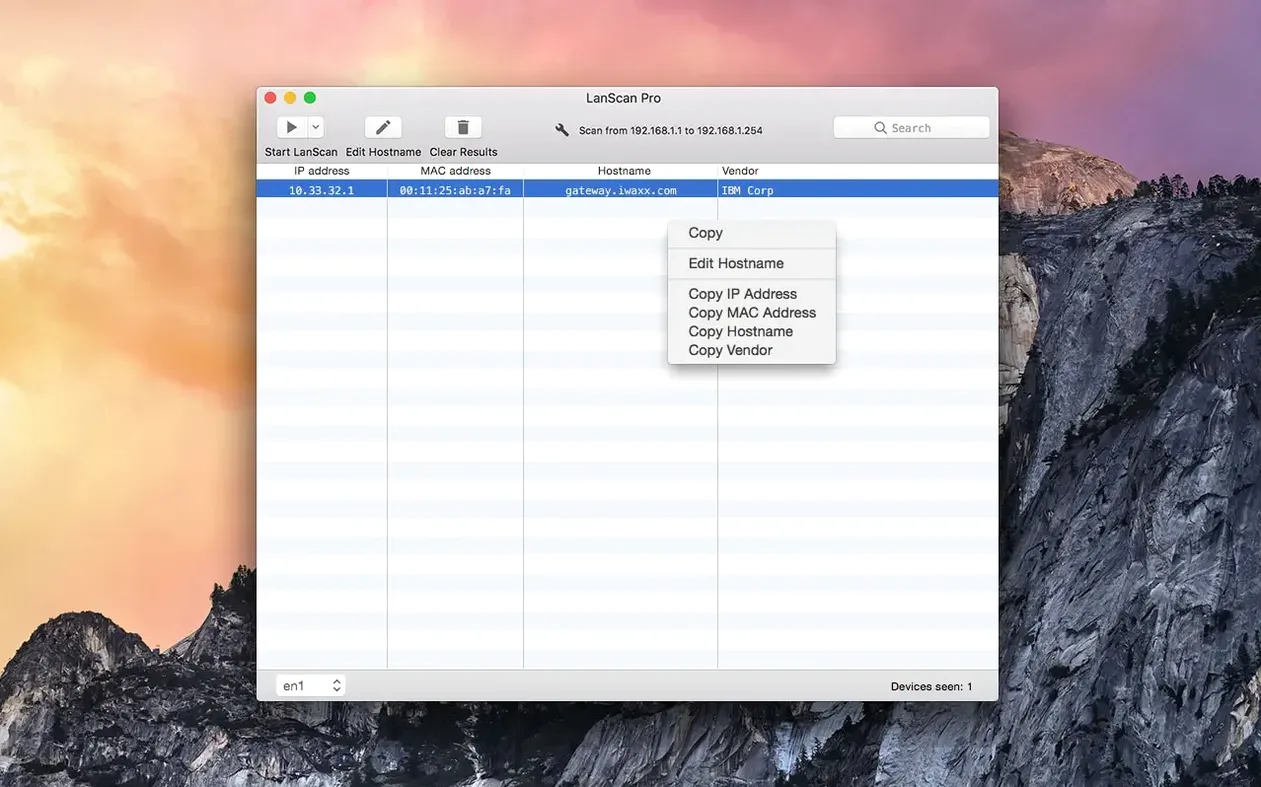
Description
Most people start with the ‘Sort by type’ column. It groups devices into neat categories — Apple kit, networking gear, IoT oddities — so you are not just staring at a raw list of IP addresses. Click the column header and the whole scan rearranges itself.
Find out what is actually on your Wi‑Fi
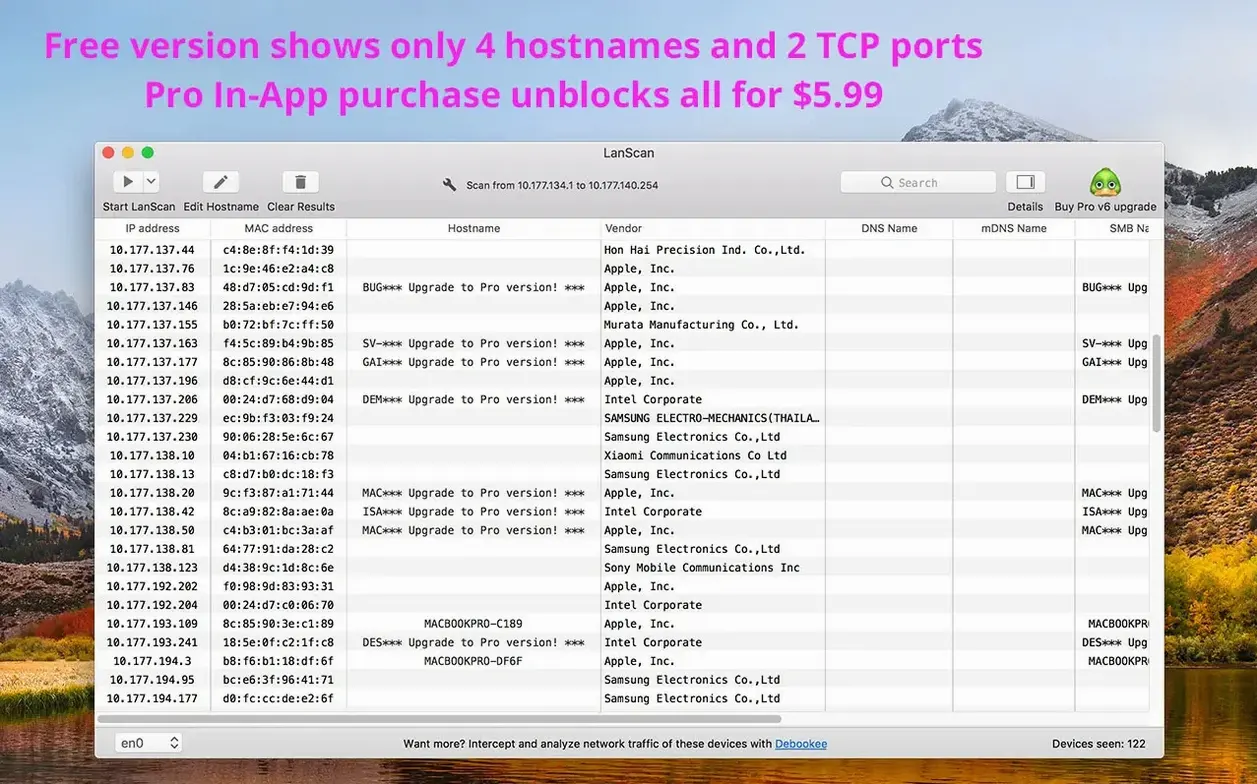
Hit the main scan button. LanScan pings every address in the range you set, then tags each reply with a MAC address, vendor and host name. You get a plain table, no dashboard fluff.
Give mystery devices a proper label
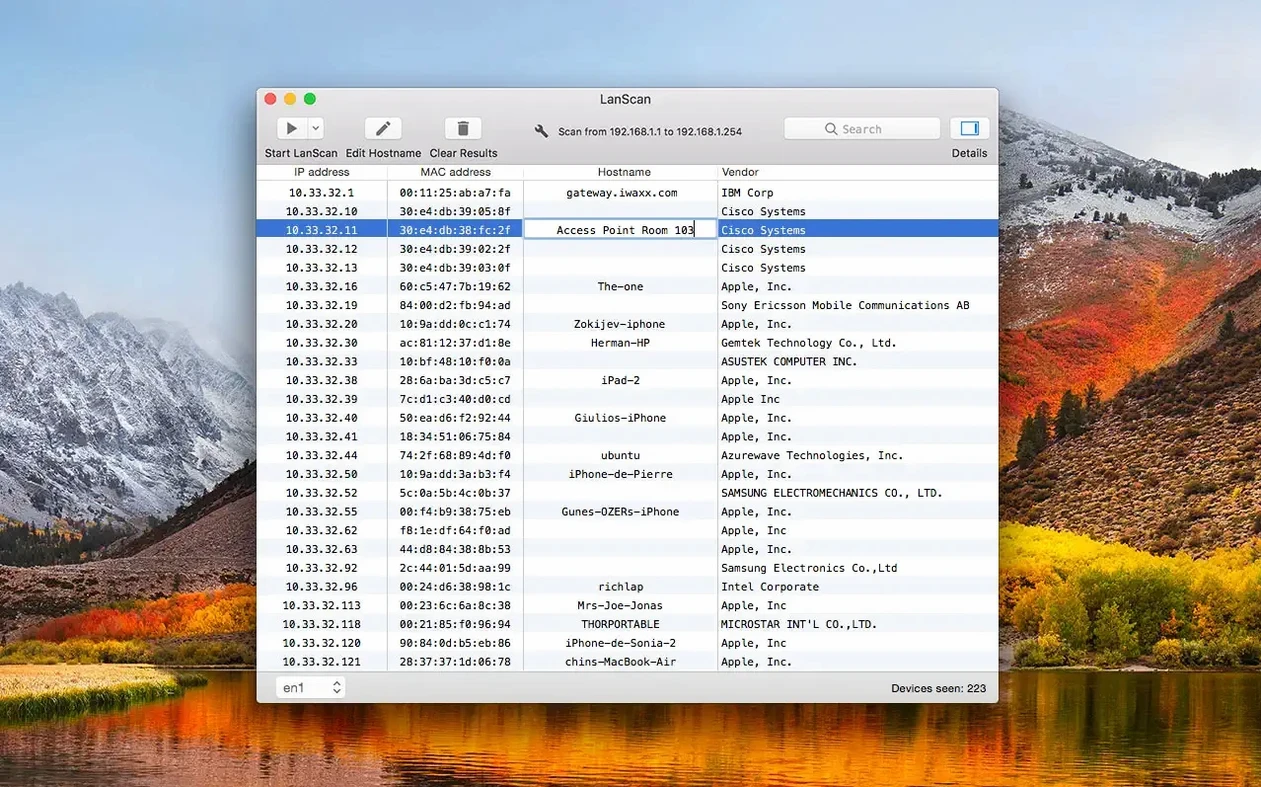
Double-click any host name to edit it in place. Add a comment for the device while you are there. Next time you scan, your custom names stick — handy when a vendor string just says ‘Shenzhen Electronics’.
Open a device’s web interface straight from the table
Right-click a row and choose ‘Open URL’. You can configure a custom URL pattern for each device type, so one click lands you on a printer’s admin page or a router’s login screen.
IPv6 link-local addresses now appear in a single scan
Version 8 brought proper IPv6 scanning. The scanner now discovers link-local addresses alongside IPv4, so you spot devices that have gone dual-stack without realising it. In practice, that means a single scan shows both 192.168.1.64 and fe80::14ab:c5ff:fee3:8d1c for the same Mac, and you can toggle between the two views.
The interface tightened up too. Column alignment sticks between scans, export is quicker on large subnets, and the vendor database got a refresh. Nothing flashy — just fewer annoyances when you run back-to-back scans.
Option‑click the scan button to skip the range sheet
- Hold Option while clicking the scan button to scan only the last-used range, skipping the setup sheet entirely. Great for repeat checks after DHCP changes.
- Drag a CSV file onto the table to import an old scan and compare it against the current network. Handy when you are tracking down a device that has gone missing since Tuesday.
- The hostname column shows up to four names per device — DNS, mDNS, NetBIOS and the one you typed yourself. If a printer advertises itself as ‘HP LaserJet’ via Bonjour but DNS calls it
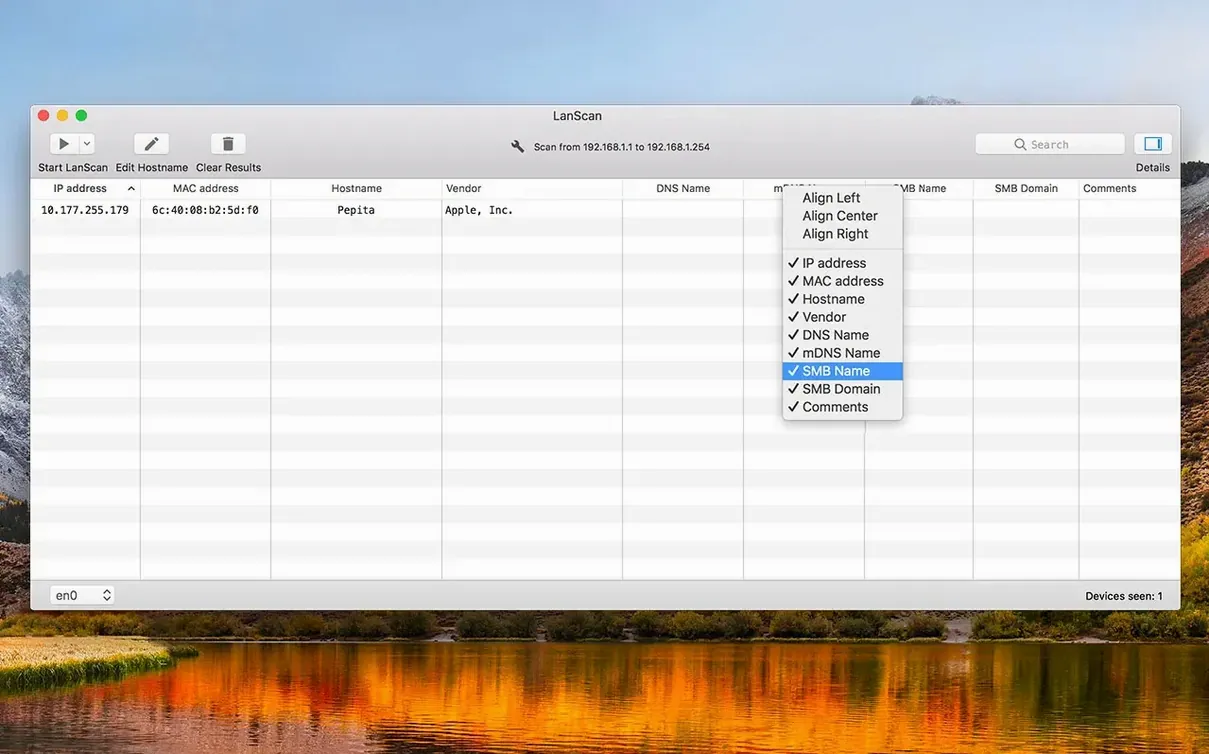
printer-03- east.example.com, both appear. - Right-click any column header to hide it. On a small laptop screen, stripping out the ‘Comment’ and ‘Vendor’ columns leaves just IP, MAC and hostname — exactly what you need for a quick audit.
Worked example: finding an unknown device and blocking it
A small office reports sluggish Wi‑Fi every morning around 9 am. You suspect a rogue device chewing bandwidth. Here is one way to pin it down with LanScan.
- Set the scan range to the office subnet — say
192.168.10.0/24— and run a full sweep. - Sort by the Vendor column. Most devices show familiar names: Apple, Intel, Netgear. One entry just says ‘Espressif Inc.’ with no hostname.
- Note the MAC address. Double-click the hostname cell and type mystery-iot. Add a comment: ‘appeared Mon, no DNS’.
- Right-click the row, pick Open URL, and configure a pattern like
http://%IP. That drops you onto the device’s built-in web page — often a cheap smart plug or a forgotten development board. - Once identified, you log into the router and MAC-filter it. Re-scan with Option‑click to confirm the address is gone.
Export the final scan to CSV before you leave. If the device reappears under a different IP next week, you can drag the old file onto LanScan and spot the match by MAC address straight away.
Requirements
- macOS 12 or later
- Apple Silicon or Intel 64-bit
FAQ
What information does LanScan show for each device?
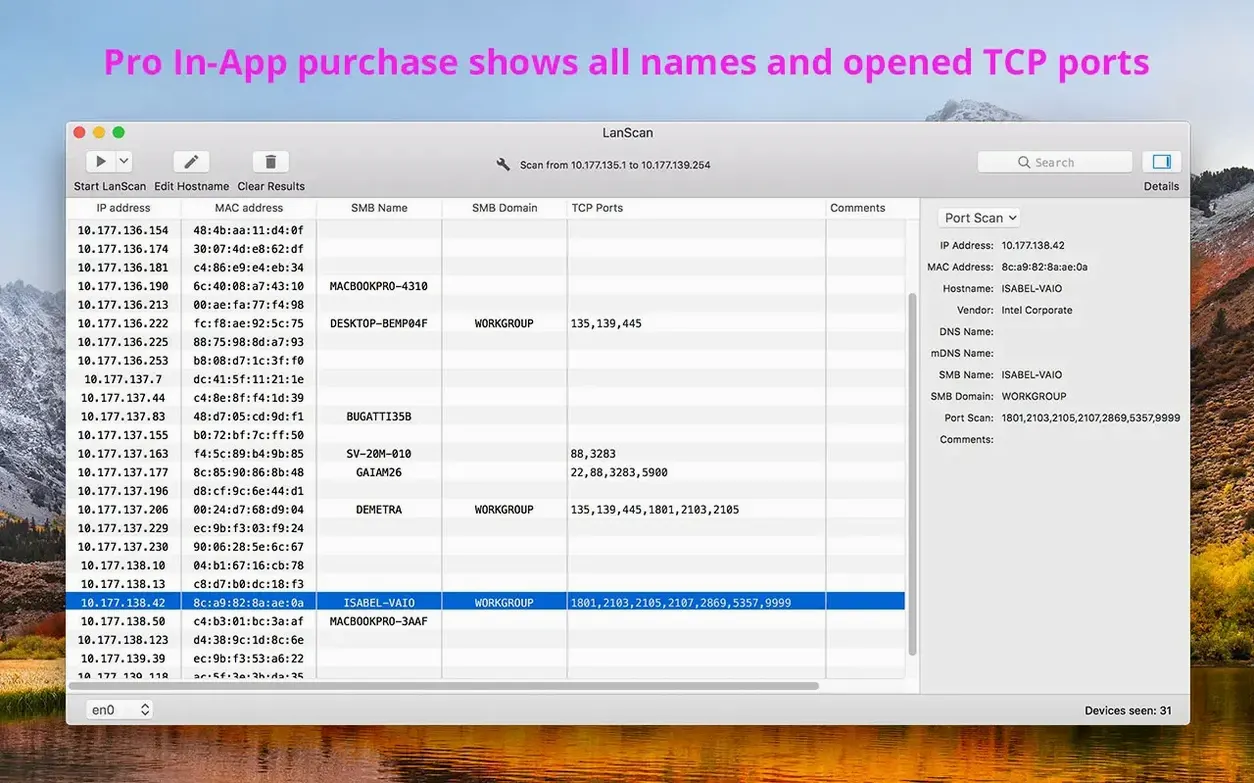
It shows IP address, MAC address, host name and vendor. A device can display up to four host names, and you can add your own custom comment.
What scan methods does LanScan use?
It uses Ping, SMB and mDNS packets to discover devices on public ranges. It can also detect an SMB domain if one is configured on your network.
Comments 0
Sign in or create an account to leave a comment.
No comments yet…
If you’ve installed it, say how it went. Mention your Mac and macOS version — it helps the next person more than you’d think.