iDownerGo for macOS
Description
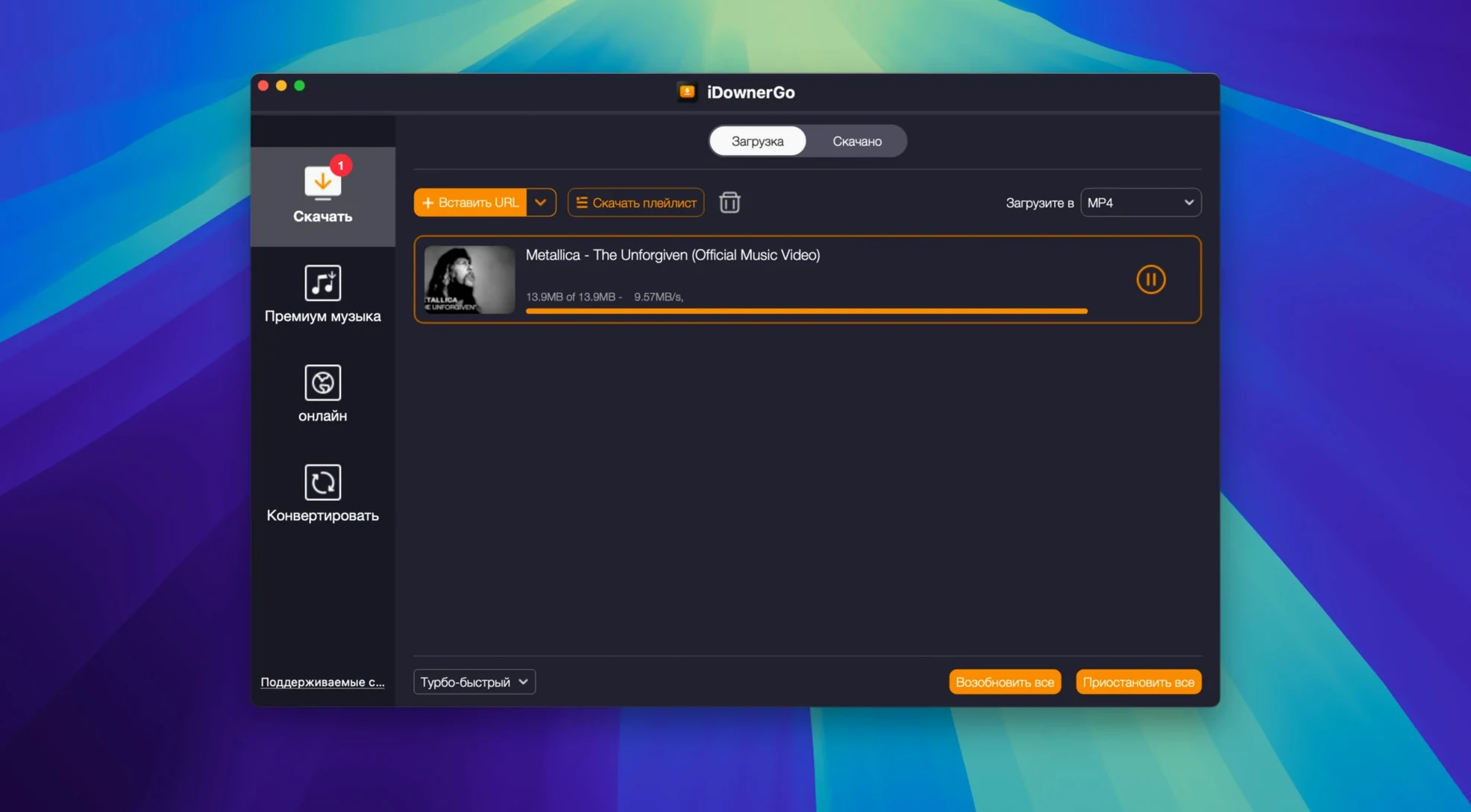
The MP3 extraction is the first thing people test. Paste a music video link, tick the audio-only box, and iDownerGo hands back a proper MP3. That feature alone explains half the installs.
No, it won’t open magnet links or torrents
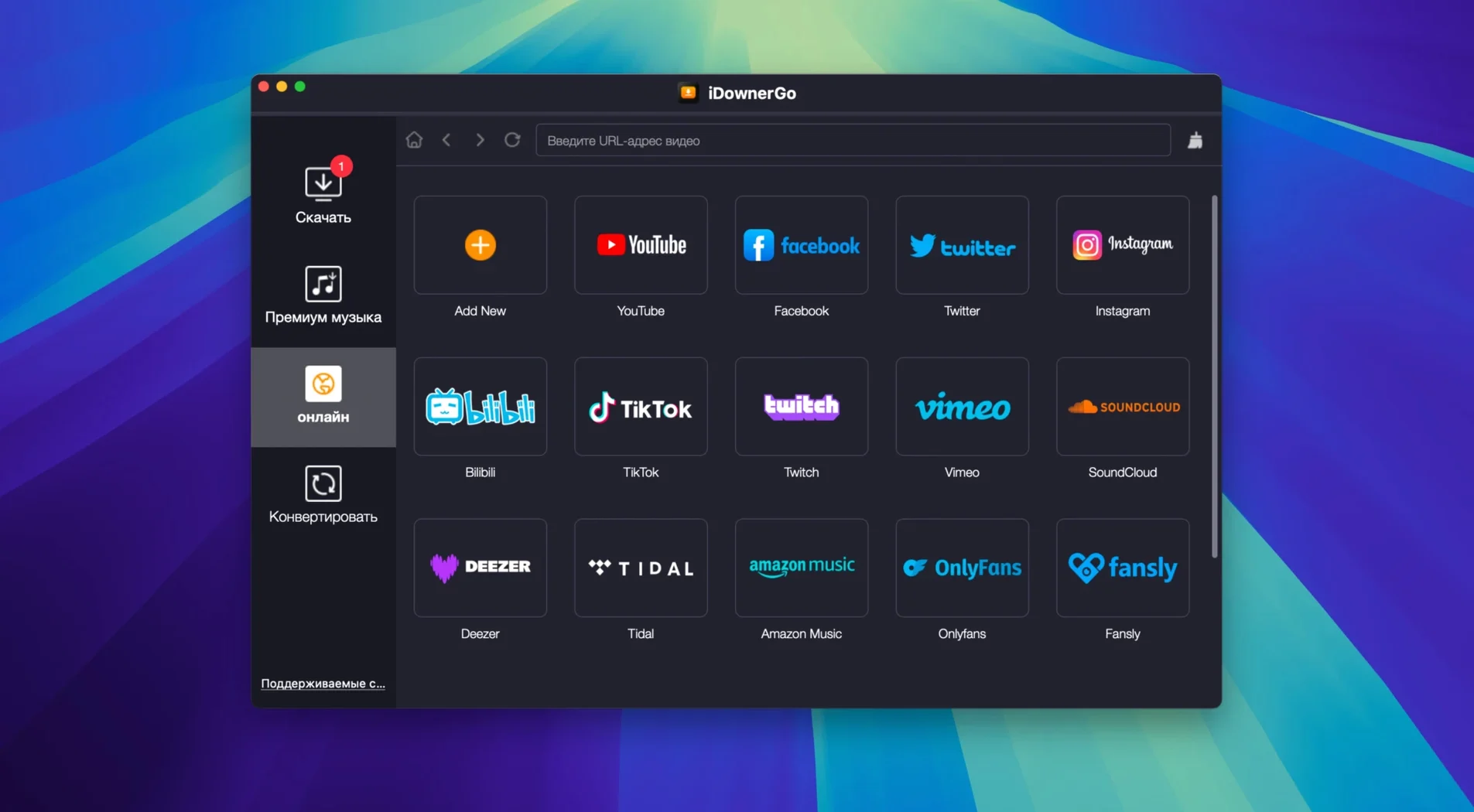
- Does it handle torrents? No. The name confuses people, but iDownerGo is not a BitTorrent client. It grabs video and audio straight from web pages — YouTube, Vimeo, and about 10,000 other sites. If you need a magnet-link handler, this isn't it.
- Will it run on my Mac? It needs an Intel Mac with OS X 10.10 or later. Apple Silicon Macs can run it through Rosetta, but the app is x86 64-bit only.
- What's the quality like? It saves in HD, 4K Ultra HD, or 8K where the source provides it. No re-encoding, so you get what the site streams.
The Terminal step that catches people out
Apple's Gatekeeper will block it on first launch. The workaround is to open it via Terminal — press Enter when prompted, and Gatekeeper steps aside. It's a one-time thing, but worth knowing before you stare at a warning dialog.
Double-click any download to reveal its Finder folder
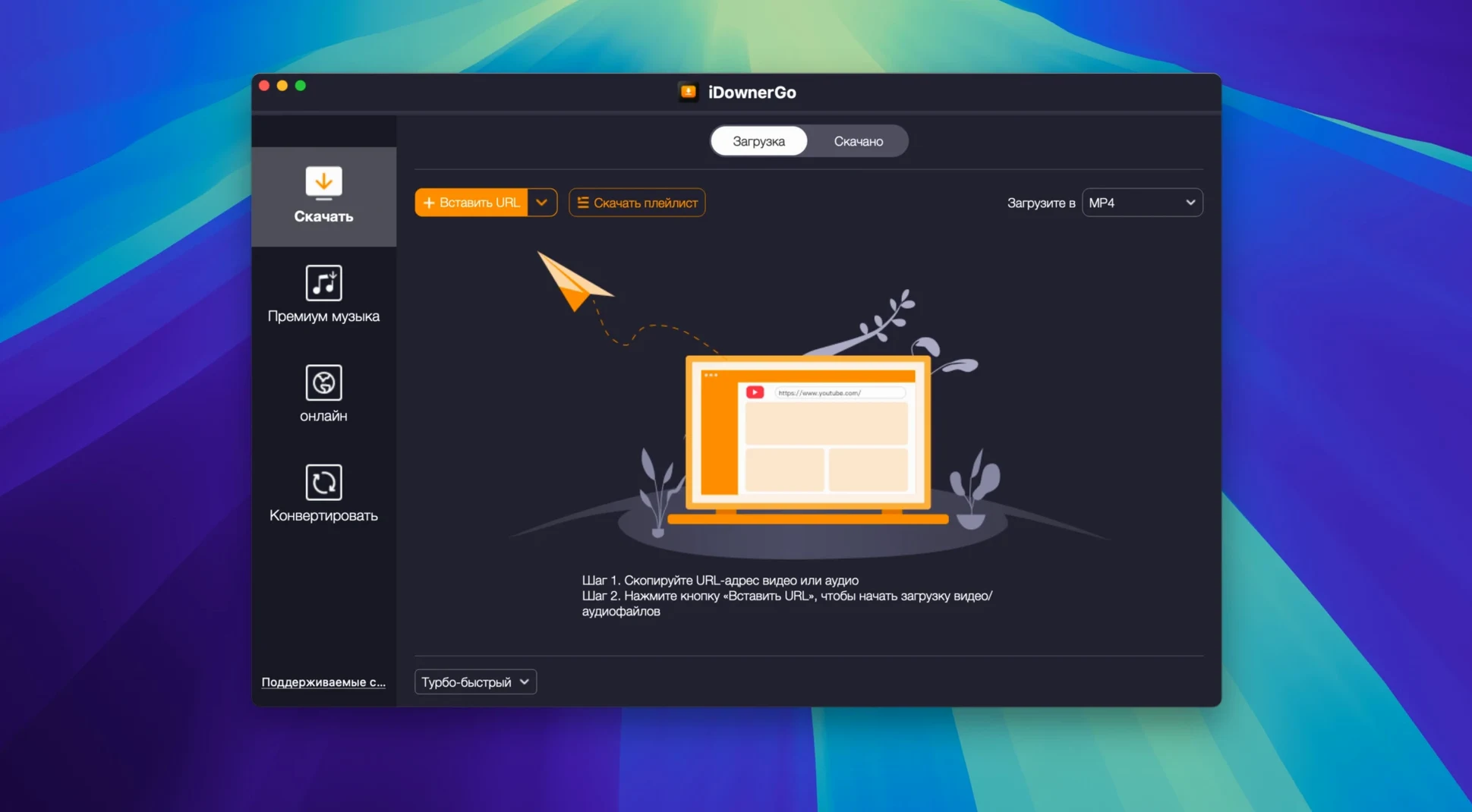
Double-click a completed download in the list and the destination folder opens. That's the fastest way to grab a file without digging through Finder. The queue panel handles drag-and-drop reordering — pull a priority video to the top and it starts next.
The format dropdown remembers your last choice per site. Download a TikTok as MP3 once, and the next TikTok defaults to audio-only. It's a tiny thing, but it spares you the same click fifty times a day.
Right-click any entry in the download list to copy the source URL. Useful when you need to share the link or run it through another tool. The app also lets you paste a batch of URLs at once — just dump a whole text block into the input field and it parses out the valid ones.
Keyboard-wise, Cmd-V triggers a paste-and-parse, and Cmd-Shift-N opens a blank download window. Neither is advertised anywhere obvious, but they work.
Raw queue-and-convert vs. a browser-guided wizard
Next to Downie, iDownerGo covers roughly the same site list but takes a different approach to extraction. Downie leans on browser integration and user-friendly wizards; iDownerGo stays closer to a raw queue-and-convert workflow. If you want a guided setup, Downie feels friendlier. If you want to paste fifty links and walk away, iDownerGo gets out of your way faster.
Compared with JDownloader 2, iDownerGo is far lighter on system resources. JDownloader runs a Java backend that some Macs groan under, and its interface feels like a spaceship dashboard. iDownerGo keeps things to a single window with a simple list. What JDownloader gives you is deeper link-crawling and archive extraction — features iDownerGo doesn't attempt.
Against 4K Video Downloader, the big difference is the audio side. Both grab 4K and 8K video where available, but iDownerGo's MP3 extraction works across the full site list without a separate conversion step. 4K Video Downloader wants you to download the video first, then extract audio. iDownerGo does it in one pass.
Runs fine on Apple Silicon through Rosetta 2
Does iDownerGo work on an M1 or M2 Mac? It runs through Rosetta 2. Performance is fine for a download tool — there's no heavy rendering or encoding happening, so the translation layer doesn't slow things down in any way you'd notice. The app is Intel-only, and that's unlikely to change given the codebase history.
Is it safe to use with Gatekeeper? The Terminal bypass step puts some people off, but it's standard for software distributed outside the Mac App Store. The app asks for network access and a folder to save files — nothing more. No background daemons, no login items added without asking.
What happens with region-locked videos? iDownerGo doesn't include a VPN or proxy. If a video is blocked in your country, the download will fail the same way it would in a browser. You'd need to handle geolocation separately.
Can I download an entire YouTube playlist in one go? Yes. Paste the playlist URL and the app parses every video in it. You can then pick formats per video or set a default for the whole batch before it starts.
Requirements
- OS X 10.10 or later
- Intel-based Mac (x86 64-bit)
- Apple Silicon supported via Rosetta
Comments 0
Sign in or create an account to leave a comment.
No comments yet…
If you’ve installed it, say how it went. Mention your Mac and macOS version — it helps the next person more than you’d think.