
HitPaw Video Converter for macOS
Description
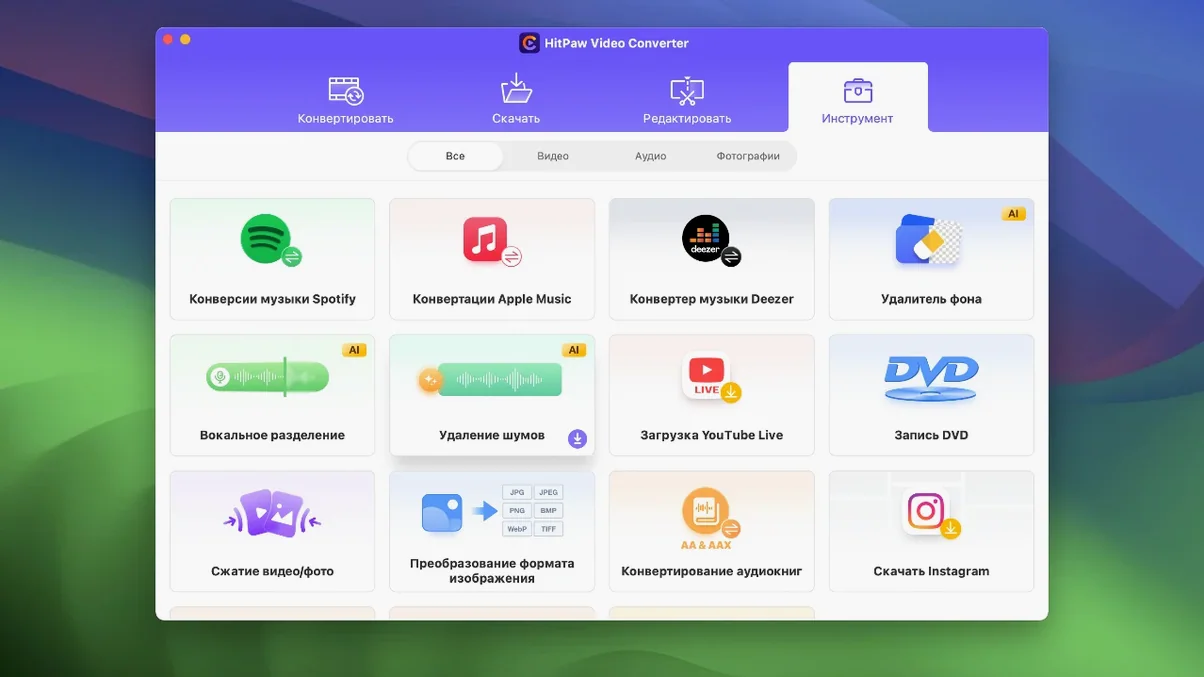
Version 4.5.0 lands with three practical changes: the compression module got a tune-up, the editor display behaves better, and a new auto reframe feature arrived. The site mentions AI-powered tools, but the bits worth your attention are the codec support and the editing controls tucked inside a converter that also pulls from over 10,000 sites.
Codecs and formats that matter
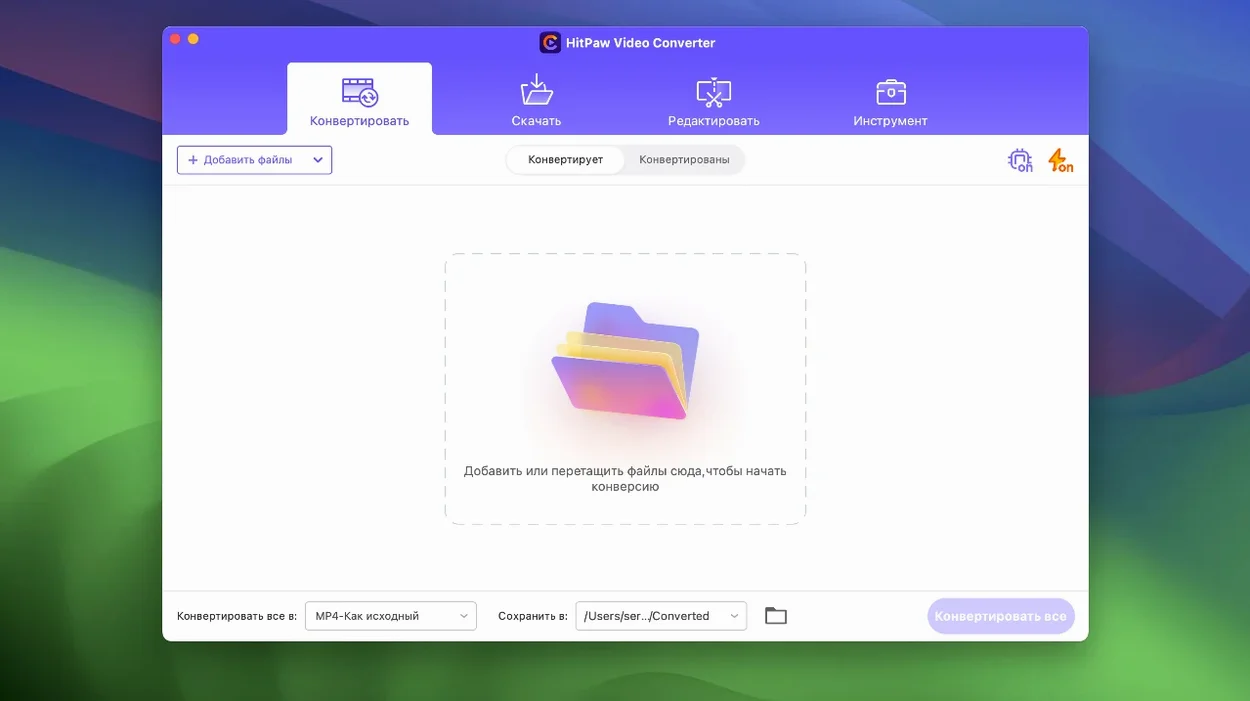
The app claims over 1000 output formats, but the shortlist that counts includes VP9, ProRes, and Opus. If you’re re-encoding for a specific platform or archiving in a mezzanine format, having those encoders on a single screen saves you from stitching together FFmpeg commands. It handles video, audio, DVD, and images, and the conversion pipeline aims for lossless output where the source allows. The architecture is x86 64-bit, running on macOS 10.15 and later — no Apple Silicon native build yet.
The editing layer
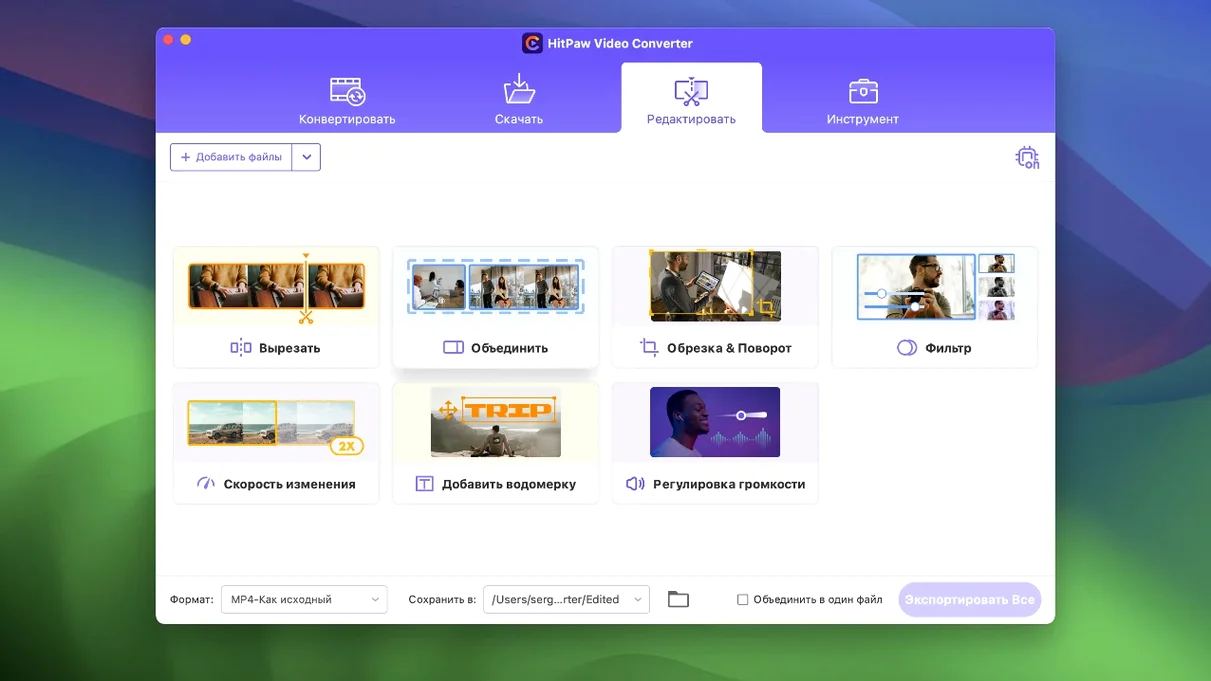
Editing inside a converter usually means a trim tool and little else. HitPaw Video Converter goes further. The new auto reframe feature watches your footage and keeps the action in frame when you change aspect ratios — useful if you’re repurposing a 16:9 edit for a vertical short. The editor module display was reworked in this release, so cropping, rotating, and applying effects feels less like an afterthought. The compression optimization is quieter: same visual quality, smaller files, fewer surprises in the export queue.
A real task from start to finish
Converting downloaded music to Opus for a compact offline library. Most streaming rips land in M4A or AAC, which are fine but bloat a phone fast.
- Drop a folder of M4A tracks into the main window. HitPaw Video Converter parses them all — no need to add files one by one.
- Set output to Audio › Opus at 128 kbps. The preset list is long. Typing "opus" in the search bar cuts through the 1000-format clutter immediately.
- Click the gear icon next to the preset. Set bitrate mode to VBR and sample rate to 48 kHz. Those extra taps keep the transients crisp on half-decent headphones.
- Hit Convert. Ten albums finish in under three minutes on an Intel Mac. The batch processor lights up all cores, so you’re not watching a progress bar crawl.
- Open the output folder from the checkmark button at the bottom. Every file is named correctly — no "_converted" suffix, no mystery numbering.
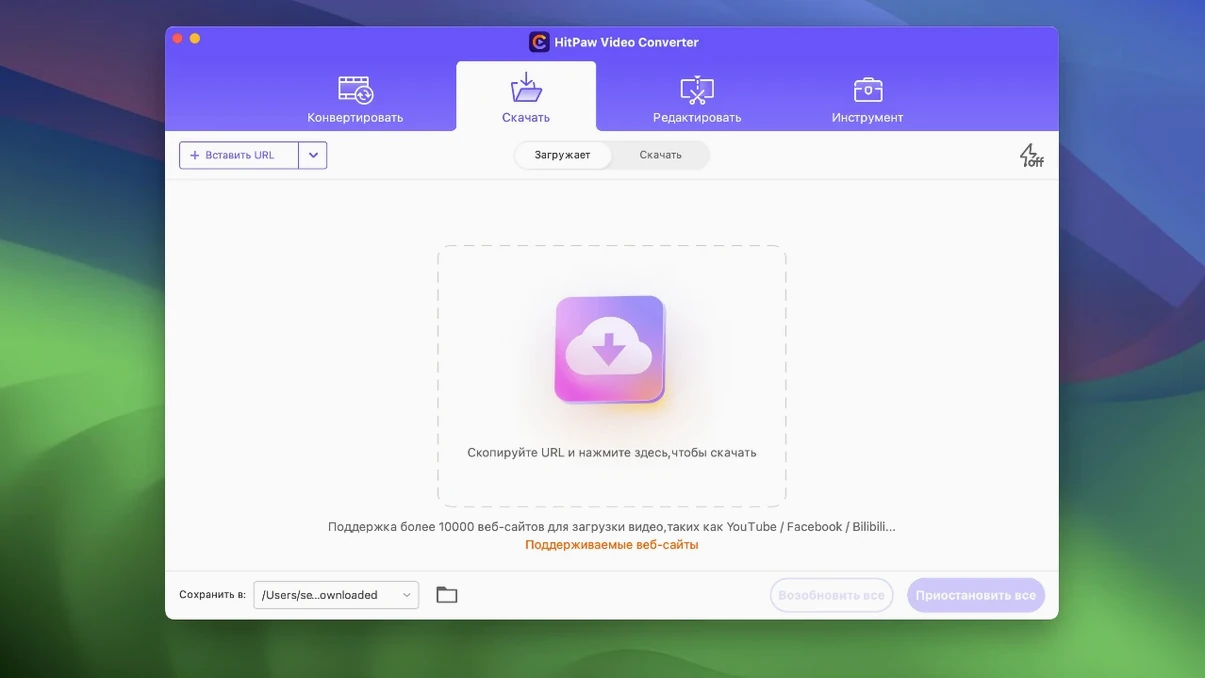
The same flow works for downloading from a playlist URL first, then converting. Paste the link on the Download tab, let it grab the videos, then switch to Convert and pick Opus or MP3. Two clicks, zero intermediate files cluttering the desktop.
Merge button stitches clips before conversion
The merge button sits quiet in the corner but solves a daily annoyance. Select three clips in the file list, click Merge, and they stitch end-to-end before conversion — no timeline, no separate editor. Perfect for joining dashcam segments or phone video chunks.
The search bar on the output format panel is the real time-saver. Scrolling through a tree of "Apple › iPhone 13 › H.264" presets is slow. Typing "prores" or "vp9" jumps straight there. The app remembers your last five choices too, so repeat jobs need one click.
Right-click any file in the list for a quick trim window. Set in and out points with the sliders, preview the cut, and confirm — all without leaving the main screen. No separate export step for the trimmed clip.
Wait for the blue analysis spinner before ticking items
Pasting a YouTube playlist expecting instant download, then wondering why nothing happens. The Download tab has two modes: Paste URL and Analyse. Paste first, wait for the blue analysis spinner to finish, then tick the items you want. Skipping the analysis step leaves an empty queue.
Choosing "Original Quality" for compression and getting a larger file than the source. The compression module needs a target size or bitrate — leaving it on auto sometimes guesses high. Set a value in MB or pick a lower bitrate preset if you’re actually trying to shrink something.
Exporting to ProRes without checking the frame-rate mismatch. The converter follows the source frame rate by default. If your source is 30 fps and your project needs 24 fps, the output stutters on an NLE timeline. Use the little pencil icon on the file row to force a frame rate before converting.
Forgetting the download list persists across sessions. Queued URLs sit there until you clear them, so you might open the app to convert a local file and wonder why yesterday's video links are still hogging the list. Right-click and "Clear completed" occasionally.
Worth it if you need Opus encoding and website downloads in one window instead of three separate tools.
What’s new
Optimized the compression module. Optimized the editor module display. Adds auto reframe feature.
Requirements
- macOS 10.15 or later
- Intel (x86 64-bit) architecture
FAQ
Does HitPaw Video Converter support ProRes on Mac?
Yes, ProRes is listed among the advanced encoders alongside VP9 and Opus.
Comments 0
Sign in or create an account to leave a comment.
No comments yet…
If you’ve installed it, say how it went. Mention your Mac and macOS version — it helps the next person more than you’d think.