iMazing for macOS
Description
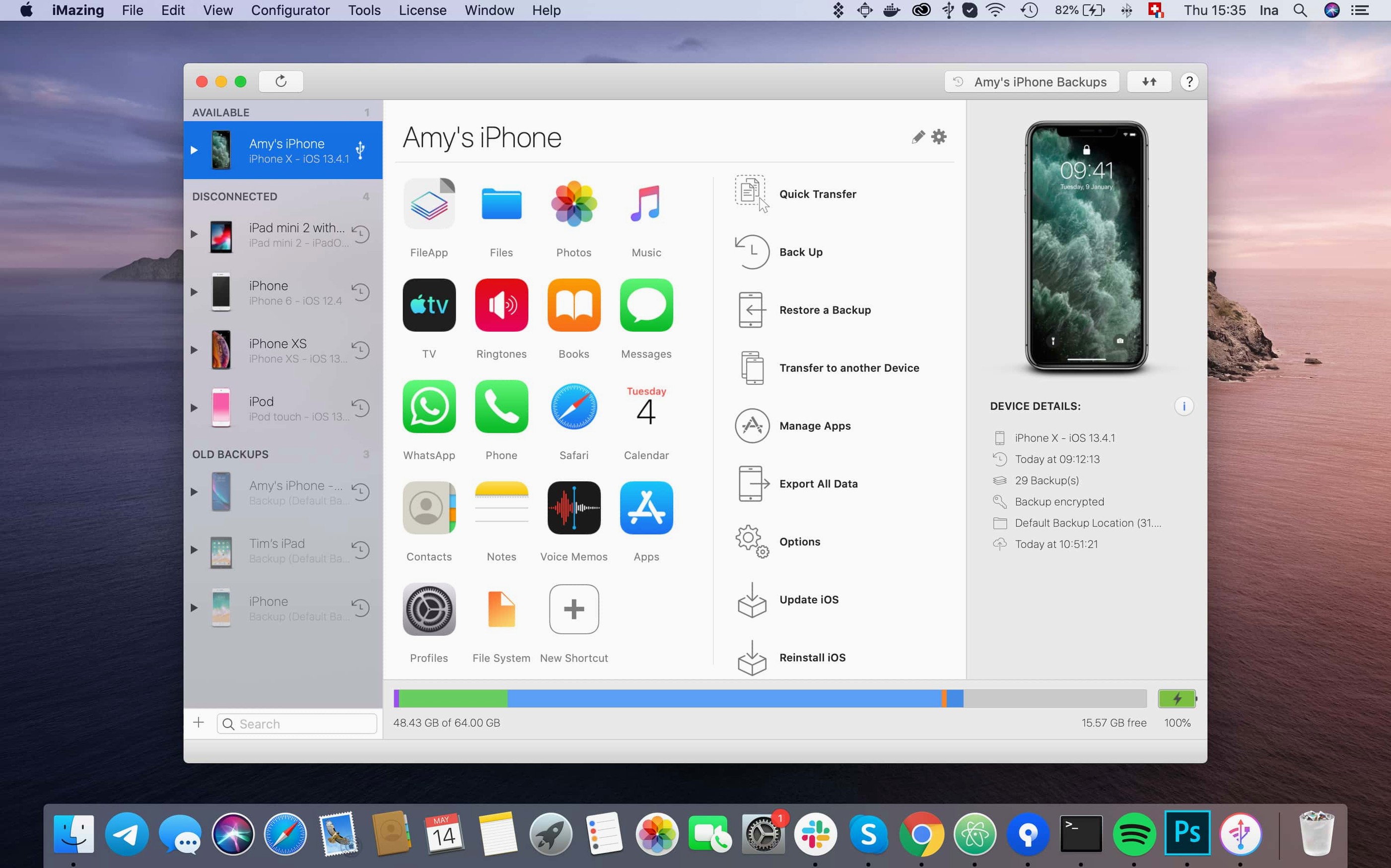
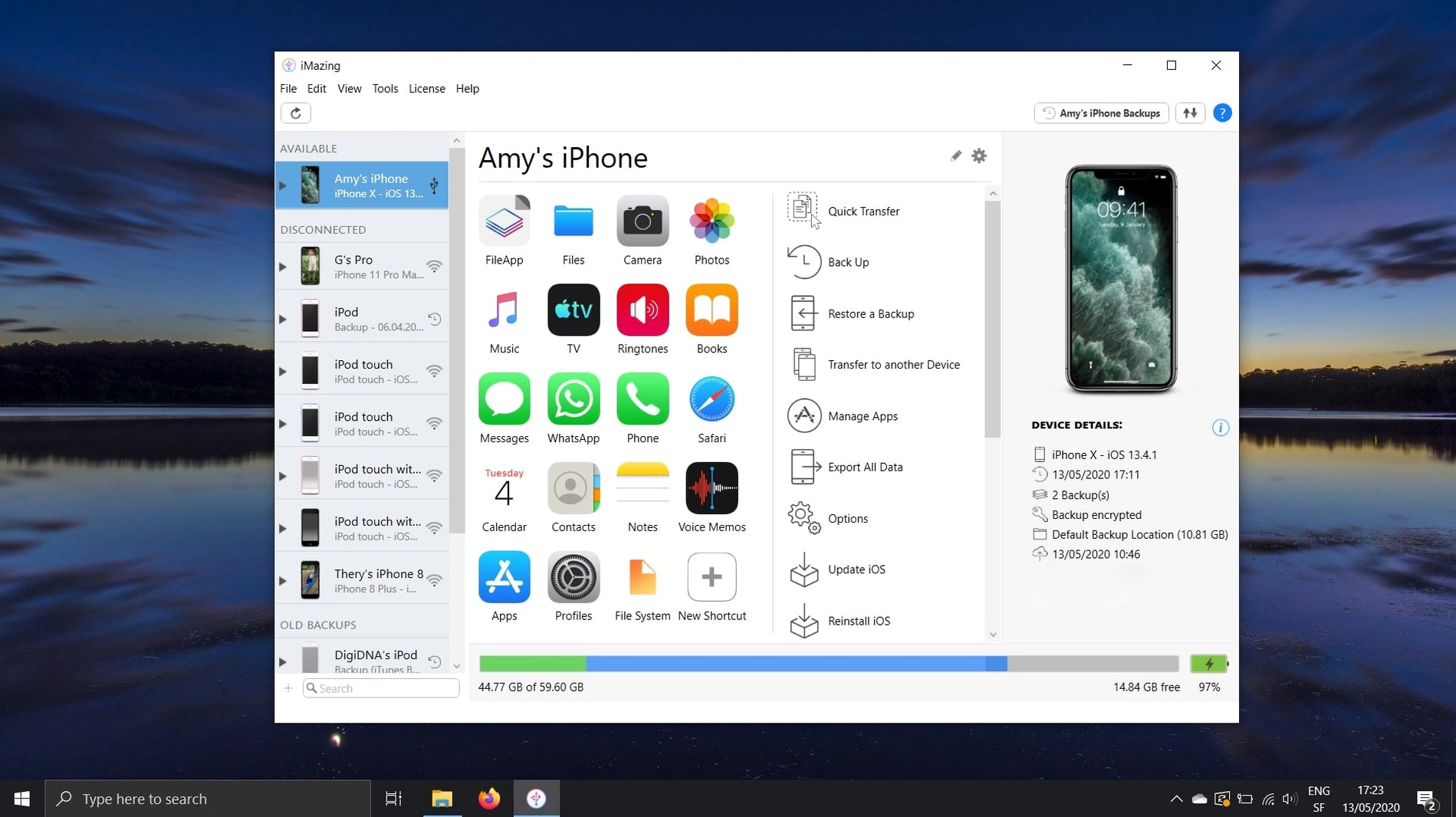
Exported a shared app group container from a backup yet? It's the sort of thing you never think about until a migration goes sideways. iMazing steps in where iTunes stops, giving you direct access to the file system and backup data on an iPhone or iPad.
Migrate full message threads and media to a new phone
- Copying text messages with attachments to a computer or a new phone, keeping full threads intact.
- Transferring music, contacts, files and apps when moving from an old device to a new one.
- Pulling data from encrypted backups without a full restore — grab one file instead of the whole image.
- Importing ePub and PDF books directly, working alongside Apple Books rather than fighting it.
Needs macOS 10.11 or later, handles data iTunes ignores
- It manages data iTunes doesn't touch, which is the point — but you still need a Mac running OS X 10.11 or newer.
- Version 3.6.5 runs on both Intel and Apple Silicon Macs.
- The interface covers a lot of ground. Expect to poke around a bit before you find everything.
Browse raw app containers and the iPhone file system
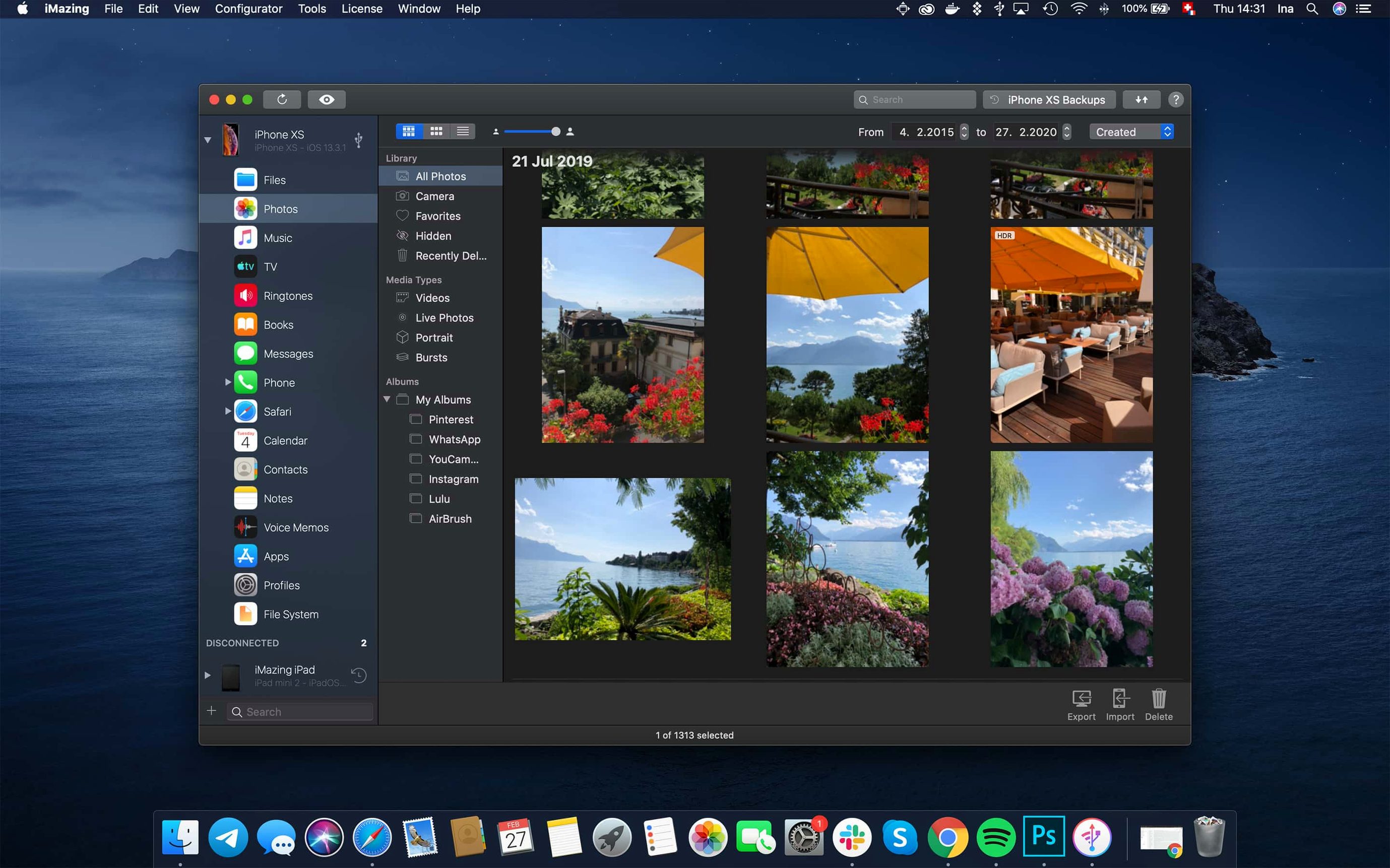
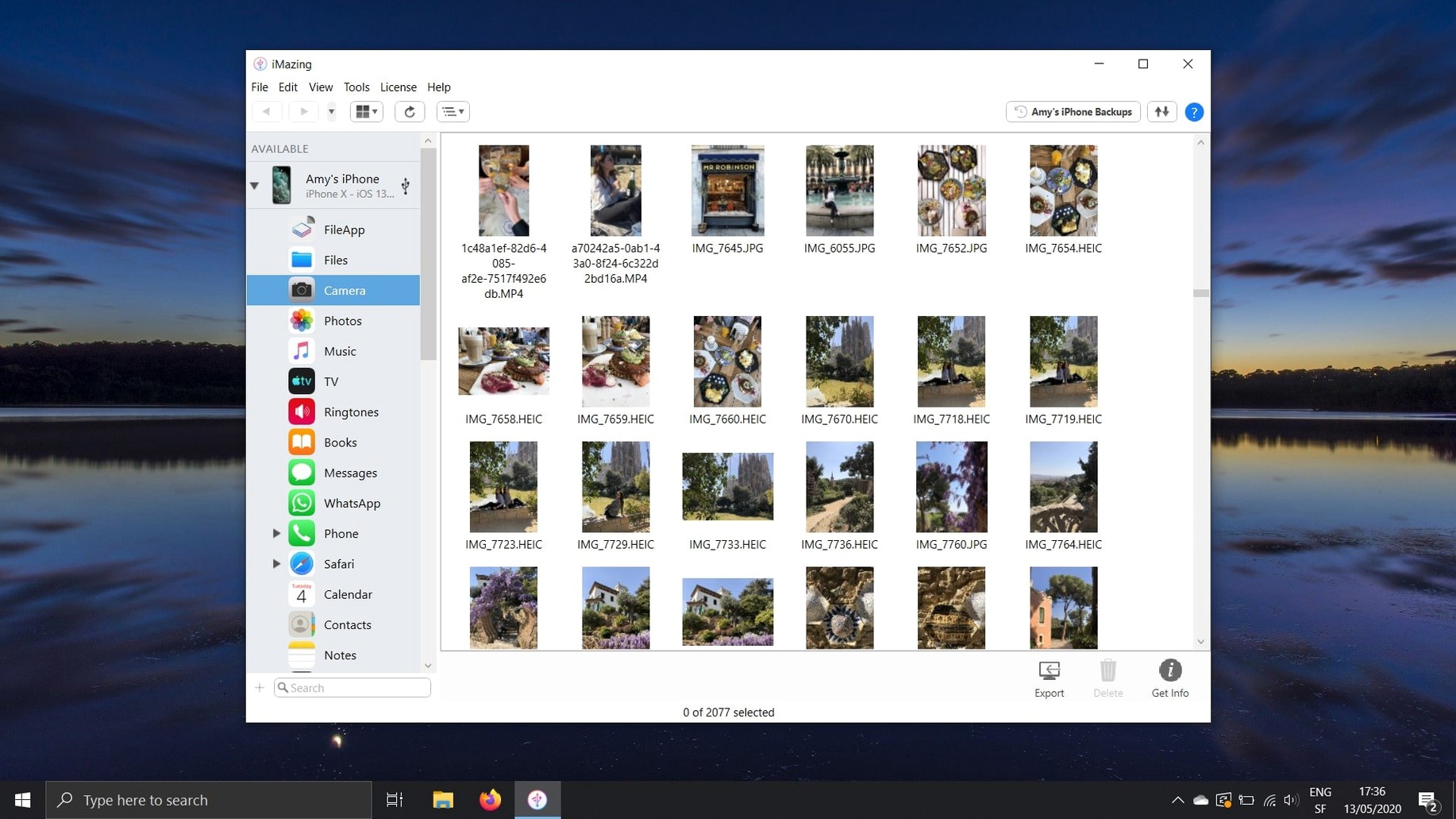
Finder handles basic sync and backup on modern macOS, but it never gives you raw access to your iPhone's file system. iMazing sits somewhere between Finder and a developer tool — you get the file system view, app containers, and message export without knowing what a mobile provisioning profile is.
AnyTrans covers similar ground. It's friendlier to look at on first launch, but iMazing's backup browsing goes deeper. If you just want photos off a phone, either works. If you need to pull a single plist out of an encrypted backup from two years ago, iMazing is the one that doesn't make you jump through hoops. iExplorer was the old-school favourite for this, and it's simpler — but it has not kept up with recent iOS changes the way iMazing has. Version 3.6.5 supports the iPhone 18 line on day one, which tells you something about how actively DigiDNA tracks Apple releases.
Enable automatic Wi‑Fi backups before you need them
The defaults are sane, but a few toggles make daily use less annoying.
- Turn on automatic backups before you need them. iMazing can back up over Wi-Fi when your iPhone is on the same network. Set it once, forget it, and thank yourself after a bad iOS update.
- Set a backup location. Backups land on your main drive by default. If you keep years of messages and photos, point that at an external drive instead.
- Disable the welcome assistant. It's useful the first time, but it pops up on every launch until you switch it off in preferences.
- Check the file system view security settings. You can restrict access to certain app containers. Not essential for most people, but worth knowing if a family Mac is shared.
One quirk: iMazing asks for a backup password when you enable Wi-Fi backup. That's expected, not a bug. It needs the encryption key to read your data later.
iPhone 18 Pro and Apple Watch Ultra 4 support
Most updates add a new iPhone to the compatibility list and call it a day. This one does more. Support for iPhone 18 Pro, iPhone 18 Pro Max, iPhone Duo, Apple Watch Series 12, and Apple Watch Ultra 4 means backups and restores work cleanly on the newest hardware from the start. That matters when you're setting up a new phone the same week it ships.
The unified logs view got a proper export option for complete log archives. Previously you could inspect logs but not pull the whole thing out in one go. If you've ever had to send a crash report to a developer, you'll appreciate that.
Two smaller fixes: scanned documents from iOS 26 now display every page, not just the first, and app downloads that failed with error code 429 — a rate-limiting response — no longer stall. There's also an iMazing Chatbot link in the toolbar now. It opens a support assistant rather than making you dig through documentation. Not exciting, but practical.
Shared app group containers are now included when you export an .imazingapp file from a backup. That's the sort of change that only matters when you move an app with its data to a new device and realise the settings actually came along this time.
Drag files straight to the desktop, no export wizard
A few things hide in plain sight.
- Drag and drop from the file system view. Select a file in an app container, drag it to the desktop. No export wizard, no confirmation dialog. It just works.
- Export an entire message thread as PDF. Useful for legal stuff or just keeping a record of a long conversation. The option is in the Messages section under Export.
- Call logs as CSV. Right-click a call log entry and export. Spreadsheet-ready, no formatting gymnastics.
- Voicemail to audio file. Select a voicemail, export as
.m4a. You now have a copy outside the phone's voicemail tab. - Quick transfer between devices. Connect two iPhones to the same Mac and copy messages, contacts, or photos directly from one to the other. No intermediate export folder.
If you're rebuilding a phone and want the least painful route, transfer what you need manually from an old backup rather than restoring the whole thing. Open the backup browser, find the app data you want, and pull it across. Faster than waiting for a full restore when you only need four things.
What’s new
Adds support for iPhone 18 Pro, iPhone 18 Pro Max, iPhone Duo, Apple Watch Series 12 and Apple Watch Ultra 4. Adds export of complete log archives from the unified logs view. Adds a link to iMazing Chatbot in the main window toolbar.
Requirements
- OS X 10.11 or newer
- Intel or Apple Silicon Mac
FAQ
Can iMazing transfer messages from an old iPhone to a new one?
Yes, it copies text messages and their attachments directly from one iPhone to another, or from an iPhone to a Mac or PC.
Does iMazing work with encrypted iPhone backups?
It does. You can modify and restore individual files from encrypted backups without having to restore the entire backup to a device.
Comments 0
Sign in or create an account to leave a comment.
No comments yet…
If you’ve installed it, say how it went. Mention your Mac and macOS version — it helps the next person more than you’d think.