Imagenomic Portraiture for macOS
Description
If you already spend half your session with the Healing Brush, you know the drill. Portraiture steps in where that tool leaves off — not to replace it, but to handle the broad, even skin smoothing that takes forever to do by hand.
Clone out zits before you smooth
- Spot removal first. Use the Healing Brush or Clone Stamp for blemishes, stray hairs, and hard edges. Portraiture doesn't know what a zit is.
- Run Portraiture on a duplicate layer. It smooths skin tone and texture across the whole face, preserving eyebrows, lashes, and lip lines via its built-in masking.
- Dial back the layer opacity. 70–85% usually looks lived-in rather than plastic.
- Finish with dodge and burn on a new layer to bring structure back.
What the plugin actually does
The current version uses an updated AI smoothing engine to separate skin texture from fine detail. You get a mask preview and a handful of sliders — no pixel-by-pixel painting required. Works in Photoshop, Lightroom Classic, and Affinity on macOS 13 and later.
Layer mask control inside Photoshop
Portraiture works as a plugin inside a host, so a lot of its usefulness comes from how it plays with the app around it. In Photoshop it runs as a filter on the current layer. That means you can use it inside a smart object and come back to tweak settings later — non-destructive, fully re-editable. In Lightroom Classic it triggers an external round-trip: the plugin opens your raw file as a TIFF or PSD, hands it to Portraiture, then drops the retouched copy back into your catalog alongside the original.
The Affinity route is less obvious but worth knowing. If you've already installed the Photoshop-format plugin, Affinity Photo picks it up in Preferences → Photoshop Plugins once you point it at the right folder. It runs under the Filters menu → Plugins → Imagenomic. Not all plugins survive that path, but this one does.
On the macOS side, the installer bypasses Gatekeeper with a Terminal command. After that first run, the plugin loads like any other filter. No background processes, no menu bar helpers, no launch agents. One thing worth checking: if you use a Wacom tablet, Portraiture's preview window responds to pen pressure for zooming and panning — not documented anywhere obvious, but it works.
Right-click to reveal the smoothing mask
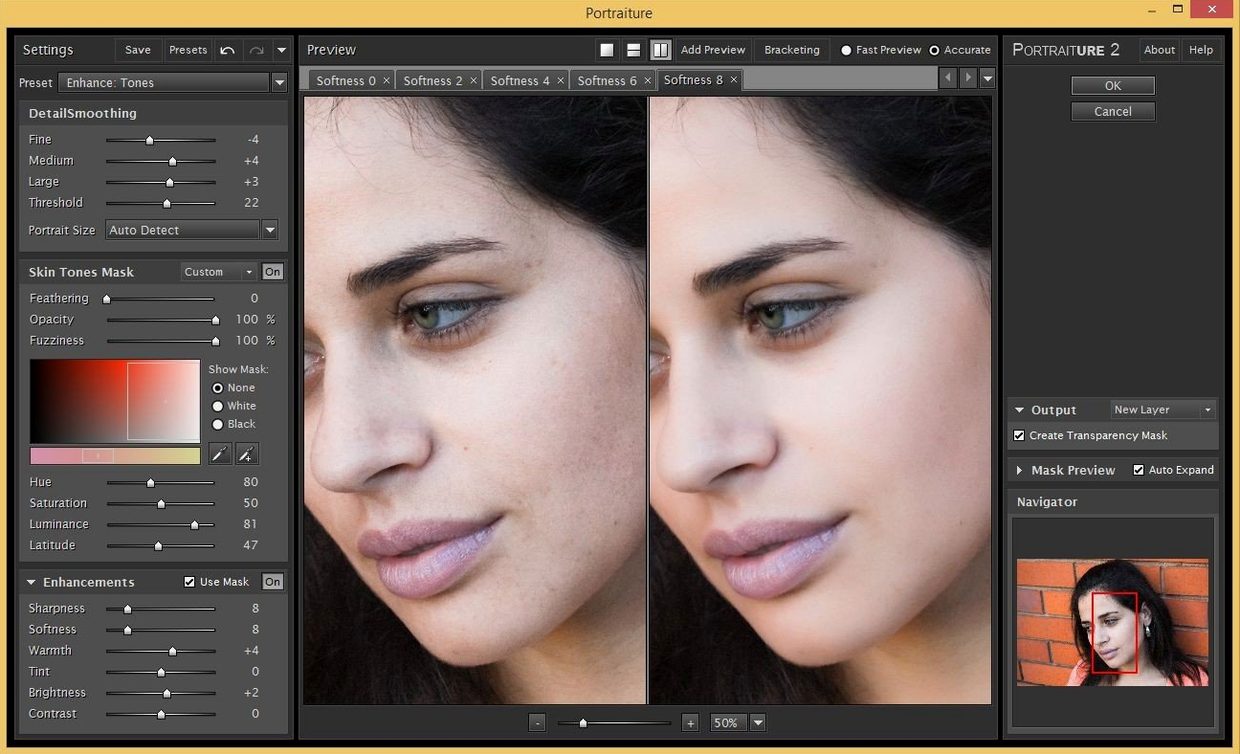
The preview pane isn't just a before/after toggle. You can click and drag to pan, scroll to zoom, and right-click to switch between full-colour preview and a black-and-white mask view that shows exactly where the smoothing hits. The mask view is the quickest way to spot a setting that's eating into eyelashes or shirt collars.
A few other bits tucked in the interface:
- Custom presets drop-down. After you dial in a look that works for a whole session — say, outdoor natural light, fair skin — save it. The preset stores every slider position, not just the strength. Next time, two clicks.
- Keyboard shortcut for side-by-side. Tapping the spacebar while hovering over the preview toggles between the original and the retouched view. Faster than moving the mouse to the toolbar button.
- Mask refinement sliders. Most people grab Smoothness and stop. The three mask sliders lower down — Skin Tones, Skin Mask, and Details — let you tighten or loosen the detection without touching the smoothing amount. Useful when someone has a beard or heavy freckles.
- Output options inside Lightroom. When the round-trip dialog appears, you can choose TIFF or PSD, 8-bit or 16-bit, and a colour space. It remembers your last pick, so set it once for your editing pipeline and forget it.
Workflow: evening-out a group shot in Lightroom
Say you have 30 frames from a corporate headshot session. Same lighting, same backdrop, different faces. Doing each one with frequency separation would eat the rest of your week. Here's a path that gets it done in under an hour:
- In Lightroom, apply your basic colour and tone corrections to the first image. Don't touch skin yet.
- Right-click → Edit In → Imagenomic Portraiture. The plugin opens with a flattened TIFF copy.
- Zoom to 100% on a cheek. Move Smoothness up until the texture evens out but pores don't vanish — usually 25–40 for office lighting.
- Switch to the mask view (right-click). Check that eyebrows, lips and hair stay dark. If the mask is bleeding into the collar, nudge Skin Tones up a few points.
- Save these settings as a preset named after the lighting setup, e.g. "Office 4000K f4".
- Click OK. The retouched TIFF lands back in Lightroom, stacked with the original.
- For the remaining 29 shots: right-click, Edit In, pick the same preset from the drop-down, and hit OK. Five seconds per image.
- Export the whole batch as JPEGs. Spot-check every fifth one at 1:1 and hand-retouch any blemishes the AI missed — usually just a stray hair or a mole it misread.
The preset is doing the heavy lifting. Because the lighting is consistent, the mask detection works the same across all the faces. If someone has much darker or lighter skin, you may need a second preset, but two presets still beats 30 manual passes.
A wedding photographer's afternoon
Helen shoots 50 weddings a year. Her bottleneck isn't the ceremony — it's the 300+ reception candids where guests are moving, the light is mixed, and everyone is slightly flushed from the dance floor. She used to deliver those with minimal retouching because full skin work per frame was impossible.
Now she culls in Photo Mechanic, brings the keepers into Lightroom, and runs Portraiture with a preset she built for tungsten reception lighting. Smoothness sits low — around 20 — because she's only taking the edge off, not producing a magazine cover. She applies it to batches of 20 frames at a time, letting the plugin do the background work while she edits the next set. The mask detection handles varied face sizes without adjustment because she's already dialled in the skin-tone range for that venue's lighting.
She still goes in for close-ups of the couple: those get individual attention with a second pass and some manual dodging. But for the 280 guest shots, the plugin turns a three-day editing slog into an afternoon with a cup of tea and a podcast. Nothing looks overdone, and nobody ever asks whether the skin was retouched — which is the whole point.
What’s new
Build 4501 ships a next-generation version of the AI smoothing engine.
Requirements
- macOS 13 or later
- Runs natively on Intel and Apple Silicon
- Host: Photoshop, Lightroom Classic, or Affinity
Comments 0
Sign in or create an account to leave a comment.
No comments yet…
If you’ve installed it, say how it went. Mention your Mac and macOS version — it helps the next person more than you’d think.