
HitPaw Univd for macOS
Description
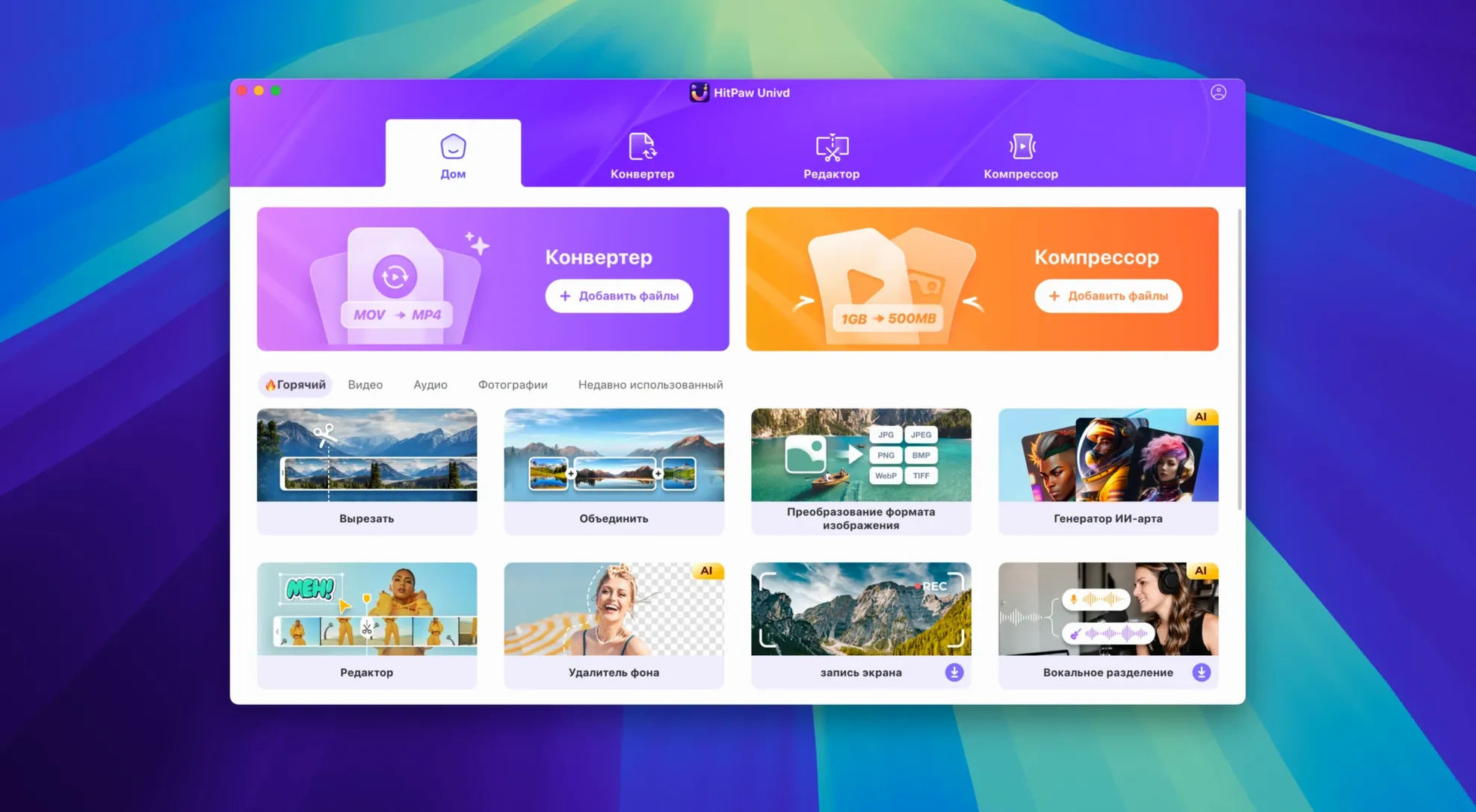
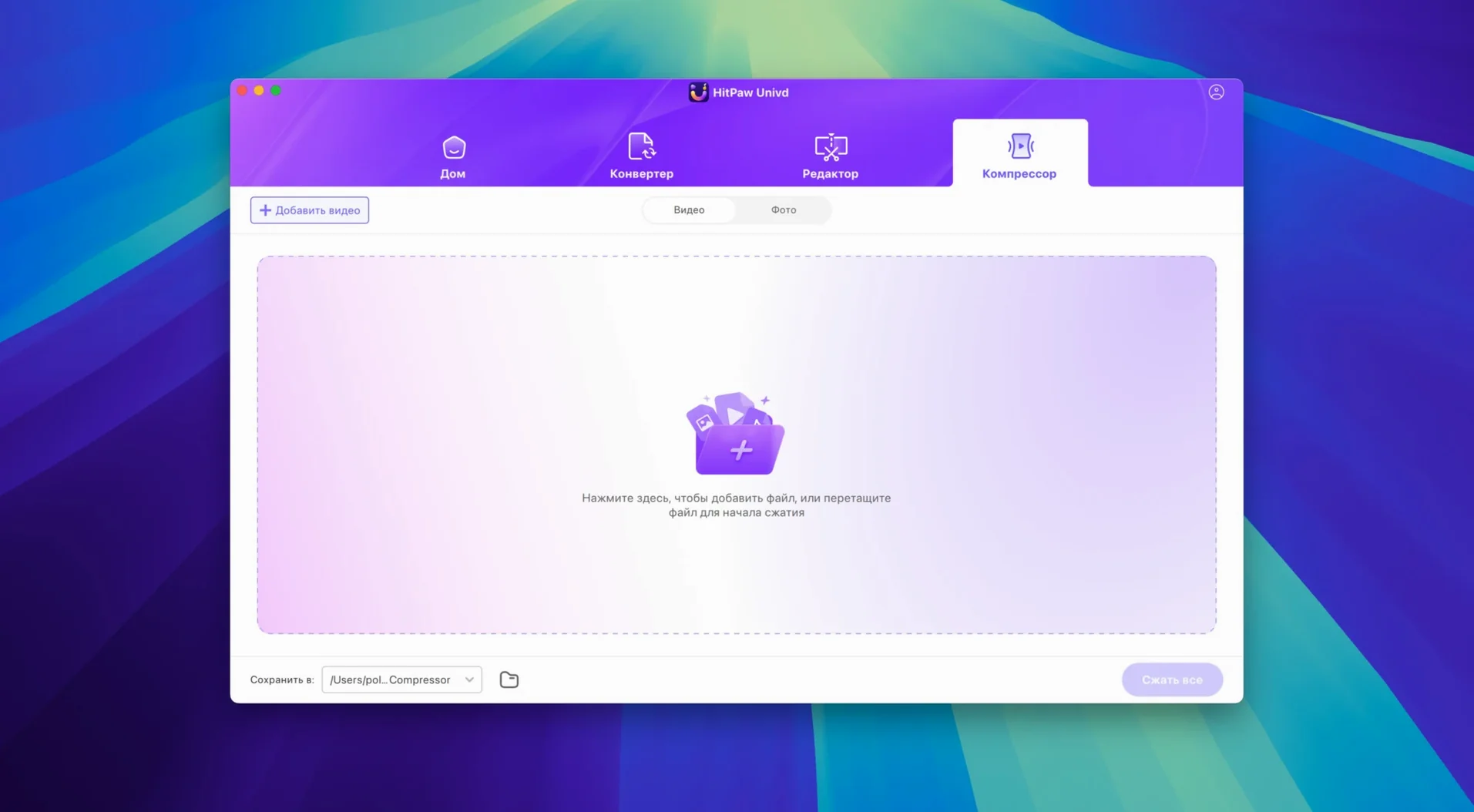
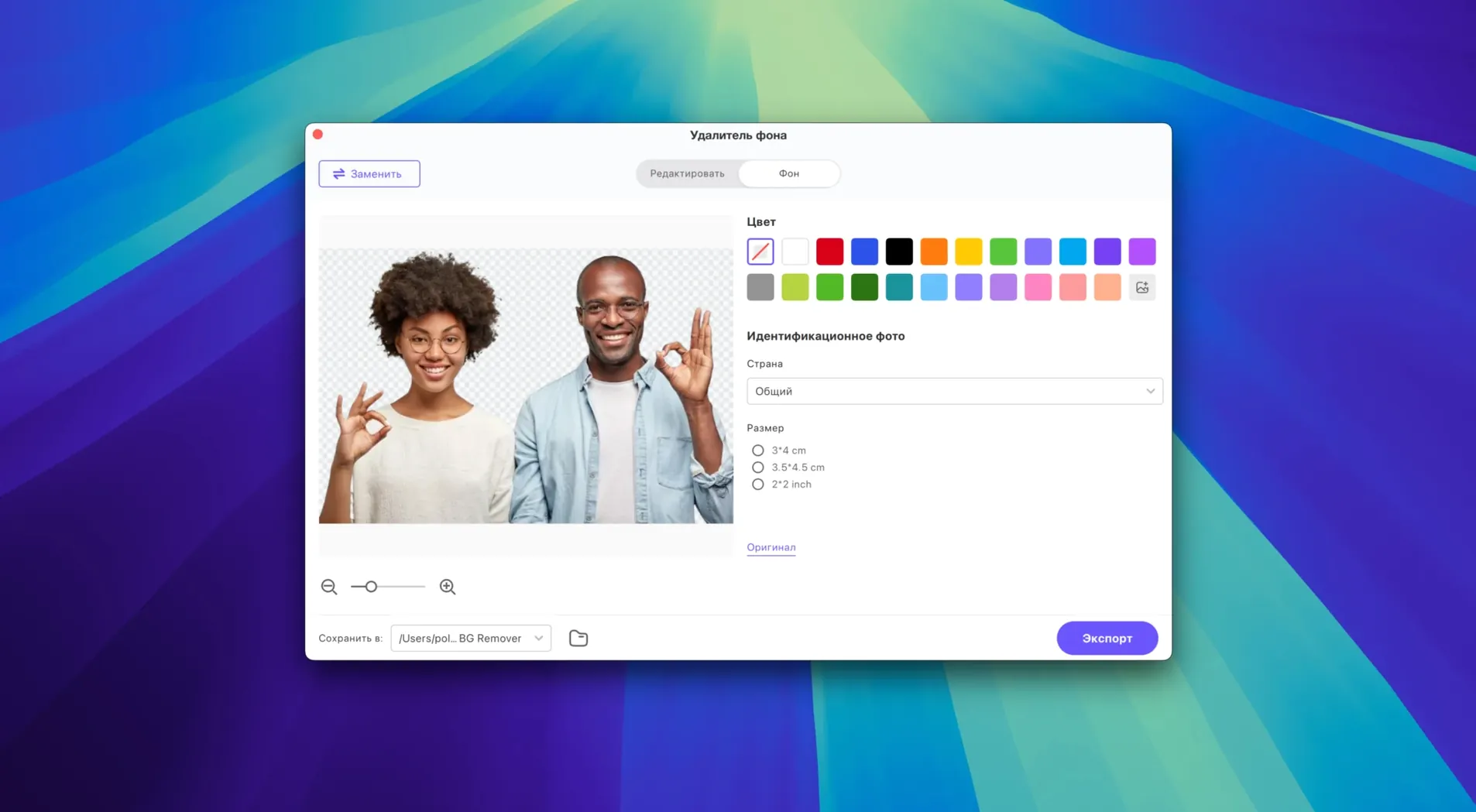
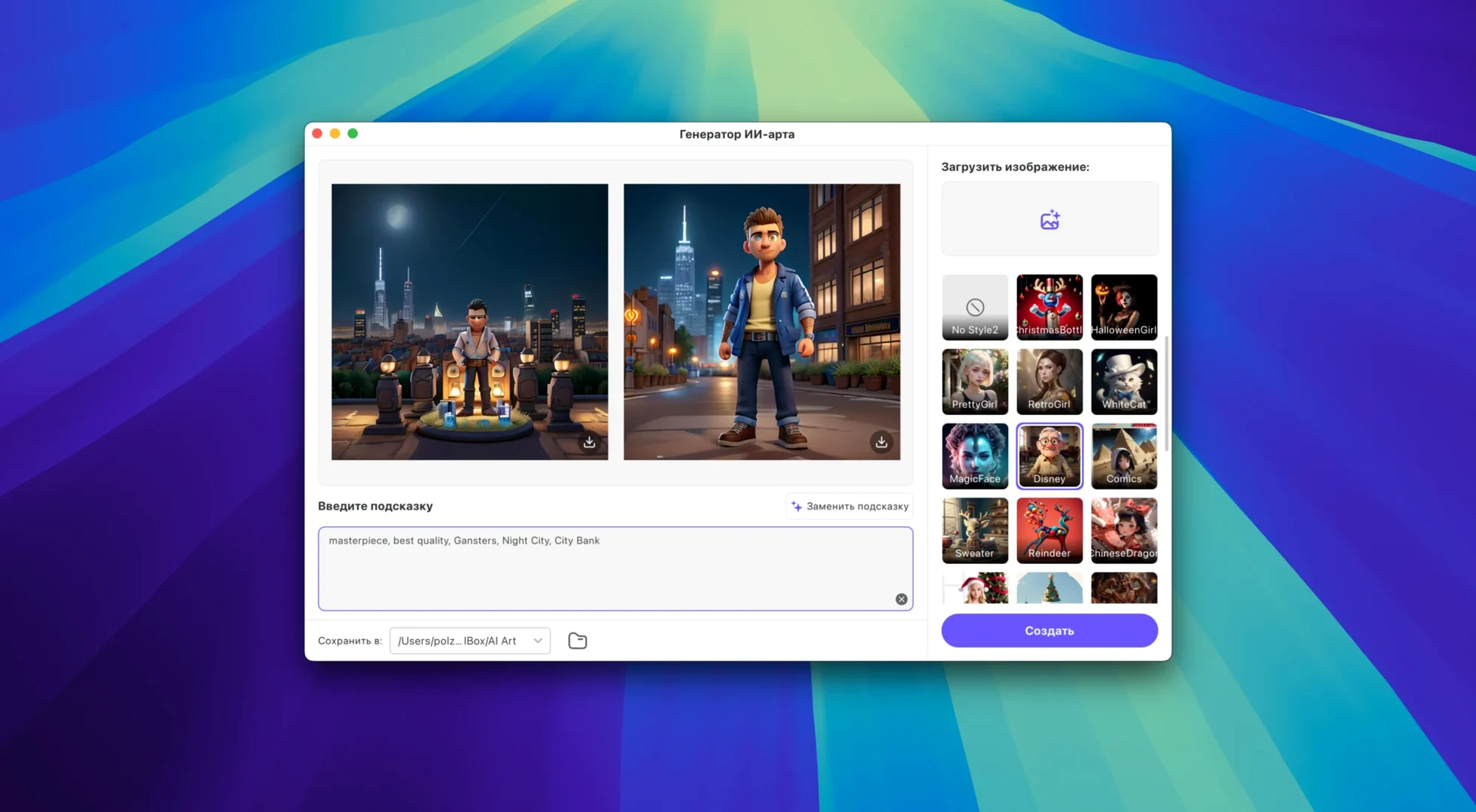
HitPaw Univd is a Mac video toolbox that converts, downloads, compresses and upscales footage, with a few AI tricks thrown in.
Is it a converter, a downloader, or an editor?
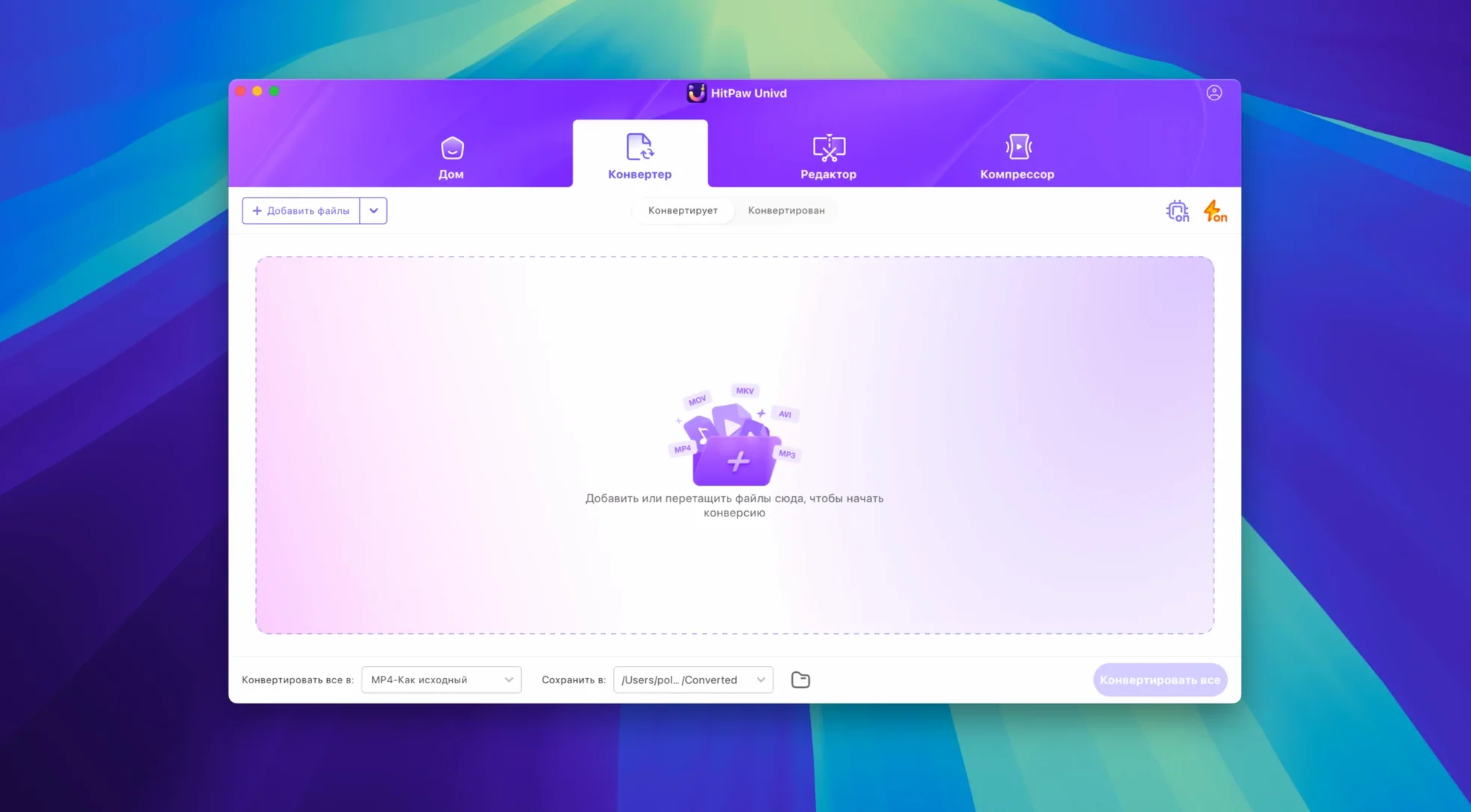
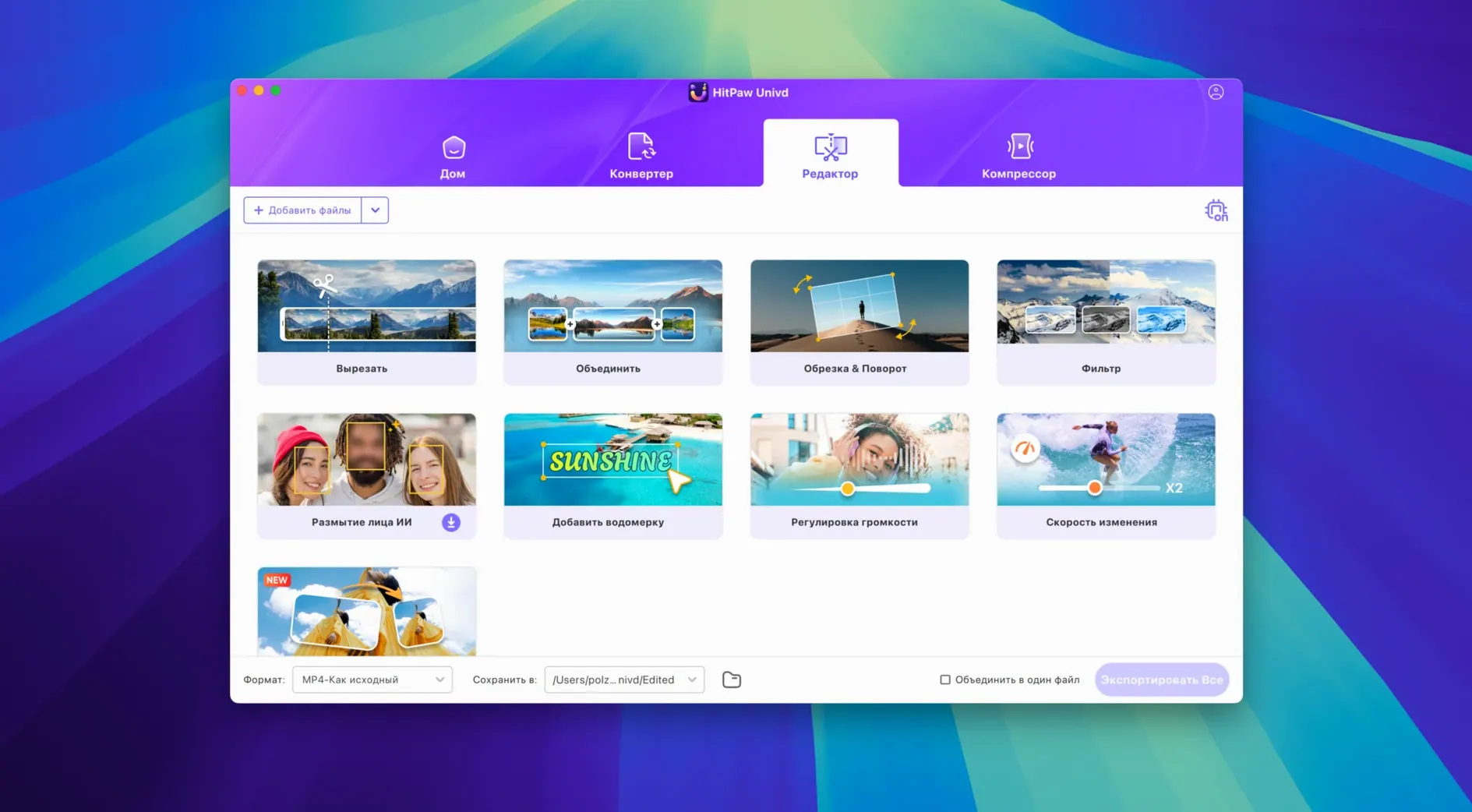
All three. The Mac product page calls it a video converter, compressor and enhancer. It grabs video, films and music from more than 10,000 sites, handles VP9, ProRes and Opus codecs, and includes a built-in editor for trimming before or after conversion.
macOS 10.15 and an Intel chip get you in the door
It needs macOS 10.15 or later on an Intel 64-bit machine. Version 4.7.0 brings a new UI and a revised product model, so the interface feels fresher than its requirements suggest.
What's the catch with installation?
There's no catch, just Gatekeeper being Gatekeeper. You mount the disk image, run the opener, tap Enter in Terminal when asked, then drag the app into Applications.
After a week of daily use, HitPaw Univd rarely flinches. Batch-converting a folder of fifteen 4K clips to ProRes LT took about the time you’d expect — not magical, but steady. The progress bar never froze, and the fans on a 2019 iMac stayed civil. Memory use sits around 600–800 MB during a typical encode, which leaves room for a browser and a timeline without swapping.
AI upscaling is the one place where patience matters. Pushing a 480p source to 1080p chews CPU cycles for several minutes. You won’t do it on battery if you want to stay mobile. The tool auto-detects when an Intel Mac is plugged in and adjusts its appetite, so leave the charger handy.
Double-click a file to scrub a preview
A few shortcuts hide in plain sight. Double-clicking a file in the queue opens a preview that lets you scrub with the space bar — quicker than opening QuickTime separately. The downloader tab remembers the last five URLs you pasted, even across restarts. If you grab a playlist from YouTube, right-click the list and choose Extract audio only to skip the video stream entirely.
Another overlooked detail: the built-in editor applies cuts and filters before the conversion pass. That means a trimmed clip converts faster than trimming it afterwards in a separate app. If you only need the middle third of a long lecture recording, the time saving adds up.
On the audio side, converting a Spotify playlist to Opus files preserved the album art and track numbering without extra fiddling. The metadata mapping isn’t perfect with every streaming service — Deezer tracks sometimes arrive with blank artist tags — but the hit rate is high enough that manual corrections are rare.
People searching for hitpaw torrent or hitpaw vikpea torrent often miss that the same installer handles video and music duties. There’s no separate “audio edition” to track down, which keeps things simple on a crowded drive.
Convert one short MP4 to learn the codec memory
Start with one small conversion before throwing a queue at it. Pick a short MP4, set the output to MOV with the H.264 codec and watch the settings panel populate. HitPaw Univd remembers your last codec choice per format, so a test run locks in preferences for the next job.
Next, open Preferences and set the default output folder to somewhere you can find quickly. The factory setting dumps files into a HitPaw folder inside Movies, which is fine until you need to hand a file to DaVinci Resolve and can’t spot it in the sidebar. While you’re there, tick Keep original folder structure if you plan to mirror a batch of nested folders.
If you work with sites that geoblock content, give the downloader a try early. Paste a link that’s restricted in your region and note whether the VPN you already use handles it — Univd doesn’t bundle one, so the network setup is yours to sort.
For anyone hunting HitPaw Univd torrent or a HitPaw Vikpea torrent to avoid a separate audio converter, the all-in-one layout means you can uninstall that extra AAC-to-MP3 utility you’ve been nursing along. One less icon in the dock.
Finally, drag the app’s icon onto the desktop while you learn its habits. Right-click a converted file in the log and choose Show in Finder to build the muscle memory. After three or four jobs, the flow feels natural — drop, pick a preset, go.
What’s new
- Adds a redesigned UI.
- Introduces a new product model and user experience.
Requirements
- macOS 10.15 or later
- Intel 64-bit processor
FAQ
What sites can it download from?
The developer claims support for over 10,000 sites—films, music and general video content.
What codecs does it work with?
It handles VP9, ProRes and Opus, among the usual ones you'd expect in a converter.
Comments 0
Sign in or create an account to leave a comment.
No comments yet…
If you’ve installed it, say how it went. Mention your Mac and macOS version — it helps the next person more than you’d think.