
Haptyk for macOS
Description
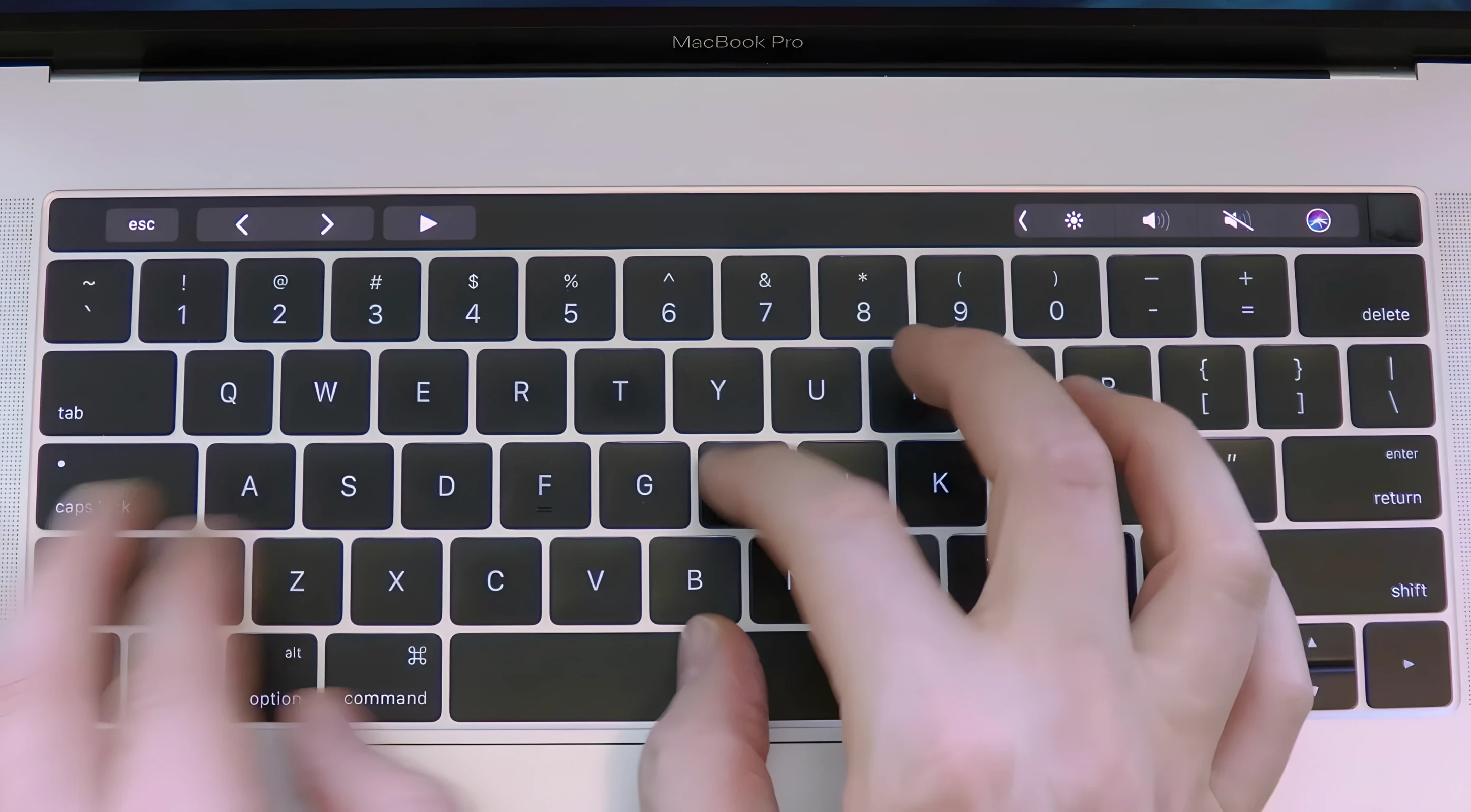
You sit down with your MacBook, open a blank document, and start typing. Each keystroke produces a subtle mechanical thock or a sharp click, not from the keyboard itself, but from the speakers. The sound changes with how hard you press — light taps are quiet, firmer strokes carry more weight. That's Haptyk in a nutshell.
What to check before you install
- Your MacBook model matters. Haptyk uses the hidden accelerometer in Apple Silicon MacBooks. The M1 MacBook Air and the 13-inch M1 MacBook Pro don't have the right sensor. You need an M2 MacBook Air or later, or a 14-inch/16-inch MacBook Pro with an M1 Pro, M1 Max, or newer chip.
- macOS version. The app requires macOS 13 Ventura or newer. Older systems won't run it.
- Set your expectations. It's a single-purpose utility. There are no custom sound packs, no equaliser, no recording feature. Just typing sounds triggered by the force you apply.
Once it's running, Haptyk sits in the menu bar and gets out of the way. The sounds are immediate enough that you stop noticing the delay after a few minutes. Worth it if you miss mechanical feedback on a quiet laptop keyboard and your hardware fits the narrow compatibility list.
Swap the sound profile before you type a word
Launch Haptyk and click its menu bar icon. The preferences panel is small, but a couple of defaults benefit from a quick tweak.
- Sound profile. The app ships with six profiles — Deep Click, Light Click, Mechanical Thock, Soft Thud, Subtle Tap, and Vintage Clack. The default is usually Light Click. If you came from a mechanical keyboard with blue switches, try Vintage Clack. Cherry MX Brown fans tend to settle on Mechanical Thock. Switch once and you'll know which one fits your fingers.
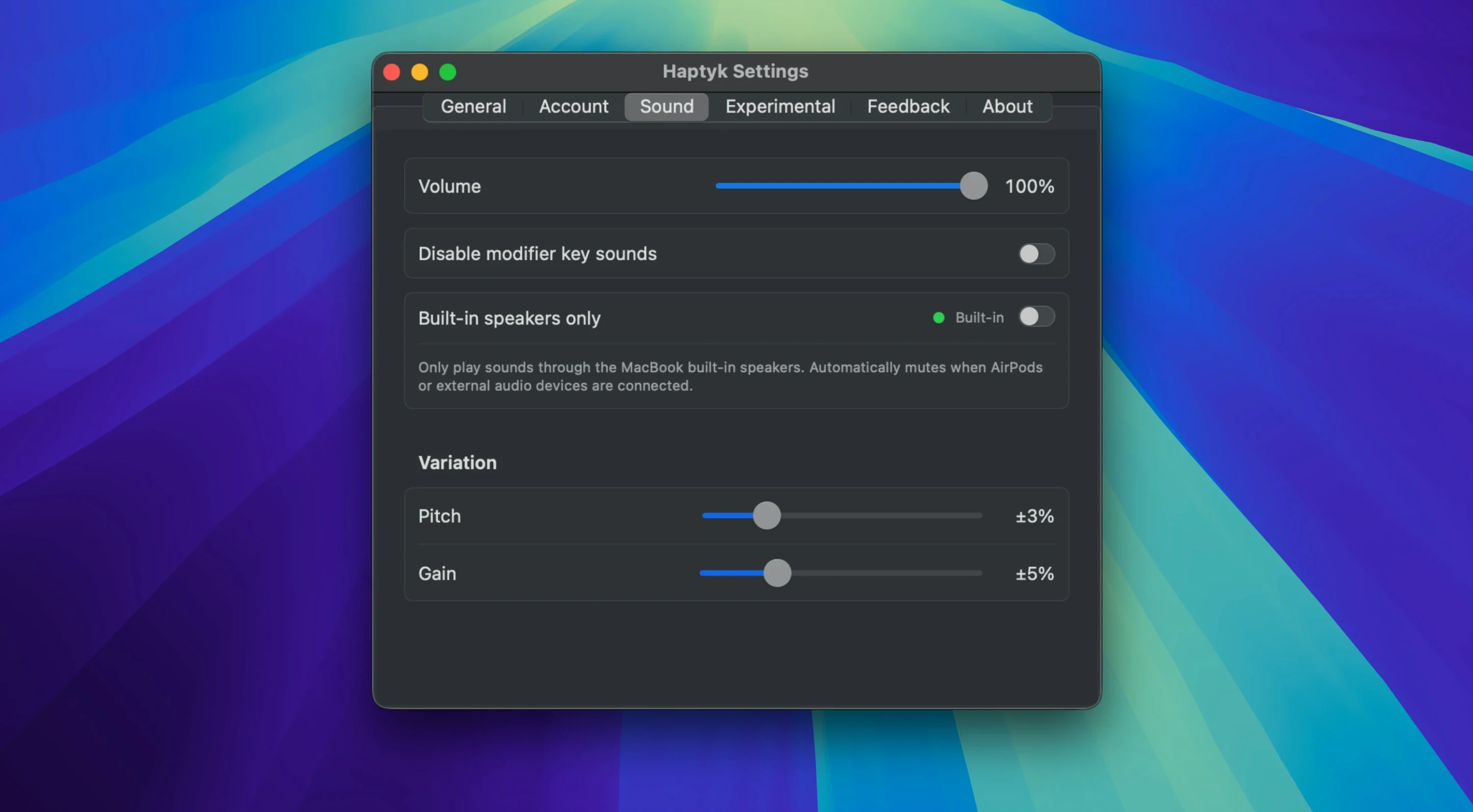
- Volume ceiling. The sound intensity tracks your keypress force, but the maximum volume slider defaults to around 70%. In a quiet room that's fine. In a café or open-plan office, you might want it lower — or higher if you're drowning out background chatter. Drag it to 50% first, then adjust over the first hour.
- Idle mute. Turn this on. It silences sounds after a few seconds of inactivity, which stops random desk bumps from triggering a soft thud through the chassis. The sensor picks up more than just keypresses.
System-wide typing sounds, no per-app setup needed
Haptyk works at the system level, so it doesn't need to integrate with individual applications. It adds sound to every keystroke across the OS — Notes, Pages, Slack, Terminal, everything. That simplicity has a few practical knock-on effects.
Do Not Disturb and Focus modes. Haptyk ignores them. If you switch on Do Not Disturb to silence notifications, the typing sounds keep playing. You'll want to quit the app manually before a meeting or a shared workspace, because macOS won't mute it for you.
External keyboards. The app only reads the built-in keyboard's accelerometer. Plug in a mechanical keyboard or a Magic Keyboard and Haptyk goes quiet. It doesn't try to fake sounds for external input, which is the right call — you already have real switches under your fingers at that point.
Headphones and Bluetooth speakers. The audio output follows the system sound device. If you switch to AirPods, the typing sounds come through the earbuds. That can feel odd for the first minute — you hear a thock in your ear while your fingers feel a flat membrane. Some people like it, others switch back to the MacBook speakers. Try both.
People searching for haptyk free or haptyk download often wonder whether it interferes with other audio apps. It doesn't. Logic Pro, GarageBand, and media players carry on normally. Haptyk mixes its sounds into the system output without blocking other audio streams.
The brain-finger mismatch fades after an hour
- Give it an hour before judging. The first ten minutes feel strange. Your brain hears a mechanical keyboard but your fingertips feel a scissor-switch membrane. That mismatch fades surprisingly fast. After about an hour of real work, most people stop noticing it as a separate thing — the sound just becomes part of typing.
- Test the force sensitivity properly. Open a text editor and type with deliberate variation. Lightly tap a few keys, then press firmly on the next few. You'll hear the difference immediately. Once you know the dynamic range, your typing adjusts without conscious effort.
- Pick a profile and stick with it for a full day. It's tempting to cycle through all six profiles in the first five minutes. Don't. Each one changes the perceived keyboard feel more than you expect. Set one, work for a day, then decide.
- Quit it before video calls. A mechanical keyboard sound coming through your MacBook microphone during a Zoom call confuses everyone else on the call. The app doesn't route its output into the mic input, but the speakers are close enough that a sensitive mic can pick up the sound. Quit from the menu bar icon before joining a call.
- Check for sensor drift after sleep. Occasionally, waking the MacBook from sleep causes the force sensitivity to feel slightly off for a few seconds. If the sounds seem too loud or too quiet right after opening the lid, wait ten seconds — it settles on its own. If it doesn't, a quick quit and relaunch fixes it.
Those grabbing a haptyk mac download for an M3 MacBook Air or an M2 Pro MacBook Pro will find the sensor response slightly snappier on the newer chips — the accelerometer polling feels a touch more immediate. On an M1 Pro machine, it's still perfectly usable, just a hair less precise at the very lightest taps.
Requirements
- macOS 13 or later
- Apple Silicon or Intel 64‑bit
FAQ
Does Haptyk work on an M1 MacBook Air?
No. The M1 MacBook Air and the 13-inch M1 MacBook Pro lack the accelerometer sensor that Haptyk relies on.
What sound options does it have?
Haptyk plays typing sounds based on keypress force. It does not include custom sound packs or an equaliser.
Will it run on an Intel Mac?
The app supports ARM and x86 64-bit architectures, but the typing-force feature needs the accelerometer found only in specific Apple Silicon MacBooks.
Comments 0
Sign in or create an account to leave a comment.
No comments yet…
If you’ve installed it, say how it went. Mention your Mac and macOS version — it helps the next person more than you’d think.