
HitPaw Edimakor for macOS
Description
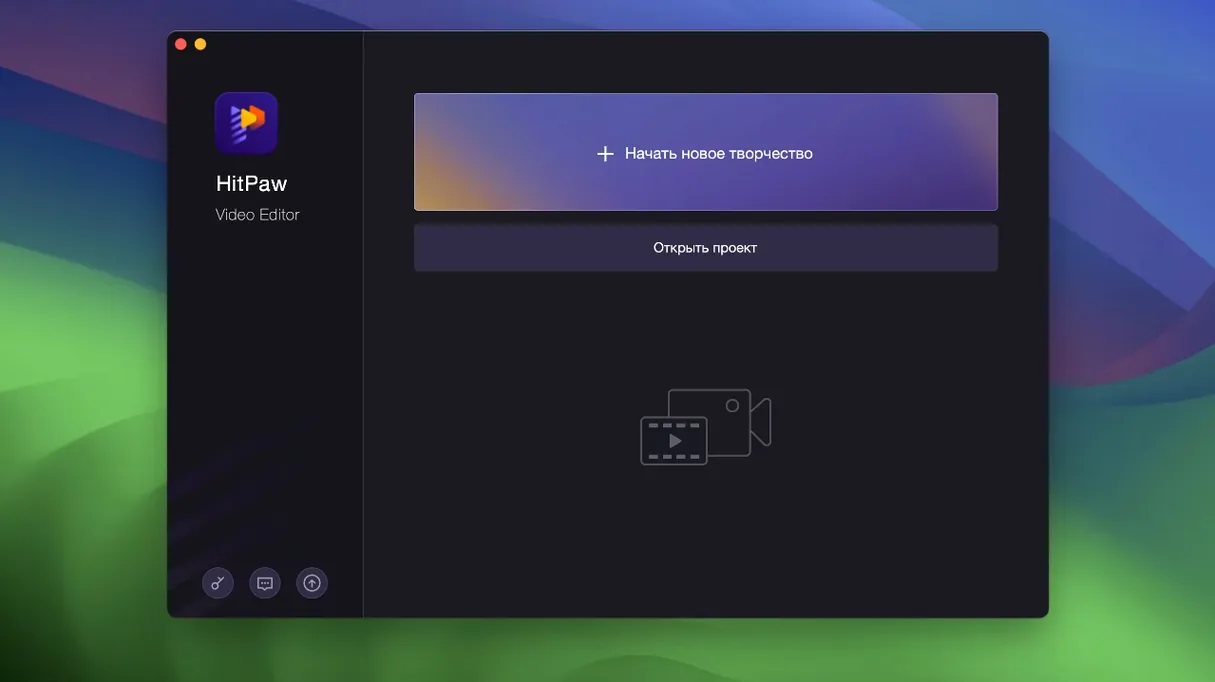
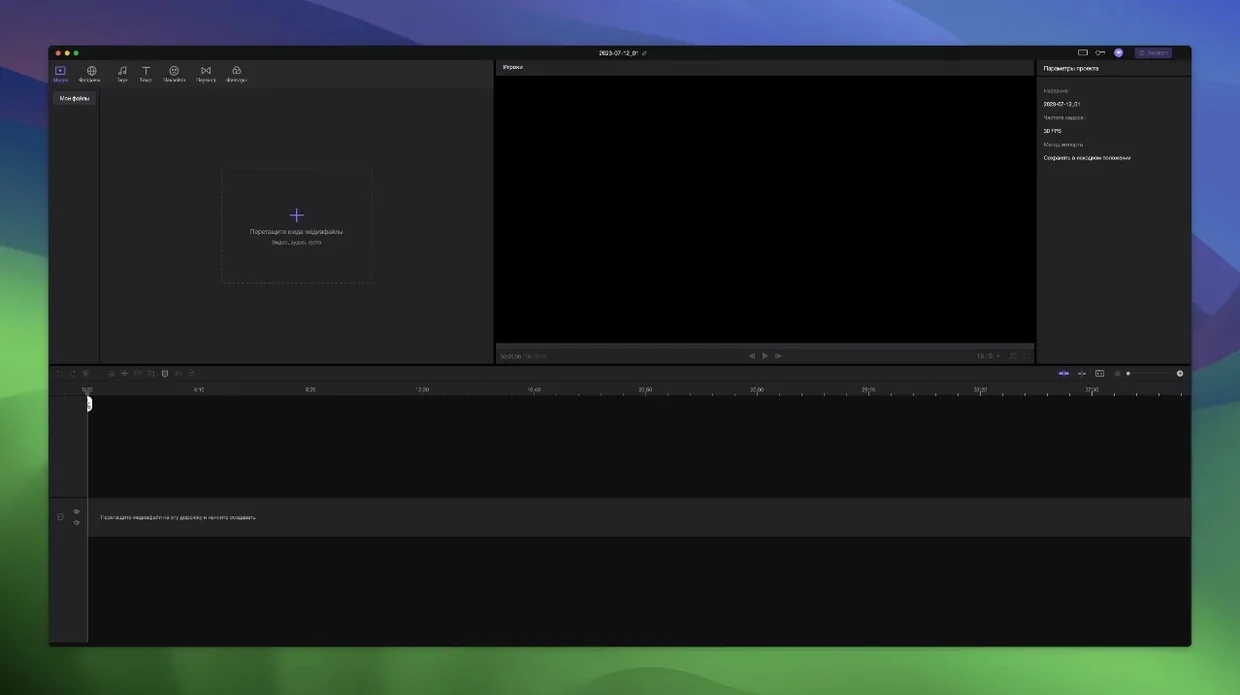
HitPaw Edimakor is a Mac video editor built around a straightforward timeline and a set of AI tools for speeding up cuts. It runs on Intel Macs from macOS Catalina upwards and speaks your language—over fifteen are packed in, from Russian and Arabic to German and Japanese.
Features that do a specific job
- Linked track movement. Drag the main video clip and everything stacked above it—titles, stickers, overlays—shifts in sync. No locked layers to keep realigning.
- Precise frame timing. The timeline lets you nudge playhead and clips to exact points. Useful when a transition or a sticker needs to land on a specific beat.
- Unlimited tracks. You are not boxed into a fixed number of video or audio lanes. Stack what you need for picture-in-picture, multiple audio beds, or layered effects.
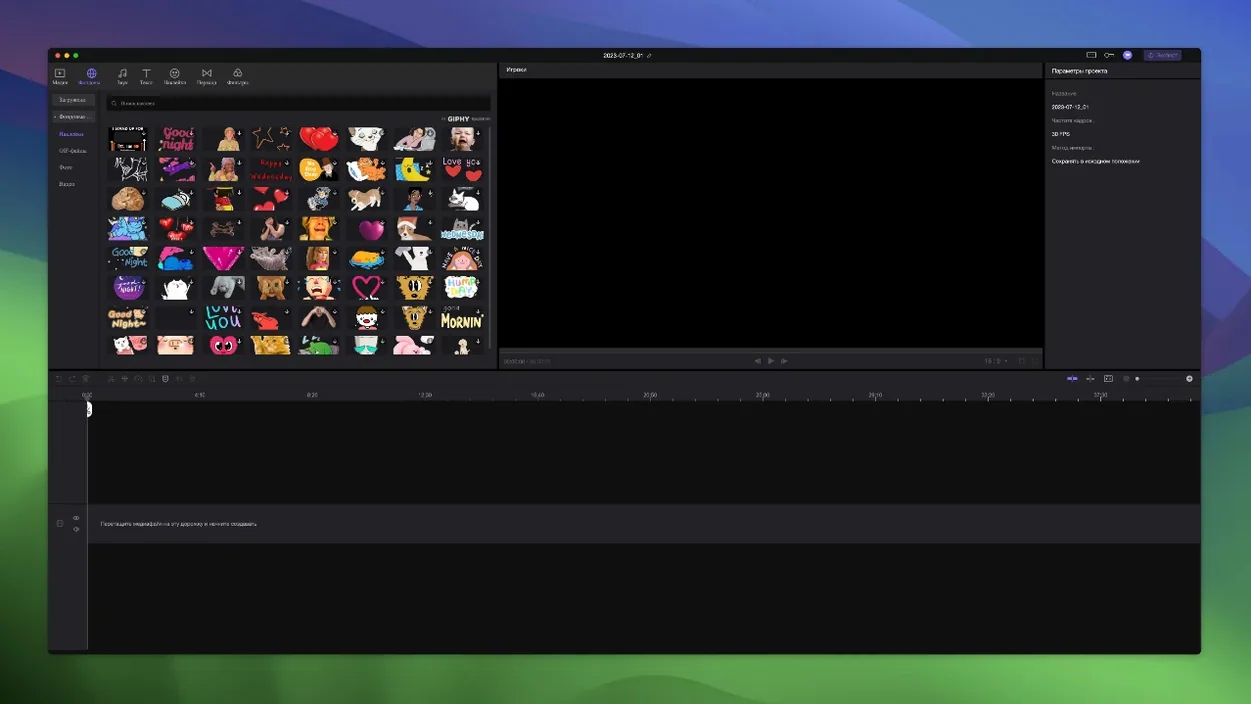
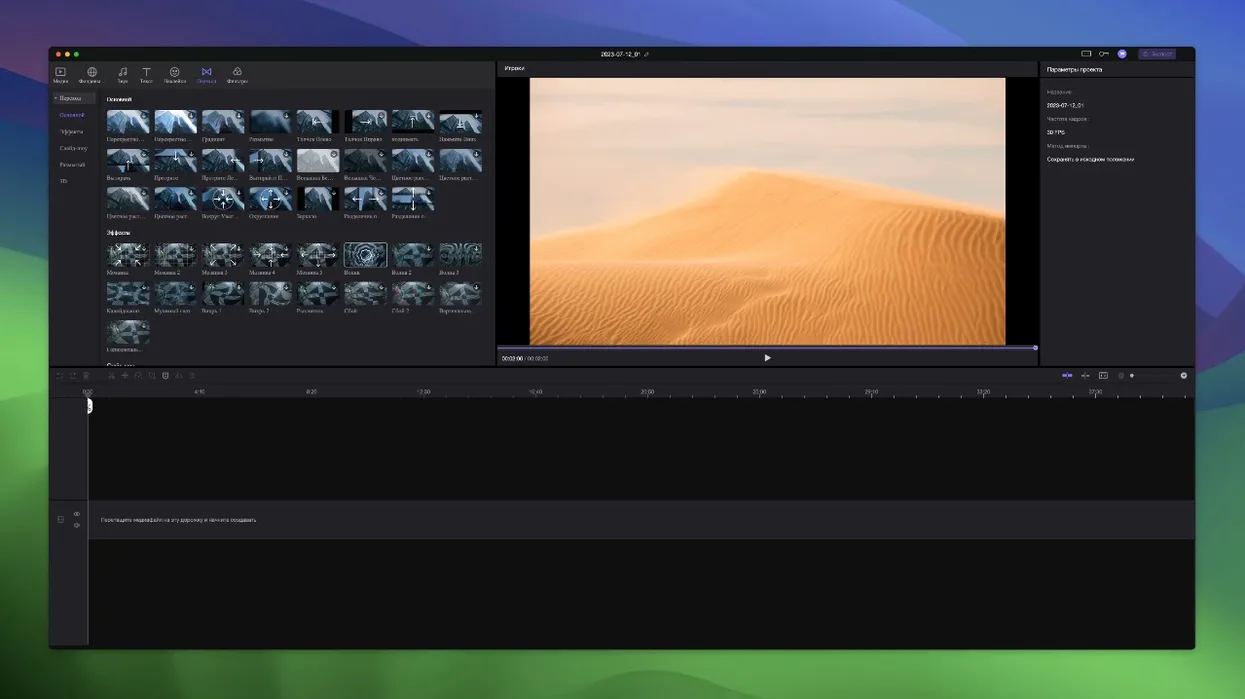
- Built-in assets. The library includes stickers and transitions. Enough to drop in without hunting for external packs for simple projects.
AI tools that handle the grunt work
The AI side aims to shorten the boring parts. It can auto-generate subtitles, pull out silent gaps, and apply basic cuts based on pauses. The merging tool stitches clips together without asking you to line them all up by hand. Think of it as a production assistant that does not get tired of trimming dead air.
AI features need a connection, manual cuts don't
Does it need an internet connection for the AI features? The subtitle generation and silence removal tools phone home, yes. Basic trimming, merging and timeline work fine offline. If you are cutting on a train, stick to the manual tools.
Will it run on an older MacBook Air? It runs on anything back to Catalina with an Intel chip. On a machine with 8GB of RAM, keep your preview quality at half or quarter resolution when stacking multiple tracks. The timeline stays responsive, but full-resolution playback on four or five layers will make the fans spin up.
What formats does it open? It handles the usual suspects—MP4, MOV, and most footage from phones and screen recorders. If a clip refuses to import, it is usually a variable-framerate recording from a mobile game capture. Transcode it with HandBrake first.
That one-time Gatekeeper bypass on first launch
After you mount the disk image, run the Open Gatekeeper friendly script and tap Enter when Terminal asks. That bypass is one-and-done. Drag the app into Applications, launch it, and give it a project folder on a drive with some breathing room—rendered previews add up.
Spend ten minutes with the timeline snapping. Hold Shift while dragging clips to toggle it on or off. The default is on, which helps for music-synced edits but gets in the way when you need a two-frame offset.
Check the linked-track behaviour early. Insert a title track above your main video, then drag the video. If the title does not follow, you probably dropped it onto an unlinked layer. Right-click the clip and pick the attach option from the menu.
The middle ground between QuickTime and Resolve
Edimakor sits between a quick-trim tool like QuickTime Player and a heavyweight like DaVinci Resolve. It makes sense when you need AI subtitles or rapid silence removal but do not want to launch a suite that takes thirty seconds to initialise.
Round-tripping works cleanly. Export a rough cut as ProRes, pull it into Audacity or GarageBand for audio cleanup, then bring the polished file back into Edimakor on a new track. Mute the original audio lane and you have a tidy A/B comparison.
For thumbnail work, export a still frame via the share menu and open it in Preview or Pixelmator. The frame lands at the project resolution, so no screenshot-and-crop dance. If you already use Keynote for titling, export your slides as transparent PNGs and drop them onto a track above the video—Edimakor reads the alpha channel without fuss.
The automatic subtitle export is a time-saver for accessibility. Generate the captions, spot-check the timing, then export an SRT file that plays nicely with VLC and most web players. If you also publish to YouTube, upload the SRT alongside the video file and the platform picks it up directly.
Requirements
- macOS 10.15 Catalina or later
- Intel x86 64-bit processor
FAQ
Does HitPaw Edimakor work on Apple Silicon Macs?
The application is built for Intel x86 64-bit architecture. It runs on Apple Silicon via Rosetta 2, but no native ARM build is listed.
What languages does the interface support?
The interface is available in sixteen languages including English, Russian, German, Arabic, Spanish, French, Hindi, Japanese, Korean, and both Traditional and Simplified Chinese.
Comments 0
Sign in or create an account to leave a comment.
No comments yet…
If you’ve installed it, say how it went. Mention your Mac and macOS version — it helps the next person more than you’d think.