
Guitar Pro for macOS
Description
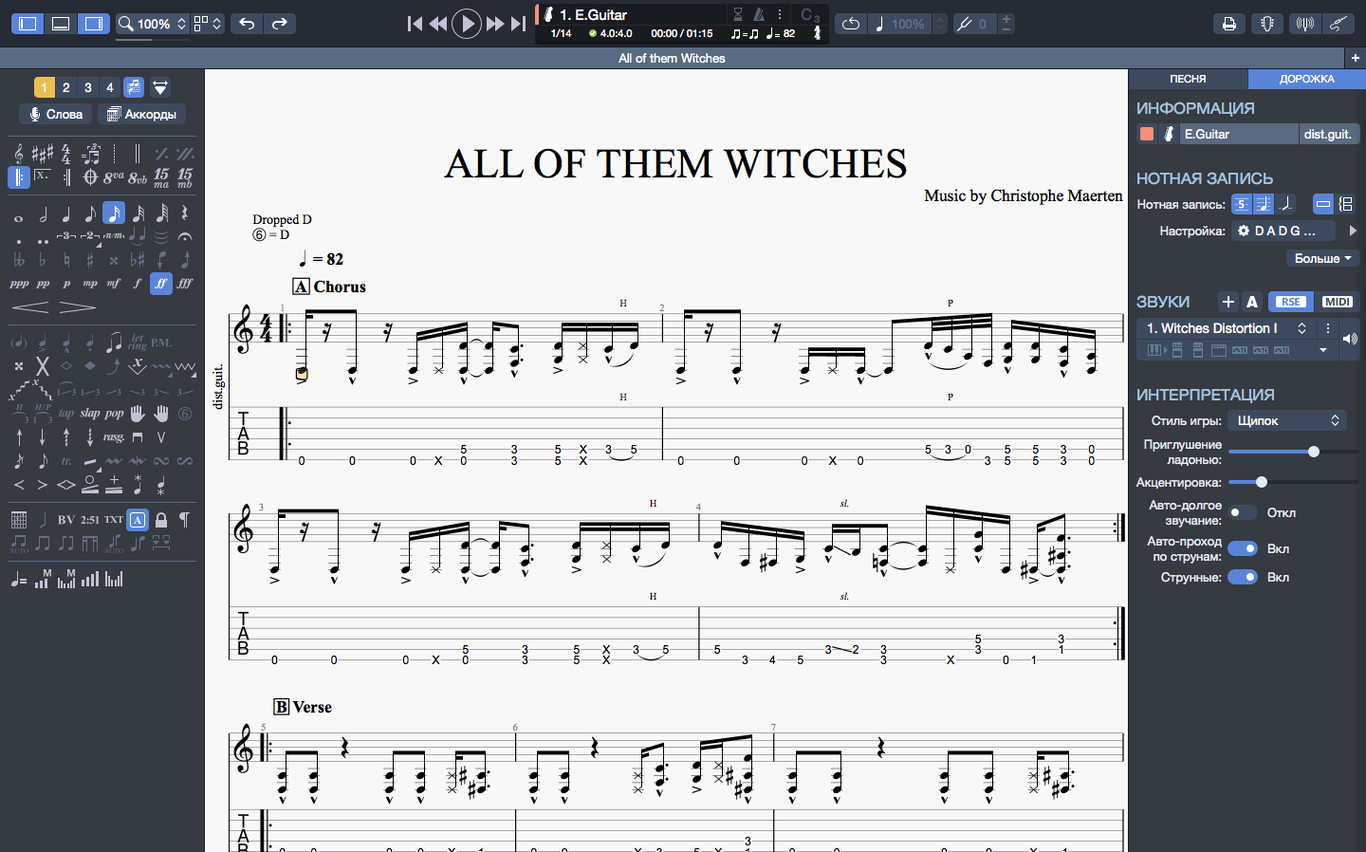
Scrappy handwritten tabs get lost, and plain-text files give you no clue how a riff actually sounds. Guitar Pro turns that mess into a proper score you can hear back.
Scoring a riff: start to finish
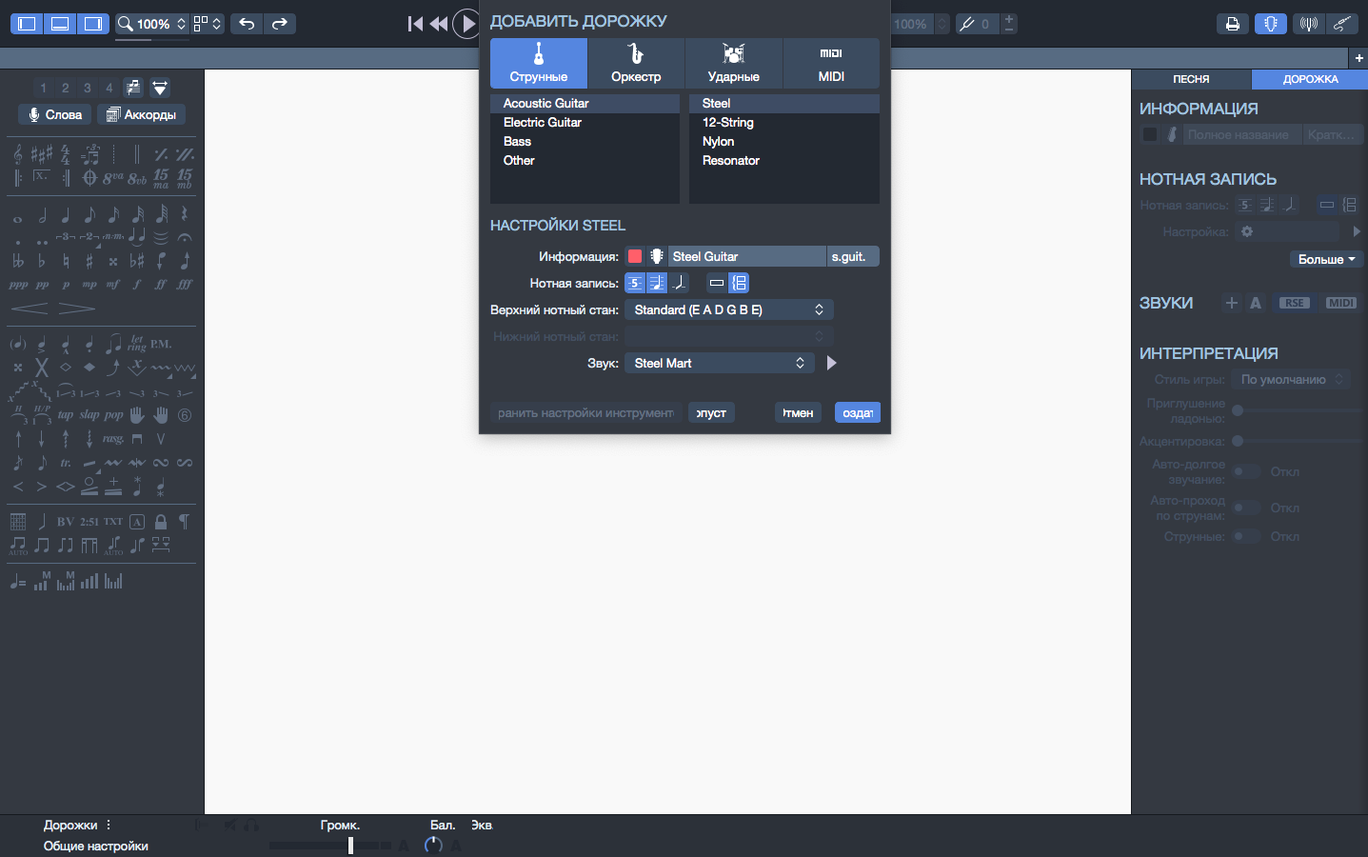
- Open a new file and pick your tuning. The inspector on the right lets you set the tempo and time signature straight away.
- Enter notes on the tab staff with the number keys or a MIDI keyboard. The standard notation fills in above it automatically.
- Add drums and a bass line as separate tracks to build a quick backing track. The built-in sound engine plays it all back so you can check the timing.
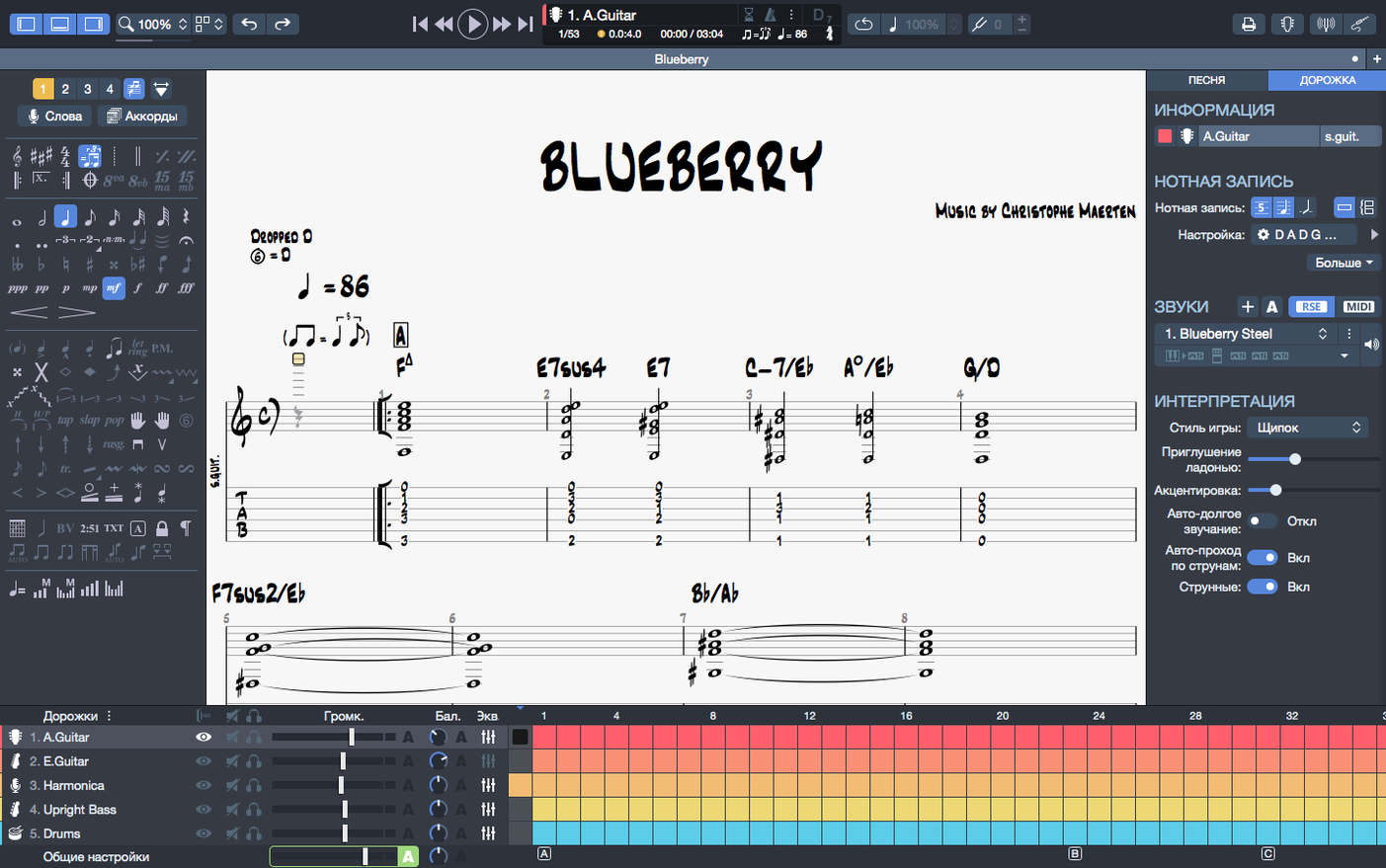
- Transpose the whole thing using the tools menu. Chord names and fingerings shift together, which saves re-typing everything.
- Export the finished page to PNG with a transparent background if you need to drop it into a lesson sheet or a document.
On Apple Silicon Macs the app is noticeably quicker, and the interface contrast was tweaked in version 8 to be easier on the eyes after a long session. Pinning recent files on the homepage keeps your current project from getting buried.
Side-by-side tab but a different philosophy
Guitar Pro isn't the only app that puts tab and notation side by side, but the alternatives tend to lean in different directions.
MuseScore
MuseScore is free and its engraving engine produces beautiful, publication-ready scores. For classical guitar or an orchestral arrangement where the printed page matters most, it does the job. What it does not do is feel like a guitar tool. The tab entry is functional but clunky compared with Guitar Pro's number-key input, and the playback engine gives you a generic piano sound rather than anything resembling a guitar. You spend more time tweaking the score and less time hearing whether the riff works.
TuxGuitar
TuxGuitar reads and writes Guitar Pro files and looks very similar at first glance. The catch is it hasn't seen a meaningful update in years. On a recent macOS version you might wrestle with Java dependencies and a UI that feels stuck in 2008. Playback is basic. If all you need is to open a .gp file someone sent you, it works. As a daily writing tool, the difference in polish and stability is hard to ignore.
Logic Pro (or any DAW with a score editor)
A full DAW gives you professional mixing, effects chains and recording. Its score view is fine for tidying up MIDI parts. But entering tab directly on a tab staff is not its thing. You end up dragging notes around a piano roll and hoping the tab translation makes sense. Guitar Pro is built for tab first, and that focus shows the moment you start typing fret numbers.
Pick your audio device before you write a single note
The installer is straightforward — mount the disk image, run the setup and let it finish. Once it's open, a few small moves make the first week smoother.
- Sort out your audio device early. Open Preferences, go to the Audio/MIDI tab and pick your interface or headphones. Playback continuity on macOS improved in version 8.1.5, especially when plugging or unplugging devices mid-session, but it still pays to set it once and leave it.
- Pin your current project. Right-click any file on the homepage and choose pin. It stays at the top of the recent list, even if you open a dozen practice files during the week.
- Learn the number-key entry before you bother with the MIDI editor. Select a bar, pick a note duration with the numeric keypad, then type fret numbers. It's fast, and you'll have a working score in minutes rather than hours.
- Resist the urge to tweak every instrument sound on day one. The default soundbank is punchy enough to judge a riff. Dial in amp sims and effect chains later, once the notes are right.
- Set a keyboard shortcut for the metronome. The click is clean and cuts through playback at low volume, which helps when you're checking a tricky syncopated phrase.
Apple Silicon launches in a couple of seconds
On an Apple Silicon machine, Guitar Pro 8 launches in a couple of seconds and stays responsive with multiple scores open. Scrolling through a long track with five or six instruments is smooth — no beachballing, no redraw lag on the notation staff. On an older Intel Mac that still meets the 10.13 minimum, the same scroll feels a beat slower but never unusable. Memory use hovers around 400–600 MB during normal editing, which leaves plenty of room for a browser and a few other apps alongside it.
Playback is where the processor gets a short workout. A score with drums, two guitar tracks and a bass line pushes CPU up briefly, then it settles. The sound engine doesn't try to model a full tube amp, which is why it stays efficient. If you leave a score paused for half an hour and come back, it picks up without glitches — earlier builds sometimes dropped the audio device after sleep, but the 8.1.5 fixes seem to have put that to bed.
The one resource that creeps up over a long session is disk space for autosave files. Guitar Pro keeps a rolling backup, and a complex project with embedded audio samples can accumulate a few hundred megabytes of temporary data. Restarting the app once a day clears it out.
Arpeggios at bar one sound wrong on older builds
A few problems crop up often enough to be worth knowing about before they happen.
Arpeggios at the very start of a score sounded wrong. Fixed in 8.1.5. If you're on an older build, the workaround was to insert a bar of silence first. Now it just works.
Stem directions wouldn't budge. Some combinations of note groupings locked the stem direction toggle. The latest build sorts out the known cases. If a stem still refuses, select the note, open the inspector panel and force the direction manually from the note properties — that override always takes.
Audio cuts out when you plug in headphones. The playback continuity improvement in 8.1.5 handles device changes more gracefully. On the rare occasion the sound engine stays silent, switching the output device in Preferences and back again wakes it up.
Chords transpose but the fingering diagram doesn't follow. Make sure you select the whole bar and use the Transpose command from the Tools menu, not a manual pitch shift. The chord builder's diagrams update with the new key as long as the chord symbols are recognised, not typed as plain text.
Exported PNG has a white box when you wanted transparency. Check the export dialogue — the transparent-background option is a checkbox, not the default. Untick the background fill and you get a clean PNG that sits on any colour worksheet without a white rectangle around it.
What’s new
Arpeggios at the start of a score play correctly now. Fixes a few cases where stem directions couldn't be changed. Improves playback continuity on macOS when you plug or unplug an audio device.
Requirements
- macOS 10.13 or later
- 64-bit dual-core Intel, AMD, or Apple Silicon processor
- 4 GB RAM
- 2 GB free disk space
Comments 0
Sign in or create an account to leave a comment.
No comments yet…
If you’ve installed it, say how it went. Mention your Mac and macOS version — it helps the next person more than you’d think.