
Ghost Buster Pro for macOS
Description
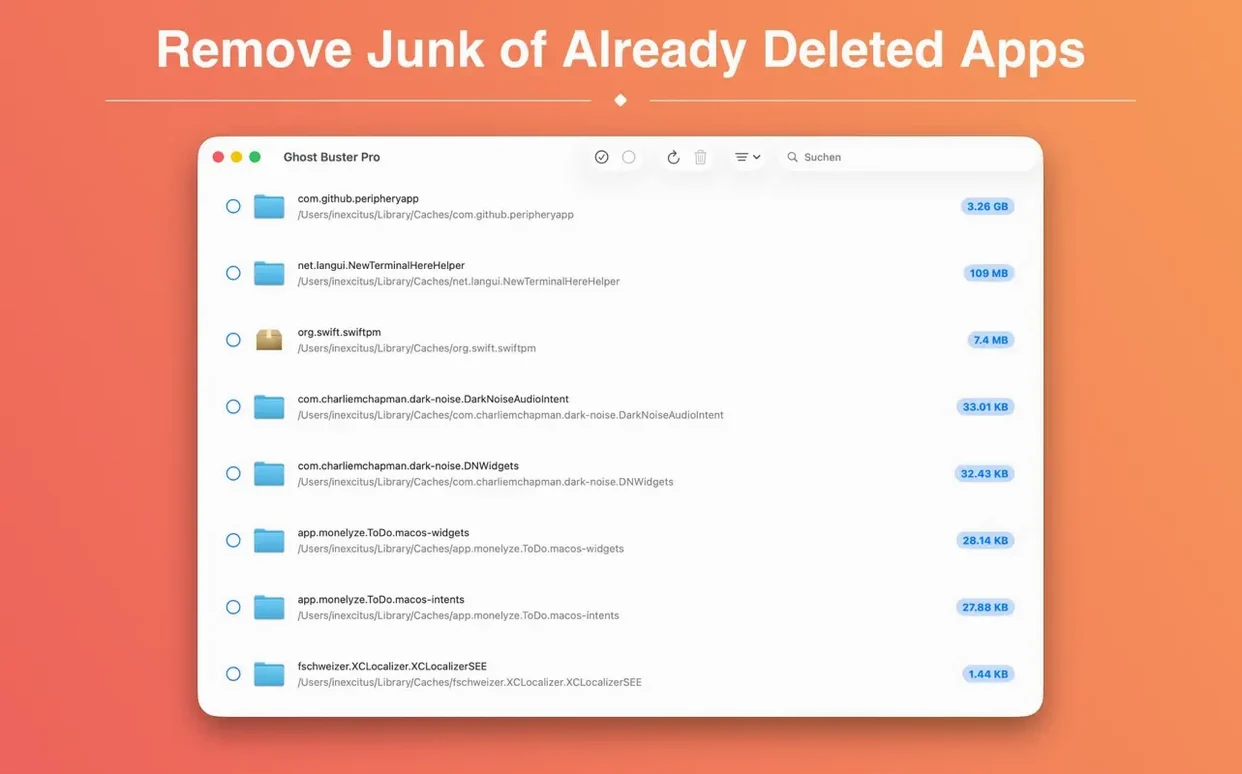
You drag an app to the Trash, then weeks later you stumble on its helper files still sitting in the Library. Ghost Buster Pro scans for those leftovers so you can clear them out properly.
Leftover files — Preferences, caches and support files that stay on disk after an app is uninstalled.
Automatic scan — Begins searching immediately on launch. No wizard, no setup.
One-click removal — Tick the items you want gone and hit delete. Nothing gets removed without your say-so.
Architecture support — Runs natively on both Apple Silicon and Intel Macs.
It sits alongside the tools you already use — a manual sweep you run when you suspect an app left a mess. Not a background cleaner, not a system optimiser. Just a list of probable junk and a delete button.
Uncheck the 30‑day age limit so nothing lingers
Ghost Buster Pro works straight away after launch, but one default setting can leave behind items you probably want gone. Open Preferences from the app menu or the gear icon.
Uncheck "Include only files older than 30 days" unless you have a reason to keep recent caches. Many leftovers are created the moment you test an app, so the 30-day rule hides them. While you are there, enable "Ignore Trash contents" — scanning files you already deleted just adds noise.
Switch the view to "Show complete paths" from the View menu. The default shows filenames only; seeing the folder structure helps you recognise legitimate files you might want to keep, like licence keys you still use.
Small conveniences you are likely to miss
A few things are not obvious from the interface.
- Reveal in Finder. Right-click any item and pick Reveal in Finder. Ghost Buster Pro opens the enclosing folder, so you can check surrounding files before deleting. Useful when a leftover sits next to something you still need.
- Sort by size. Click the Size column header. The biggest junk — often caches and old iOS backups — floats to the top. Good for quick wins.
- Copy path. Right-click a file and choose Copy Path. Paste it anywhere when you are troubleshooting with someone who knows their way around
~/Library. - Spacebar preview. Select a file and press the Space bar. Quick Look works on most leftovers — plists, logs, images — so you can verify a file before nuking it.
A useful ghost torrent of tips for the first few days
If you have just installed Ghost Buster Pro Mac, run it immediately. Your Mac has likely accumulated leftovers from apps you removed months ago, and the first scan will be the most satisfying.
- Scan right after uninstalling. The moment you drag an app to the Trash and empty it, open Ghost Buster Pro. The files are freshest then, and the app name still appears in the scan results, making identification trivial. Wait a week and you will be squinting at cryptic folder names.
- Watch for bundle IDs. Some leftovers are named with reverse-domain identifiers like
com.frog.findley. If the developer name is not obvious, a quick web search with the bundle ID usually turns up the original app. - Do not delete everything blindly. A preference file for an app you might reinstall — say, a video editor you use seasonally — is worth keeping. Ghost Buster Pro shows the app name if it recognises it; if a file is unattributed, check the path. Something in
~/Library/Preferenceswith a name you recognise is probably harmless to leave. - Run it before macOS upgrades. Major system updates can choke on leftover kernel extensions or stale LaunchAgents from apps long gone. A cleanup pass before upgrading saves headaches.
Ghost Buster Pro does not run in the background, so you need to remember it exists. Keep it in the Dock for a fortnight. After two weeks you will have cleared the backlog, and a monthly manual scan becomes second nature.
What’s new
Cleaned up the About window and Help menu so they look consistent with the developer's other apps.
Requirements
- macOS 15.6 or later
- Apple Silicon or Intel 64-bit Mac
Comments 0
Sign in or create an account to leave a comment.
No comments yet…
If you’ve installed it, say how it went. Mention your Mac and macOS version — it helps the next person more than you’d think.