Exposure X7 for macOS
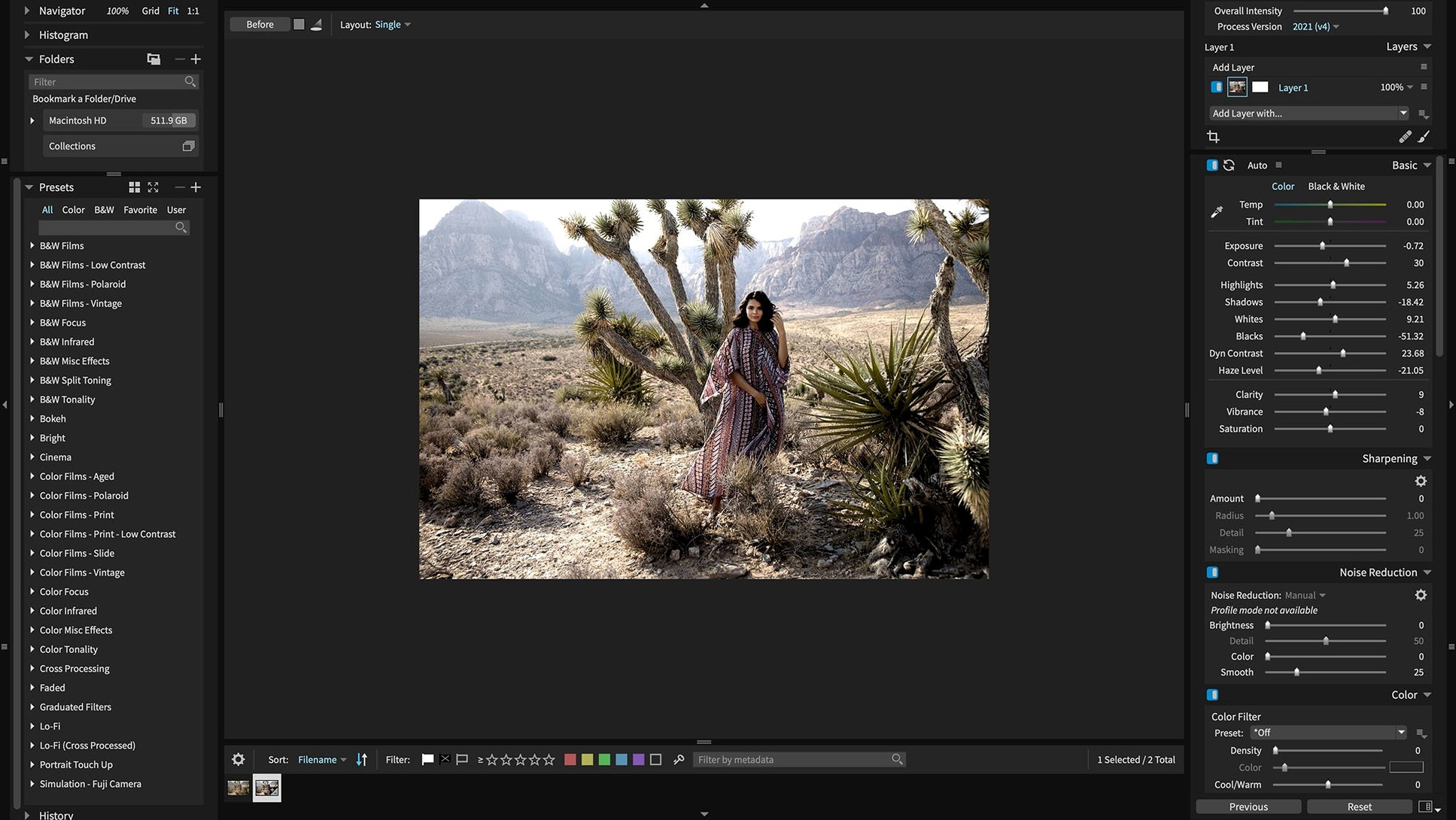
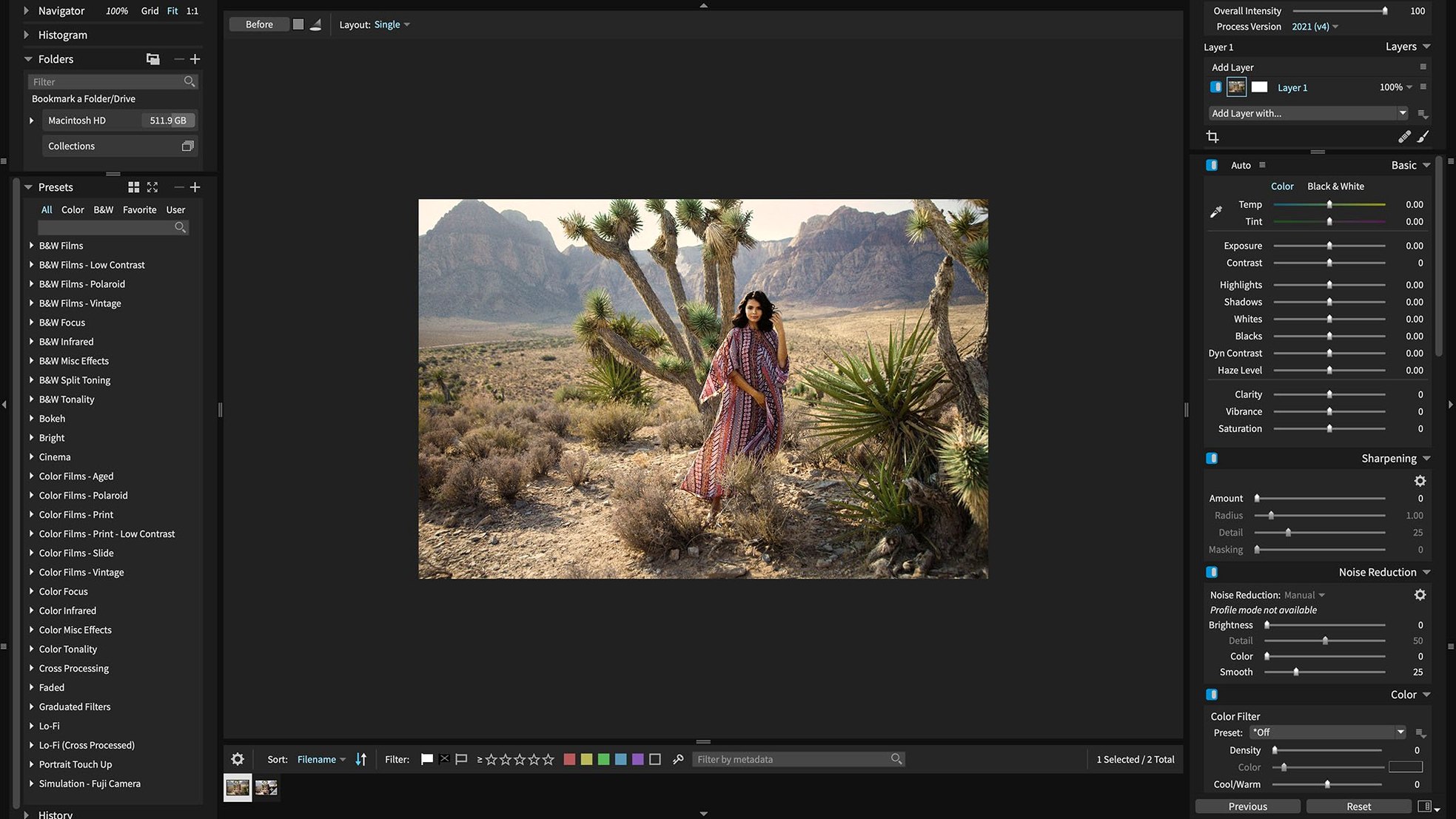
Description
If you know Lightroom, you know the look of a default RAW conversion. Exposure X7 starts from a different place. It applies a subtle film-style curve and grain profile right out of the box, so your first view of a shot already has some bite.
A quick pass through a raw file
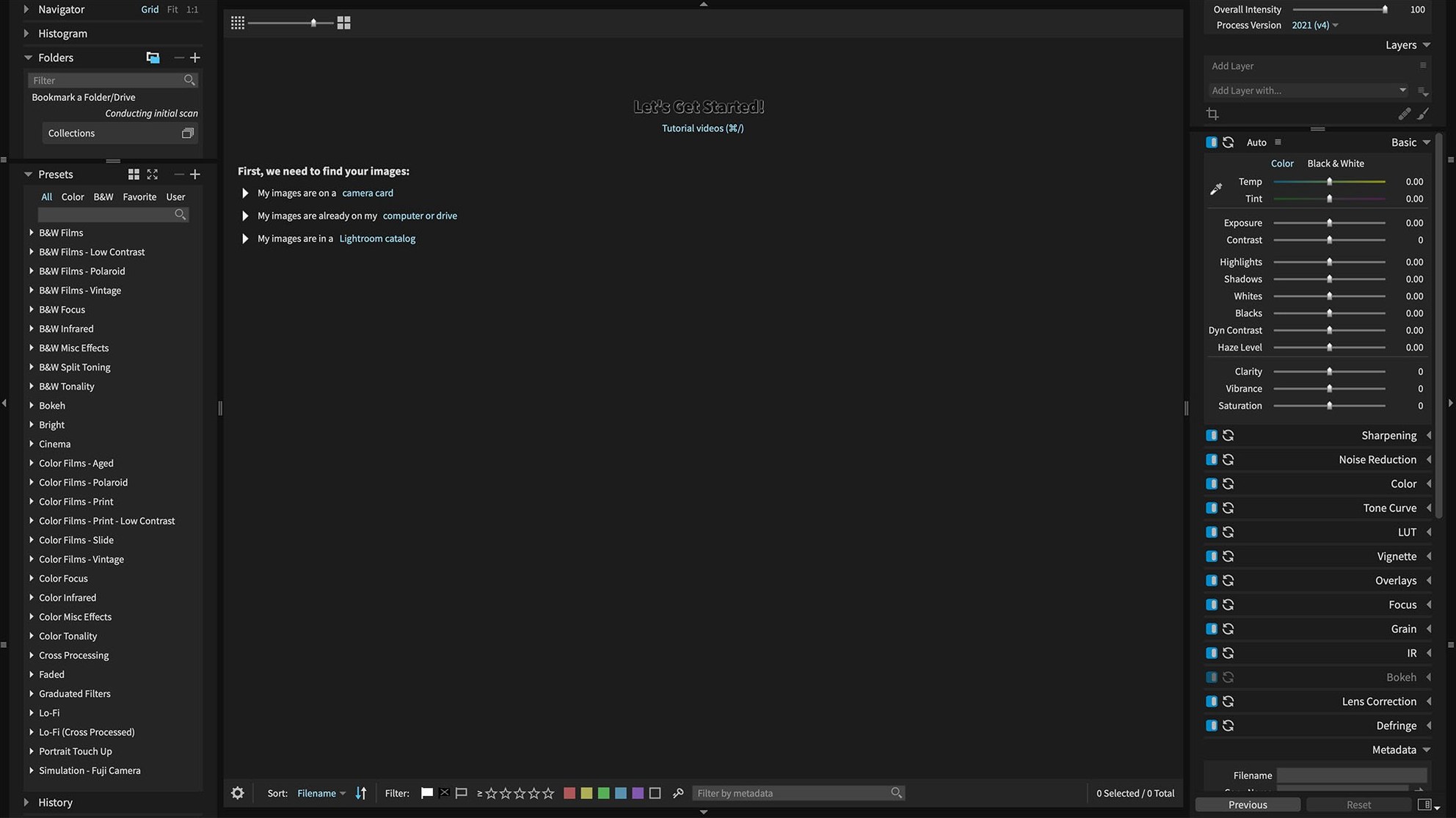
- Open a folder. No import dialogue. X7 reads straight from your drive and builds a preview database. You can drag a folder of Sony A7 IV lossless compressed RAWs and get to work immediately.
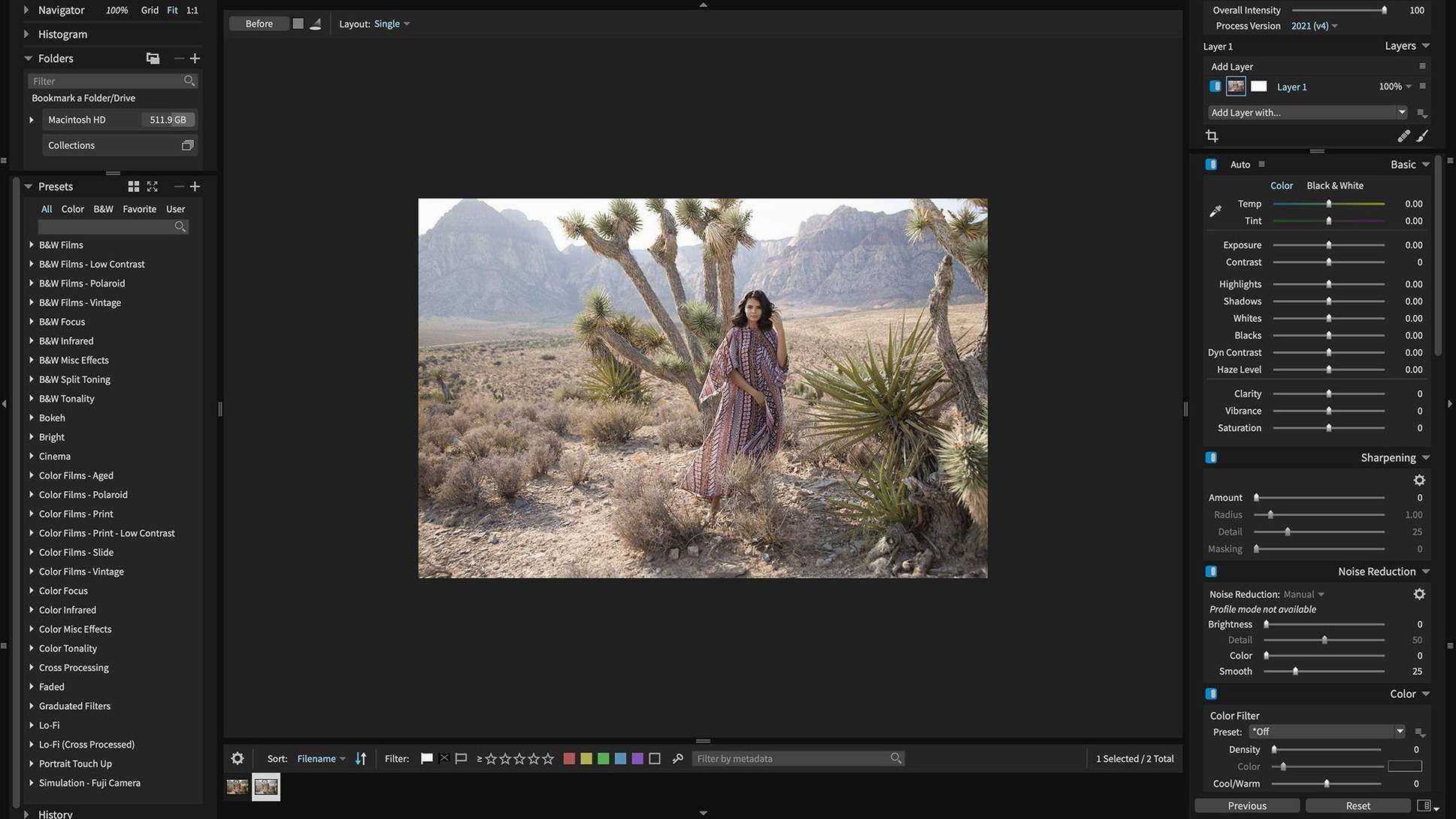
- Hit the Auto button once. The one-click automatic adjustment sets exposure and contrast. It is not flashy — just a solid starting point you can dial back with one slider.
- Mask something difficult. The advanced masking tools let you brush in an adjustment, then refine the edge with a luminance or colour range. It works on a non-destructive layer, so nothing is baked in.
- Retouch a portrait. The spot-heal brush and skin-smoothing controls sit on their own layer. You can fade the whole retouch group later without undoing individual strokes.
- Export a preset set. The Quick Export menu no longer crashes after you reorder your presets. Pick a TIFF for Photoshop or a JPEG for a client proof.
The GPU optimization keeps brush strokes fluid on a 4K display, and the whole app feels built for a photographer who wants to move fast without a catalogue locking them in.
Double-click any slider to reset it
Exposure X7 hides a few shortcuts that save clicks once you know them. Double-click any slider handle to reset it to the default value. That works on exposure, contrast, colour balance — every slider in the panel. Holding the Option key while dragging the Whites or Blacks slider shows a clipping preview, so you can see exactly where highlights or shadows lose detail before you commit.
The keyword panel supports drag-and-drop. Select a batch of photos in the filmstrip, then drag a keyword onto one of them. It applies to the whole selection. For collections, right-click any folder and choose Create Smart Collection. You can set rules based on camera model, lens, rating or a keyword, and the collection updates itself as new photos match the criteria.
A less obvious trick: when you apply one of the 500-plus presets from the panel, hold the Shift key. That stacks the preset on top of your current adjustments instead of replacing them. Handy when you want a film grain from one preset and the tone curve from another.
What 7.3.0 actually changed day-to-day
The HEIC support is the most practical addition if you shoot with a recent iPhone. You can now pull photos straight from your phone into a folder, open them in Exposure X7, and work with them as you would a RAW. The automatic adjustment and masking tools behave the same way — no conversion step needed first.
The expanded camera support means Lumix G95D and S5 IIX users no longer need to batch-convert to DNG before editing. Sony RX100M7 owners get the same benefit. The fix for Sony A7 IV lossless compressed files is a quiet but important one: those files now render cleanly at all zoom levels, without the green bar artifacts that crept into earlier builds.
The crash fixes sound minor on a changelog but matter in a long session. Applying a black-and-white film preset no longer risks losing your last ten minutes of masking work. The Quick Export menu behaves after you reorder your export presets — small things that kept the app honest.
Point it at a folder of old raw files
Start by pointing Exposure X7 at a folder of old raw files you never got round to editing. Let it build previews while you make a cup of tea. Once it is done, run the Auto adjustment on a few shots to see how the engine reads highlights. It tends to protect them more aggressively than Lightroom, so you might pull the exposure slider back less often.
Set up two export presets early. One for full-resolution TIFFs with the colour space you use in Photoshop, and one for 2048-pixel JPEG proofs. The Quick Export menu will sit in the right-click menu and save you a dialogue box each time.
If you work with layers regularly, spend ten minutes with the 3D colour masking. Pick a portrait, add a new adjustment layer, and click the colour range eyedropper on the skin. Drag the tolerance slider and watch the mask update live. Once you have a clean selection, you can tweak skin tones without touching the background. The non-destructive layer approach means you can always drag the opacity down or bin the layer and start again.
What’s new
Adds support for opening HEIC photos from current iPhone models. Expanded camera support for Panasonic Lumix G95D, Panasonic Lumix S5 IIX, and Sony Cyber-shot DSC-RX100M7. Fixes corrupt rendering of Sony A7 IV lossless compressed raw files. Fixes a crash when applying black and white film presets. Fixes a crash when opening the Quick Export menu after reordering export presets. Refreshes Chinese, German, French, and Japanese translations.
Requirements
- macOS 10.13 or later
- Intel or Apple Silicon Mac
- 64-bit
FAQ
Does Exposure X7 work as a Photoshop plugin?
Yes. It runs as a plugin with Adobe Photoshop CS6 and Photoshop CC 2015 or newer.
What camera fixes arrived in version 7.3.0?
It fixed corrupt rendering of Sony A7 IV lossless compressed raw files and added support for Panasonic Lumix G95D, Lumix S5 IIX, and Sony Cyber-shot DSC-RX100M7.
Comments 0
Sign in or create an account to leave a comment.
No comments yet…
If you’ve installed it, say how it went. Mention your Mac and macOS version — it helps the next person more than you’d think.