Eagle for macOS
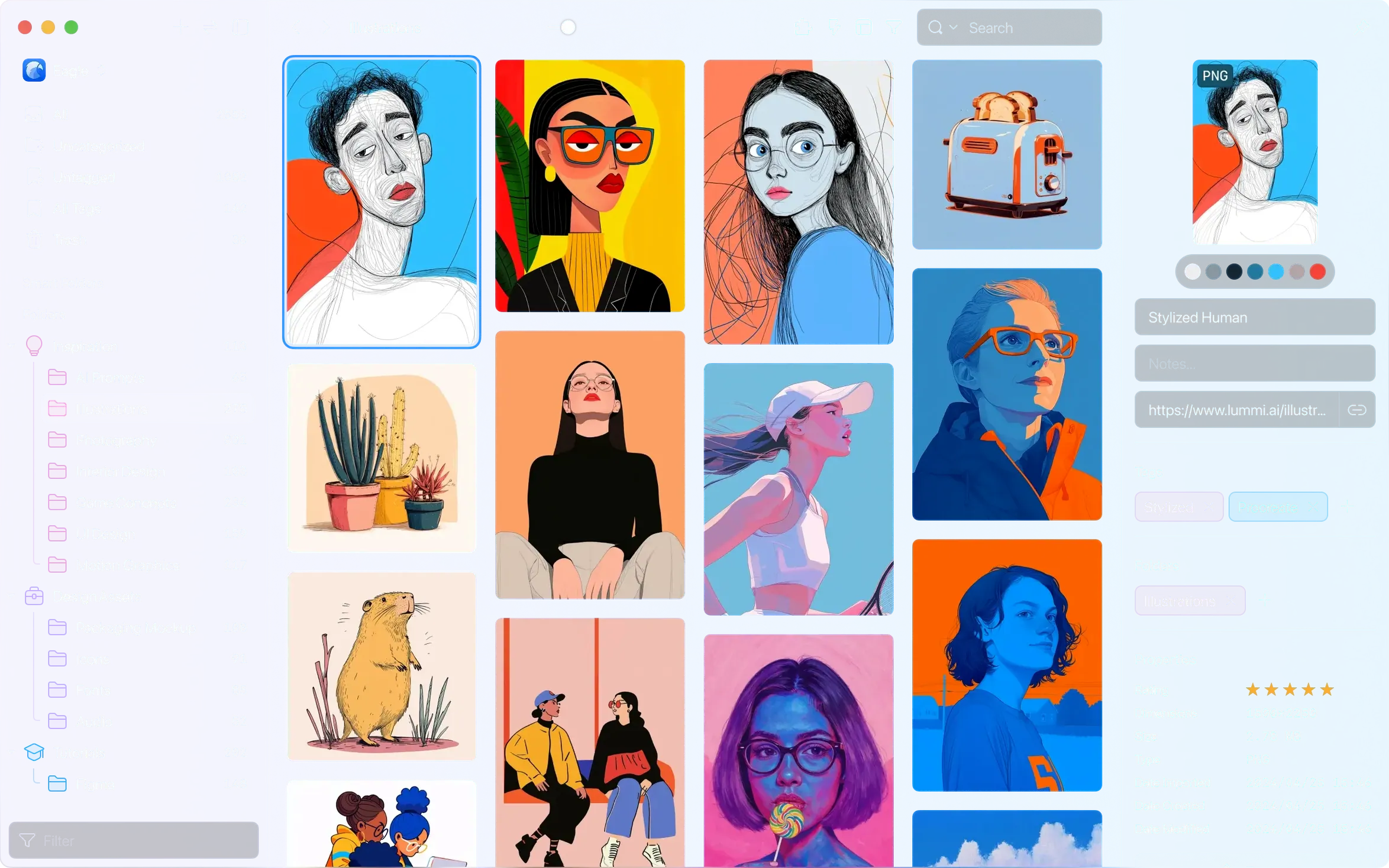
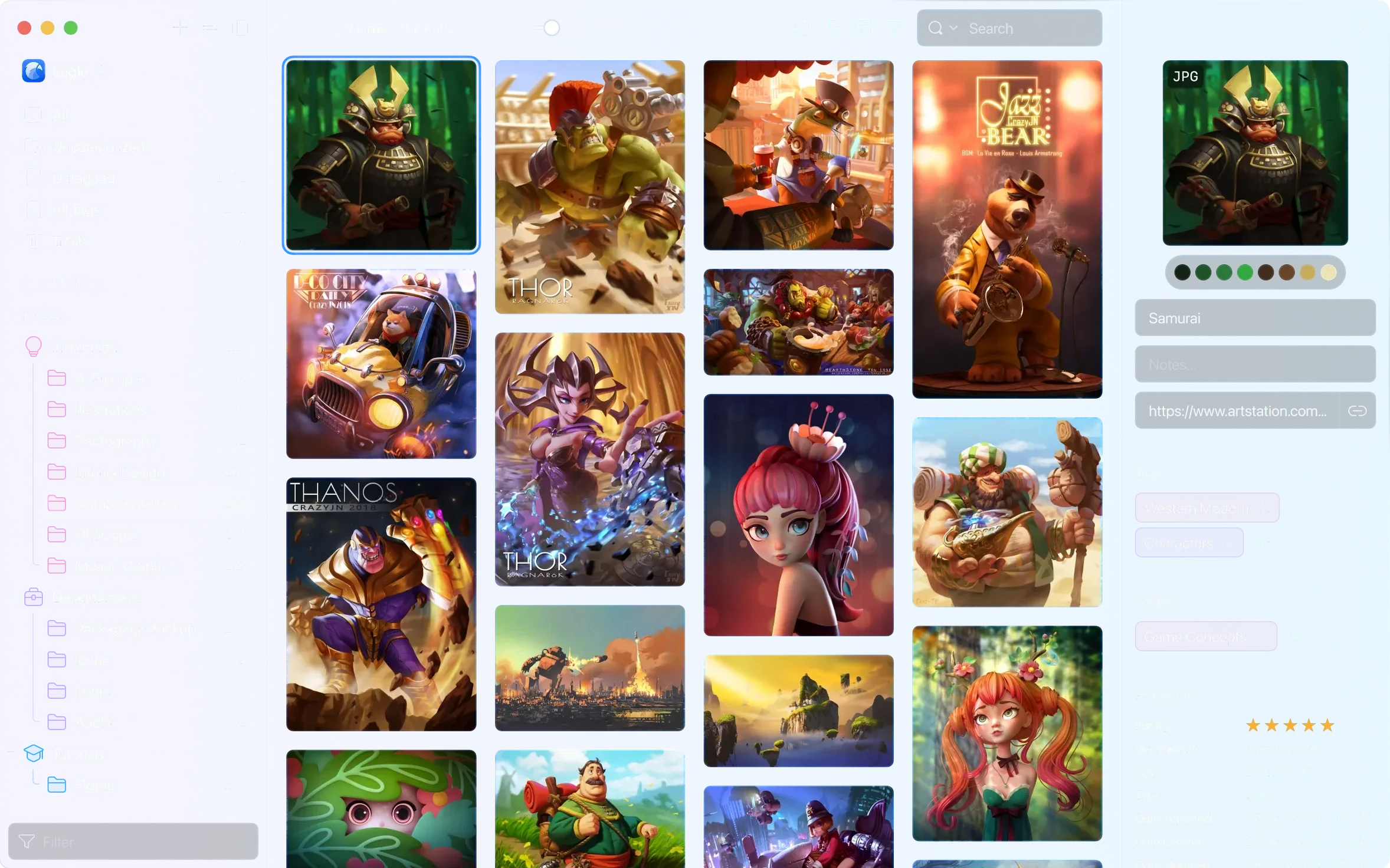
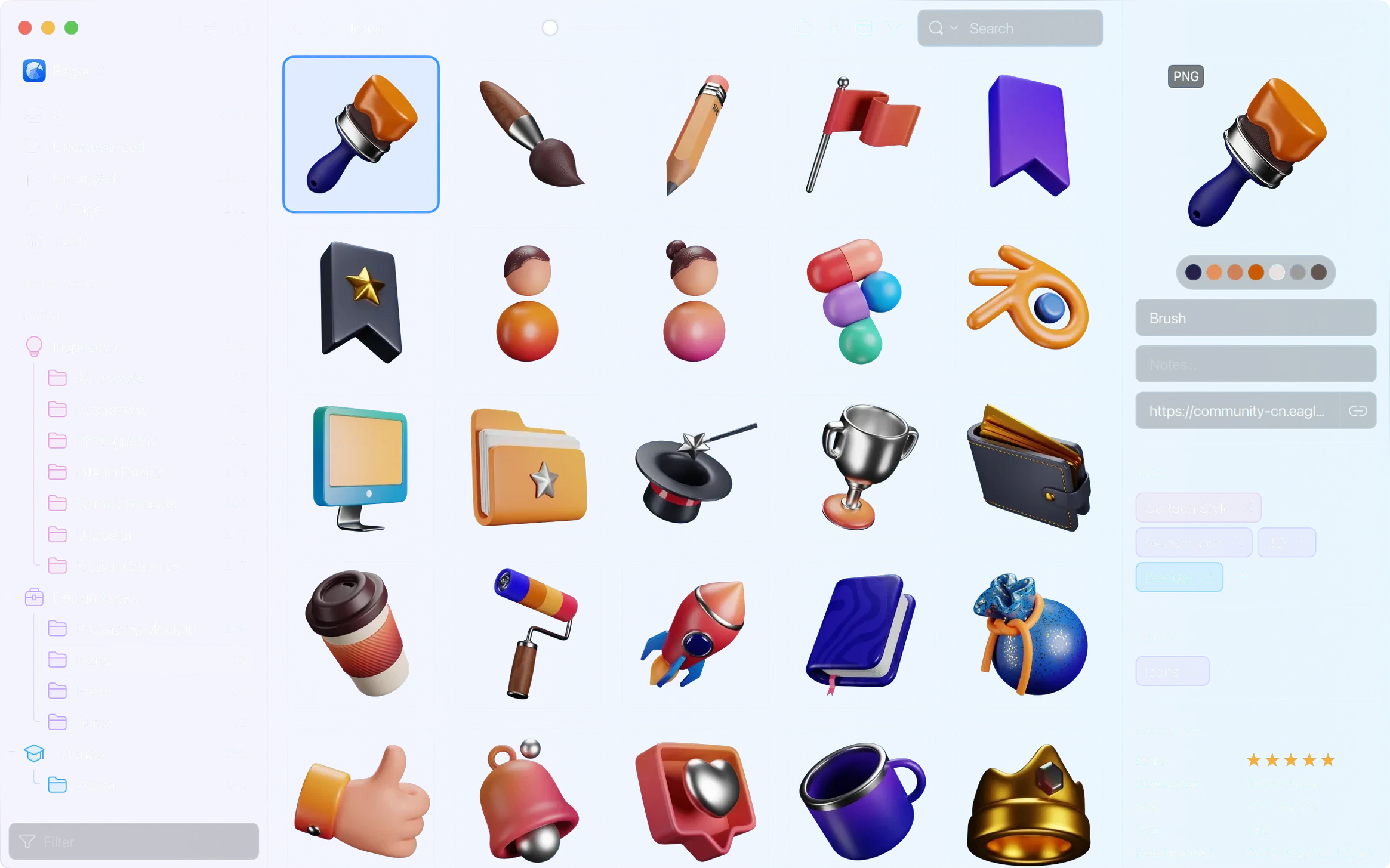
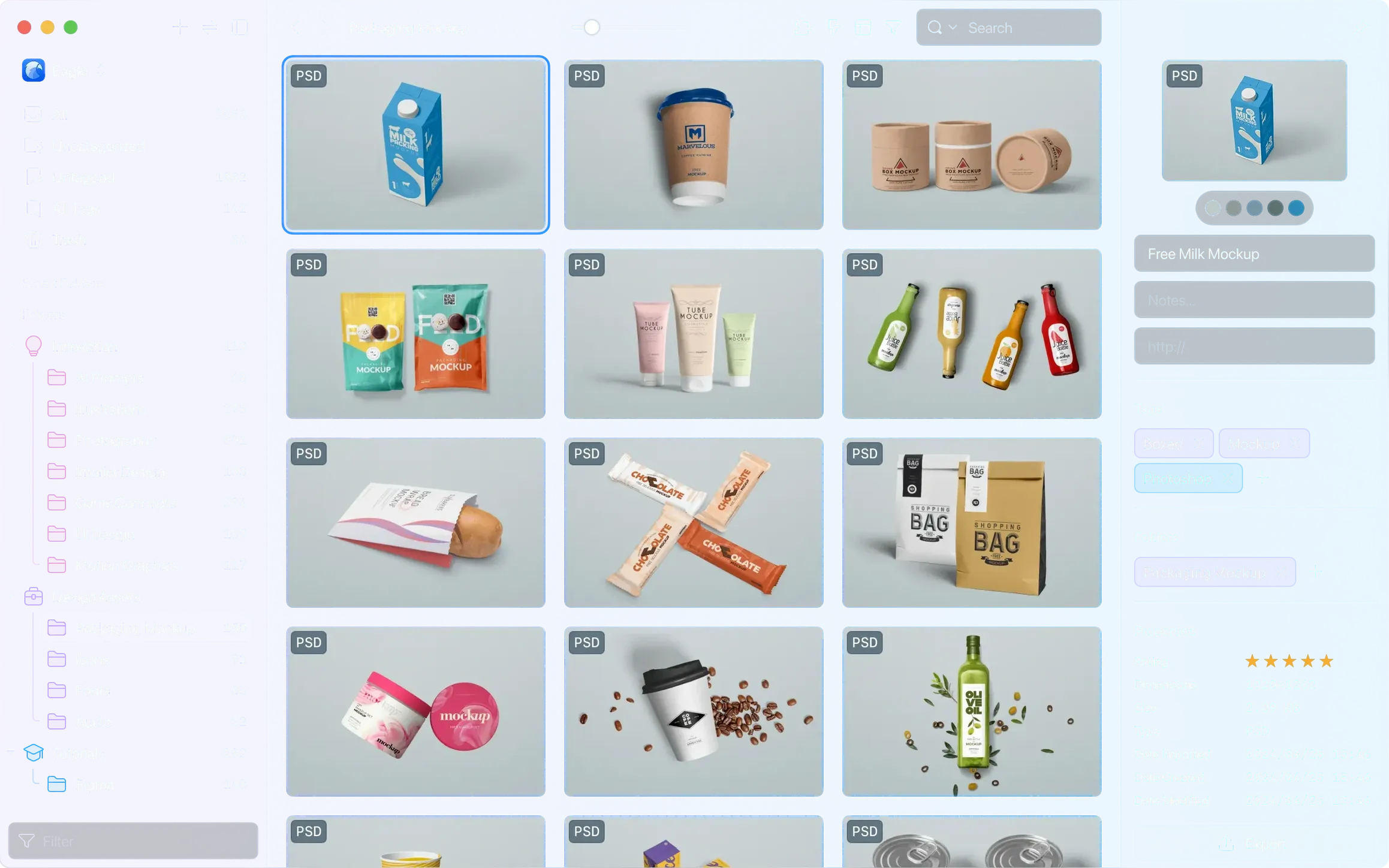
Description
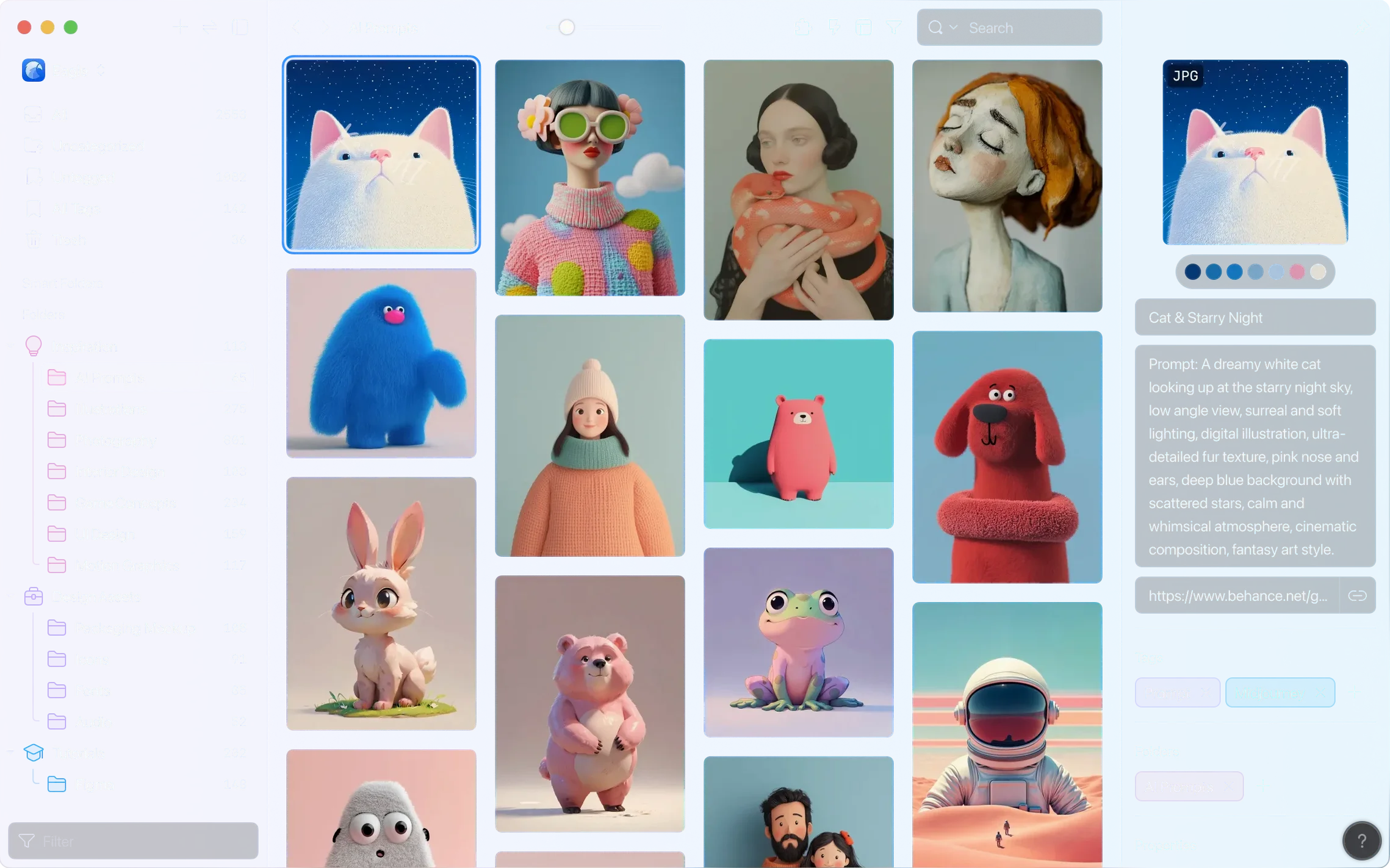
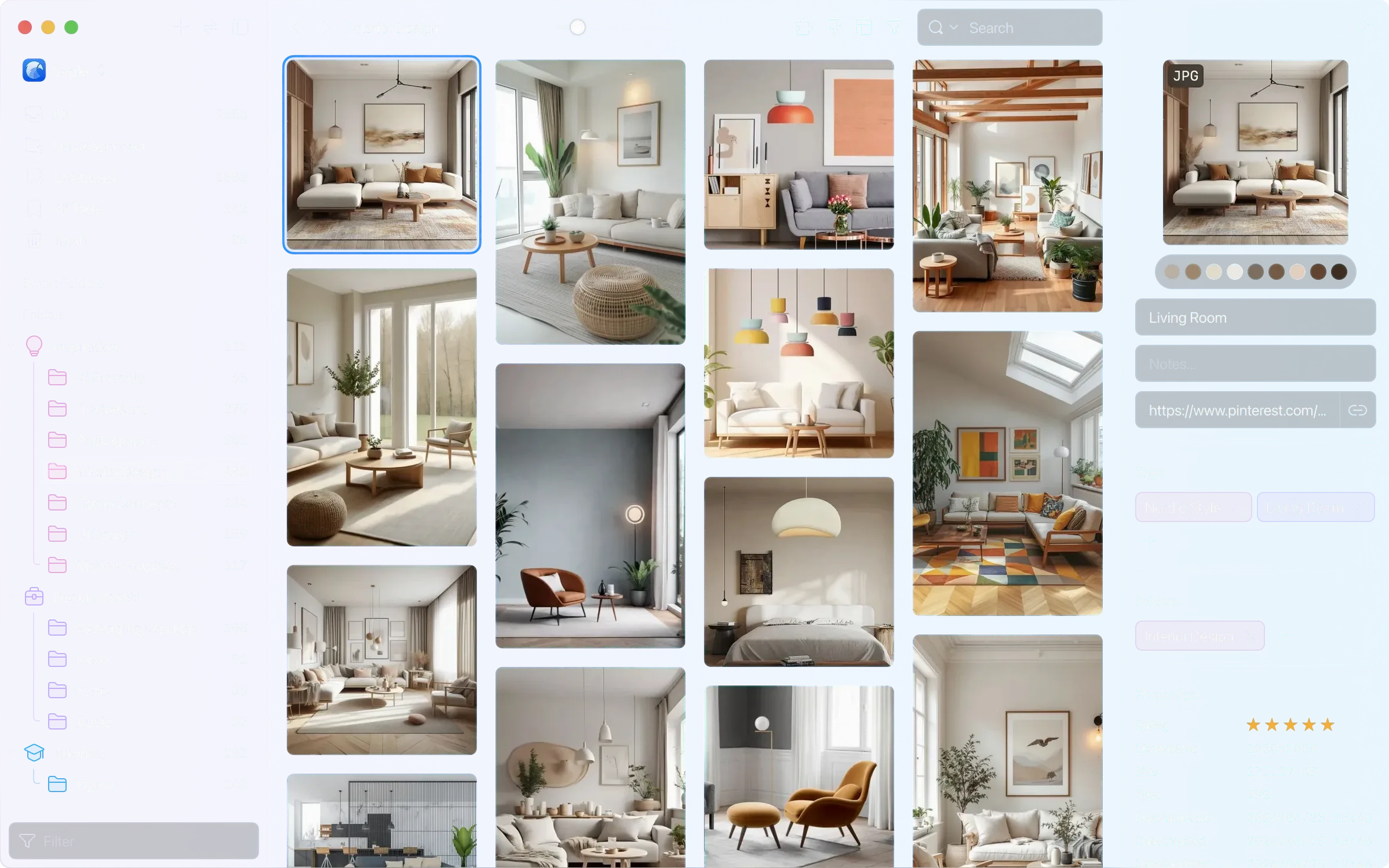
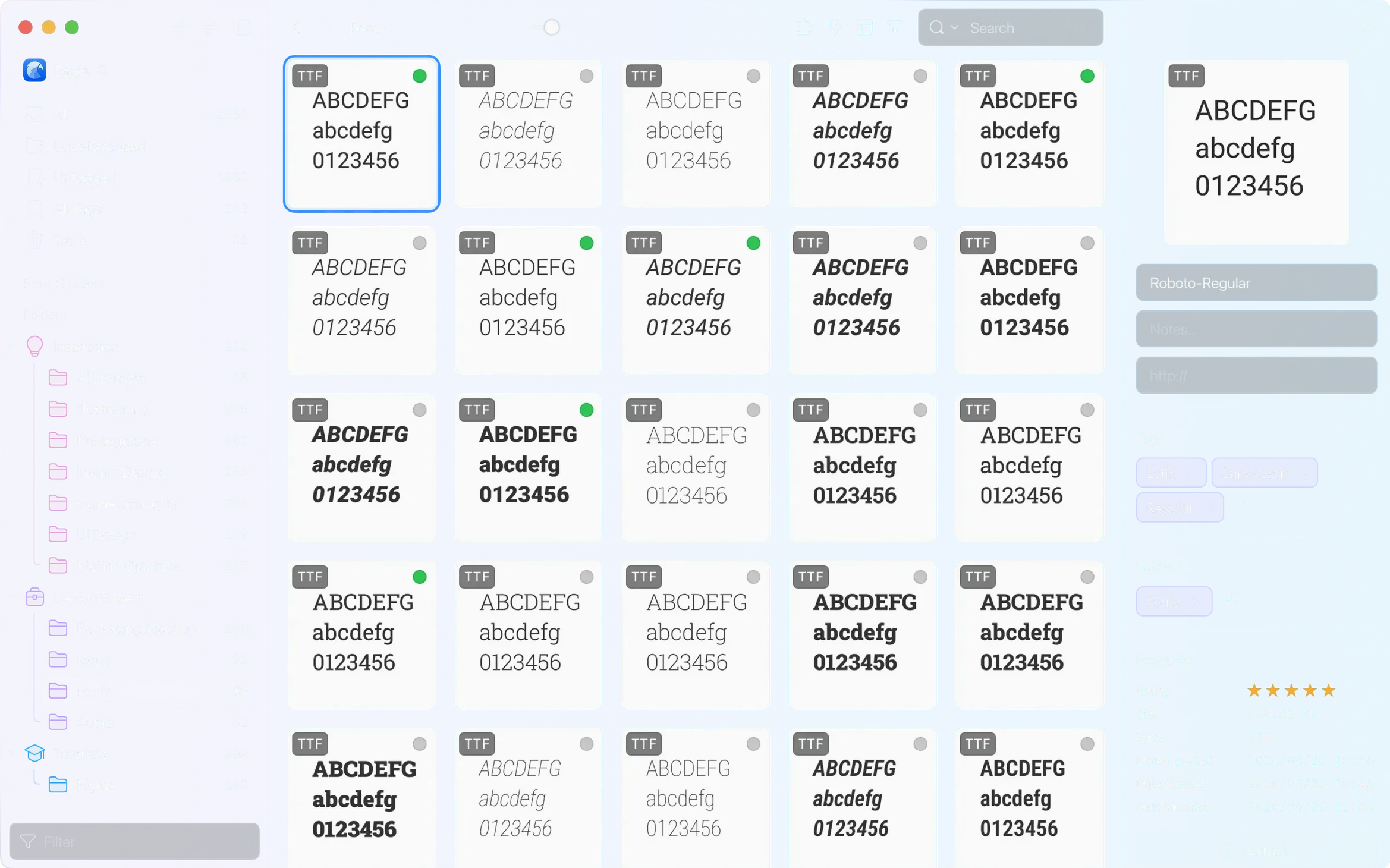
Eagle handles more than 80 file types in a single library that lives wherever you put it — internal drive, external SSD, NAS. Version 4.0 doesn't rewrite that core; it tightens the search and fills some gaps that power users kept pointing out.
- Search now understands OR, AND and parentheses, so you can build queries that actually narrow things down instead of spraying results everywhere.
- Smart folders update themselves by rules you set — colour, size, file type, date — no manual sorting needed.
- Multi-level coloured tags stick to anything, and the new "remove a specified tag" action lets you clean up in bulk from the batch tools.
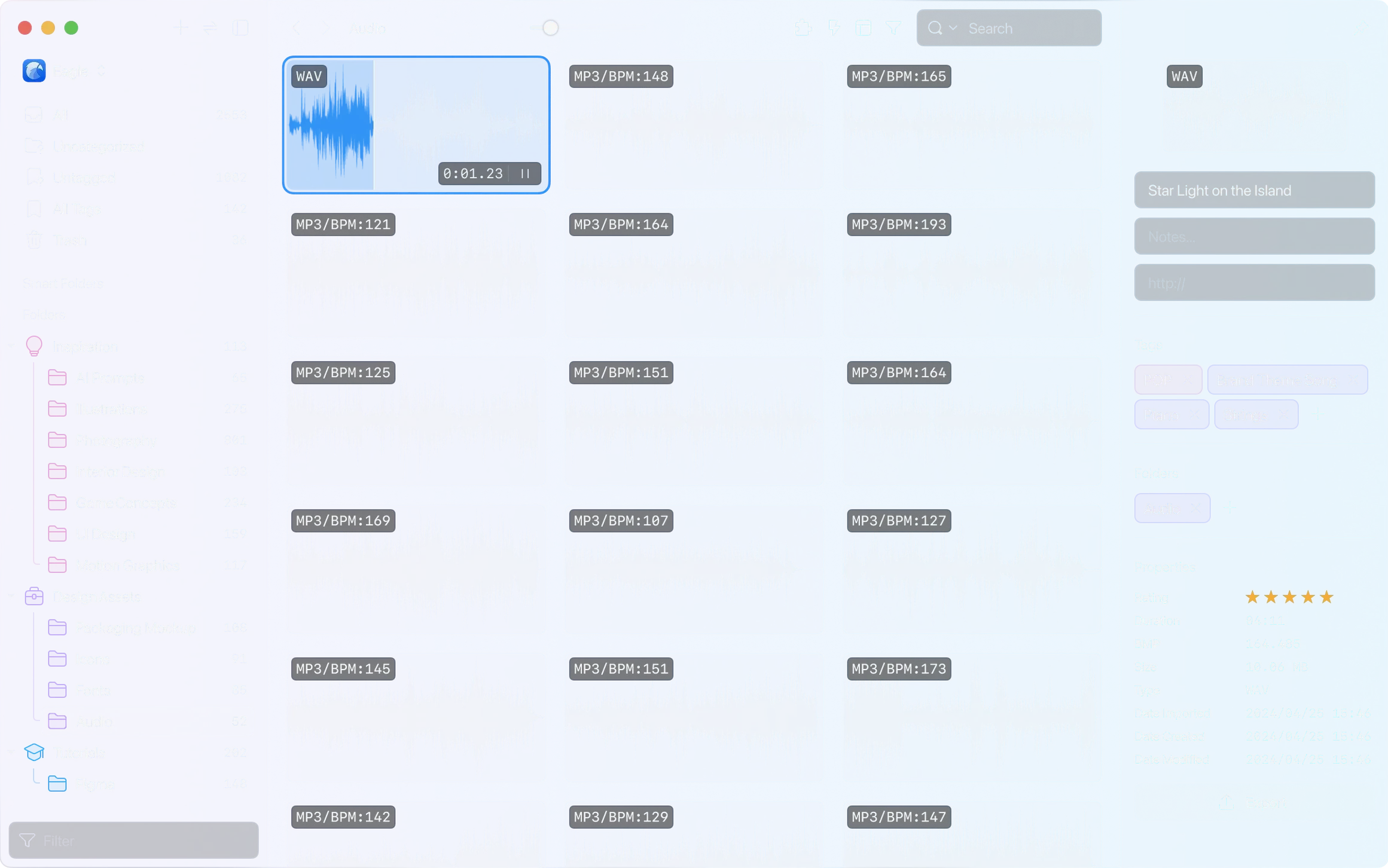
- Hour-long audio files no longer get ignored. The 4.0 build also adds a "remove a specified folder" action and hover previews for AVIF images.
- Multiple libraries mean you can split client work, personal reference and archived projects onto different drives without merging everything into one giant bucket.
The layout panel gained a few thumbnail display controls, and a bug that yanked the main window open after a screenshot on macOS has been squashed. The app runs native on both Intel and Apple Silicon, needs macOS 10.15 or later, and doesn't pester you for activation.
Grabbing a palette off the web in two clicks
You spot a colour palette on a portfolio site. The browser extension grabs the full page in two clicks. Over in Eagle, the capture lands in your inbox folder — a temporary bin the app keeps separate from your main library until you sort it.
Tag it #moodboard-client-name and add a second tag for the dominant colour. The tag panel lets you nest these, so week by week you build a vocabulary that matches how you actually hunt for things later.
Tuesday morning you need every reference tagged with that colour and saved in the last three months. The search bar takes #coral AND date:last90days. No scrolling through Finder windows, no half-remembered filenames. The results include a PDF moodboard, two screenshots and a layered PSD — all previewable in the built-in viewer without launching separate apps.
Drag the three best hits straight into a Figma file. Done.
Create a second library on an external drive before importing anything
Out of the box, Eagle assumes one big library. If you work across multiple machines or want to keep client assets strictly separate, stop and create a second library on an external drive before you import anything. Switching between libraries is quick; merging them later is not.
Next, open preferences and check the auto-import tab. Point it at your screenshots folder and your downloads folder. New files appear in Eagle without you lifting a finger — useful if you collect reference while browsing or mock something up and want it catalogued instantly.
Last one: thumbnail size. The default is a compromise. If you work with detailed UI screenshots, bump it up a notch in the layout panel. If you're organising hundreds of icons, shrink it so you see more at a glance. The new display controls in 4.0 make this a slider, not a menu dive.
What’s new
Supports audio files longer than one hour. Adds thumbnail display control options in the layout panel. Adds hover preview support for AVIF images. Adds actions to remove a specified folder and remove a specified tag. Fixes a macOS issue where the main window could open unexpectedly after taking a screenshot.
Requirements
- macOS 10.15 or later
- Runs natively on Intel and Apple Silicon (ARM and x86 64-bit)
- Activation not required
FAQ
Does Eagle support external drives for libraries?
Yes. You can create and store libraries on an external drive or NAS, which keeps large reference collections off your internal disk.
Can Eagle auto-import files from a watched folder?
It can auto-import from selected folders, so anything you drop into a watched directory lands in Eagle without extra steps.
Comments 0
Sign in or create an account to leave a comment.
No comments yet…
If you’ve installed it, say how it went. Mention your Mac and macOS version — it helps the next person more than you’d think.