
Fig Player - play mp4 mkv mp3 for macOS
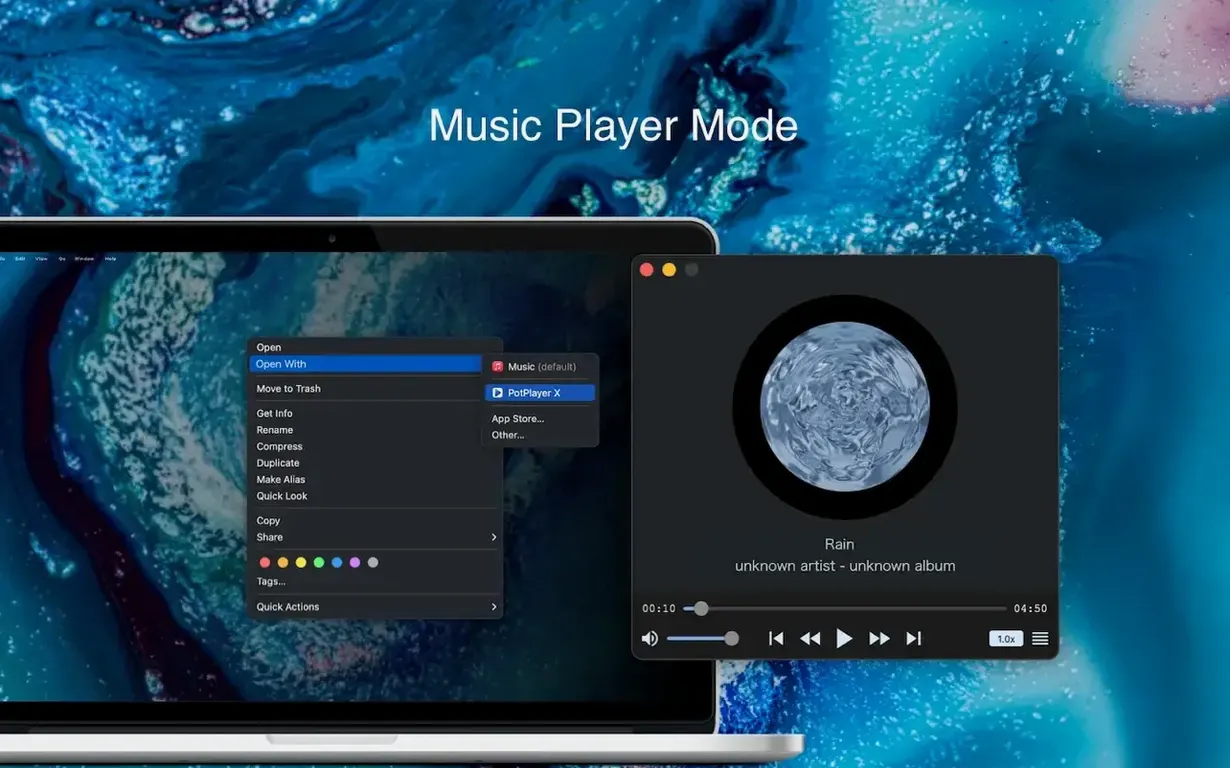
Description
It opens mkv. It opens mp4. It handles a dozen other video formats without complaint. That alone explains why a help-desk Mac often ends up with Fig Player sitting in the dock.
Play awkward files without a codec hunt
mkv, avi, wmv, webm — Fig Player just plays them. No extra plugins, no searching forums for a codec pack. The same goes for audio: mp3, flac, ogg, opus, and more work first time.
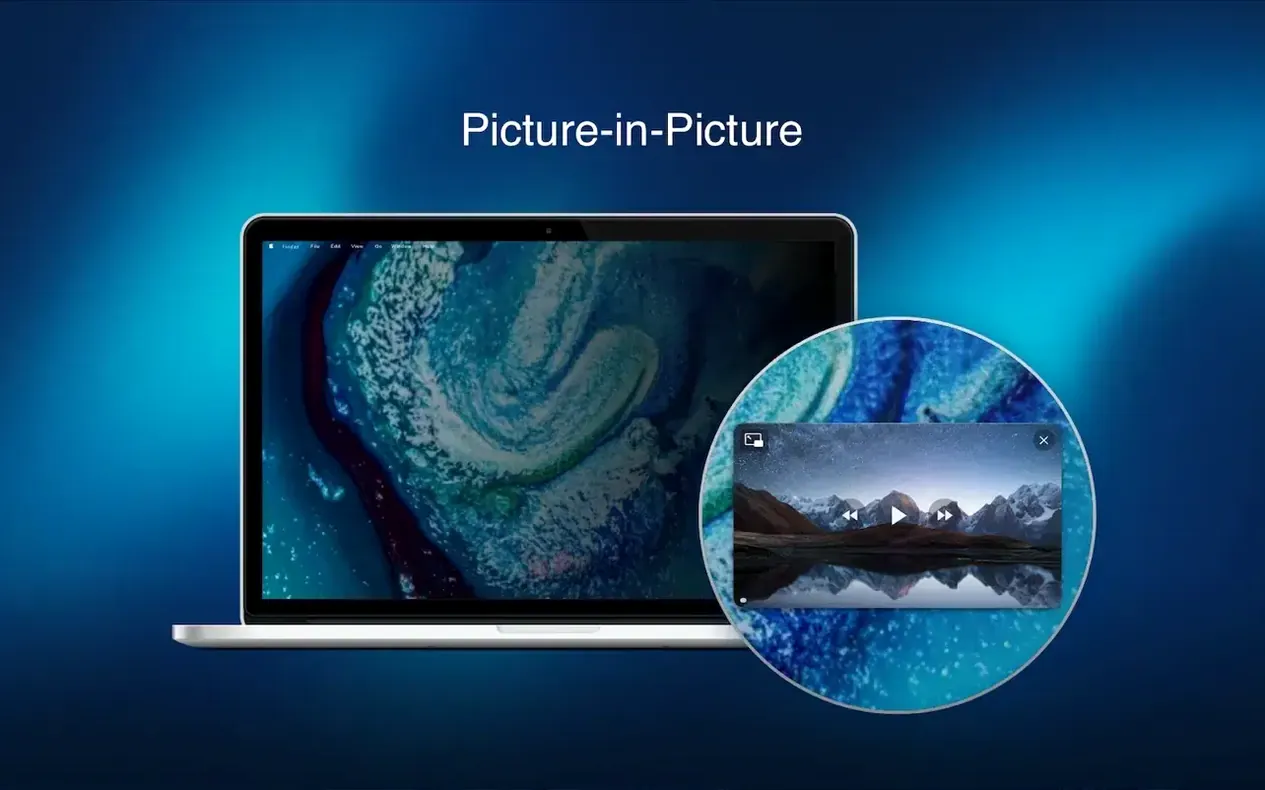
Watch a video while you do something else
Picture-in-picture keeps a floating window on top of other apps. You can also open multiple windows and play two or three videos side by side, each routed to a different audio device if you like.
Grab text straight from the screen
On macOS 12 and later, built-in OCR lets you select and copy text that appears in a video frame. Handy when a tutorial flashes a command or a presentation shows a URL you need.
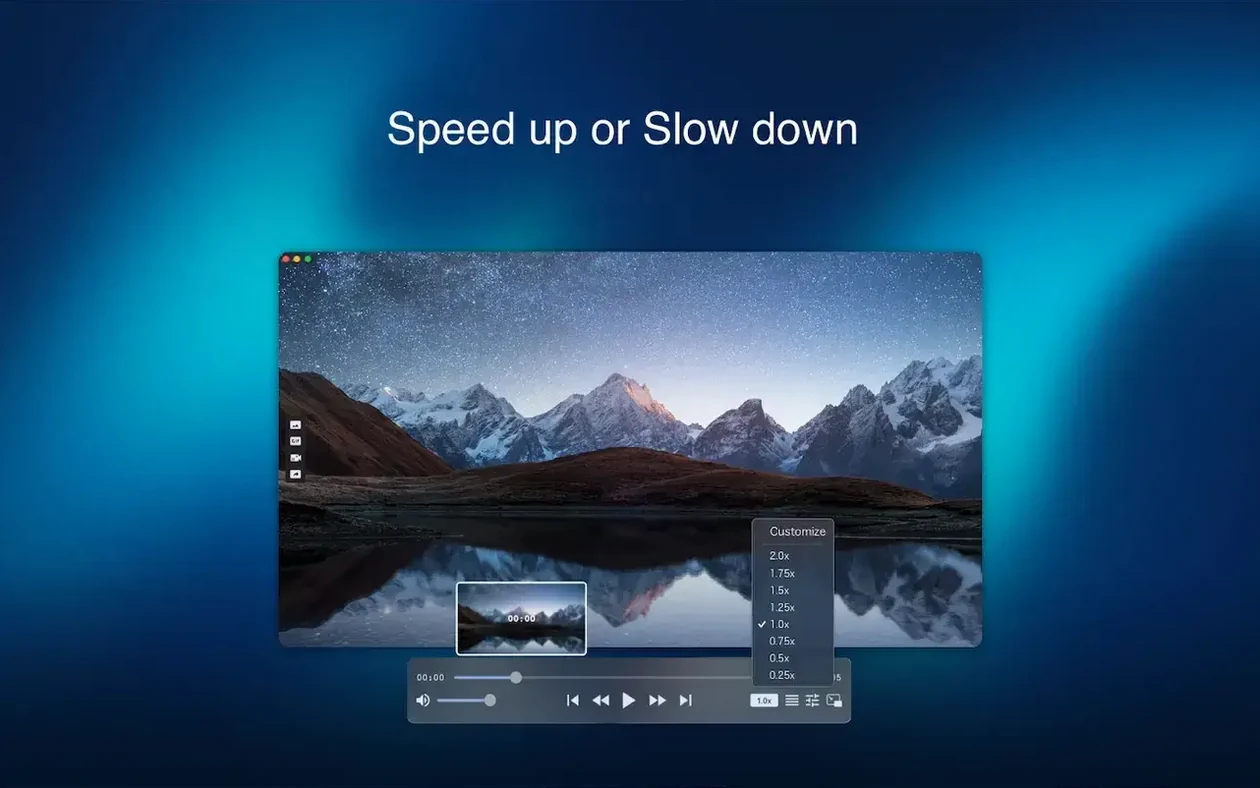
Hit J, K, L for rewind, pause, and fast-forward. The spacebar works too, but those three keys keep your hand in one spot. ← and → step by five seconds; hold Shift with them to jump by one minute instead.
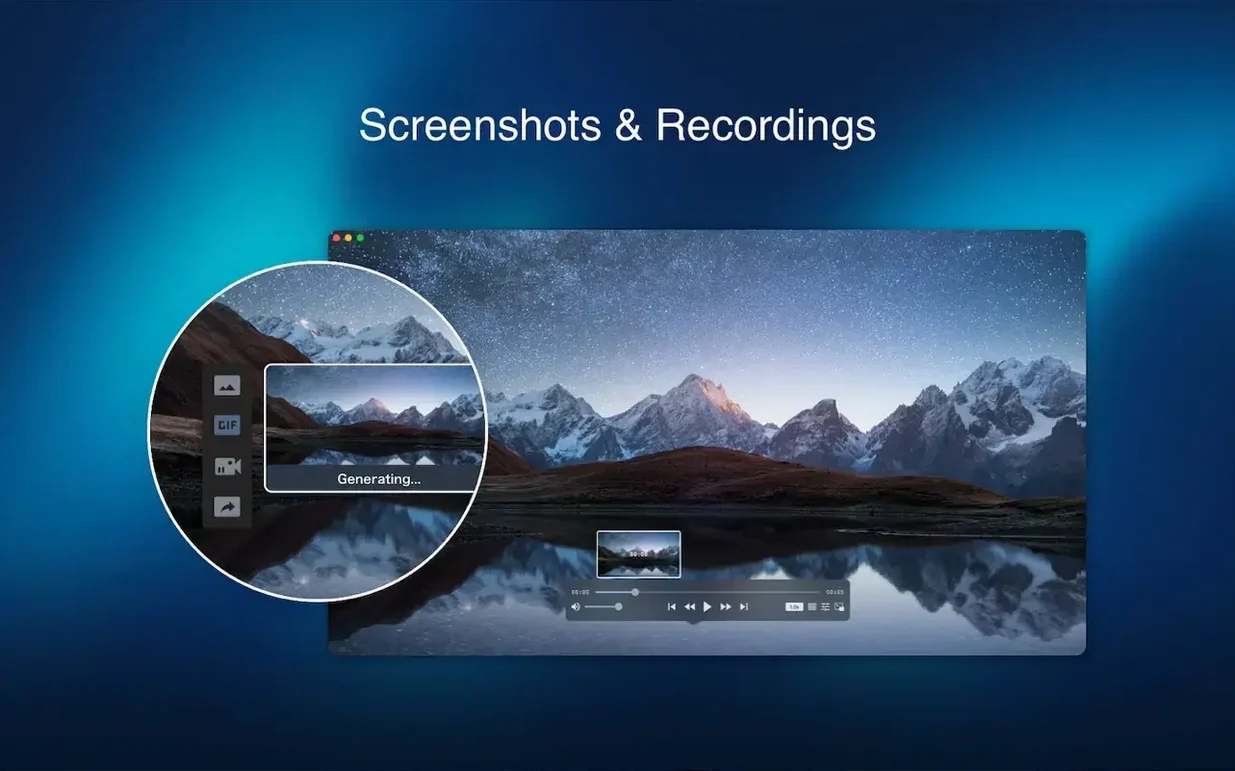
Right-click the playback window to save a frame as a scene poster — useful when you are skimming hours of footage and need to mark a moment without opening a separate screenshot tool. The poster lands on your desktop as a png.
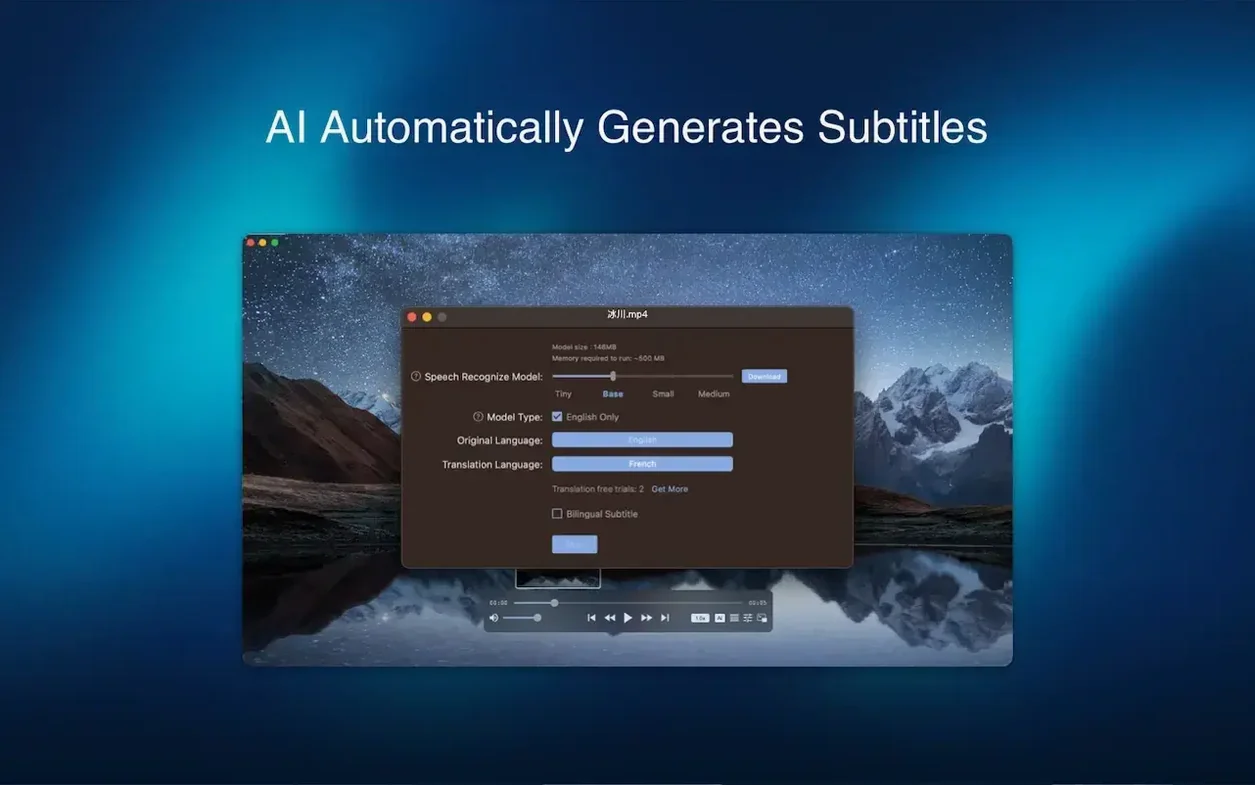
Play a video with translated subtitles, from scratch
Say you have an mkv with embedded English subtitles, but you need simplified Chinese. Fig Player handles this without extra conversion.
- Open the file. The embedded subtitle track loads automatically.
- Go to the subtitle menu and pick OCR (Live Caption) — this requires macOS 12 or later.
- Select the target language from the OCR panel. Let it run for a few seconds while the first lines appear.
- If the timing drifts, use the subtitle delay slider (
Ctrl+Shift+←or→) to nudge it back into sync. - For a clean archive, export the recognised text as a new srt. Drop it alongside the video file for next time.
Keyboard shortcuts cut through most of this. V toggles subtitles on and off. Alt+S cycles through available subtitle tracks. You can adjust audio device output with Alt+A — useful when you are casting to a DLNA display but want sound through wired headphones.
Requirements
- macOS 11 or later
- Intel 64-bit
Comments 0
Sign in or create an account to leave a comment.
No comments yet…
If you’ve installed it, say how it went. Mention your Mac and macOS version — it helps the next person more than you’d think.