extraDock for macOS
Description
ExtraDock runs on any Mac with macOS 12 or newer, Apple Silicon and Intel alike. It sits alongside the standard macOS Dock without interference, so you can keep the built-in dock exactly as it is while adding as many floating panels as you need.
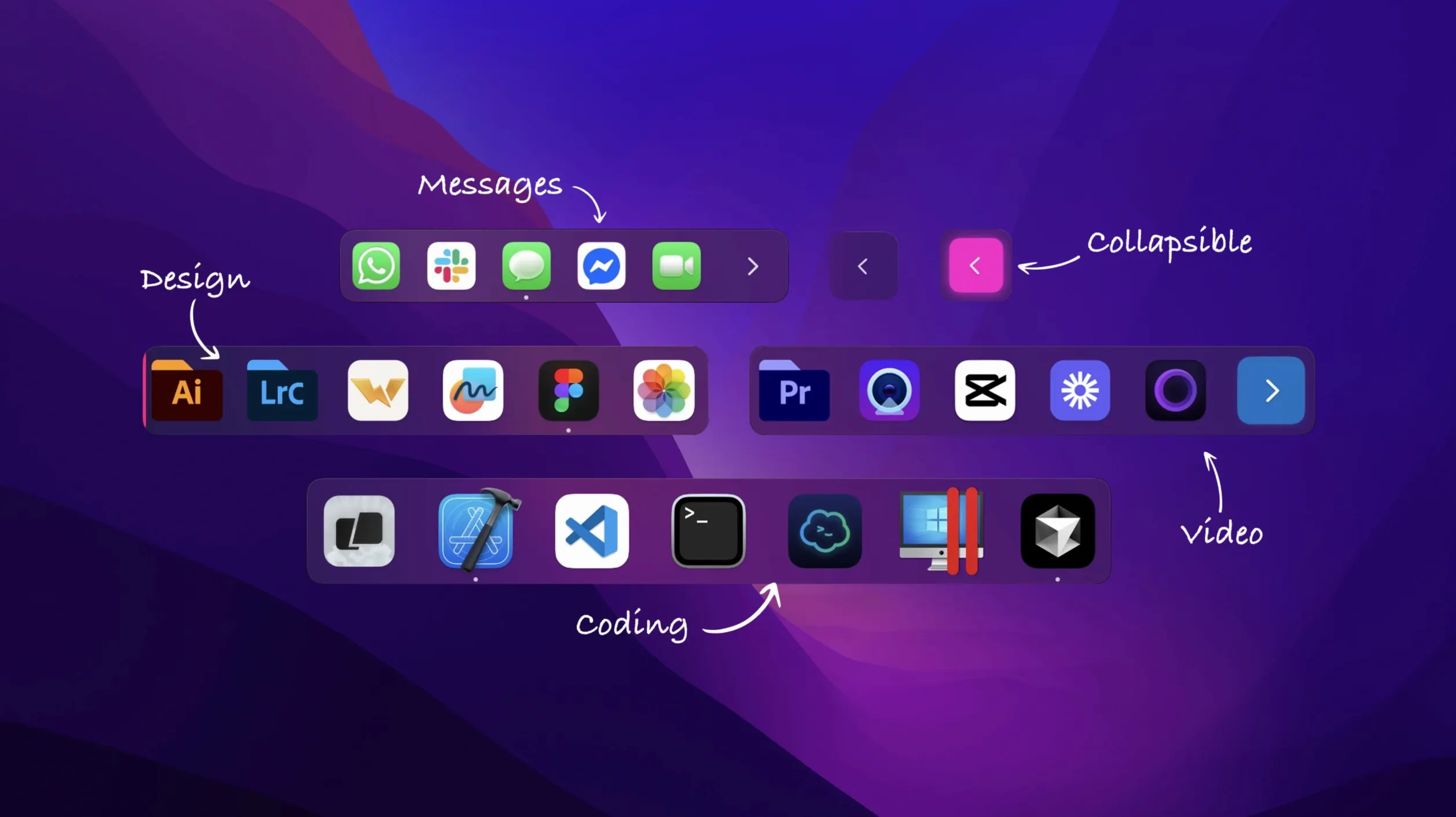
What makes it useful is that every dock lives by its own rules. Dragging an app or folder straight from Finder onto a dock adds it there, and you set the size, orientation and colour style — classic, neon or transparent — for that dock alone. A slider controls the size, and you can pin the whole bar to any screen edge or leave it free-floating wherever you want it.
The behaviour that saves the most fiddling is the display-aware auto-hide. When a monitor is disconnected, its dock disappears. Reconnect the display and the dock reappears exactly where it was, with the same apps and layout. No manual rearranging after unplugging a desk setup.
It stays light on CPU and memory because it only draws what is visible. If you run a multi-display desk or just want separate toolbars for different tasks, it fills a gap the system dock never really addressed.
A designer’s multi-display day
A UI designer with two external displays keeps vector tools on the left screen and prototyping apps on the right. The system dock shows everything, everywhere, which means a lot of sideways squinting. With extraDock, they pin one dock to the bottom edge of each monitor — Illustrator and Figma on the left, Xcode Simulator and Principle on the right. Both docks auto-hide when not in use, so the canvas stays clear. On meeting days when the second display stays at home, that dock vanishes. No dragging things back after reconnecting.
Auto-hide each dock to keep fullscreen apps clean
- Turn on per-dock auto-hide. In the dock’s settings, enable “Auto-hide when not in use.” It stops the panel hovering over content in fullscreen apps and keeps the workspace uncluttered.
- Set a collapse button. Tick “Collapse dock into a single button” and choose “Expand on hover.” A slim tab sits at the screen edge and pops open only when you need it — handy for a utility dock stuffed with calculators, sticky notes and terminal shortcuts.
- Switch orientation for sidebar workflows. A vertical dock aligned to the left edge works better than horizontal for a stack of writing or coding tools. Change it under the dock’s orientation dropdown.
- Label your docks. Give each one a short name in its settings. The tray menu then reads clearly — “Writing,” “Music,” “Admin” — instead of a wall of numbered docks.
Requirements
- macOS 12 or later
- Apple Silicon or Intel 64-bit
FAQ
Can I move a dock to a different screen edge?
Yes. Each dock can be pinned to the top, bottom, left or right edge of any display, or moved freely on the desktop.
Does ExtraDock replace the built-in macOS Dock?
No, it works alongside the native Dock so you keep the original and add extra application bars as needed.
Comments 0
Sign in or create an account to leave a comment.
No comments yet…
If you’ve installed it, say how it went. Mention your Mac and macOS version — it helps the next person more than you’d think.