Element 3D for macOS
Description
Element 3D runs on Intel Macs inside Adobe After Effects. It is not a standalone application — you need a working After Effects installation. Apple Silicon support is not listed, so check compatibility with your current macOS version before you get started.
The plug-in centres on an OpenGL 3D renderer built for speed. It imports OBJ files directly and can bring in 3D objects prepared in Cinema 4D. Once your models are in, the 3D Object Groups control gives you replicator settings to scatter, array and instance specified geometry without leaving the timeline.
Because it is an object-based particle system, you work with solid geometry rather than flat sprites. That makes it a practical choice for motion graphics that need hard-surface objects — text extrusions, tech UI panels or product-style renders — moving in particle formations. The renderer keeps previews responsive even with hundreds of objects on screen.
Starting a comp with a late soundtrack and a 3D model
I'll walk you through what an afternoon with Element 3D actually looks like. You have After Effects open, a comp set to 1920×1080 at 25 fps, and a soundtrack someone emailed you three days late.
Step one is always the same: create a solid layer and apply Element. The plug-in loads its default scene — a chrome shader ball on a black background — and the viewport kicks in. You get a shaded preview straight away, no render queue needed.
You drag your first OBJ into the scene. The model lands at world origin, untextured, probably the wrong scale. The first thirty seconds are spent in the Transform group, sizing and rotating until it sits right. Then you open the materials panel. A few clicks assign a metallic preset to the hull and something matte grey to the internals. You scrub the timeline — the viewport updates at maybe 20 frames per second on a decent GPU, smooth enough to judge motion.
Now the replicator. You switch a 3D Object Group to Particle Array mode, set the count to 200, and watch the viewport fill with copies. A quick XY distribution spreads them across the frame. You add a gentle rotation variation so the objects tumble at different rates. The whole setup takes under ten minutes once you know the panel layout.
You close the plug-in and return to After Effects. The comp shows your 3D layer sitting above some 2D background plates. You duplicate the layer, change the model in the second instance, and now two particle arrays run simultaneously — one dense, one sparse — both updating in real time as you tweak the camera orbit.
Building a shattered title card: start to finish
The brief asked for a programme title that explodes into fifty fragments, then reforms. Here's how Element 3D handles that without a single keyframe on individual pieces.
- Prepare the text geometry. Create the title in Cinema 4D, extrude it with a slight bevel, and export one OBJ per letter. You could also build the text inside Element's extrusion system, but pre-built models give you more edge detail.
- Import into Element. Apply the plug-in to a solid, load all letter OBJs into separate 3D Object Groups. Five groups max, so you might need to batch letters together if the title is long.
- Build the exploded state. Set each group to Particle mode, scatter the particles with a high position variance — say 800 pixels in X and Y, 400 in Z. Add random rotation on all three axes. The letters now look like debris.
- Animate the reform. In the Particle Look group, animate the position variance from 800 down to 0 over 20 frames. The fragments fly back into place. Adjust the easing curve in After Effects for a slight overshoot at the end.
- Add spin. Keyframe the rotation variance from 360 degrees down to 0 on a slightly offset schedule — the rotation settles half a second after the position. Feels heavier, more physical.
- Light it. Drop an After Effects point light into the comp, switch Element's renderer to use comp lights, and watch the bevels catch highlights as the pieces rotate past.
The whole sequence renders in under a minute on the timeline. No external 3D package needed after the initial OBJ export. That's the real appeal — the round-trip time is zero.
Crashing your timeline with 200k-polygon OBJs
The most common one is loading models that are far too heavy. Element's renderer is quick, but it is not a substitute for sensible mesh budgets. An OBJ with 200 000 polygons scattered across 500 instances will bring any Intel Mac to its knees. Keep source meshes under 20 000 triangles wherever possible. Decimate before import.
Another classic: ignoring the group limit. You get five 3D Object Groups per instance. Beginners often try to load six or seven separate objects and get confused when the sixth slot stays grey. The workaround is to use multiple Element layers in the comp, each with its own set of groups.
Texture paths cause headaches too. OBJ files reference their MTL material file, which in turn points to texture images. If you move the OBJ after importing, Element loses the texture links. Keep your model folder structure stable before you start the project. Better yet, use the plug-in's built-in material presets rather than relying on imported textures for quick tests.
And then there is the lighting confusion. Element can use its own internal lights or inherit After Effects comp lights — but not both simultaneously in a predictable way. Pick one mode early and stick with it. Switching mid-project changes the look of every reflective surface.
Real-world scenario: a broadcast designer's lower third
A news graphics designer needed a lower-third sting — a metallic bar that slides in from screen left, trailing a swarm of small geometric chips that settle into place behind the text.
She modelled the main bar as a simple bevelled box in Cinema 4D, exported it as an OBJ, and loaded it into Element on a solid layer. The bar animation was straightforward: a single position keyframe pair inside the plug-in's Transform group, sliding it from off-screen to its final position over 15 frames.
The chips were trickier. She used a particle array populated with a low-poly tetrahedron, set to emit in a burst at frame zero. A high initial velocity sent them scattering, and a drag force in the Particle group slowed them down over 30 frames. By frame 30 they had settled into a loose cloud behind the bar. She added a faint motion blur in After Effects to soften the trailing edge.
The whole sting — bar, chips, two lines of text rendered as separate 2D layers on top — played back in real time during client review. When the producer asked for a camera push-in, she added an After Effects 3D camera, parented the Element layer to a null, and animated the zoom without reopening the plug-in. The chips responded automatically, their positions fixed in 3D space relative to the moving camera.
What made the workflow hold up under deadline pressure was that she could change the chip material from dark steel to bright copper in under a minute — open Element, swap the preset, close — without touching a single keyframe. That kind of material flexibility is what keeps the plug-in in regular rotation in broadcast suites.
Worth it if you build 3D-heavy After Effects compositions on an Intel Mac and already have a library of OBJ or C4D models.
What’s new
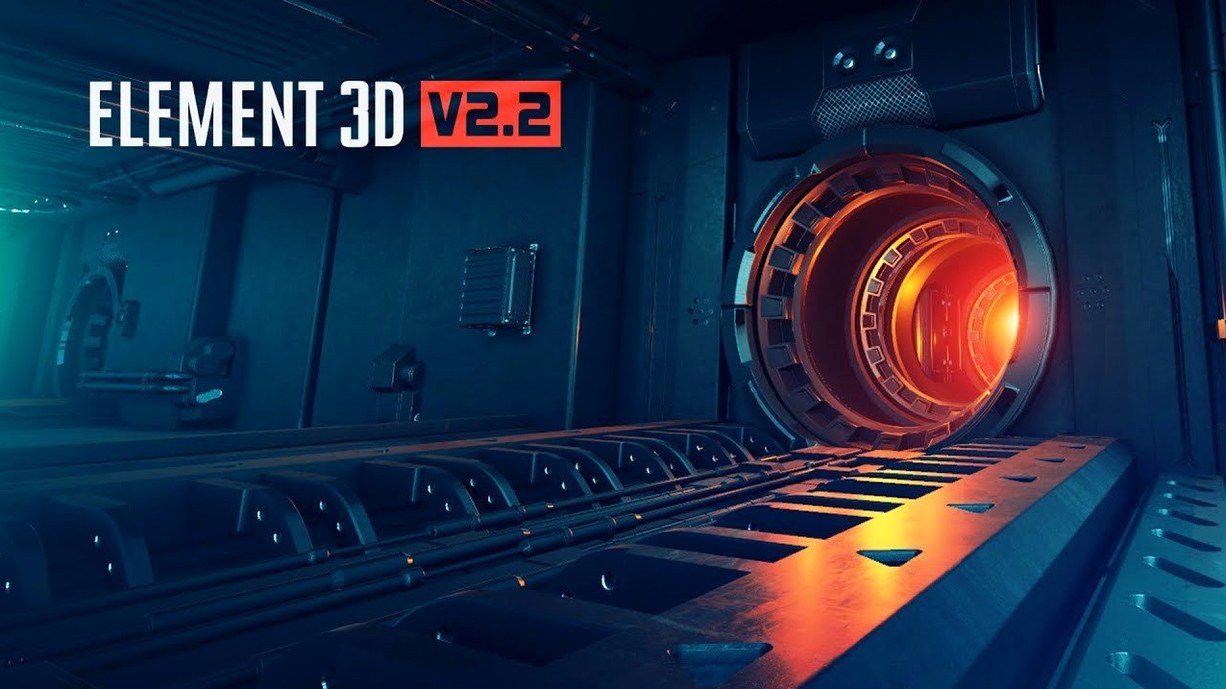
- Adds update for Element 3D V2.2
- Object-based particle plug-in
- Fast OpenGL 3D renderer
Requirements
- macOS (Intel only)
- Adobe After Effects
- English interface
FAQ
Can Element 3D import Cinema 4D files?
Yes, it can import 3D objects created in Cinema 4D directly into Adobe After Effects.
Comments 0
Sign in or create an account to leave a comment.
No comments yet…
If you’ve installed it, say how it went. Mention your Mac and macOS version — it helps the next person more than you’d think.