
Dropover for macOS
Description
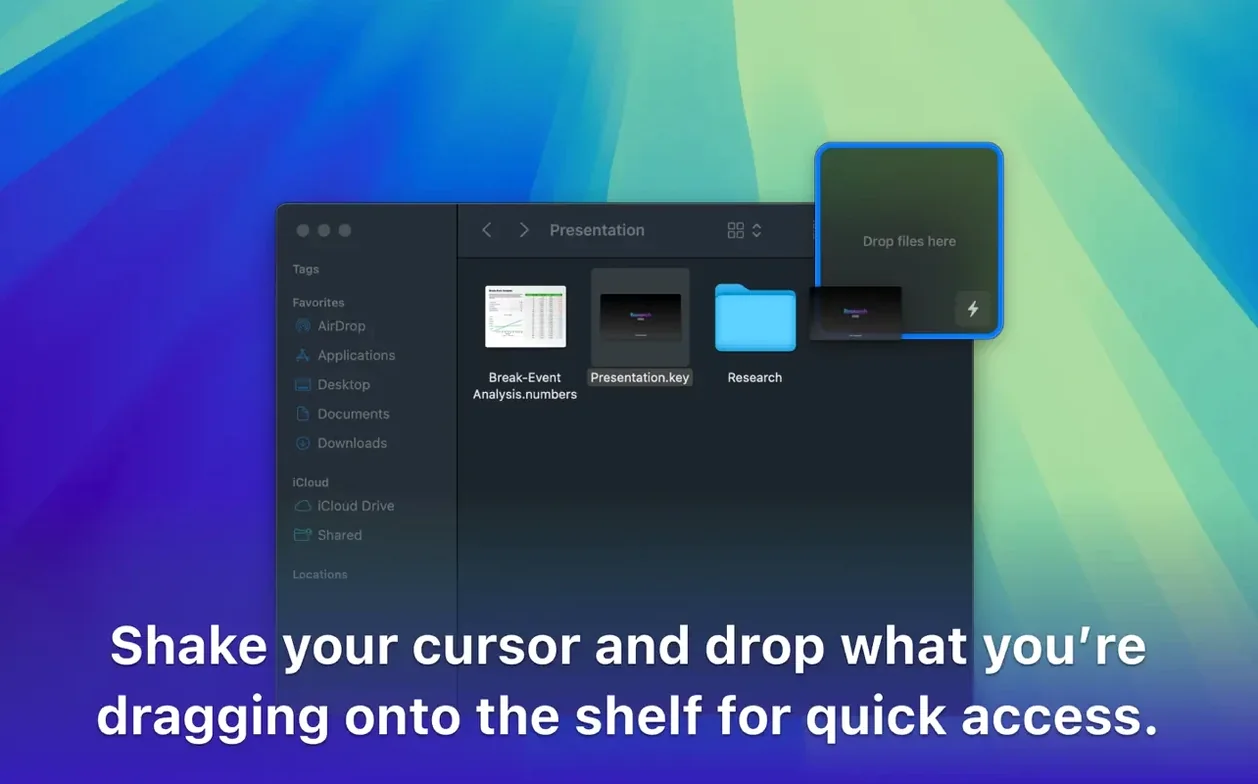
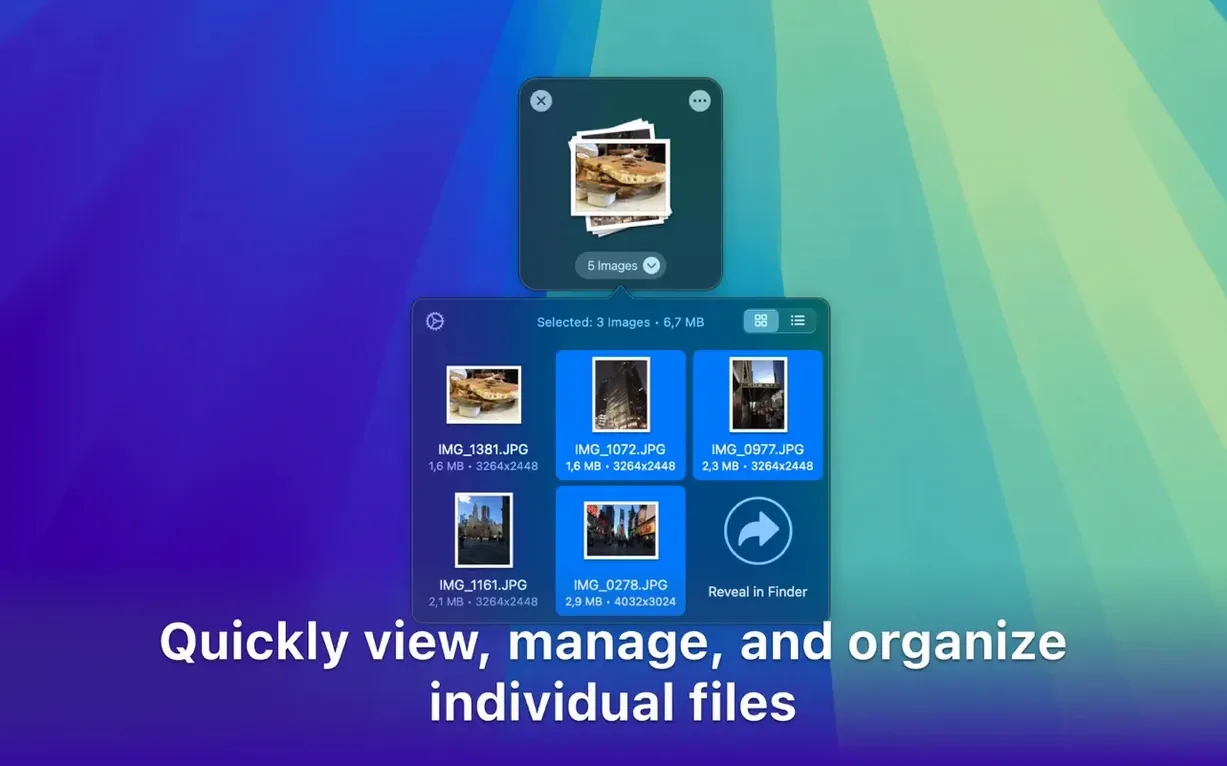
You already know how dragging files between Finder windows works. Dropover adds a middle step — a temporary shelf that holds whatever you drag, so you can switch folders or apps before dropping everything at once.
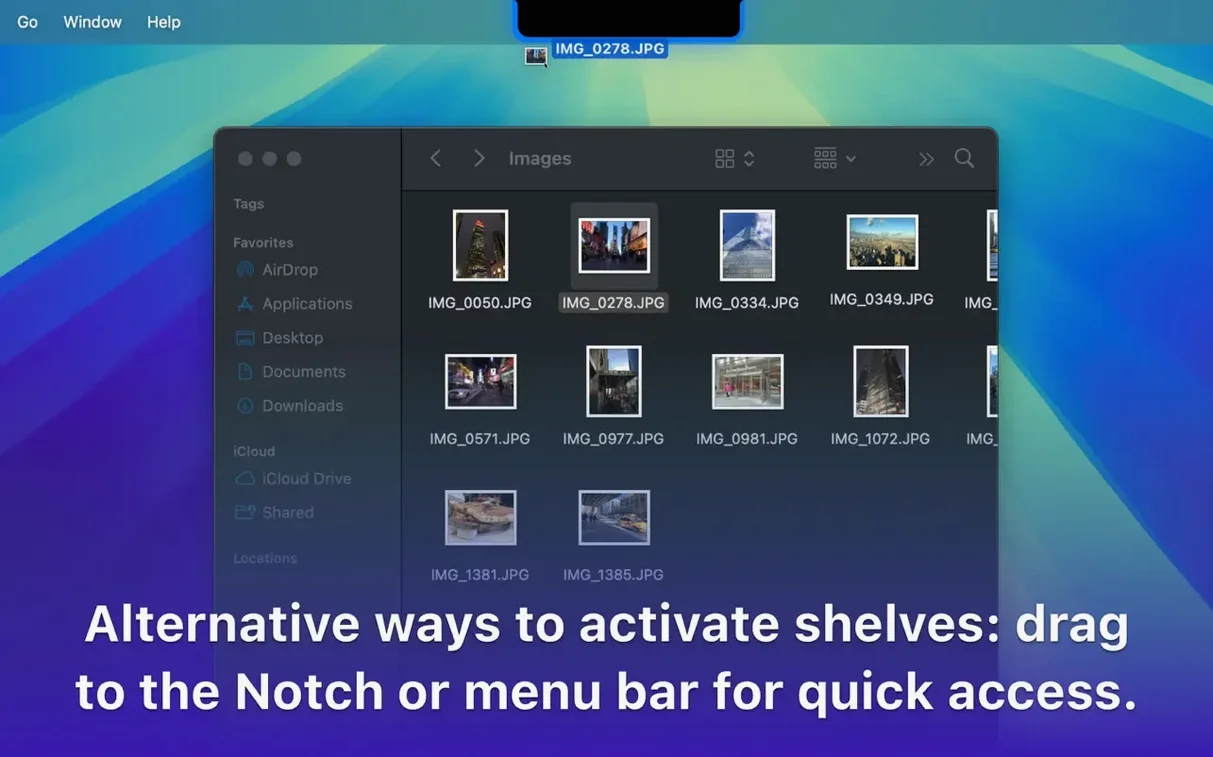
- Staging area for dragged items. A floating shelf appears when you shake your cursor or drag files, keeping them visible while you work.
- Collect from multiple locations. Add files from different folders, workspaces or applications without losing the first batch.
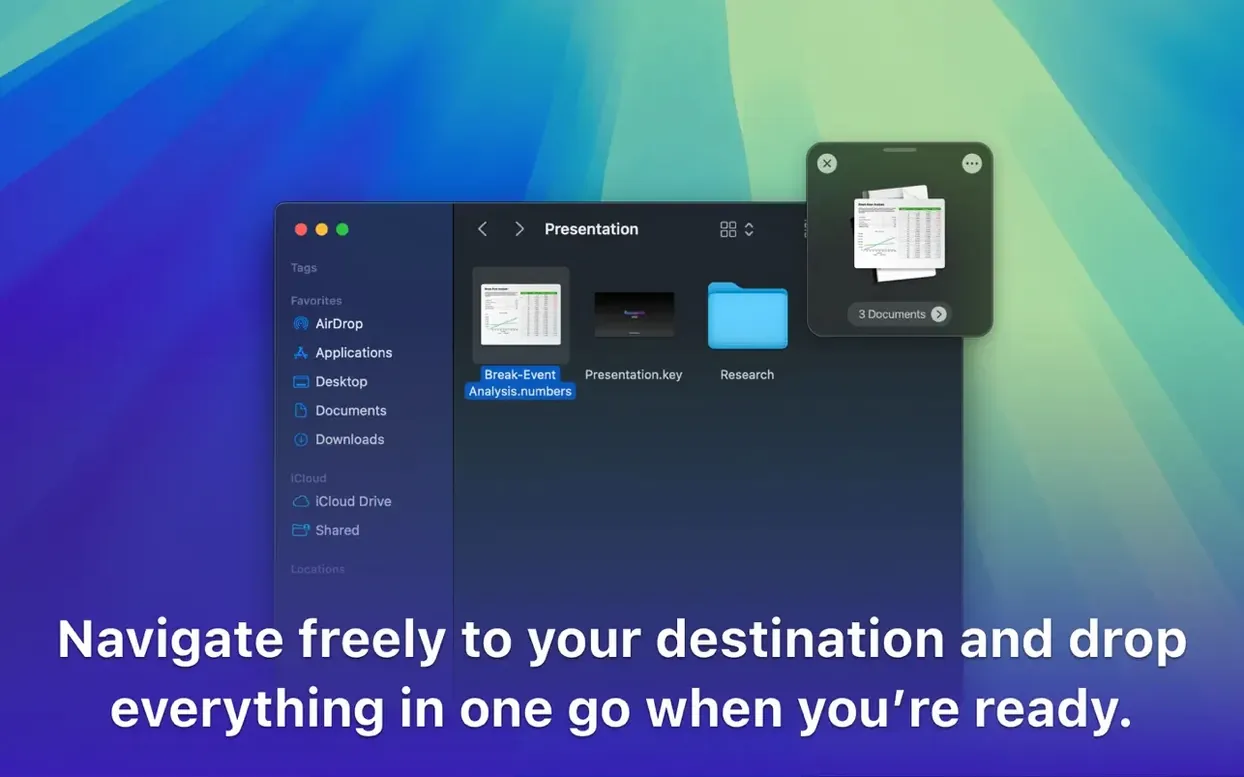
- Drop everything in one go. Navigate to the destination, then move the whole group at once.
- Right-click and share sheet access. Send items to the shelf from context menus or the macOS share menu without dragging.
- Works across Spaces and full-screen apps. The shelf stays available when you switch desktops, so you are not tied to one window.
It is a small utility from Tappable Software that removes the friction of multi-step file moves. If you often gather files from scattered locations, it saves you a surprising number of trips.
Grabbing files from five scattered locations without opening Finder windows
Say you need to send a batch of files to a colleague. Some are in Downloads, two are on the desktop, and one is an image open in Preview. Instead of opening five Finder windows, you do this:
- Grab the desktop files first. Drag them a short distance and give the mouse a tiny shake. A floating shelf appears under your cursor. Drop the files onto it.
- Click into Downloads. Select three more files, drag them to the same shelf. They stack up without fuss.
- Switch to Preview. Drag the image thumbnail from the title bar straight onto the shelf. It joins the pile.
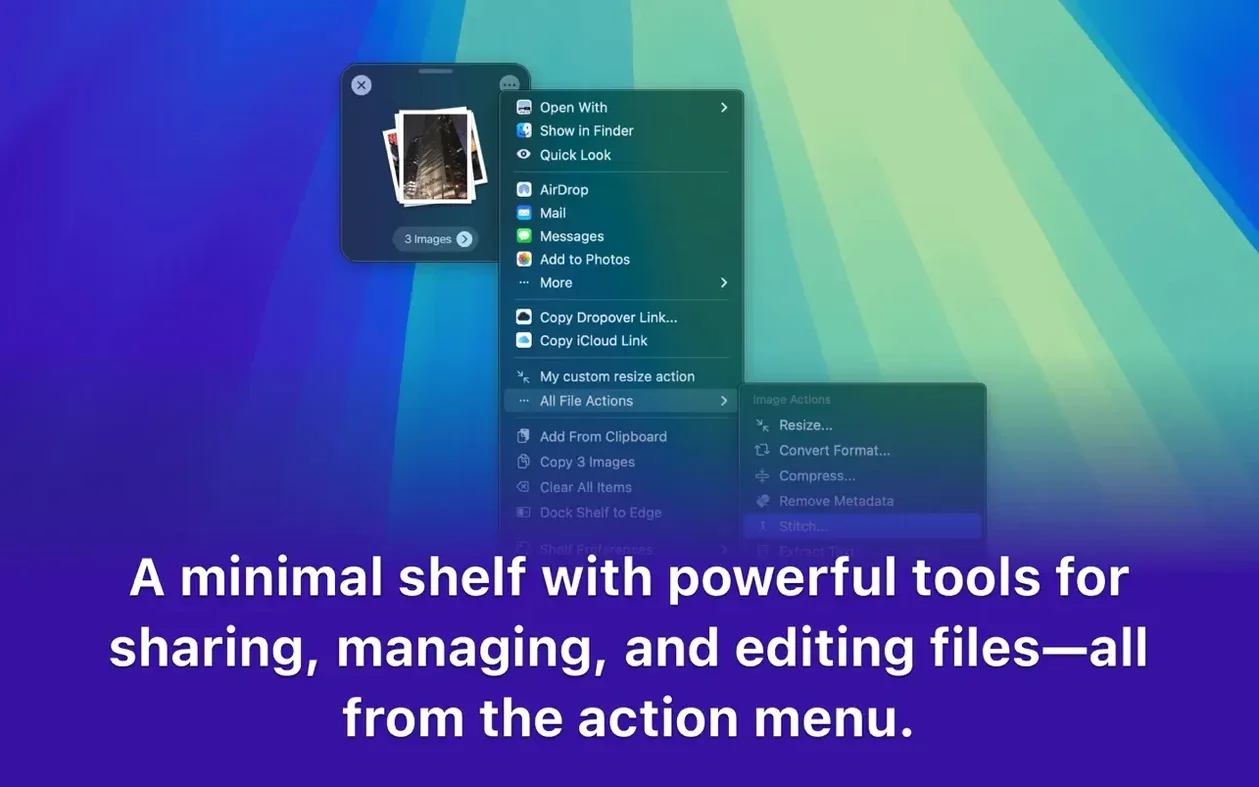
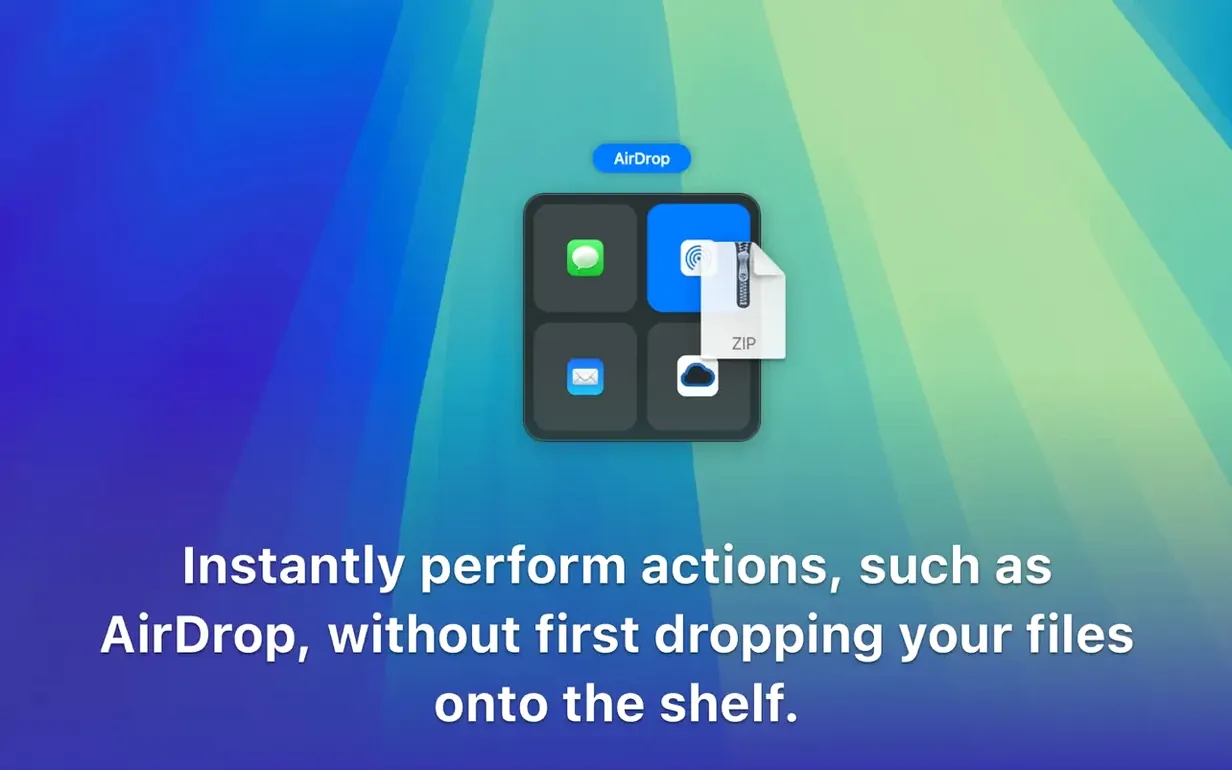
- Right-click the shelf. Choose Compress to zip everything on the spot, or pick Share → Mail to attach the whole collection to a new message.
- Done. The shelf vanishes after the action completes.
If you change your mind halfway, just click away. The shelf stays put until you dismiss it or use its contents. No temporary folders, no spring-loaded Finder gymnastics.
A less twitchy shake gesture that pops the shelf only when you mean it
The 5.x line brought a few quiet improvements that sharpen daily habits. Shake-to-activate got less twitchy — the shelf now appears with a more deliberate drag-and-pause, so it does not pop up when you are just moving a file across the desktop. That alone cuts accidental activations by a lot.
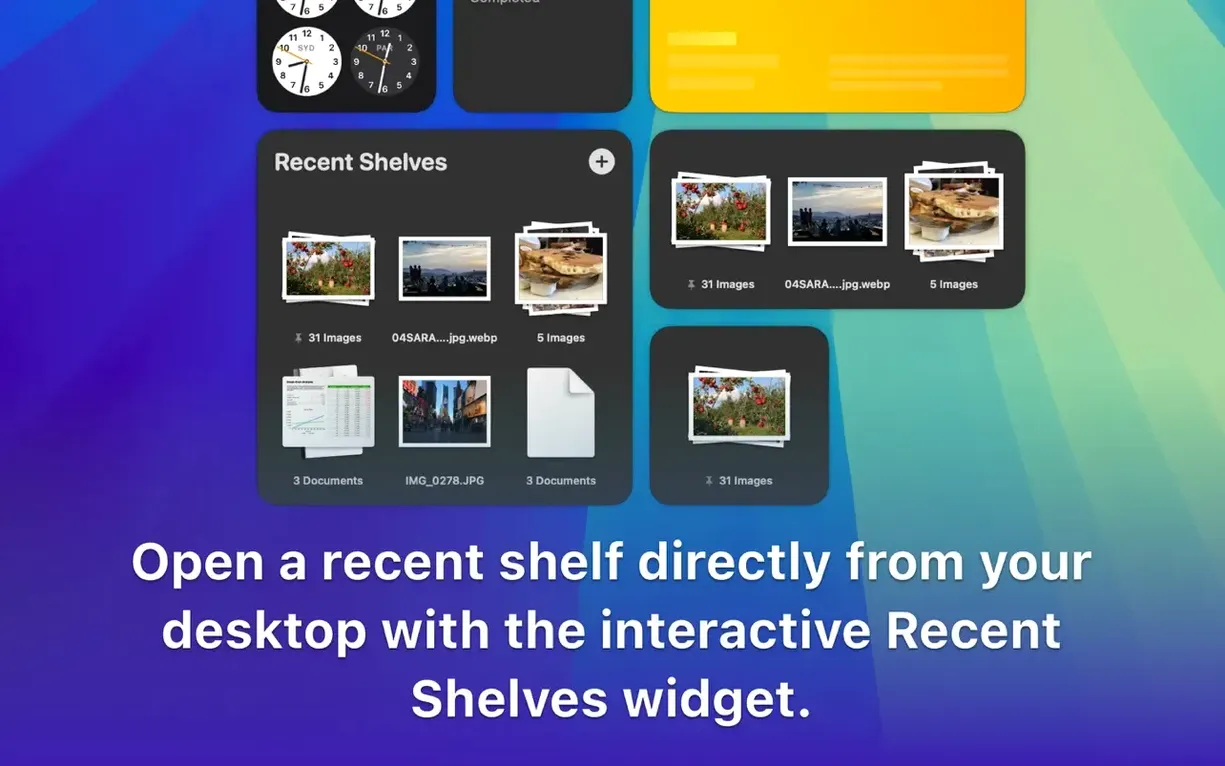
Shortcuts integration arrived, which means you can now trigger shelf actions from a keyboard combo or a Shortcuts widget without touching the mouse at all. If you regularly process screenshots or downloaded attachments, a single shortcut can gather, rename and move them while you stay in your current app.
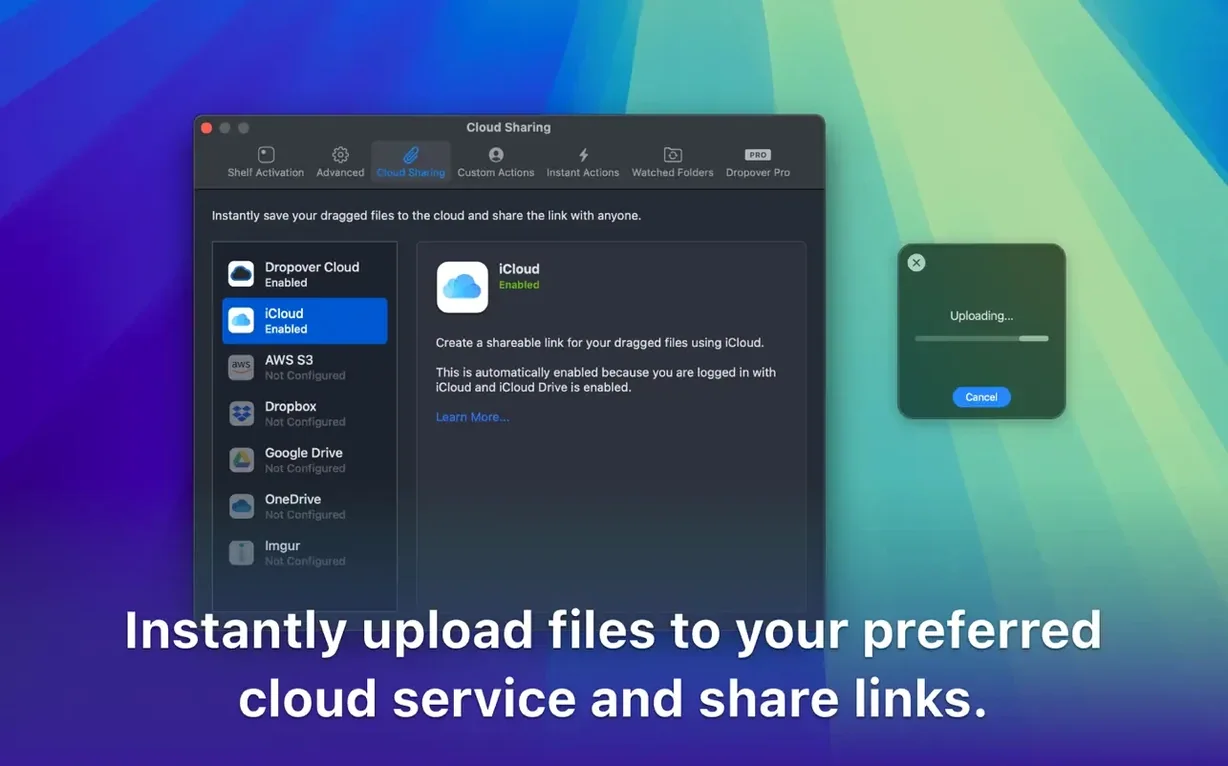
Cloud service hooks became more direct. Dragging a file onto the shelf and choosing Upload to Dropbox or Google Drive now copies the share link to your clipboard automatically — a small change, but it removes the trip to a browser tab.
The shelf itself gained transparency and position controls. If you work on a smaller screen, you can shrink it and park it in a corner where it does not overlap your main window. On a large display, you can make it bigger and keep it centred. The context-menu integration also deepened: Share and Add to Dropover now appear in more places, including Quick Look and the Photos app.
A web researcher's morning
Imagine someone compiling a weekly report from scattered sources — a freelancer, perhaps, or a university administrator. They open Safari, find a reference image, right-click and send it to the shelf. A PDF from a journal follows, dragged from the Downloads stack. They switch to a full-screen Slack window, grab two shared screenshots, and drop them on the shelf — it floats right over the full-screen workspace.
With four items collected, they navigate to the report folder in Finder. A quick drag off the shelf drops everything into place. Then they select all four on the shelf, right-click, choose Rename, and add a prefix like Week_12_ before the files even touch the destination. The whole gathering-and-renaming sequence takes under a minute. No desktop clutter, no intermediary folder.
Requirements
- macOS 12 or later
- Apple Silicon and Intel Macs
FAQ
Does Dropover keep files on the shelf permanently?
No, the shelf holds items temporarily while you move between locations. Once you drop them or clear the shelf, they are gone from the overlay.
Can I add files to Dropover without dragging?
Yes, you can send files to the shelf from Finder right-click menus or from the macOS share sheet in supported apps.
Comments 0
Sign in or create an account to leave a comment.
No comments yet…
If you’ve installed it, say how it went. Mention your Mac and macOS version — it helps the next person more than you’d think.