Drama for macOS
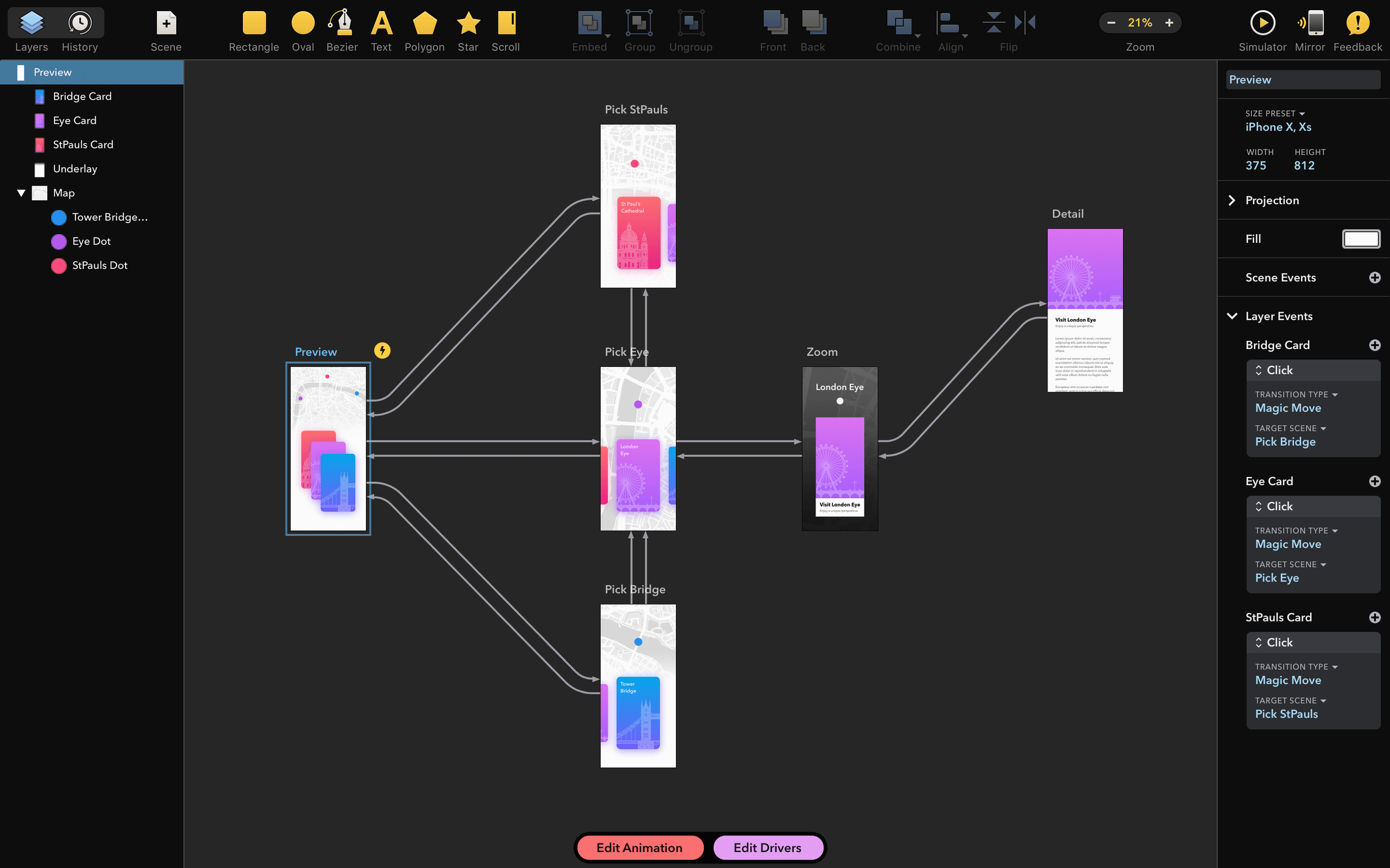
Description
Drama is used by designers who need to move from a static layout to something that moves, reacts, or tells a sequence. It puts design, animation and prototyping in a single window, so you don't have to switch apps for each stage of an idea.
UI prototypes with tap, hover and scroll animations
- Quick UI prototypes that need tap, hover and scroll animations.
- Roughing out motion-design ideas without timeline wrestling.
- Keeping everything — vectors, transitions, screens — in one file.
Intel-only, font-triggered crash fix, and no native ARM yet
- Intel-only. Runs on Apple Silicon through Rosetta, but there's no native ARM build yet.
- macOS 11.5 or later required.
- The current 2.1.4 release fixes a start-up crash triggered by certain fonts, but odd typefaces might still cause trouble.
A short session, start to finish
You open Drama and drop a few iPhone-sized artboards onto the canvas. The left sidebar stays out of the way until you need it. Drawing a button is straightforward — drag a rectangle, round the corners, pick a fill from the inspector. You type a label, centre it, and that's your first state.
Now you want the button to react on hover. You switch to the animation timeline at the bottom of the window. No keyframe spaghetti here. You drag the button's scale property from 100% to 105% over a quarter of a second, then ease it back. Drama auto-adds the in-between frames. You hit the spacebar and the canvas previews the motion instantly.
From hover you move to a tap transition. You duplicate the artboard, tweak the button colour and slide in a new screen from the right. On the prototype tab, you wire the button on Artboard 1 to Artboard 2. You set the trigger to "Tap" and pick a push transition. Another tap of the spacebar and you're testing the flow on the spot.
Twenty minutes in, you've got three screens linked with animated transitions, a working hover state, and a looping loader icon you drew with the vector pen. You haven't opened a separate app. The file saves as a single .drama document you can hand to a developer or keep as a reference.
Narrower than Principle — imports vectors, not Figma files
Drama overlaps with a few well-known Mac design apps, but its focus is narrower — and that's the point.
Principle is the obvious comparison. Both let you animate and prototype, but Principle imports from Sketch or Figma rather than offering its own vector tools. Drama gives you the drawing layer as well. If you need precise, standalone animation without hopping between apps, Drama is tidier. Principle still wins for elaborate timeline control and device mirroring.
Flinto is another Mac-only prototyping tool. It handles micro-interactions beautifully and feels a little more polished around the edges. However, Flinto also relies on external design files — you bring artboards in, you can't build them from scratch. Drama's all-in-one approach cuts out the import-export dance.
Figma needs a mention because it's where most UI work starts these days. Figma's prototyping features are decent for click-throughs, but its animation capabilities are basic. You can't fine-tune an easing curve or build a looping spinner the way you can in Drama. On the flip side, Drama is Mac-only and Intel-based, so there's no web sharing or cross-platform access.
None of these tools is a straight replacement for the others. Drama carves out a niche for people who want to design and animate in one place, on one machine, without a browser tab in sight.
Does it run on Apple Silicon?
Rosetta 2 runs it smoothly on M1 and M2
Yes, through Rosetta 2. There is no native ARM build in version 2.1.4, so you'll need Rosetta installed. Performance is fine for most prototyping work — you won't notice the translation layer on an M1 or M2 machine unless you're pushing heavy animation sequences. If Rosetta isn't already on your Mac, macOS prompts you to install it the first time you launch an Intel app.
Can I open Sketch or Figma files in Drama?
No. Drama works with its own file format and doesn't import from other design tools. You build assets directly on the canvas. If you have existing work elsewhere, you'll be recreating it — that's the trade-off for having vector tools built in.
What happens if the app won't start?
The 2.1.4 update fixed a crash tied to specific installed fonts. If you still hit a start-up problem, a rogue font is the most likely culprit. Try disabling recently added typefaces or running Font Book's validation on your library. It's rare, but font conflicts have been the main drama behind the scenes.
Is it stable for production work?
For prototyping and motion studies, yes. It's not a developer handoff tool — there's no code export or spec mode. Designers use it to prove an idea, test an interaction, or communicate a micro-interaction to a team. It's stable enough for those jobs, and the single-file format keeps things tidy.
If you regularly need to block out interactions fast and don't want a separate animation tool, Drama does the job without much fuss.
What’s new
Fixes a crash on start caused by specific installed fonts.
Requirements
- macOS 11.5 or later
- Intel processor (works on Apple Silicon via Rosetta)
- English interface
FAQ
Does Drama need any setup after installation?
No. Once it's in your Applications folder, it's ready to use — no accounts, plug-ins, or extra downloads required.
Comments 0
Sign in or create an account to leave a comment.
No comments yet…
If you’ve installed it, say how it went. Mention your Mac and macOS version — it helps the next person more than you’d think.