Dorico Pro for macOS
Description
Version 6 brought in over 40 fixes and tweaks. Hidden notes behave better now, which matters when you are cleaning up a full score.
Clean up a messy part
Open the part and switch to Engrave mode. Select a note you want silent in playback but visible in the part, tick ‘Hidden’ in the Properties panel. The update stops these notes from nudging surrounding spacing off-grid.
Notate a cadenza with no bar lines
Insert a time signature, then hide it. Drag barlines away in Engrave mode. Dorico handles stemless notes and tuplets across beat groups by design — no workarounds with invisible rests.
Check timing in the piano roll
Open the MIDI editor in the lower zone. Adjust note lengths and velocities while the notation sits above. The sequencer-style view is useful for tightening up a live recording before you print parts.
Clicking a bar and expecting to type a note
New users often treat Dorico like a word processor. They click on a bar and expect to type a note straight in. The software thinks in terms of flows and players, not bars and staves. Set up a player first, even for a single-line sketch. It saves rework later.
Another common slip: ignoring the left-hand panels. Write mode shows the caret and note toolbox. Engrave mode handles spacing and collisions. Play mode manages sound routing. Switching modes with Ctrl/Cmd plus a number key becomes second nature after a few sessions. Staying in Write mode for everything leads to fighting the layout engine.
Beginners also drag dynamic markings from the palette one at a time. Select a range of notes, then add a dynamic. It propagates across the selection and stays linked. Dragging it to every staff individually is a slow way to work.
A final tripwire: the condensing feature. Dorico condenses multiple player parts onto fewer staves automatically. New users sometimes think it is broken when they see a blank stave. Check the condensing setting in Layout Options before deleting anything.
A workflow: extract a clean clarinet part from a full score
Start with a finished score open in Write mode. You have a full wind band layout and the second clarinet player needs a part for rehearsal tomorrow.
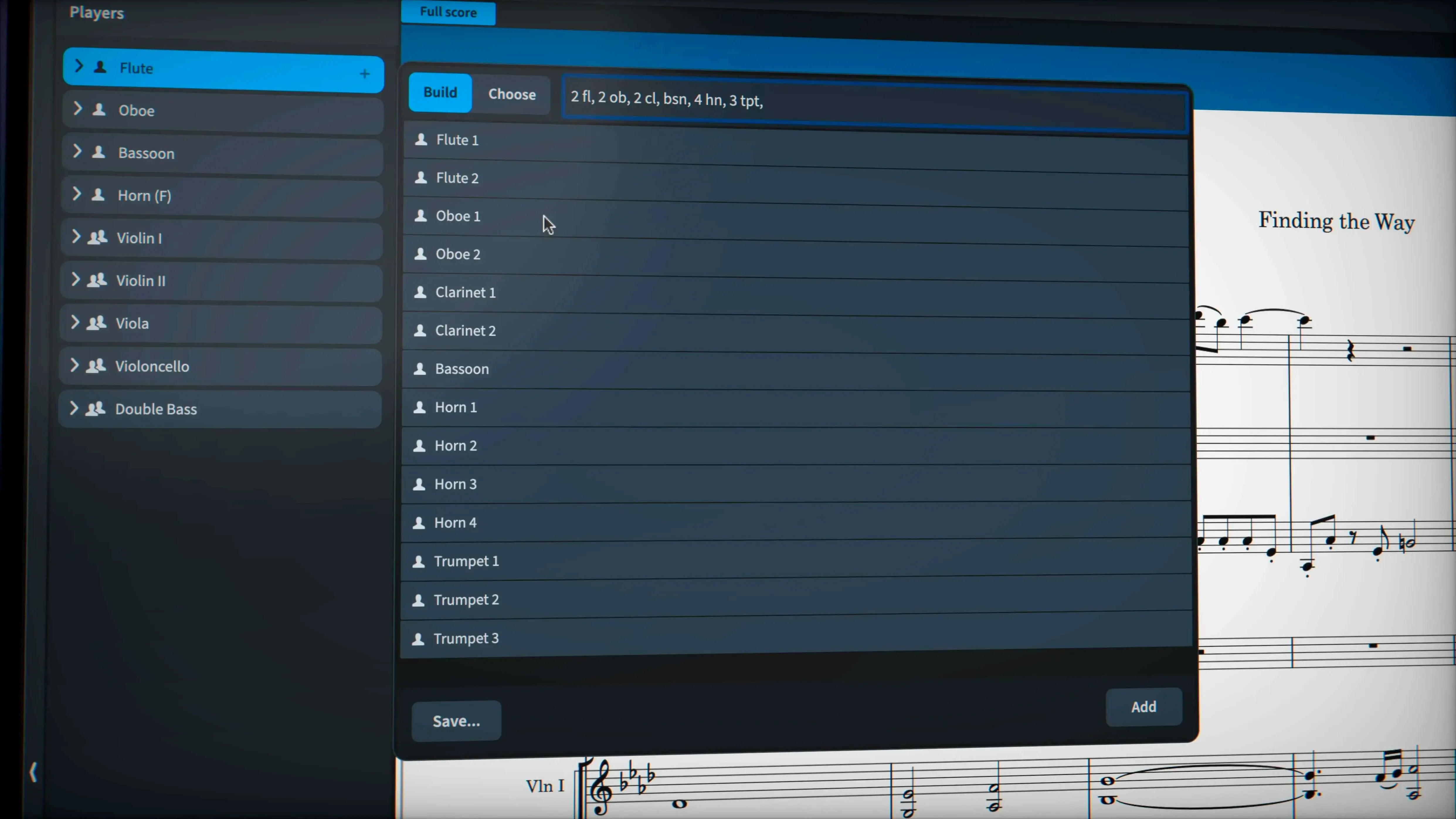
- Go to Setup mode. Under Players, click the arrow next to the Clarinet 2 player. Select ‘Create Layout’ if one does not exist yet.
- Switch to the Print tab. Choose the Clarinet 2 layout. Check ‘Page size’ matches your printer paper. ISO A4 or US Letter, whichever you keep in the tray.
- Enter Engrave mode. Dorico 6.2.30 handles hidden notes cleanly now. If you silenced cue-sized notes earlier, they stay in place without throwing off staff spacing. Scan the part for any collision. The automatic collision avoidance does most of the lifting.
- Multi-rests need a check. Select a multi-rest, open Properties, and set the threshold. A four-bar silence in a fast movement is fine as a single rest. Eight bars in a slow one? Split it so the player has a landmark.
- Add rehearsal marks. Click the first bar of each new section and press Shift+A. Type the letter. They flow through to the part layout automatically.
- Export to PDF from the Print tab. Tick ‘Include only this layout’. The file lands on your desktop, ready to email.
The whole job takes six or seven minutes once you know the steps. The player gets a part that looks engraved, not typed.
Playback note duration at 100% turns staccato into mush
Open Preferences before your first real project. A few changes make daily work smoother.
- Playback note duration. Set it to something shorter than 100%. A staccato passage at full length sounds like mush. Try 80% as a starting point and adjust per project.
- Mouse wheel zoom direction. Some users prefer the opposite of the default. Flip it in Preferences under General so zooming feels like a DAW you already know.
- Auto-save interval. The default is generous. Cut it to five minutes. Large scores with many VST instruments can tax the system, and you want a recent fallback.
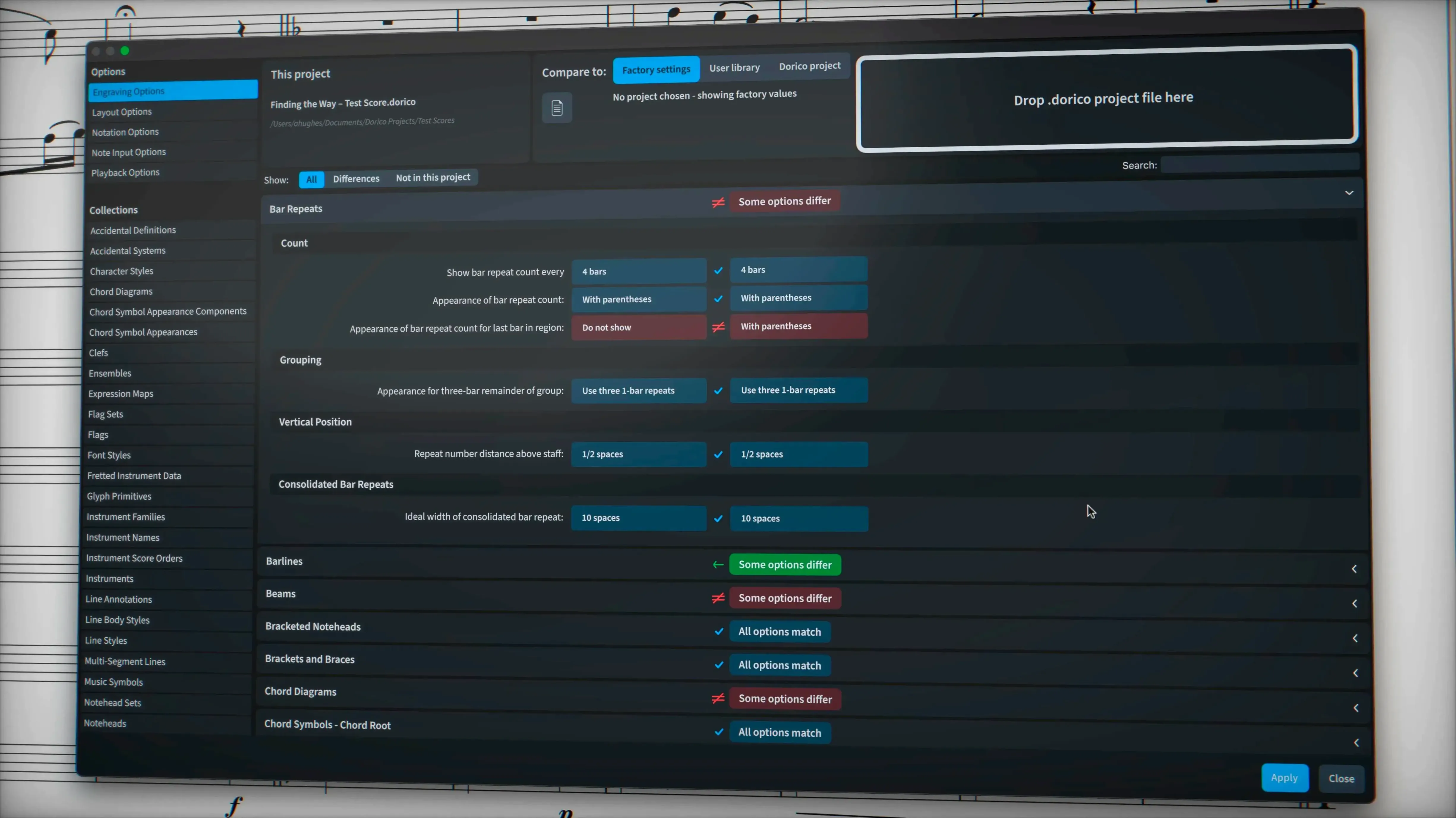
- Note input preset. If you use a MIDI keyboard, switch the default input method to ‘MIDI keyboard’ in the Note Input section. It skips a click every time you start a session.
- Percussion mapping. Dorico ships with sensible defaults, but if you write drum kit parts regularly, set up a custom percussion map early. The map sticks with the template and saves re-mapping every new project.
None of these are hidden or obscure. They are just the first things a help-desk call would ask you to check.
Tapping the spacebar mid-phrase in the viola part
The laptop is on the kitchen table. A half-finished string quartet sits open from last night. You left off at bar 42, mid-phrase in the viola part.
You tap the spacebar. Playback starts from the last selected note. The Halion Sonic SE viola patch is serviceable for checking voice-leading, though you make a mental note to route it through a Spitfire library later. The inner parts move fine, but the second violin crosses above the first for two beats. You stop playback and click the note. Shift+Alt+Up moves it down an octave. The crossing resolves.
Now you need to add four bars before the development section. In Write mode, you select bar 56 and press Shift+B to open the bars popover. Type +4 and press Enter. Four empty bars appear. The music after them shifts right across all parts. No manual cut-and-paste across staves. The layout recalculates in under a second.
Time to check the cello line. You open the lower zone and drag the piano-roll editor up. The MIDI data shows the sustain pedal held a beat too long, blurring the bass line. You shorten the CC64 bar with the mouse. The notation updates to match. Playback sounds cleaner immediately.
You spot a wiggly glissando in the first violin from last week. The 6.2.30 update added the option to draw it with the traditional trill wiggle glyph instead of a plain line. You select the glissando, open Properties, and switch the line style. The part now matches what the performer expects to see. Small fix, but it matters in the parts.
A quick Save, then File > Export > MusicXML. You promised the cellist a version she can open in her own software. The export goes through without the tuplet bracket glitches the earlier build sometimes had. You attach the file to an email and close the lid.
Thirty minutes, six edits, one export. The session was short, but the score moved forward. That is how the software earns its keep — it stays out of the way while you write.
Requirements
- macOS 12 or later
- Apple Silicon or Intel Mac
FAQ
Can I draw a wiggly glissando line?
Yes. You can use the traditional trill wiggle glyph or pick a line style from the project settings.
Does it support third-party instrument plugins?
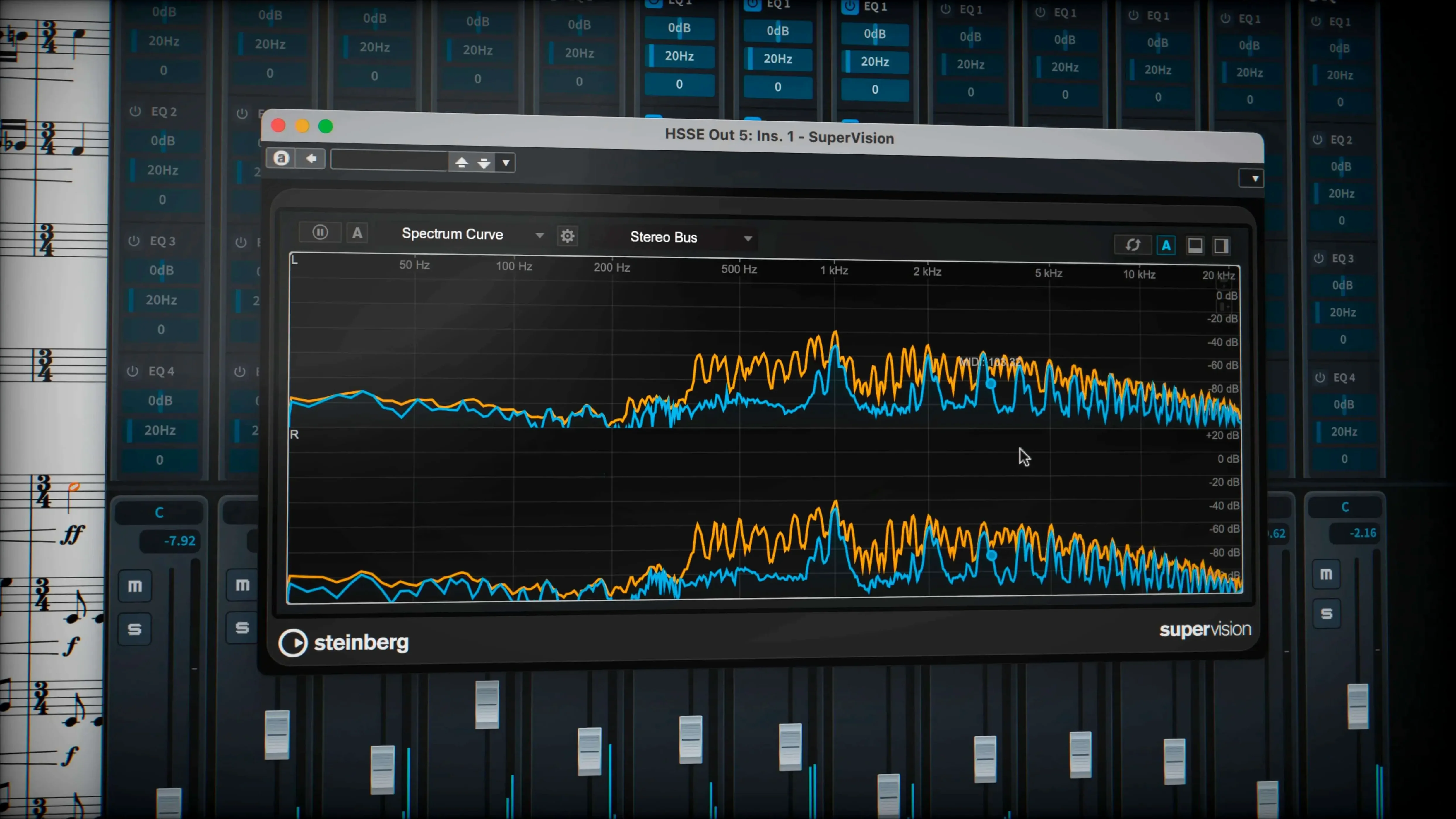
It supports VST 3 virtual instruments and effects processors, and includes 30 VST 3 processors of its own.
How do I exchange files with someone using a different program?
Export via MusicXML, MIDI or PDF. It handles complex chord symbols and percussion notation so the transfer stays accurate.
Comments 0
Sign in or create an account to leave a comment.
No comments yet…
If you’ve installed it, say how it went. Mention your Mac and macOS version — it helps the next person more than you’d think.