Downie for macOS
Description
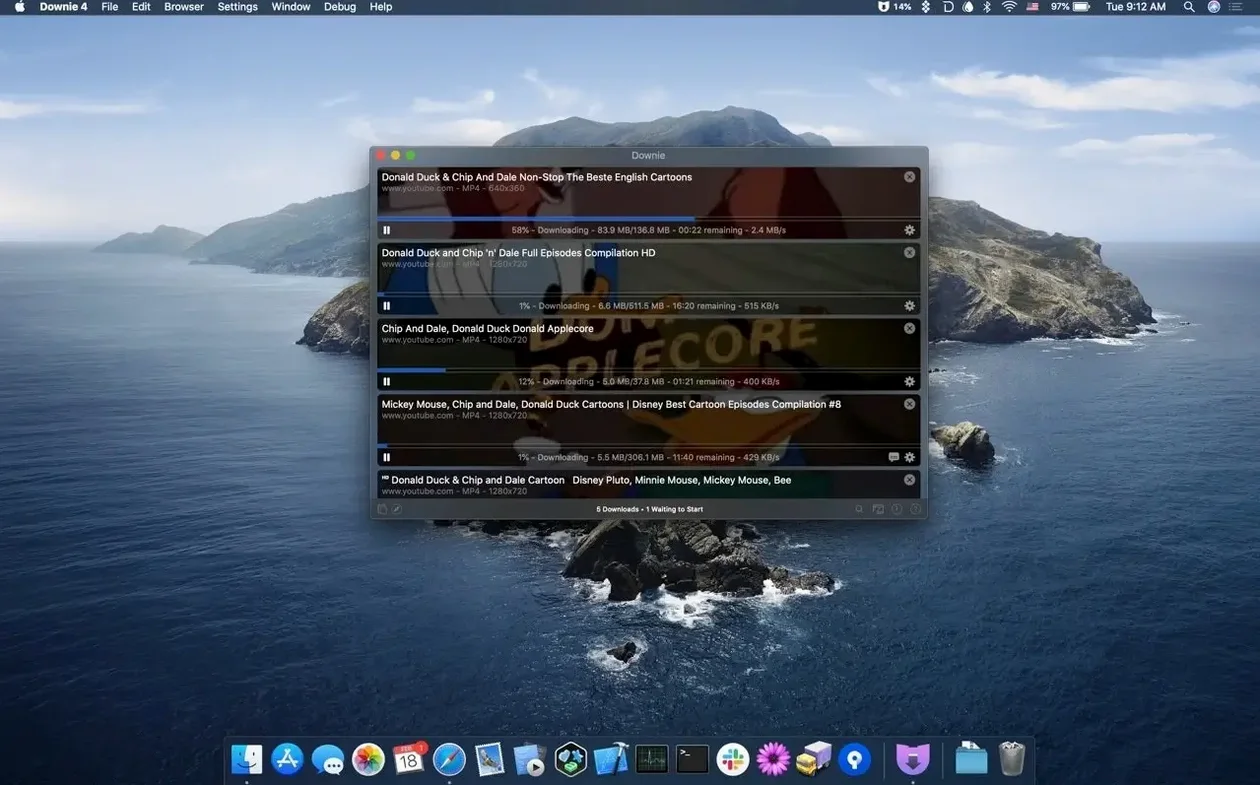
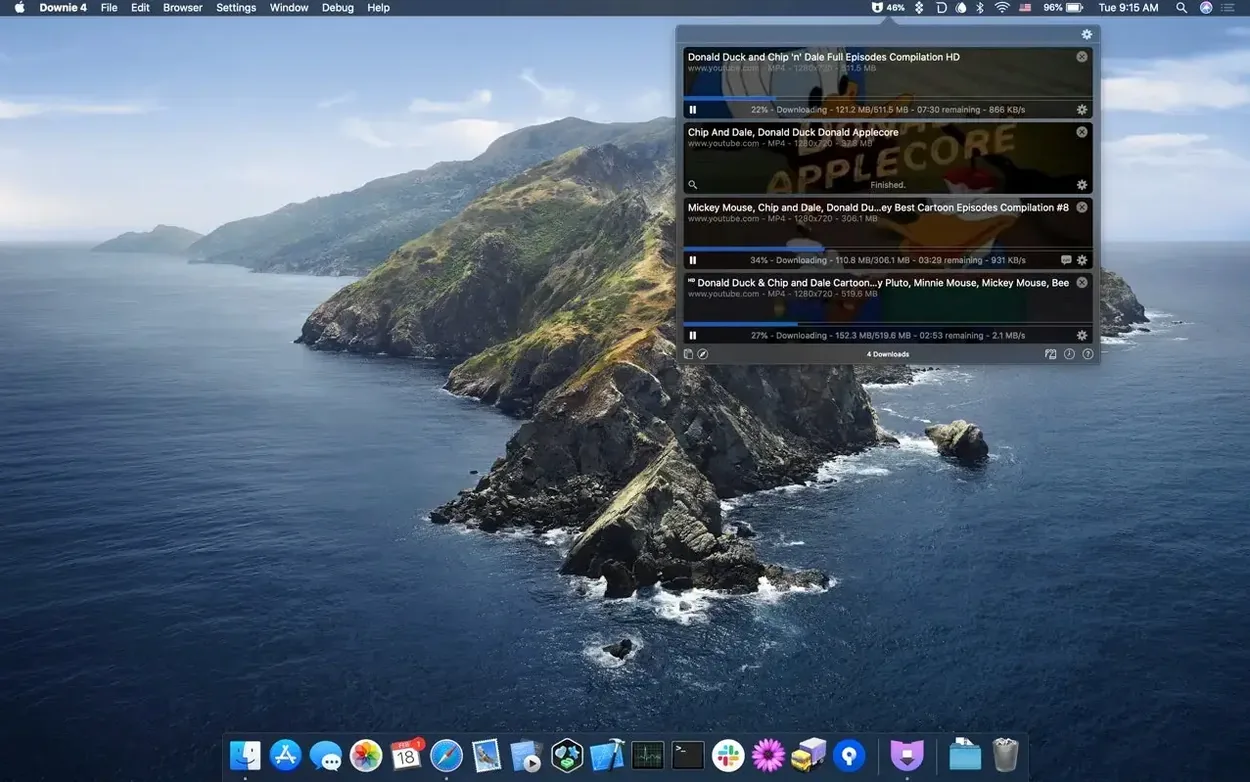
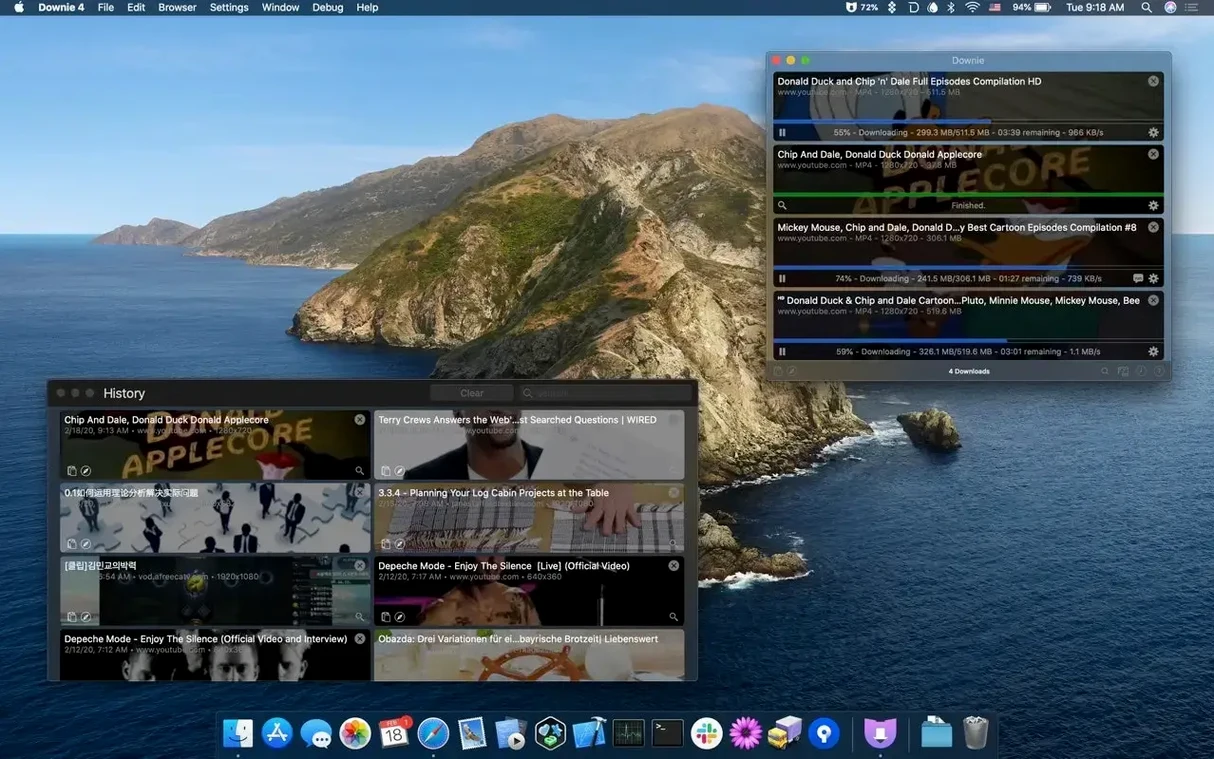
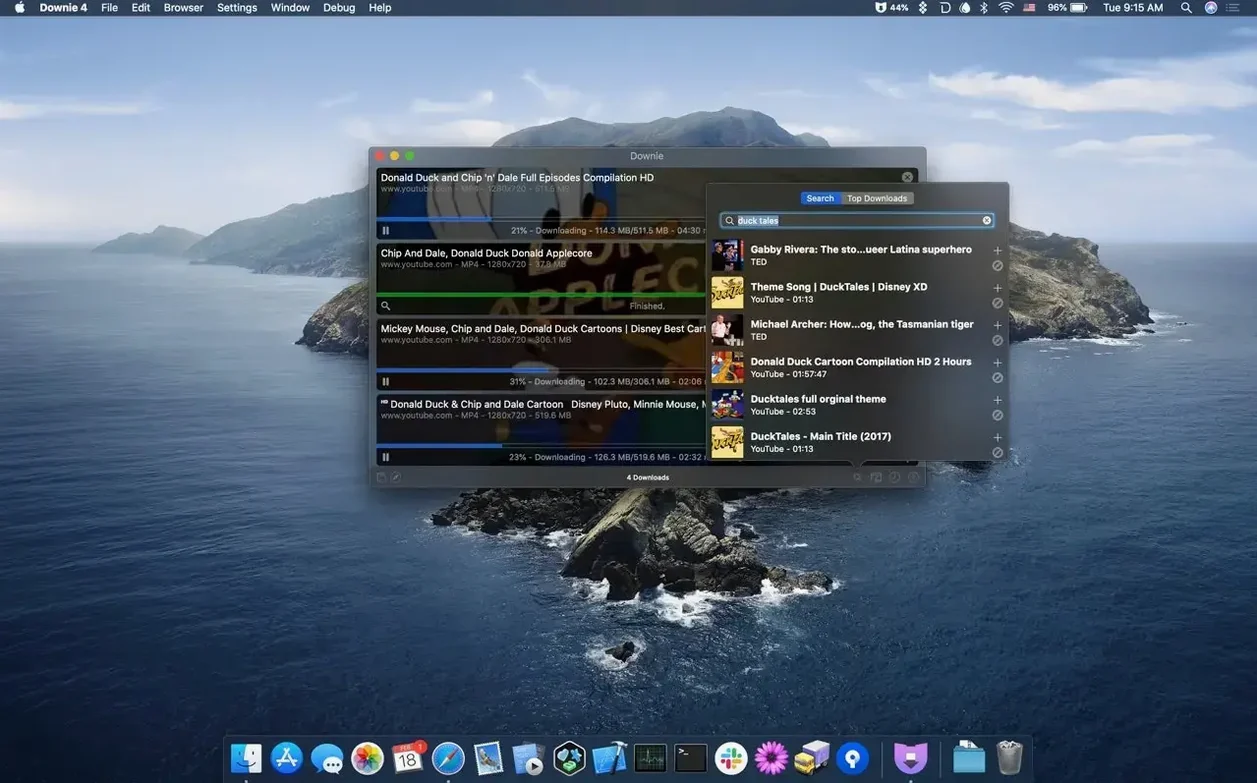
Downie is a straightforward Mac app that saves online videos to your drive. You paste or drag a URL into its window and the download starts immediately.
Needs Big Sur or newer, runs native on Intel and Apple Silicon
Downie needs macOS 11 (Big Sur) or newer. It runs natively on both Intel and Apple Silicon Macs.
Grab full video or extract audio, with on‑the‑fly MP4 conversion
You can grab the whole video or extract just the audio track. Downloads can convert to MP4 on the fly, and there are browser extensions to send links across quicker.
After the download
ClipGrab is free but lighter; JDownloader is broader but clunkier
Two Mac apps people often weigh up alongside Downie are ClipGrab and JDownloader. They all fetch online videos, but the feel is different.
ClipGrab is a free, open-source effort. It handles YouTube and a modest list of other sites. The interface does the job, nothing more. It doesn't offer an extension, doesn't have native Apple Silicon support (runs via Rosetta), and you'll find conversion options are limited to a handful of presets. If you grab a video once a month, it's fine.
JDownloader is a different beast — a download manager built for any file, not just video. It can rip whole playlists and handle premium accounts for file hosts. The trade-off is complexity. Its Java-based interface feels alien on macOS, and RAM usage can balloon. Video-specific features like audio-only extraction or instant MP4 conversion need extra fiddling with plugins.
Downie sits between those two worlds. It pulls from far more video sites than ClipGrab, feels like a native Mac citizen, and doesn't carry the bulk of a full download manager. The browser extension means you don't even need to copy links — just click a toolbar button on a supported page. For someone who regularly saves videos, that speed matters.
Hands off finished files to Permute for automatic format conversion
Downie plays well with the Mac ecosystem in a few quiet ways.
Permute. The tightest integration. After a download finishes, Downie can automatically send the file to Permute for conversion into whatever format you've set. You can also stitch together video parts that arrive as separate files — Permute handles the join and Downie manages the queue. The two apps share a similar no-fuss design.
Browser extensions. Available for Safari, Firefox, and Chromium-based browsers. Once installed, the extension adds a button to supported pages. Click it and Downie wakes up, grabbing the current video without you touching a URL. For sites that use obfuscated links, this is far more reliable than copying the address bar.
macOS Shortcuts. Downie exposes actions to the Shortcuts app. You can build a shortcut that takes a URL from the clipboard, passes it to Downie, and drops the finished file into a specific folder — all without opening the main window.
Notification Centre. Download-complete alerts appear as standard macOS notifications. If you've set up a Focus mode, they respect it rather than barging through.
Zero‑percent failure often fixed by a site‑support update
Download sits at zero percent, then fails. This usually means the site updated its video delivery method and Downie's parsing hasn't caught up yet. Use the built-in menu item Check for Updates — site-support updates come frequently, often weekly. If that doesn't fix it, try the browser extension instead of a copied link; the extension sometimes finds a stream the URL alone misses.
macOS blocks the app on first launch. Apple's Gatekeeper flags unsigned apps. If you see a warning saying the app can't be checked, open System Settings → Privacy & Security and click Open Anyway. You only need to do this once.
Browser extension won't connect. After installing the extension, make sure Downie is running before you click the extension button. If the connection still fails, quit Downie, open it again while holding the Shift key, then retry. Holding Shift forces a fresh listener for extension requests.
4K download isn't available. Not every video on a supported site has a 4K source. Downie shows the best available quality by default. If a 4K option exists but isn't picked, check Preferences → Quality and set the preferred maximum to Best Available (up to 4K).
Set a dedicated incoming folder and enable auto MP4 conversion
- Pick a download folder. Open Preferences → Saving and point it somewhere sensible. The default is your Downloads folder, which gets messy fast. Create a dedicated folder like
~/Movies/Incomingand set it there. - Turn on automatic MP4 conversion. In Preferences → Post-processing, set Convert to MP4. Many sites deliver video as MKV or webm files. MP4 plays on everything without extra codecs.
- Install the browser extension. Do this on day one. It saves you from switching windows just to paste a link. Grab it from the developer's site for your browser.
- Set a quality cap. If your internet connection isn't fast or your drive space is tight, cap downloads at 1080p in Preferences → Quality. 4K files from YouTube can be several gigabytes each.
- Test audio-only extraction. Drop a music video URL into Downie, right-click it in the queue, and choose Extract Audio Only. Check the output format in preferences first — MP3 and AAC are both there.
Downie can hand files off to Permute for further conversion if you own both apps. It also supports 32 interface languages for a localised experience.
Requirements
- macOS 11 or later
- Apple Silicon or Intel Mac
FAQ
Can Downie download just the audio from a video?
Yes. Select the audio-only option and Downie saves the soundtrack without the video track.
Does Downie work with Safari and other browsers?
Browser extensions are available so you can send a video link straight to Downie without leaving the page.
Comments 0
Sign in or create an account to leave a comment.
No comments yet…
If you’ve installed it, say how it went. Mention your Mac and macOS version — it helps the next person more than you’d think.